

Sales and orders
Bring your sales from your old till
Moving to itsPOS from another till? Bring your daily sales per product, up to 24 months back, so Compare on reports (for example Same dates last year), the Overview and suggested orders have something to compare with from your first day. "This is for comparisons only. It does not add sales, VAT or money to your accounts."
For: Owners and Admins4 min read
In our test shop we imported two weeks of Green Street Grocer's sales from August 2025 (70 rows, £1,055.69), checked them and undid the import again.
Before you start
- Owners and Admins import sales from an old till. It's on every plan.
- Export your sales from your old till: one row per product per day, with the Date, the Shop, the product (its SKU, barcode or name), how many sold and the sales amount. On the first step, Download a template (or CSV template) to see the layout.
- Files can be .csv, .xlsx or a zipped .csv, up to 5 MB and 1,000,000 rows. For a big history, zip the file or import a year at a time.
- Add your products first (Catalogue › Products): rows are matched to them by SKU, then barcode, then name.
Our file started like this:
Date,Shop,SKU,Barcode,Product,Quantity,Sales
19/08/2025,Green Street Grocer,SKU-00057,5000181030341,Arla Uht Milk Semi Skimmed 1l,23,26.45
19/08/2025,Green Street Grocer,,5449000000996,Coke Can 330ml,18,17.82
19/08/2025,Green Street Grocer,,,Paper bag (old till),22,2.20
Import a file
Go to Sales › Sales from your old till and press Import a file.
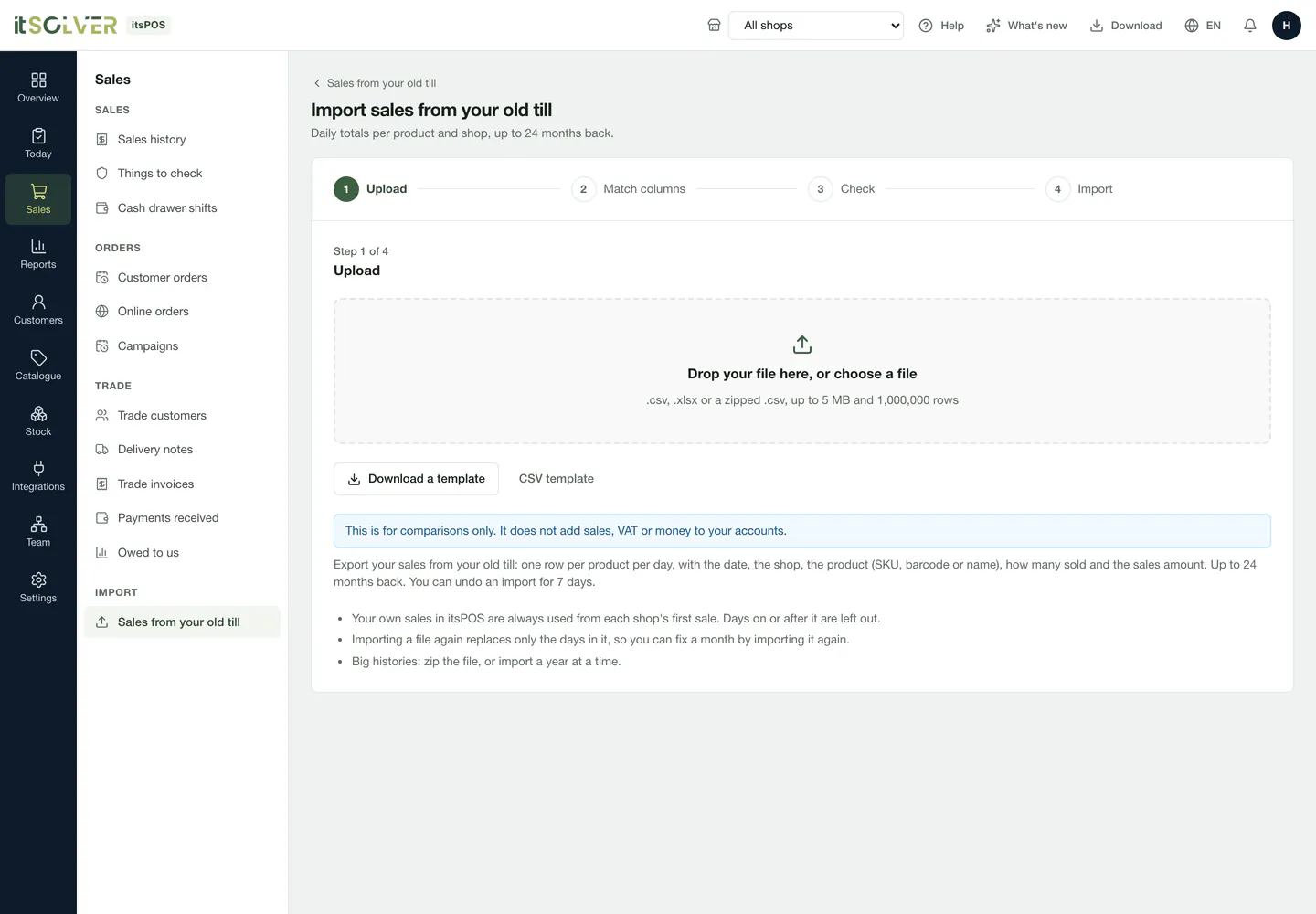
Import sales from your old till, step 1 Upload Upload: choose your file.
Match columns: check each of your columns is matched to the right field (Date, Shop, SKU or product code, Barcode, Product name, Quantity sold, Sales). Then choose:
- The sales amounts in your file: Include VAT (what customers paid), or Don't include VAT: add each product's VAT rate.
- Dates like 03/04/2026 are: Work it out from the file (day first unless it shows otherwise), or day/month/year, or month/day/year.
- Shop, when the file has no Shop column (with more than one shop).
- Products that aren't in itsPOS: Count them in each shop's totals, or Leave them out.
Press Check the file. The check says how many rows and days, how the products were found, and each shop's dates, days, items sold and sales, and its First sale in itsPOS. Example: "70 rows: 70 to import for 14 days." Green Street Grocer, 19 Aug 2025 – 1 Sept 2025, 14 days, 1,179 items, £1,055.69. "1 product isn't in your products" lists anything not matched, here "Paper bag (old till)".
Check these totals against your old till. Then press the import button, for example "Import 70 rows". "Done. 14 days added, 0 replaced, 0 unchanged. Reports and the Overview compare with them from now on."
What you have
Sales › Sales from your old till shows, for each shop, the dates, days and sales you have from the old till, for example "Comparisons use your old till's sales up to 1 Sep 2025. Your own sales in itsPOS are used from 19 Aug 2026." Past imports lists every file with its dates, rows, status, who imported it (by name) and when; the import itself says "Imported by … on …" and, after an undo, who undid it.
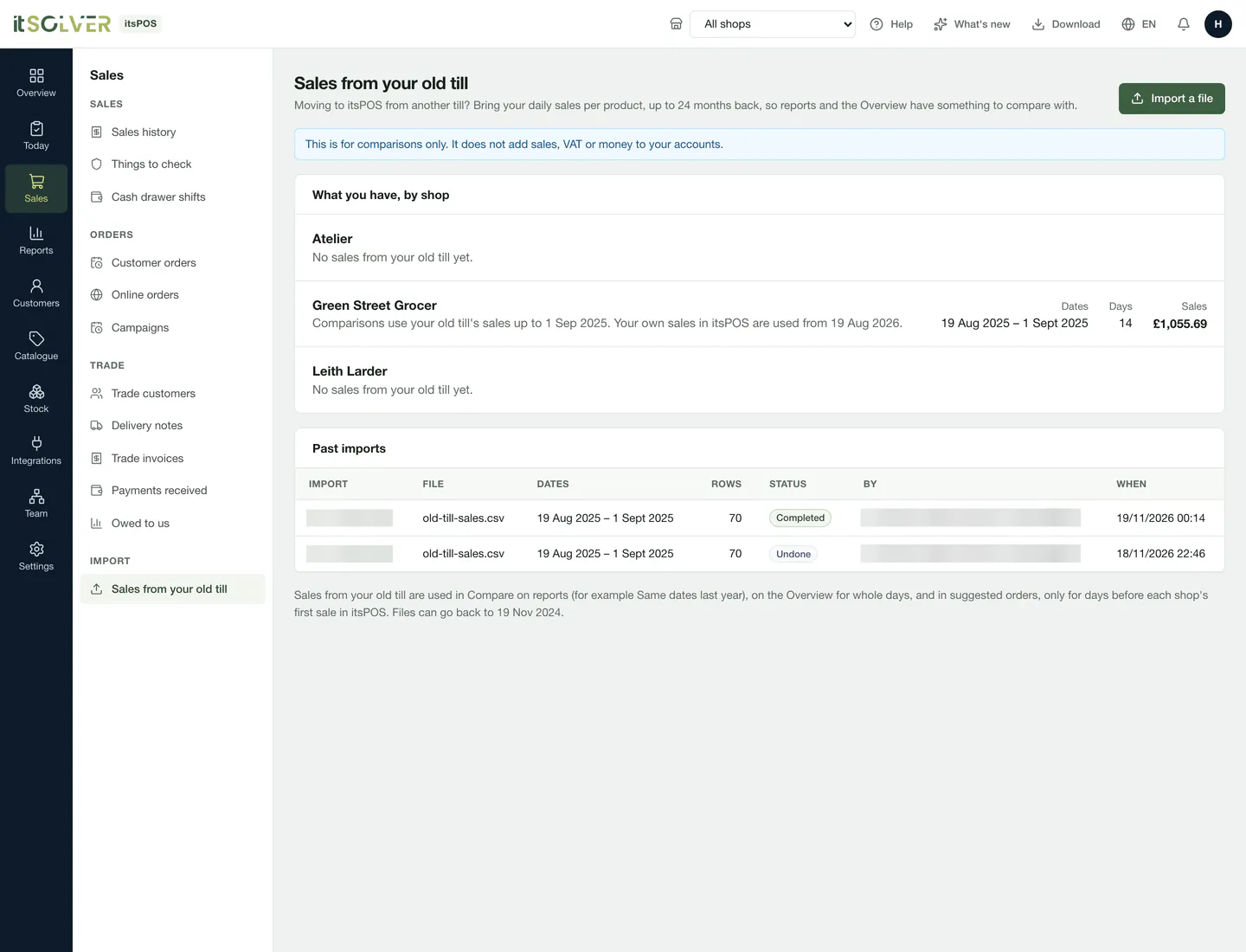
- Your own sales in itsPOS always win: days on or after each shop's first sale in itsPOS are left out.
- To fix a month, import a file with that month again: it replaces only the days in it, and leaves days that are the same as they are.
Undo an import
For 7 days, open the import from Past imports and press Undo this import. It says what it removes and puts back, for example "This removes the old till's sales for 14 days and puts back 0 days as they were before this import." Press Undo import: "Undone."
What happens next
- Reports' Compare, the Overview (whole days) and suggested orders use the old till's sales for days before each shop's first sale in itsPOS.
- Products not in itsPOS count in each shop's totals (if you chose so), never in product comparisons or suggested orders. Add them to Products and import the file again to match them.
If something goes wrong
- "Match a column to …" The file needs a date, a quantity and an amount, and a SKU, barcode or product name.
- "Two columns are matched to …" Each field can be matched to one column only.
- Totals don't match your old till. Check The sales amounts in your file (with or without VAT) and the date order, then Check again.
Still stuck?
The itsPOS support team is here 08:00 to 20:00 every day except Christmas Day.
- Call or WhatsApp: +44 7488 880320
- Email: support@itspos.io
- In the back office: Help › Contact support, or go to app.itspos.io/help/contact after you sign in
- On our website: itspos.io/contact
Tell us your shop's name and what you were trying to do. A screenshot of the screen helps.