

Real shop situations
Moving to itsPOS from another till
A grocer switches to itsPOS after ten years on another till system. They want to keep their products, compare this year with last year from day one, keep their 1,200 loyalty members and their points, and know what each trade customer owes.
For: Owners and Admins4 min read
The situation
The old till can export spreadsheets (CSV files): the product list, sales per product per day for the last two years, the loyalty card holders with their points, and the trade accounts with their balances. Each goes into itsPOS through its own import. Every import checks the whole file first and saves nothing until you press the import button.
Do them in this order: products first, because sales and stock are matched to your products.
1 Products
- Export the product list from the old till.
- Go to Catalogue › Import products, drop the file and Match columns.
- Press Check the file, fix any rows with problems, then press the import button.
Full steps: Bring your products from your old till.
2 Two years of sales
Export daily sales per product (date, shop, SKU or barcode, quantity sold and sales) for the last 24 months.
Go to Sales › Sales from your old till and press Import a file. Upload it and Match columns.
Press Check the file. It shows each shop's dates, days, items sold and sales, and its First sale in itsPOS. Check the totals against your old till's reports.
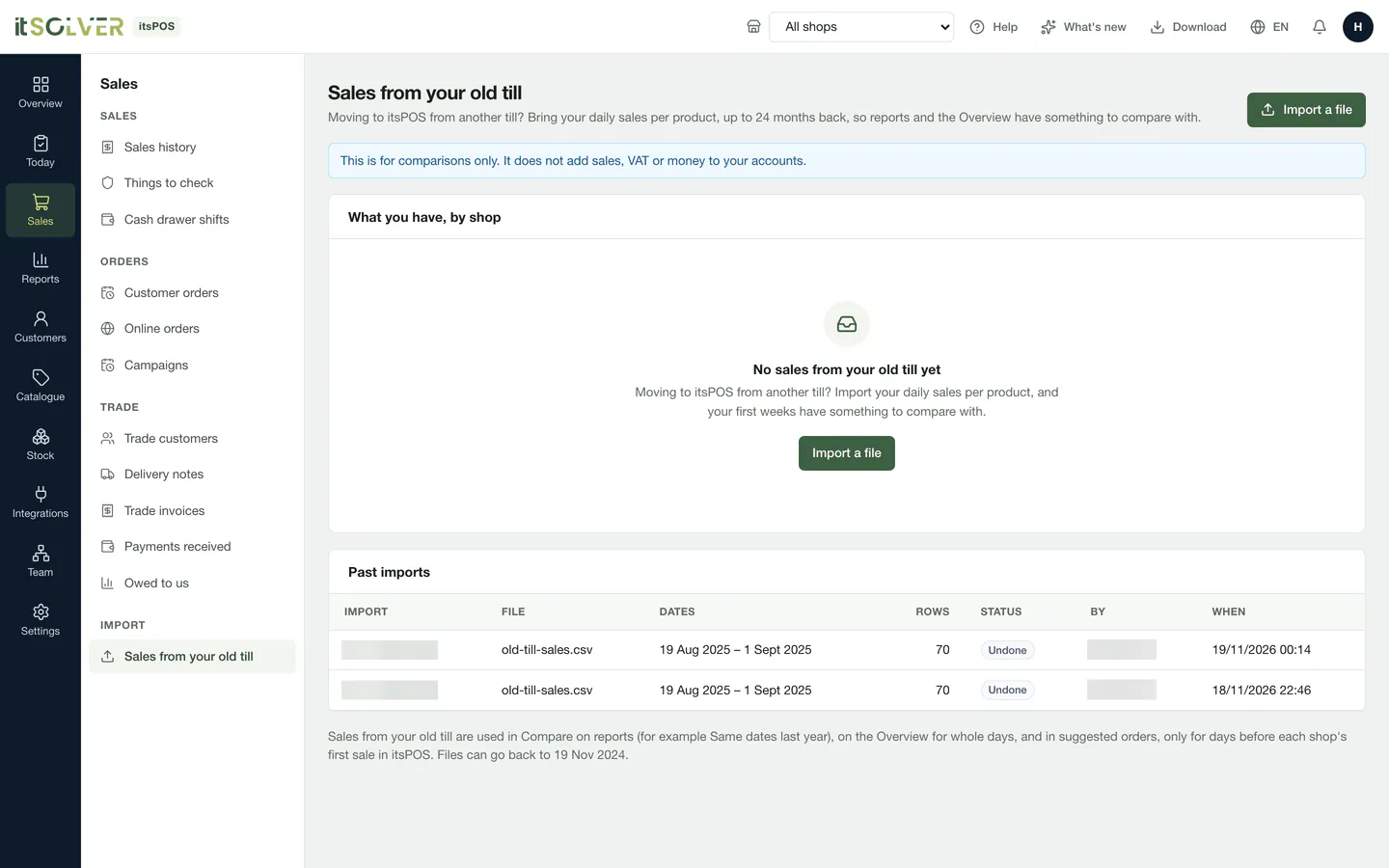
Sales › Sales from your old till Press the import button, for example "Import 70 rows". "Reports and the Overview compare with them from now on."
From then on, reports' Compare, the Overview and suggested orders use the old till's sales for the days before your first sale in itsPOS. Your own sales in itsPOS always win: days on or after your first sale in itsPOS are left out of the import.
3 Loyalty members and their points
Your 1,200 card holders become invited customers. When each one joins itsPass, by text at your till or from an email, their points come with them.
Export the card holders: name, email, mobile, customer number, points, and whether they agreed to emails.
Go to Customers › Invitations and press Import and invite a list. Upload the file and press Check the file.
The check says who gets an email invitation and who is invited in the shop, for example "1,200 rows: 1,180 new, 0 updated, 0 unchanged, 20 with problems. 640 get an email invitation, 540 are invited in the shop." Only people who agreed to emails, or who bought from you and could say no then, get an email.
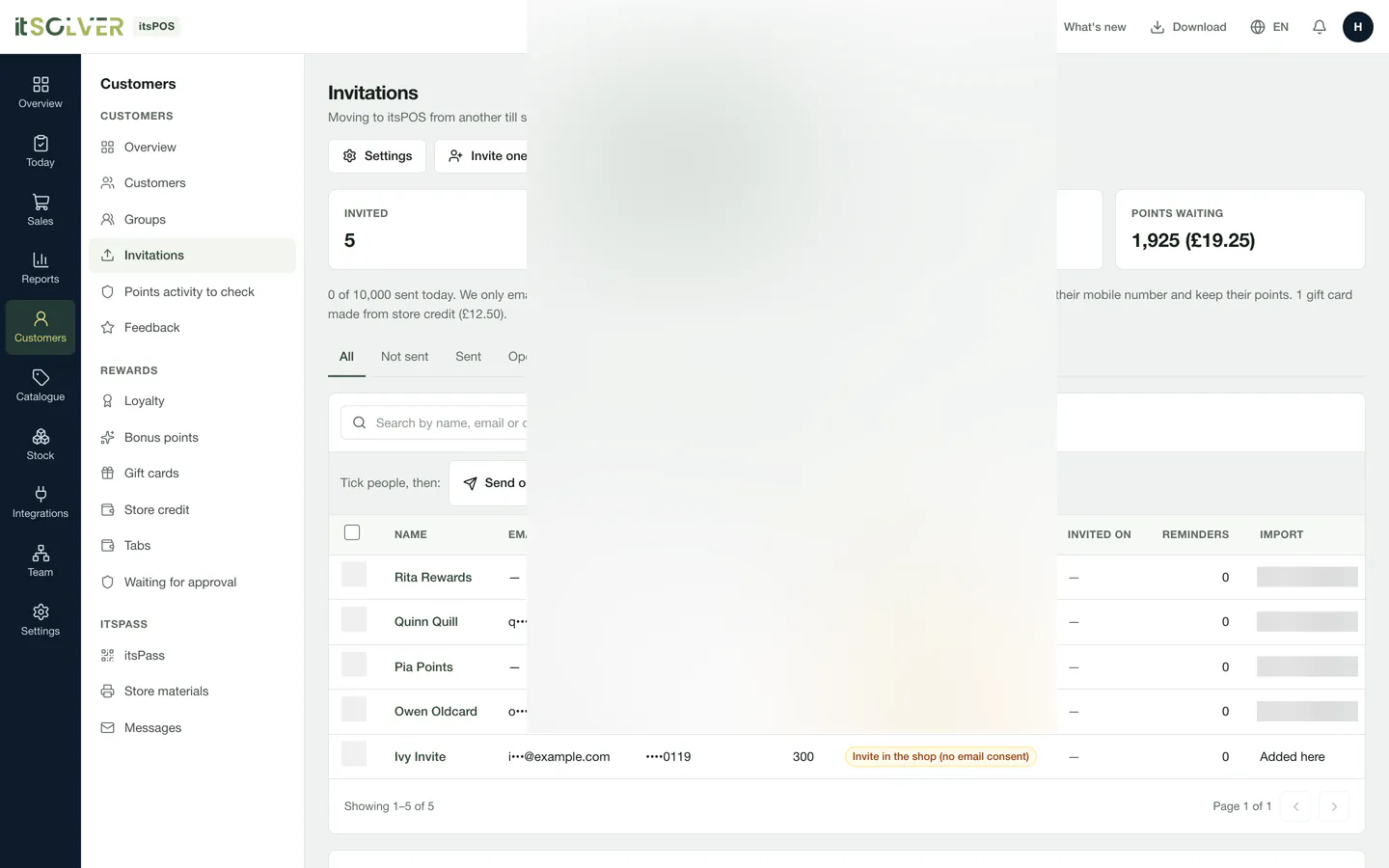
Customers › Invitations Press the import button. Rows with problems (often "Add an email or a mobile number") are skipped and listed under Past imports.
Customers invited in the shop join at the till with their mobile number and keep their points.
4 Trade customers and what they owe
- Export the trade accounts: company name, contact, credit limit, payment terms and the balance owed.
- Go to Sales › Trade customers and press Import from another system. Choose the shop they're supplied from, then Choose CSV file.
- itsPOS checks every row first, for example "trade-accounts.csv: 2 trade accounts, £244.20 owed in all."
- Press the add button, for example "Add 2 trade accounts". What each one owes becomes an opening balance on their account.
What you'll see afterwards
- Every import is listed under Past imports with what it did. Product, sales and invitation imports can be undone for 7 days with Undo this import.
- Invited customers show in Customers › Customers until they join itsPass. Their points wait for them.
- Opening stock is a separate import: see Set up the catalogue and stock for a new shop.
Guides used
Still stuck?
The itsPOS support team is here 08:00 to 20:00 every day except Christmas Day.
- Call or WhatsApp: +44 7488 880320
- Email: support@itspos.io
- In the back office: Help › Contact support, or go to app.itspos.io/help/contact after you sign in
- On our website: itspos.io/contact
Tell us your shop's name and what you were trying to do. A screenshot of the screen helps.