

Online store
Click and collect: pick, pack and hand over at the till
A shopper orders and pays online, you pick and bag the order, and they collect it at your shop. Picking happens in the back office; handing over happens at the till or in the back office.
For: Shop managers, Supervisors and CashiersOn some plans3 min read
Needs itsPOS Till 0.5.18 or later.
Before you start
- Your store has a collection point for the shop (Delivery and collection).
- Staff who hand over at the till need a role that may hand over online orders: every built-in role that sells may.
Pick and pack
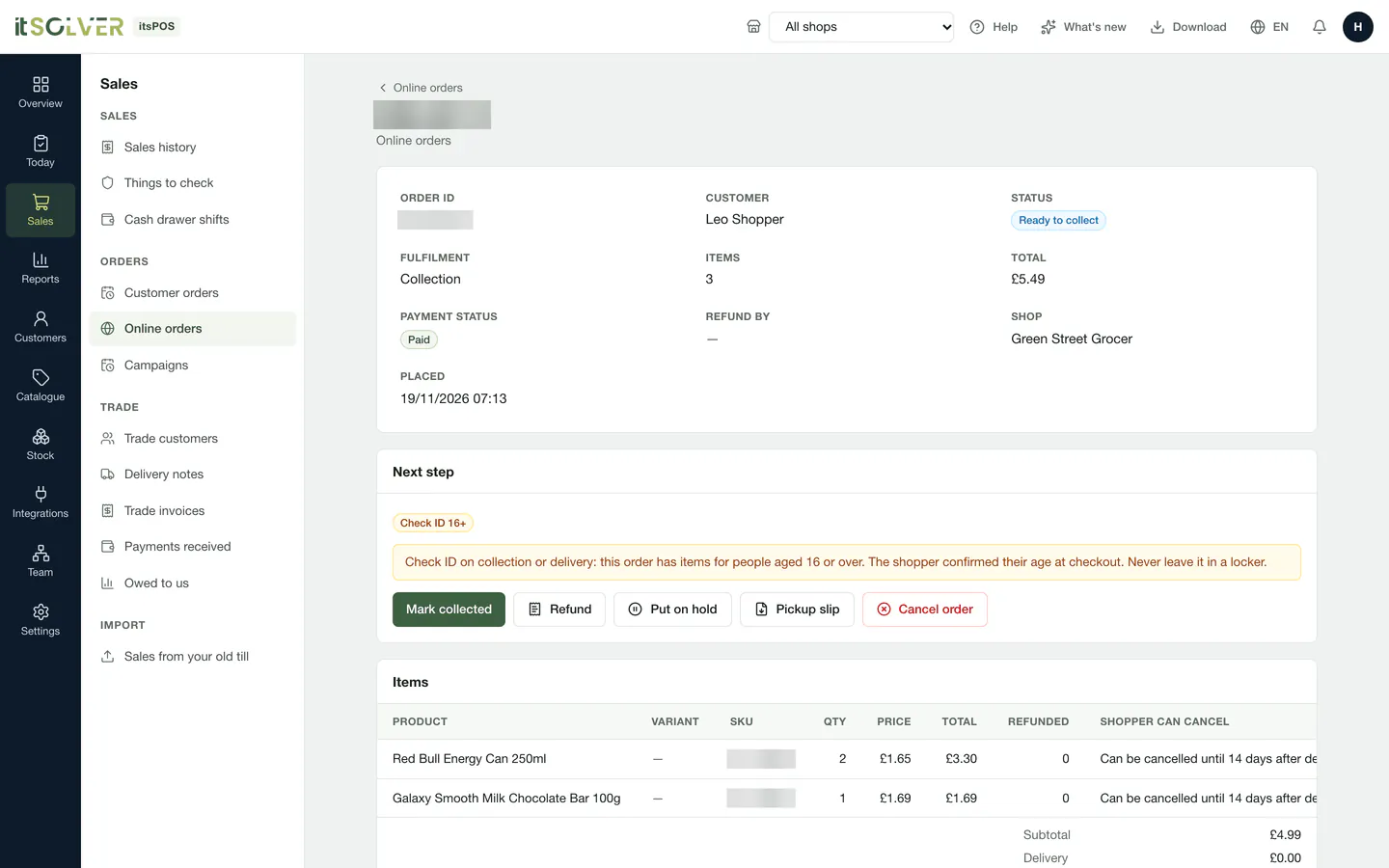
- In Sales › Online orders, open an order with Fulfilment Collection and status New.
- Press Accept and pick. The shopper is emailed that you are preparing it.
- Under Pick list, press Print and pick the items in the order shown. Set each product's Location in shop to sort the list by aisle.
- Bag the order. Press Pickup slip and tape the page to the bag: it has the order number as a QR code.
- Press Mark ready to collect. The shopper is emailed "Your order is ready to collect", with what to bring.
If an item has sold out, refund just that item before you mark it ready (Refunds, cancellations and returns).
Hand it over at the till
- On the till, open Customer orders and the Online collection tab. Paid orders waiting at this shop are listed oldest first, with "Ready 3 days" and "Check ID 18+" where it applies. You can also scan the pickup slip's QR code on the sell screen.
- Tap the order. Check the items with the shopper.
- If it says Check ID (for example 16+ for energy drinks or 18+ for alcohol), tap ID checked, or Clearly over 25 if they clearly are. No ID, no hand-over: refuse it and the order stays at the shop.
- Tap Collected. Nothing is charged: it was paid online. The shopper is emailed a thank you.
The hand-over works offline too; it is sent when the till is back online.
Refund items at collection
If the shopper doesn't want an item (it was damaged, or they changed their mind), tap Refund items, choose how many of each with − and +, choose why, and tap Refund to the online payment. The money goes back to the card they paid with; the items go back on the shelf. This needs the till online, and a cashier above their refund limit needs a manager's approval.
Hand it over in the back office
Open the order and press Mark collected. Check the shopper's ID yourself first if the order has age-restricted items.
If something goes wrong
- The order isn't on the till: it isn't paid yet, it's for another shop, or it's already collected.
- "Online order … isn't waiting at this shop." after scanning a slip: the order is for another collection point.
- The order shows On hold: check with a manager before handing it over; a manager releases it in the back office.
Still stuck?
The itsPOS support team is here 08:00 to 20:00 every day except Christmas Day.
- Call or WhatsApp: +44 7488 880320
- Email: support@itspos.io
- In the back office: Help › Contact support, or go to app.itspos.io/help/contact after you sign in
- On our website: itspos.io/contact
Tell us your shop's name and what you were trying to do. A screenshot of the screen helps.