

Online store
Putting products online
A product shows in your online store when Sell online is ticked on it. Everything else (the photo, price, size, allergens, stock) comes from the product as you already keep it. This guide uses Heinz Baked Beans in A Rich Tomato Sauce 415g from our test shop.
For: Owners, Admins and Shop managersOn some plans4 min read
Before you start
- Your online store is set up (Open your online store).
- The product has a price, a good photo and is in a category with Show online ticked.
Put one product online
Open Catalogue › Products and the product.
Scroll to the Online store card and tick Sell online.
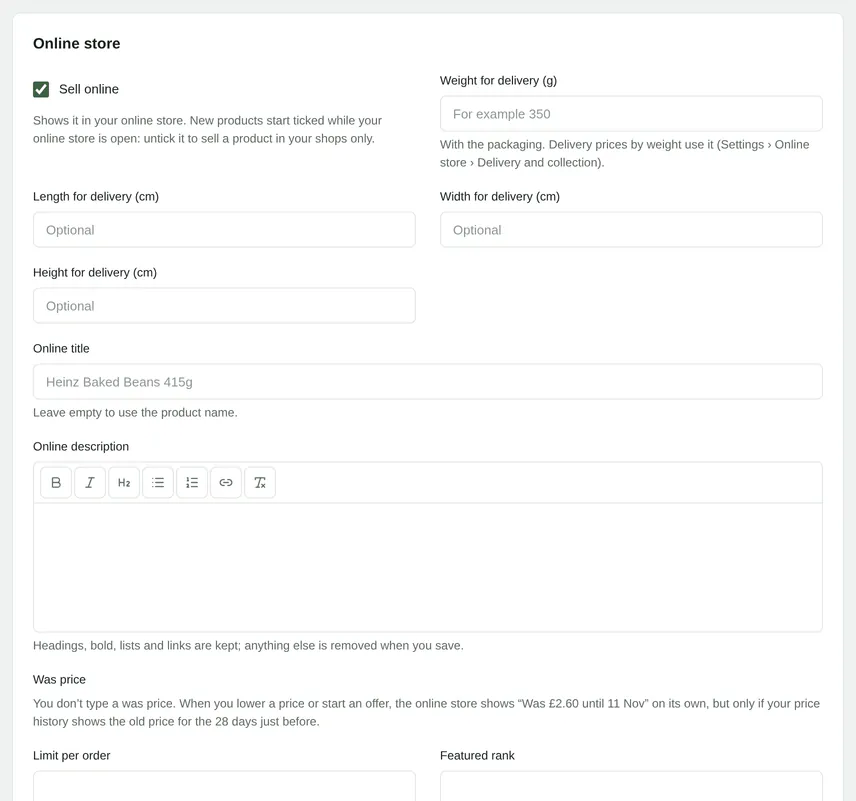
The product's Online store card Type the Weight for delivery (g) with its packaging, for example 470 for the beans. Delivery prices by weight use it.
If you like, type an Online title (empty uses the product name) and an Online description: headings, bold, lists and links are kept.
Press Save changes. "Tills get this change within 1 minute." Your store shows it within about a minute too.
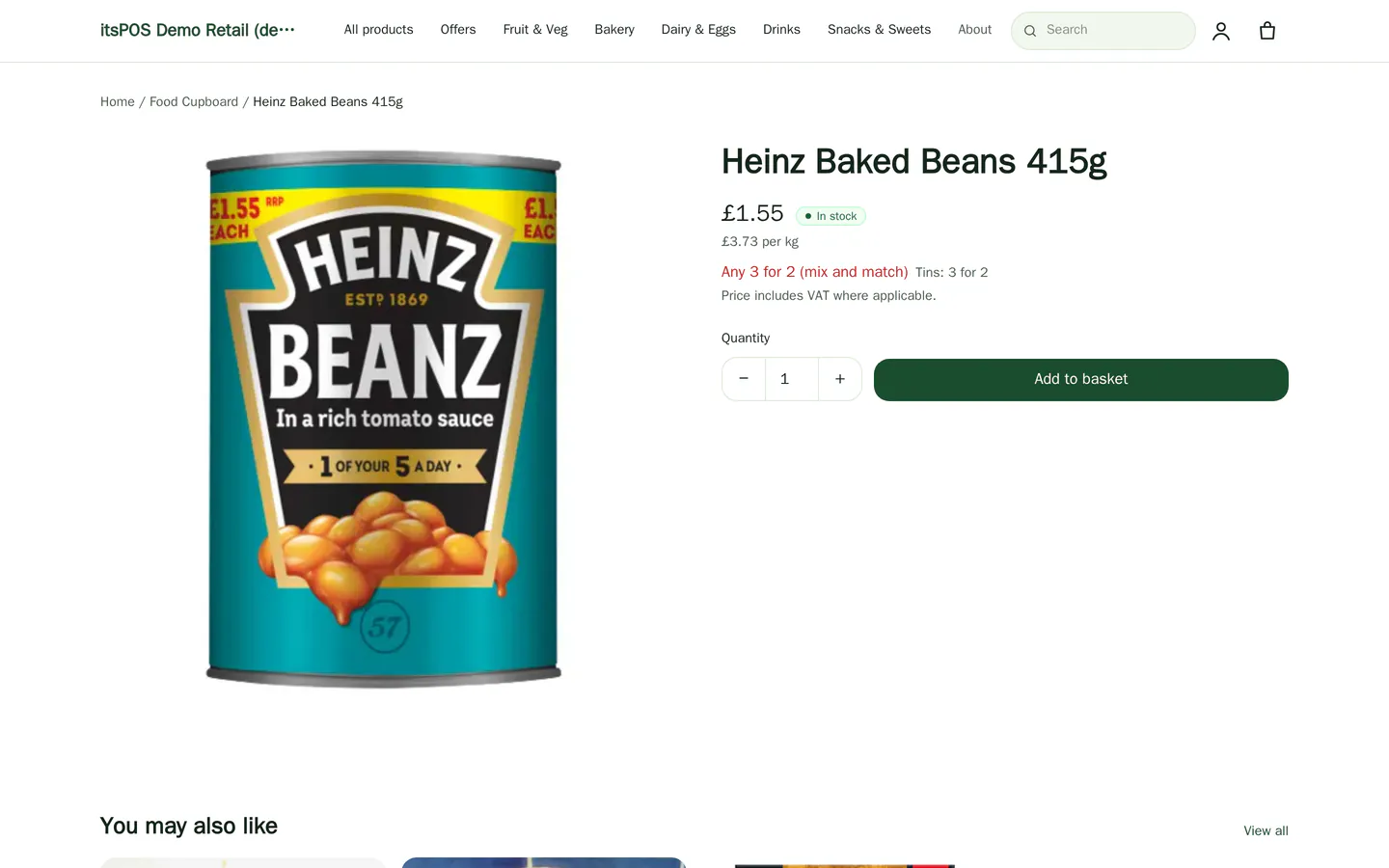
New products start with Sell online ticked while your online store is open. Untick it to sell a product in your shops only.
Put many products online at once
- In Catalogue › Products, tick the products (a filter such as a category helps).
- Press Change selected and choose Sell online.
- Choose Yes and press Change with the number of products.
You can also change Sell online in a grid with Edit in a grid (Edit many products in a grid).
The rest of the Online store card
| Option | What it does |
|---|---|
| Length, Width, Height for delivery (cm) | The parcel size, all three or none |
| Was price | You don't type it. "When you lower a price or start an offer, the online store shows "Was £2.60 until 11 Nov" on its own, but only if your price history shows the old price for the 28 days just before." |
| Limit per order | The most one order can have; empty for no limit |
| Featured rank | "Higher numbers show first in "Featured"." |
| Can shoppers cancel it once sent? | Automatic: yes, within 14 days, or one of the reasons the law lets you refuse once sent: it goes off quickly, made to order, or sealed health or hygiene goods once unsealed. Chilled, frozen and use-by products are "goes off quickly" automatically |
| Product details | A table on the product page, for example Material or Origin |
| SEO title, SEO description | The words search engines show, up to 70 and 320 characters |
Sizes and colours: on a product with options, open a size or colour in its Variants card and untick Sell this variant online to keep that one off the store.
Aisles and filters
- A product shows in its category's aisle. Catalogue › Categories › a category › Show online hides a whole aisle from the store's menu.
- Brands, allergens (from Food information) and price filter the lists by themselves. An option in Catalogue › Options has Show as a filter in the online store (sizes, colours), and a tag in Catalogue › Tags has Show online as a filter, for example Vegan.
What keeps a product off the store
| The product | What the store does |
|---|---|
| Has Sell online unticked, or is archived | Not shown |
| Has no price (£0.00) on the online price list or standard price | Not shown: the store never sells at £0.00 |
| Is sold by weight | Shown with "Available in our shops" and no basket button. The card says "Not sold online: sold by weight." |
| Needs a modifier (a choice made at the till) | Not shown: "Not sold online: needs a modifier" |
| Has no stock at the shop that serves online, with Hide items that are out of stock on | Hidden until stock comes back (Stock online) |
| Isn't sold at the main shop (Sell at › Choose shops) | Not shown |
| Has an age limit | Shown; shoppers confirm their age at checkout and staff check ID on collection or delivery |
If something goes wrong
- The photo looks blurry online: the card says "Photo too small for Google: the main photo is 800 × 497 pixels." Use a main photo at least 500 × 500 pixels, and bigger (1500 × 1500) looks best.
- The product isn't in the store: check the table above, then wait a minute and refresh the store.
- An empty "Description" heading on the product page: fixed on 19 Nov 2026; the heading now shows only when the product has a description.
Still stuck?
The itsPOS support team is here 08:00 to 20:00 every day except Christmas Day.
- Call or WhatsApp: +44 7488 880320
- Email: support@itspos.io
- In the back office: Help › Contact support, or go to app.itspos.io/help/contact after you sign in
- On our website: itspos.io/contact
Tell us your shop's name and what you were trying to do. A screenshot of the screen helps.