

Online store
Store settings: every option
Settings › Online store › Store settings holds everything about your online store except delivery, collection and your own domain. Owners and Admins change it; Shop managers can look. Each card opens and closes with its heading. Press Save store settings after a change: your store shows it within about a minute.
For: Owners and AdminsOn some plans5 min read
Store address and Online payments
| Card | What it shows | What shoppers see |
|---|---|---|
| Store address | Your store's address with Copy and Open, whether the store is open, and Ask us to change it | The address in their browser |
| Online payments | Which online payment connection your store uses, with a link to it on Integrations | The payment step at checkout |
See Your store address and "Online card payments" in Help.
Store
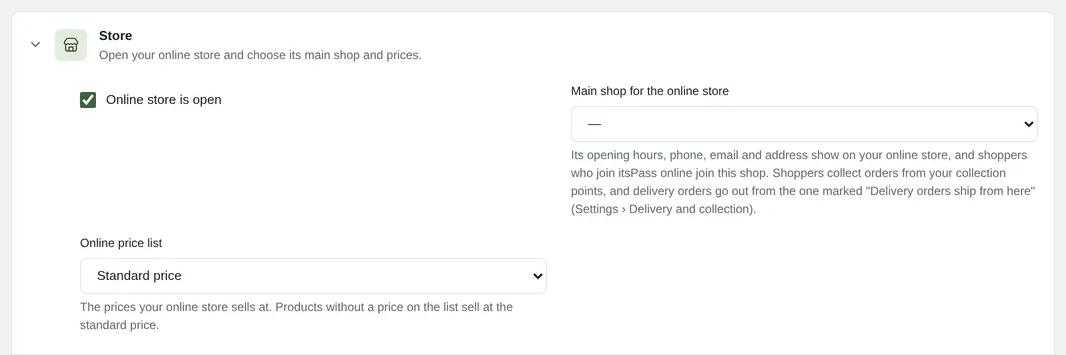
| Option | What it does | What shoppers see | Also changes |
|---|---|---|---|
| Online store is open | Off by default. On lets shoppers browse and order | Your store, or "This store is not available right now" when off | Links to orders already placed always work |
| Main shop for the online store | The shop whose hours, phone, email and address the store shows | The footer's contact details and opening hours | Shoppers who join itsPass online join this shop |
| Online price list | The prices the store sells at; Standard price when empty | Prices on every page | Products without a price on the list sell at the standard price (Prices online) |
Look and feel
| Option | What it does | What shoppers see |
|---|---|---|
| Theme | Default, Grocery, Fashion, Home or Beauty | The design of every page |
| Tagline | Up to 140 characters | A short line under your store name, in the footer |
| Browser tab icon | A small square picture, at least 64 × 64 pixels | The icon in the browser tab |
| Logo and colours | Not here: Change logo and colours opens Settings › Business details | The logo and brand colour, the same as receipts and itsPass |
Products
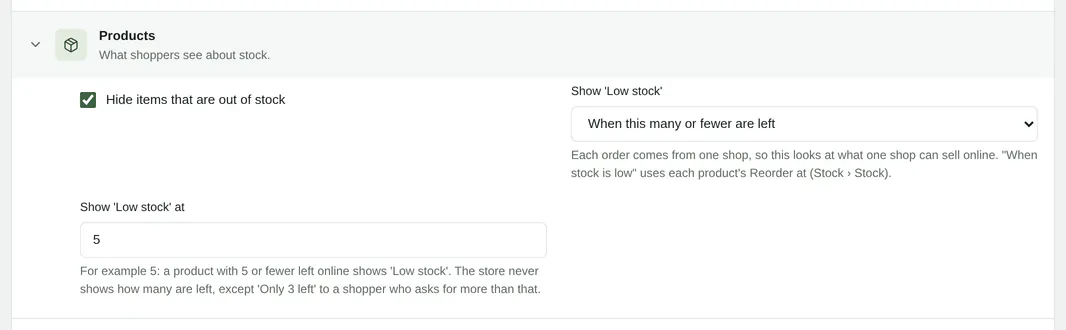
| Option | What it does | What shoppers see |
|---|---|---|
| Hide items that are out of stock | Off by default. On takes a product off the store while the shop that serves online has none to sell | Fewer products, never "Out of stock" |
| Show 'Low stock' | When this many or fewer are left (default), When stock is low (Reorder at) or Never | A "Low stock" badge |
| Show 'Low stock' at | With the first choice: 5 by default | The badge from that number down. The store never shows how many are left, except "Only 3 left" to a shopper who asks for more |
How the store works out stock is in Stock online.
Orders
| Option | What it does | What shoppers see |
|---|---|---|
| Customers can cancel orders | Off by default. On lets shoppers cancel a paid order themselves for the minutes below, before you start on it | A Cancel order button on their order page for that time |
| Minutes customers have to cancel | Shows when the box above is ticked. Enter the minutes after paying, for example 30 | — |
This is separate from the shopper's legal right to cancel or return items within 14 days of getting them, which is always there: see Refunds, cancellations and returns.
Analytics and AI crawlers
Use website analytics, Analytics service and Analytics ID send visits to your Google Analytics 4 or Google Tag Manager account. AI crawlers decides which AI bots may read your store. Both are explained in Analytics and AI crawlers.
Banners and Home page
| Option | What it does | What shoppers see |
|---|---|---|
| Main banners | Up to 3, each with a picture, Title, Button text, Button link and Description | The large banners at the top of the home page, one after another |
| Show the smaller banners + Smaller banners | Off by default; up to 3 | A row of smaller banners under the main one |
| Show the offer banner + Offer banner | Off by default; one | A wide banner for an offer |
| Why shop with us | Up to 5 points, each with a Title, an Icon and a Description | A strip of reasons under the banners |
| Product rows, Category rows, Brand rows | Named rows; up to 48 products in a product row | Rows on the home page with View all |
Social media and Footer
| Option | What it does | What shoppers see |
|---|---|---|
| Facebook page, Instagram page, X (Twitter) page | Full web addresses | Icons in the footer |
| Footer links | Up to 12, each with a Label and a Link: a full address or a page of your store such as /about | Links at the bottom of every page |
Information pages
Questions and answers, About us, Terms and conditions and Privacy notice: see About us, terms, privacy, questions and returns pages.
Who can change it
Owners and Admins. Shop managers can see it. Each save is in Activity with who saved it and what changed (View activity at the top of the page).
Still stuck?
The itsPOS support team is here 08:00 to 20:00 every day except Christmas Day.
- Call or WhatsApp: +44 7488 880320
- Email: support@itspos.io
- In the back office: Help › Contact support, or go to app.itspos.io/help/contact after you sign in
- On our website: itspos.io/contact
Tell us your shop's name and what you were trying to do. A screenshot of the screen helps.