

Online store
What shoppers see: home to order confirmation
This is your online store from a shopper's side, using our test shop's store. Every page works on a phone, a tablet and a computer.
For: everyoneOn some plans4 min read
Home
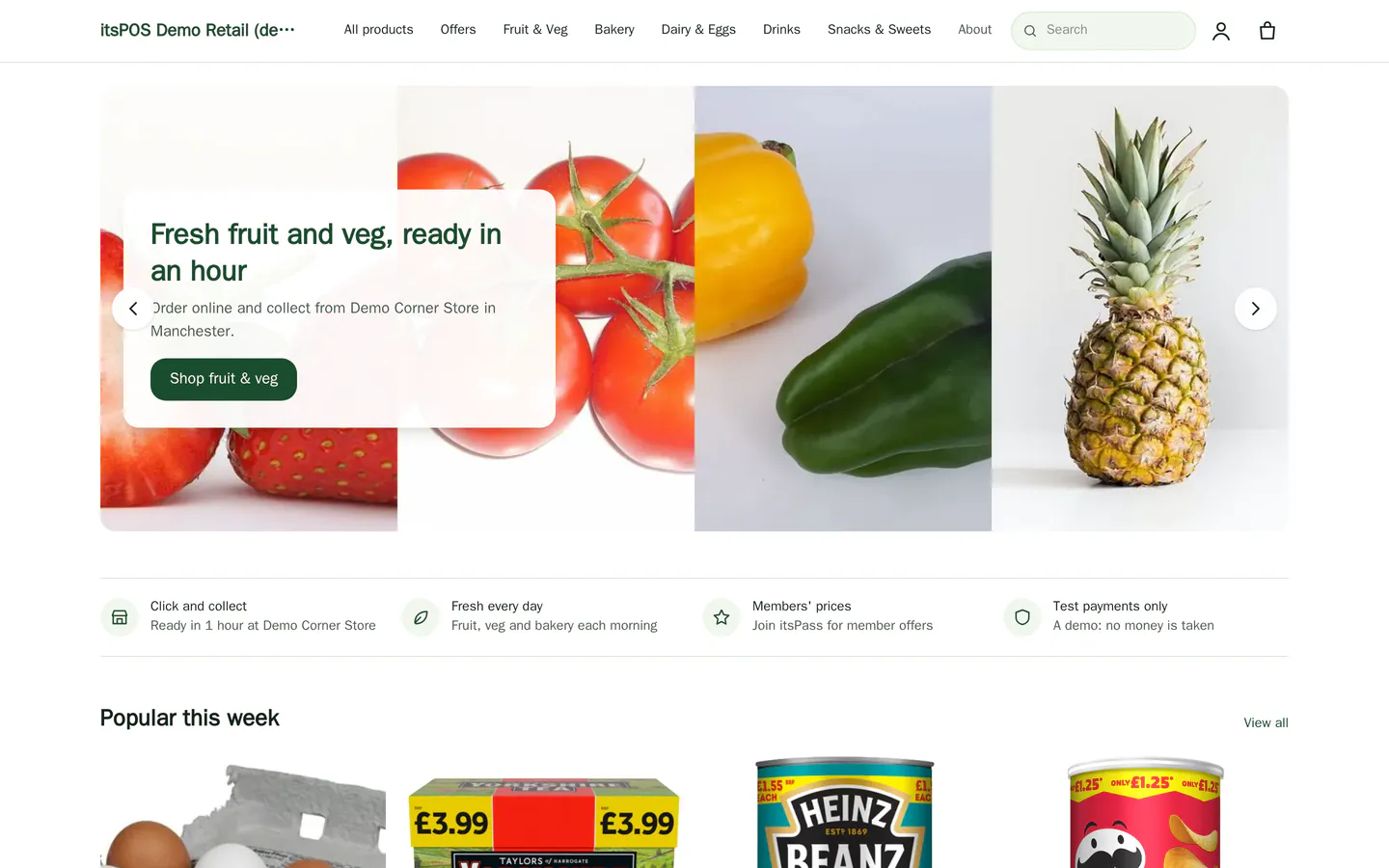
The header has your name or logo, All products, "Offers" when you have offers, up to five aisles, search, the account and the basket. Below: your banners, the "Why shop with us" points and your home page rows. The footer lists every aisle, your information pages, your contact details and opening hours, and "Powered by itsPOS". See Design.
Aisles, search and lists
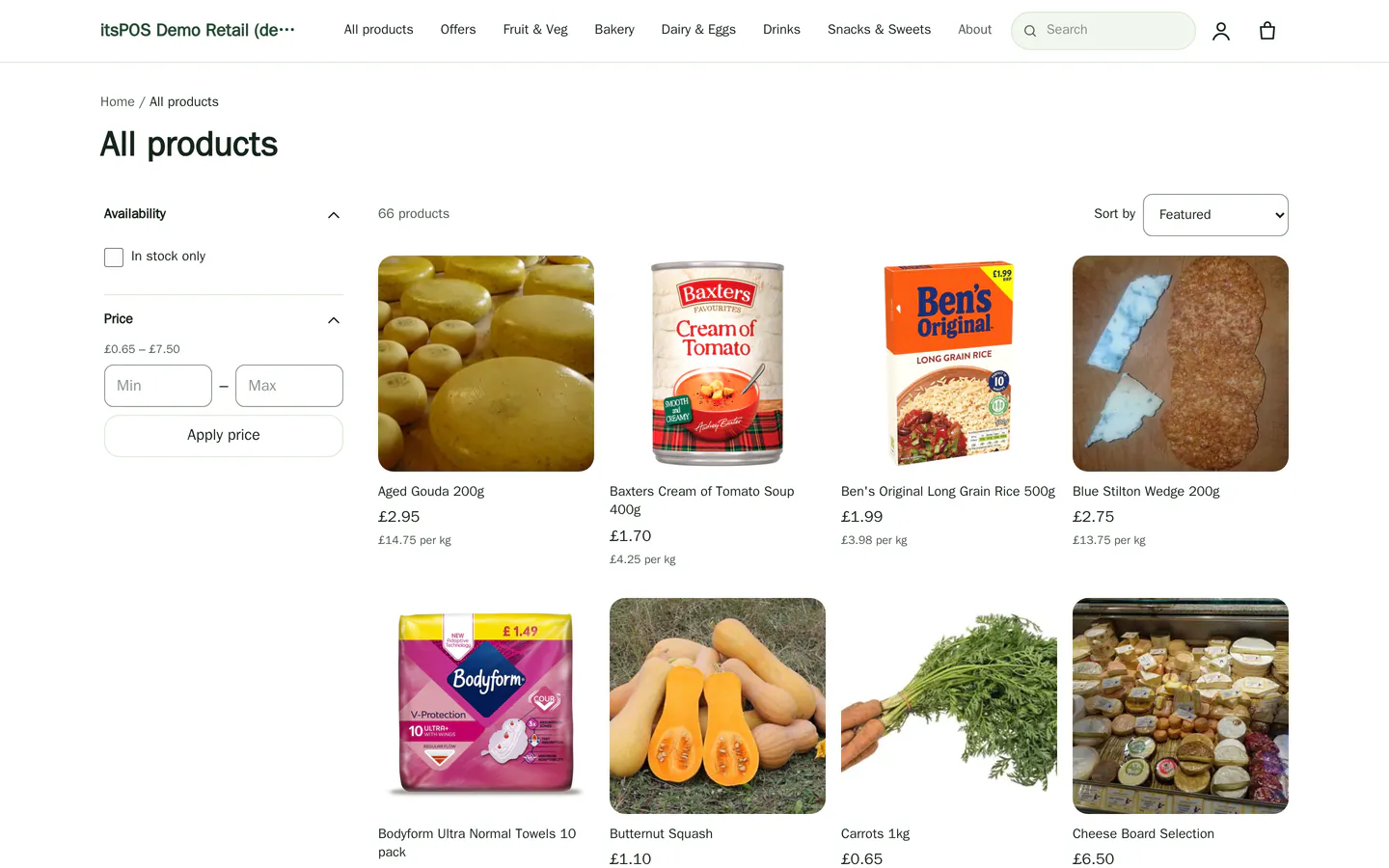
Every list (an aisle, All products, a search) has filters: "In stock only", tags you show online (such as Vegan), "Free from" the 14 allergens ("Hides products that contain or may contain it. Always check the label."), brand and price. Shoppers sort by featured, newest, price or name. Each product shows its photo, price, unit price, offers such as "Any 3 for 2 (mix and match)", "New" for products recently put online, and "Low stock" or "16+" where it applies.
Shoppers can add a product straight from the list with "Add", then change the number with − and + on the same card; the basket count at the top changes at once. Products with options (such as sizes) say "Choose options" and open the product page. Out of stock products show "Out of stock", and products sold by weight show "Available in our shops" with no button.
The product page
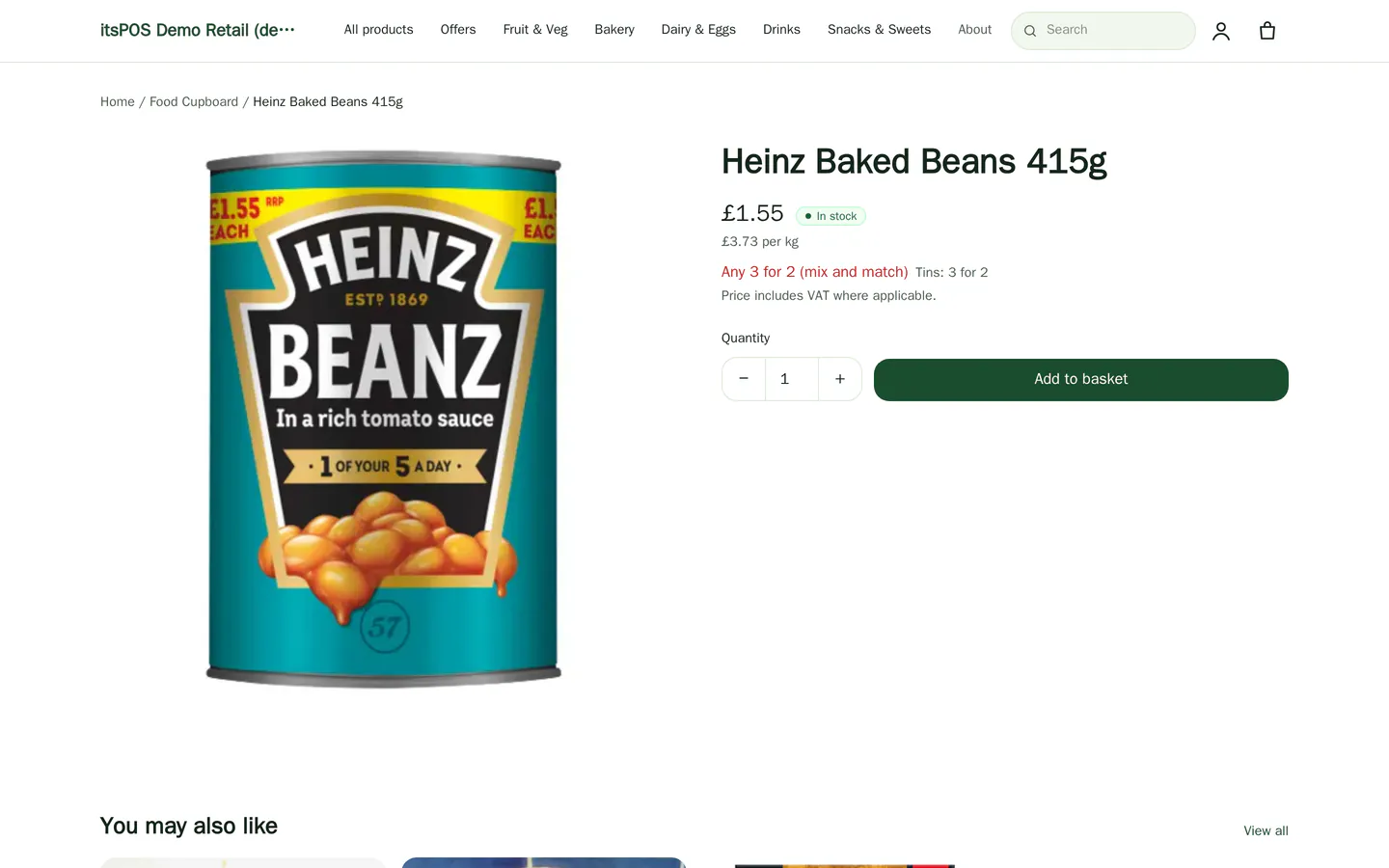
The photos, title, brand, price and unit price, whether it is in stock, any offer or was price, the quantity with − and +, and "Add to basket". Below: the description, the product details, ingredients and allergens from Food information, and "You may also like". A product sold by weight says "Available in our shops".
The basket
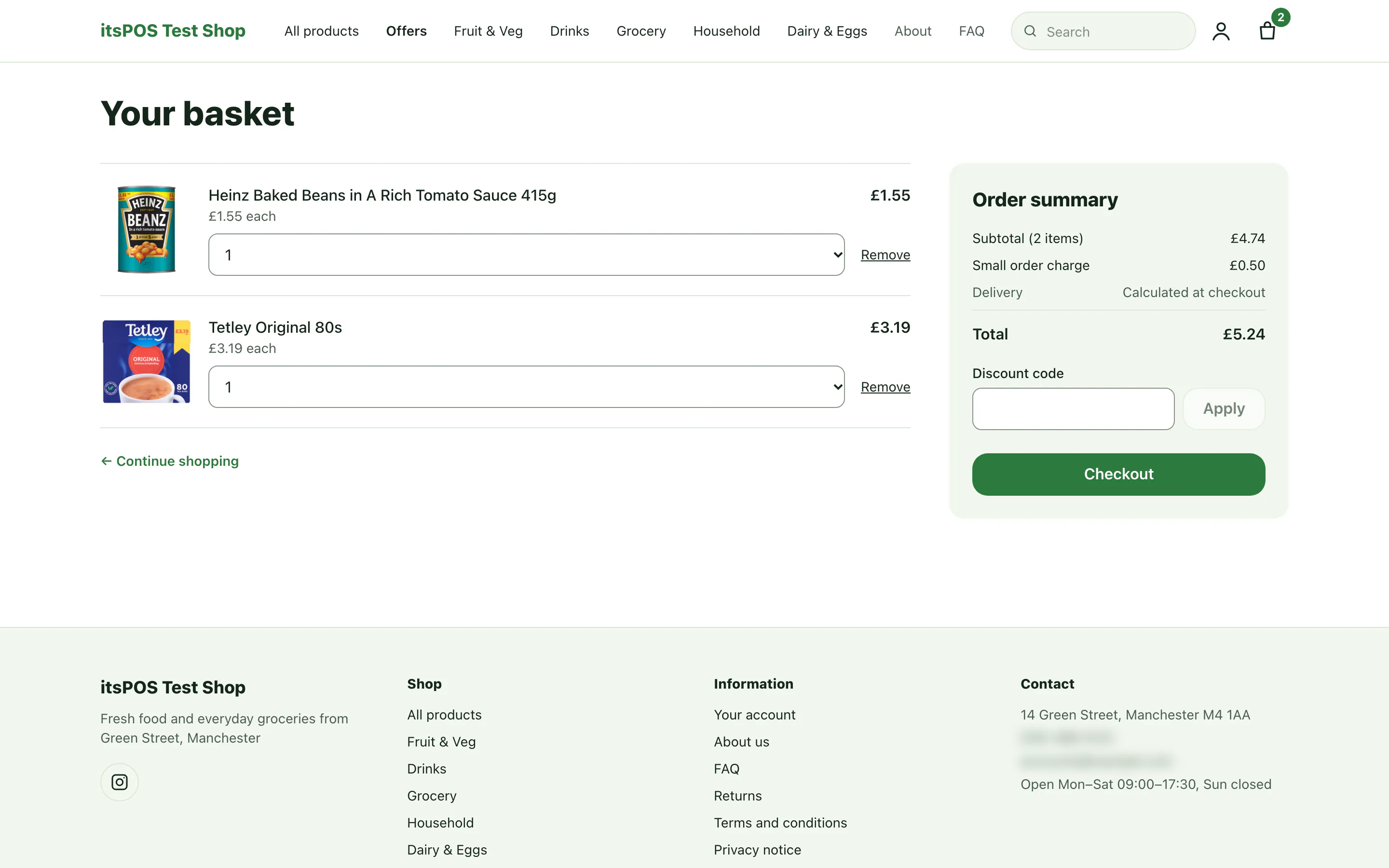
Each line with − and + and "Remove", the subtotal, charges such as a small order charge, "Discount code" for coupons and "Checkout". If something sells out meanwhile, the basket says so and takes it out.
Checkout
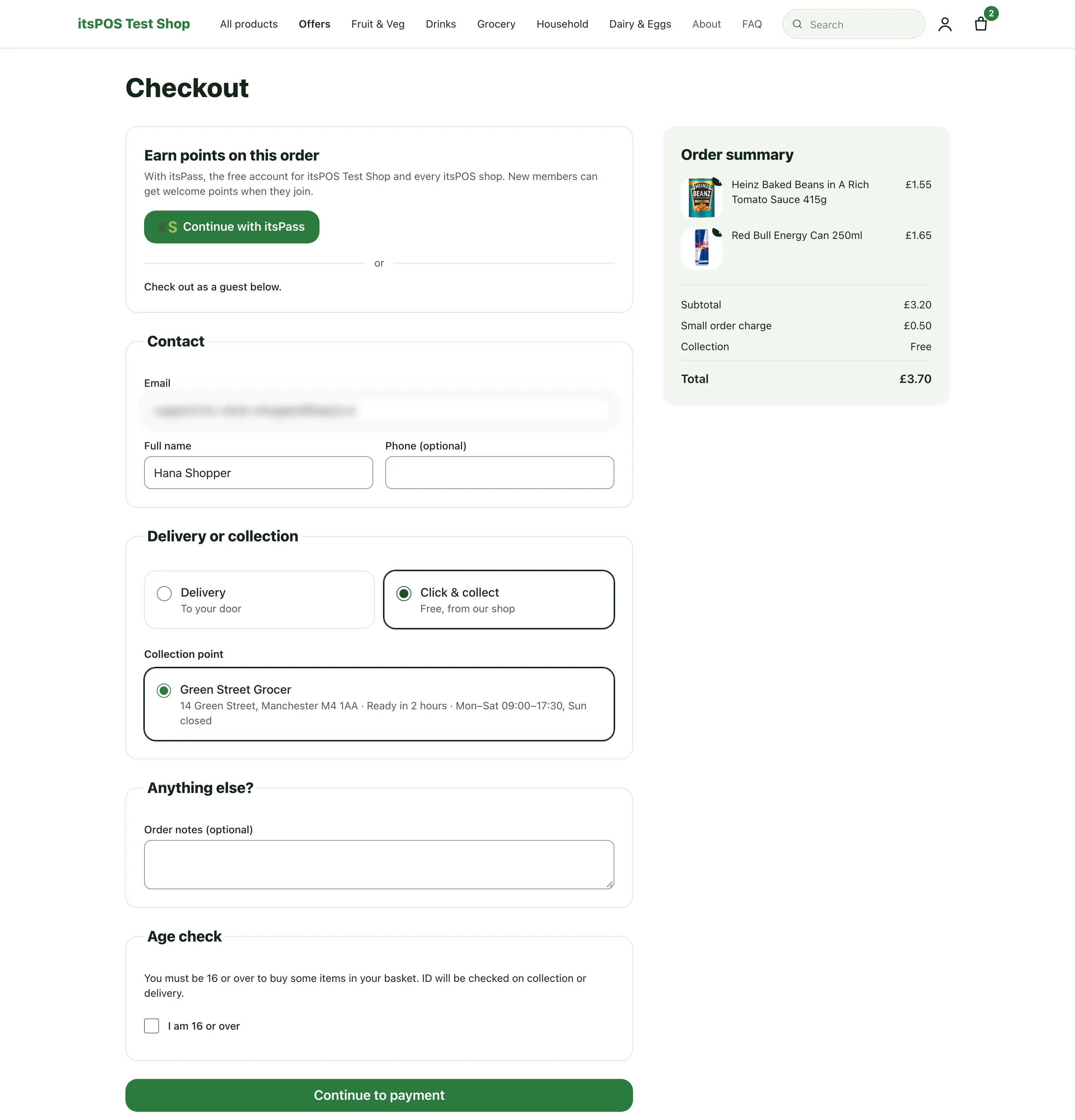
- "Earn points on this order": "Continue with itsPass", or check out as a guest (Continue with itsPass).
- "Contact": email, full name and phone (optional).
- "Delivery or collection": "Delivery" with each delivery method and the address (the address finder fills it in), or "Click & collect" with each collection point.
- "Age check" when the basket has age-restricted items: the shopper ticks "I am 18 or over" and is told ID is checked on collection or delivery.
- "Continue to payment": "We hold your items for 15 minutes while you pay." The shopper pays on the card payment partner's secure page.
After paying
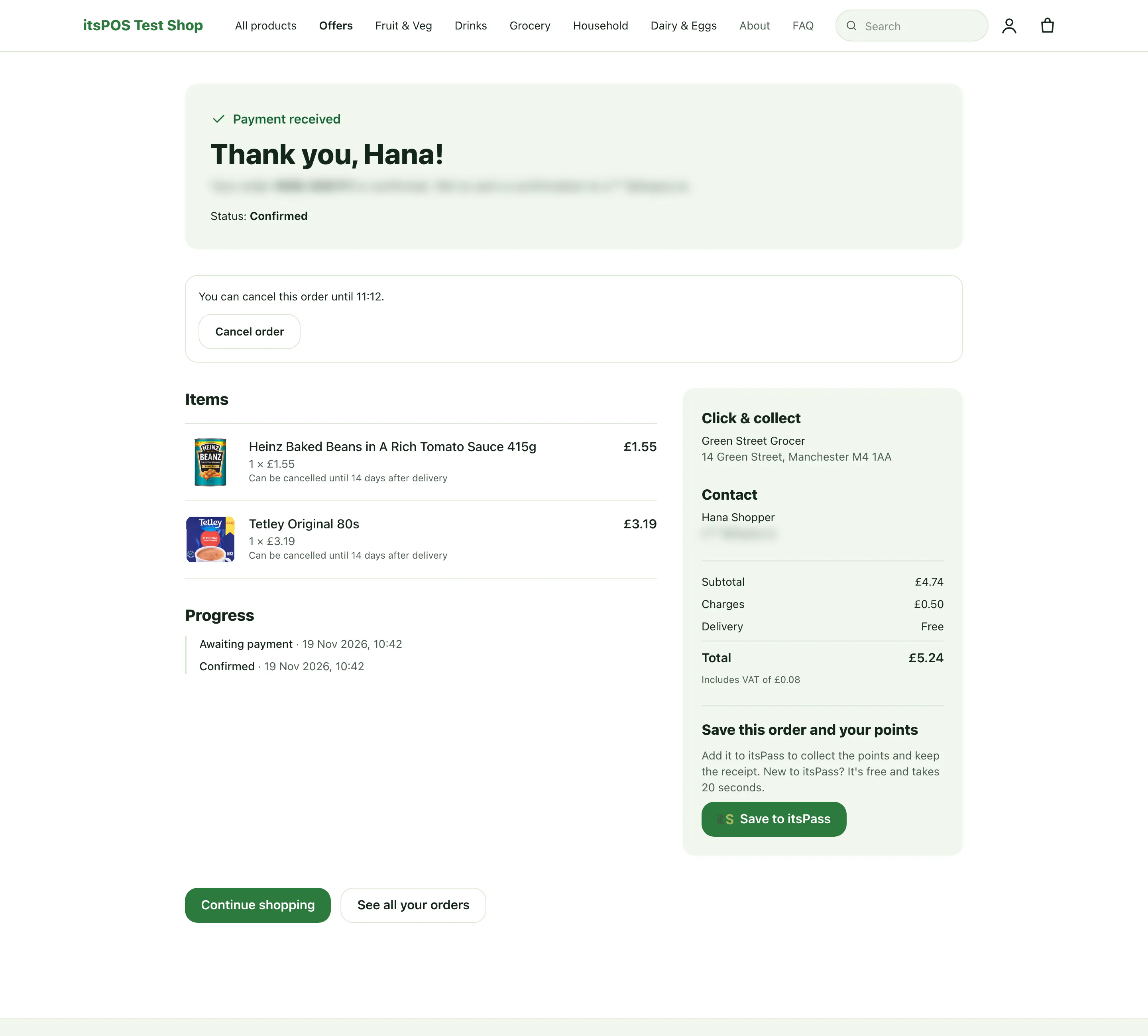
"Payment received. Thank you, Hana!" with the order number, a confirmation email, the status, the items, "Progress" (Confirmed, Being prepared, Ready to collect or Dispatched, then Collected or Delivered), where to collect or the delivery address, and the totals. Shoppers come back to this page from the link in every email, or from their itsPass account. Here they can:
- press "Cancel order" for the minutes you allow, before you start on it;
- press "Cancel or return items" within 14 days of getting the order, choose the items and how they send them back (Refunds, cancellations and returns);
- "Save to itsPass" to collect the points and keep the receipt.
Information pages
About us, Terms and conditions, Privacy notice, FAQ and Returns, from About us, terms, privacy, questions and returns pages.
When the store can't take orders
"This store is not available right now" when it is closed or paused (see "When your store is closed, paused or not on your plan" in Help); "This shop isn't taking online payments yet." at checkout until live online card payments open.
Still stuck?
The itsPOS support team is here 08:00 to 20:00 every day except Christmas Day.
- Call or WhatsApp: +44 7488 880320
- Email: support@itspos.io
- In the back office: Help › Contact support, or go to app.itspos.io/help/contact after you sign in
- On our website: itspos.io/contact
Tell us your shop's name and what you were trying to do. A screenshot of the screen helps.