

Online store
Continue with itsPass on your online store
Your online store has no passwords of its own. Shoppers sign in with itsPass, the free shopper account that works in every itsPOS shop, or check out as a guest. Signing in is always a choice: a guest can buy everything.
For: Owners, Admins and Shop managersOn some plans3 min read
What shoppers get
- Points on online orders, the same as in your shop, with your loyalty programme's rules.
- Members' prices: offers for itsPass members, and the prices of their customer group if it has its own price list (Prices online).
- Their orders and receipts in one place: "Your account" on your store lists their online orders, and their itsPass has their receipts from your shop too.
- Faster checkout: their name and email are filled in.
Where they sign in
- At checkout, "Earn points on this order" with "Continue with itsPass".
- "Your account" in the store's header or footer.
- After a guest order, "Save to itsPass" on the order page collects the points and keeps the receipt.
Signing in happens on itsPOS's own sign-in pages and brings the shopper back to the same page of your store, with their basket. Shoppers who aren't members yet can create an itsPass on the way, in about 20 seconds.
Joining your shop's itsPass
A shopper who signs in but isn't a member of your shop yet is asked to join it, from the store's join page. They join the store's Main shop for the online store (Store settings), with any welcome points your programme gives. See Get your shop ready for itsPass.
What you see in the back office
An order placed by a signed-in shopper is linked to their customer record in Customers, with the points they earned. A guest order isn't, until they press "Save to itsPass".
What shoppers see
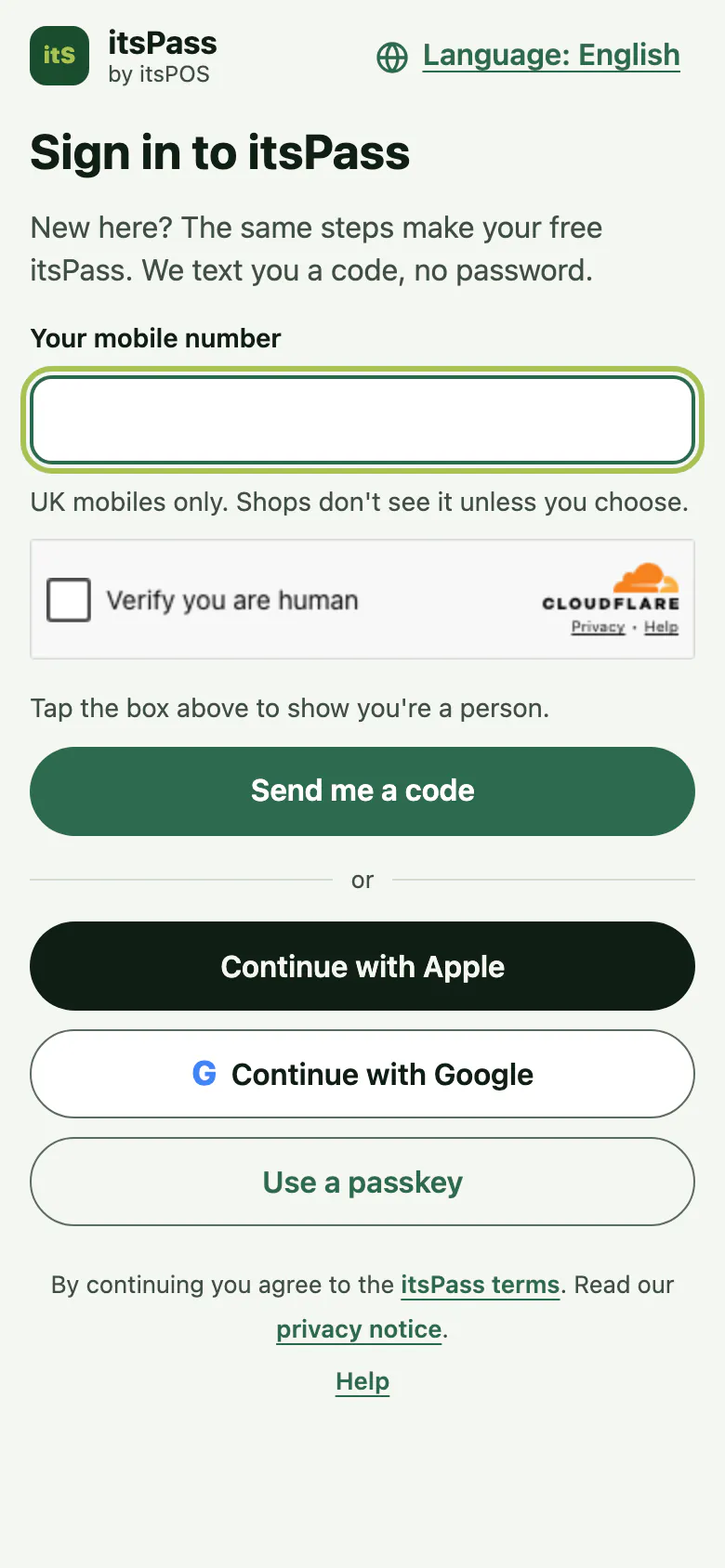
Continue with itsPass opens the itsPass sign-in page at id.itspos.io, in your store's language:
- Sign in to itsPass: the shopper types their UK mobile number, ticks the box that shows they're a person, and taps Send me a code. Or they use Continue with Apple, Continue with Google or Use a passkey.
- Check your texts: they type the code. A new shopper adds their first name and age once (About you).
- "You're in" and they're back on the same page of your store, with their basket.
Back to the shop on the sign-in page returns to your checkout with the basket kept ("You're not signed in"). If itsPass is down, the store hides the button and guest checkout works as usual.
Still stuck?
The itsPOS support team is here 08:00 to 20:00 every day except Christmas Day.
- Call or WhatsApp: +44 7488 880320
- Email: support@itspos.io
- In the back office: Help › Contact support, or go to app.itspos.io/help/contact after you sign in
- On our website: itspos.io/contact
Tell us your shop's name and what you were trying to do. A screenshot of the screen helps.