

Online store
Open your online store, step by step
This guide takes an Owner or Admin from an empty store to one shoppers can browse and order from, in the order that works best. Most shops take about an hour, plus the time to put their products online.
For: Owners and AdminsOn some plans4 min read
Before you start
- Your plan includes the online store (Professional and above, or the online store add-on on Essentials). If Online store isn't in Settings, ask us about it.
- Your business has a store address. It shows in the Store address card. If it says "No store address yet", press Ask us to change it.
- Settings › Business details has your logo, brand colours, address, phone and email: the store shows them.
1 Choose the main shop and prices
Open Settings › Online store. You are on Store settings.
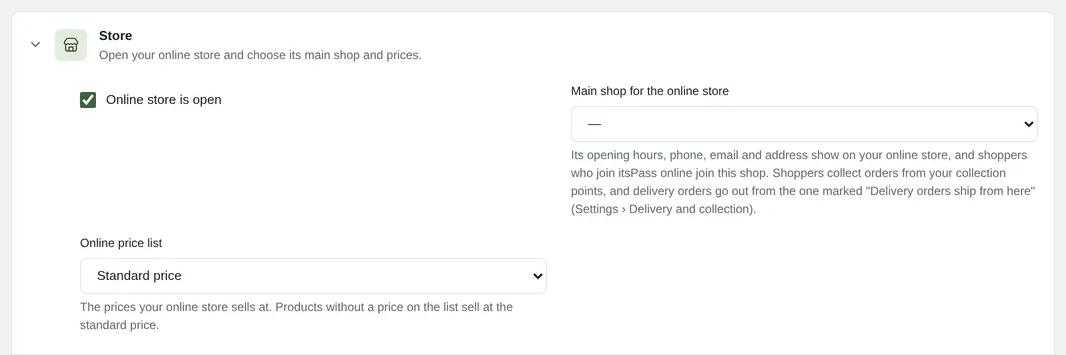
Store settings, Store card Under Main shop for the online store, choose the shop whose opening hours, phone, email and address shoppers see, for example Green Street Grocer. Shoppers who join itsPass online join this shop.
Under Online price list, leave Standard price, or choose a price list made for the store (see Prices online).
Leave Online store is open unticked for now and press Save store settings.
2 Set up click and collect and delivery
- Open Delivery and collection and press Add collection point. Choose the Shop, the Name shoppers see, a Ready time such as "Ready in 2 hours", and Keep back for the shop. Tick Delivery orders ship from here on the shop that sends deliveries.
- To deliver, press Add delivery method: a name, Price, Free for orders over, Delivery time and, for local delivery, Postcode zones.
Delivery and collection explains every field. A store with only click and collect needs no delivery method.
3 Payments
Online payments go through our card payment partner. On Integrations, press Ask us to set it up on the online card payments card; the itsPOS support team switches it on for you. Live online card payments open soon: until then the Online payments card on Store settings says "Your online store isn't taking payments yet." See "Online card payments" in Help.
4 Put products online
Tick Sell online on each product, or choose several products in Catalogue › Products and use Change selected › Sell online. While your store is open, new products start ticked. See Putting products online.
5 Make it yours
- Look and feel: a Theme and a Tagline (Design).
- Banners and Home page rows (Design).
- Information pages: About us, Terms and conditions, Privacy notice and Questions and answers (Information pages).
6 Open it
- Back on Store settings, tick Online store is open.
- Press Save store settings.
- In the Store address card, press Open to see your store as shoppers do.
What happens next
- Shoppers can find and browse your store at its address straight away. Search engines start to list it over the next few days (on a trial, once your plan starts).
- New online orders appear in Sales › Online orders, and the people who get the New online order email are told. See Online orders.
- To close the store for a while, untick Online store is open. Shoppers then see "This store is not available right now"; links to orders already placed keep working.
If something goes wrong
- "Your online store needs a store address before it can open. Contact itsPOS support.": ask us for an address with Ask us to change it.
- "… is switched off. Choose an open shop for online orders.": the main shop is closed in Settings › Shops. Choose another or open it again.
- The store has no products: no product is ticked Sell online, or none has stock while Hide items that are out of stock is on. See Putting products online.
- Checkout says "This shop isn't taking online payments yet.": live online card payments aren't open yet.
Still stuck?
The itsPOS support team is here 08:00 to 20:00 every day except Christmas Day.
- Call or WhatsApp: +44 7488 880320
- Email: support@itspos.io
- In the back office: Help › Contact support, or go to app.itspos.io/help/contact after you sign in
- On our website: itspos.io/contact
Tell us your shop's name and what you were trying to do. A screenshot of the screen helps.