

Online store
Use your own domain for the online store
Your online store always has its itsPOS address, such as shop.itspos.io/green-street. You can also open it on a domain you own, such as yourbrand.co.uk or shop.yourbrand.co.uk, so it matches your website and printed material. The itsPOS address keeps working alongside it.
For: Owners and AdminsOn some plans5 min read
Before you start
- You own the domain and can sign in to your domain provider (the company you bought it from, or whoever runs its DNS).
- Choose the address:
- your main domain, such as yourbrand.co.uk, if the online store is your website. Shoppers who type www.yourbrand.co.uk reach it too;
- a subdomain, such as shop.yourbrand.co.uk, if you keep a separate website at yourbrand.co.uk.
- Tell us first: your own domain is new on itsPOS, and we follow the first ones with you.
Connect your domain
Open Settings › Online store › Store domain.
Under Connect your domain, type your domain in Your domain and press Connect domain.
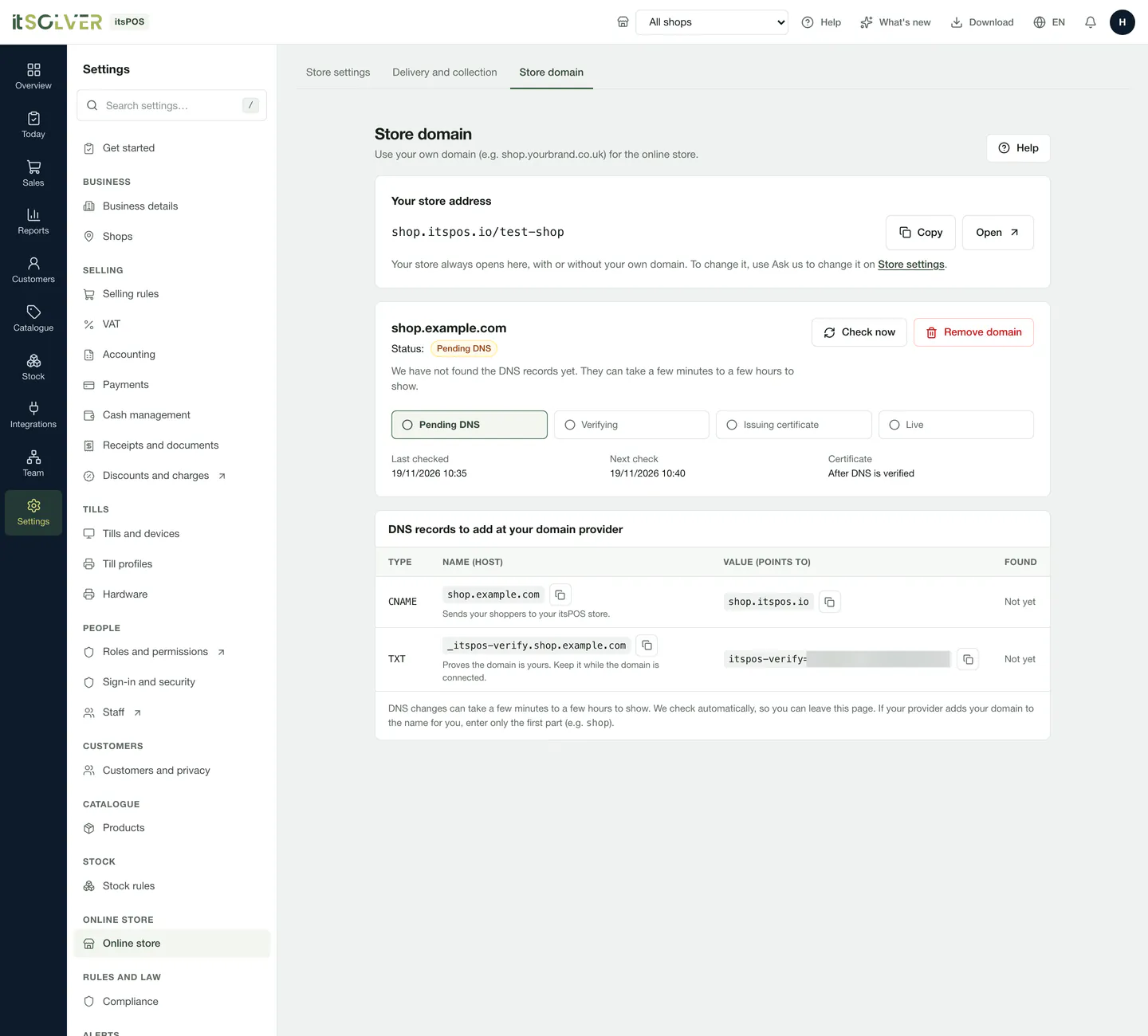
Store domain The page shows the records under DNS records to add at your domain provider. Copy each Name (host) and Value (points to) with the copy buttons:
- a record that sends shoppers to your store: a CNAME that points to shop.itspos.io, or for a main domain an A record with the address shown (if your provider offers ALIAS or ANAME, point it at shop.itspos.io instead);
- a TXT record that proves the domain is yours. Keep it for as long as the domain is connected;
- for a main domain, a third record: a CNAME for www.yourbrand.co.uk that points to shop.itspos.io. It sends shoppers who type www. to your store. It needs no TXT record of its own.
Add them at your domain provider. If your provider adds your domain to the name for you, type only the first part, for example shop, or www for the third record (and @ or leave it empty for the main domain itself).
Back on Store domain, press Check now if you like. You don't have to stay: itsPOS checks for you.
From Pending DNS to Live
The status moves through four steps:
| Status | What is happening |
|---|---|
| Pending DNS | We haven't found the records yet. "They can take a few minutes to a few hours to show." |
| Verifying | We found them and are checking they are right |
| Issuing certificate | We are making the security certificate, so the store opens with https |
| Live | "Your store is live at" your domain, with its certificate |
Last checked, Next check and Certificate show where it is. The page updates itself while a step is under way, so you don't need to press anything. We check every minute at first, then less often. If the records still can't be found after 7 days, the status says Error: check both records at your provider, then press Check now to start again. A live domain is checked every few hours, and the certificate renews by itself.
www. for a main domain
For a main domain such as yourbrand.co.uk, the switch Also open the store at www. (followed by your domain) is on by default. It isn't shown for a subdomain.
- Under the switch, www.yourbrand.co.uk has a status line of its own: Pending DNS until we find its record, then Issuing certificate, then Live. From then on, shoppers who type www.yourbrand.co.uk are taken to yourbrand.co.uk.
- www. never holds up your main domain: your store goes live on yourbrand.co.uk even while the www record is missing, and a problem with www. shows only on its own line.
- To turn it off, untick the switch. The third record goes from the table and shoppers who type www. no longer reach your store; you can remove that record at your provider. You can turn it on again at any time, also on a domain that is already live.
Remove the domain
Press Remove domain and confirm with Remove domain. "Your store goes back to its itsPOS address." Its www. version stops too. Remove the records at your provider afterwards.
What happens next
- Once Live, your store's links, emails and search results use your domain; the itsPOS address still opens the store.
- Orders, receipts and itsPass sign-in work the same on your domain.
If something goes wrong
- Stuck on Pending DNS: check the names and values exactly as shown, with no extra dots or spaces. Some providers take a few hours.
- Error after 7 days: the records weren't found. Fix them and press Check now.
- www. stuck on Pending DNS while your domain is Live: add the www record (CNAME www to shop.itspos.io) at your provider, or press Check now once you have.
- www. shows Error: read the line under it (for example a CAA record that doesn't allow the certificate), fix it and press Check now. Your store keeps working at your main domain.
- Your main website stopped working: you connected yourbrand.co.uk itself while your website still lives there. Put the old records back and use a subdomain such as shop.yourbrand.co.uk.
Still stuck?
The itsPOS support team is here 08:00 to 20:00 every day except Christmas Day.
- Call or WhatsApp: +44 7488 880320
- Email: support@itspos.io
- In the back office: Help › Contact support, or go to app.itspos.io/help/contact after you sign in
- On our website: itspos.io/contact
Tell us your shop's name and what you were trying to do. A screenshot of the screen helps.