

Online store
Refunds, cancellations and returns for online orders
Online refunds always go back to the card the shopper paid with, through the payment provider: never in cash. You can refund part of an order, cancel it all, or handle the shopper's own cancellation or return.
For: Owners, Admins and Shop managersOn some plans4 min read
Refund part of an order
Use this when an item arrived damaged, or sold out after the order.
Open the order in Sales › Online orders and press Refund.
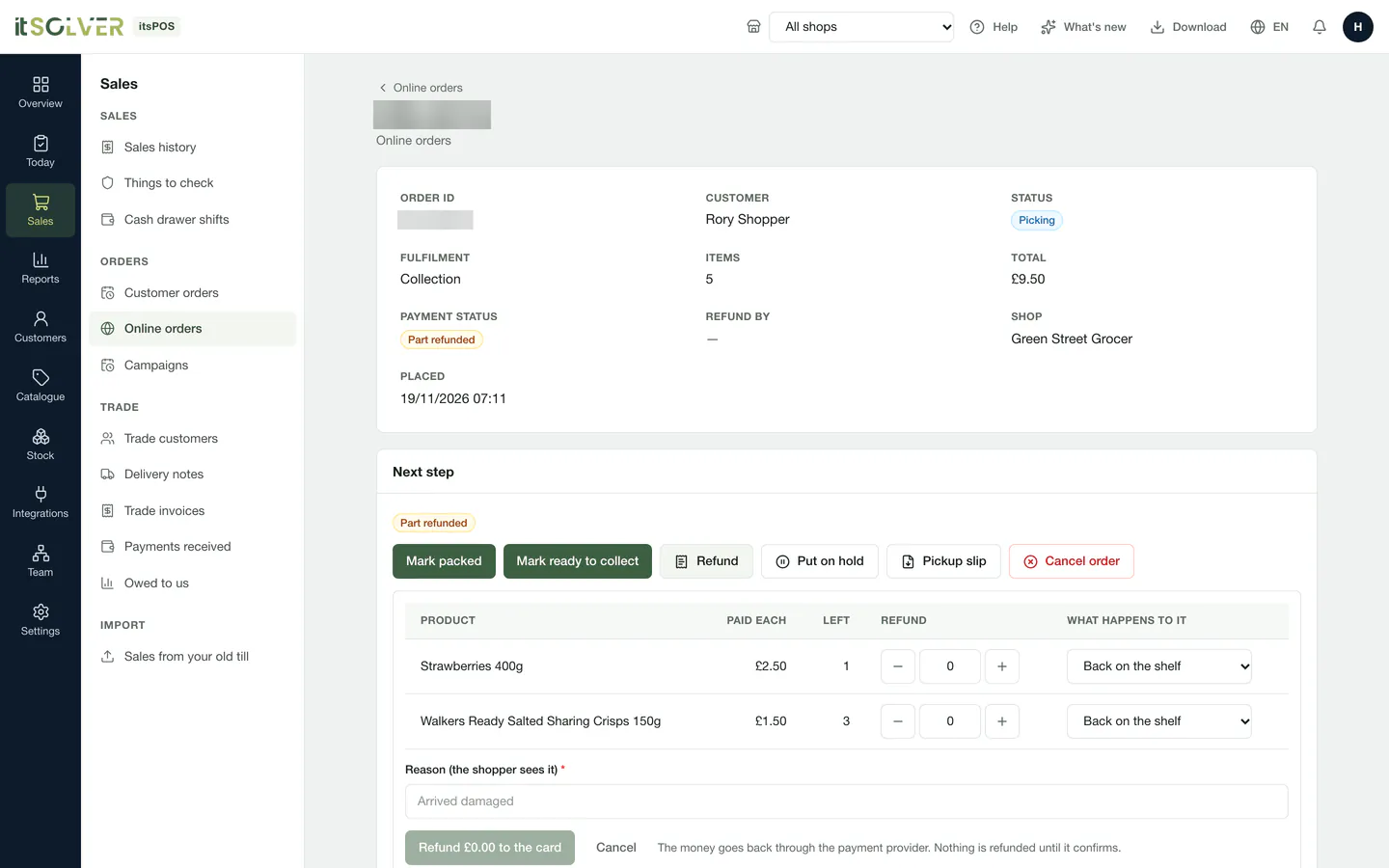
Refund on an online order For each line, choose how many to refund with − and +. Paid each shows what the shopper paid for one, after offers.
Under What happens to it, choose Back on the shelf, Waste or Return to supplier.
Type the Reason (the shopper sees it), for example "Arrived damaged".
Press Refund £… to the card. "The money goes back through the payment provider. Nothing is refunded until it confirms."
The shopper is emailed the refund, and the order shows Part refunded and the amount under Refunded. The delivery charge is always refunded when the whole order is cancelled or returned.
Cancel the whole order
Before the order is sent, you can cancel it with a full refund:
- Press Cancel order.
- Type the Reason (the shopper sees it), for example "Sorry, this item sold out in store".
- If the order was already packed, choose what happens to each item.
- Press Cancel and refund. "Order cancelled and refunded. Stock is back on sale." The shopper is emailed.
Press Keep order to leave it.
When shoppers cancel or return
- Within the minutes you allow: with Customers can cancel orders on in Store settings, a shopper can cancel a paid order themselves for the Minutes customers have to cancel, before you start on it. They get a full refund straight away.
- Within 14 days of getting it: the law lets shoppers cancel or return most items. On their order page they press "Cancel or return items", choose the items and how they send them back ("I'll post them back" or "I'll bring them to the shop"), and send the request. Items you may refuse once sent (fresh food, made to order, unsealed hygiene goods) aren't offered: see the product's Can shoppers cancel it once sent?
The order then shows Return requested with the request and a Refund by date. When the items come back, press Items back on the request: the refund clock starts. Refund what came back with Refund. If they don't come back within 14 days, close the request without a refund ("The items didn't come back within 14 days").
Returns in the shop
A shopper bringing items back to the shop is handled at the till like click and collect: open the order under Customer orders, tap Refund items, and the money goes back to their online payment (Click and collect).
Who pays the postage
Faulty items are always sent back at your cost. For change-of-mind returns, choose in Settings › Selling rules › Who pays to send items back: The customer or The shop. Your store's terms and the shopper's return form show it ("You pay for sending them back").
Scenarios
- An online customer returns one item by post: they request the return; when the parcel arrives, press Items back, then Refund that item with Back on the shelf.
- One item sold out after the order: before marking it ready, Refund that item with a reason; the shopper is emailed.
- A delivery arrived damaged: Refund the damaged items with Waste and the reason "Arrived damaged".
If something goes wrong
- The refund says it failed or is waiting: see "A refund failed or is waiting" in Help.
- No Cancel order button: the order has been sent; use Refund instead, or wait for the shopper's return.
Still stuck?
The itsPOS support team is here 08:00 to 20:00 every day except Christmas Day.
- Call or WhatsApp: +44 7488 880320
- Email: support@itspos.io
- In the back office: Help › Contact support, or go to app.itspos.io/help/contact after you sign in
- On our website: itspos.io/contact
Tell us your shop's name and what you were trying to do. A screenshot of the screen helps.