

Online store
Online orders: from New to Collected
Sales › Online orders lists every order placed on your online store, with what to do next. Shop managers see the orders of their shops; Owners and Admins see all.
For: Owners, Admins and Shop managersOn some plans3 min read
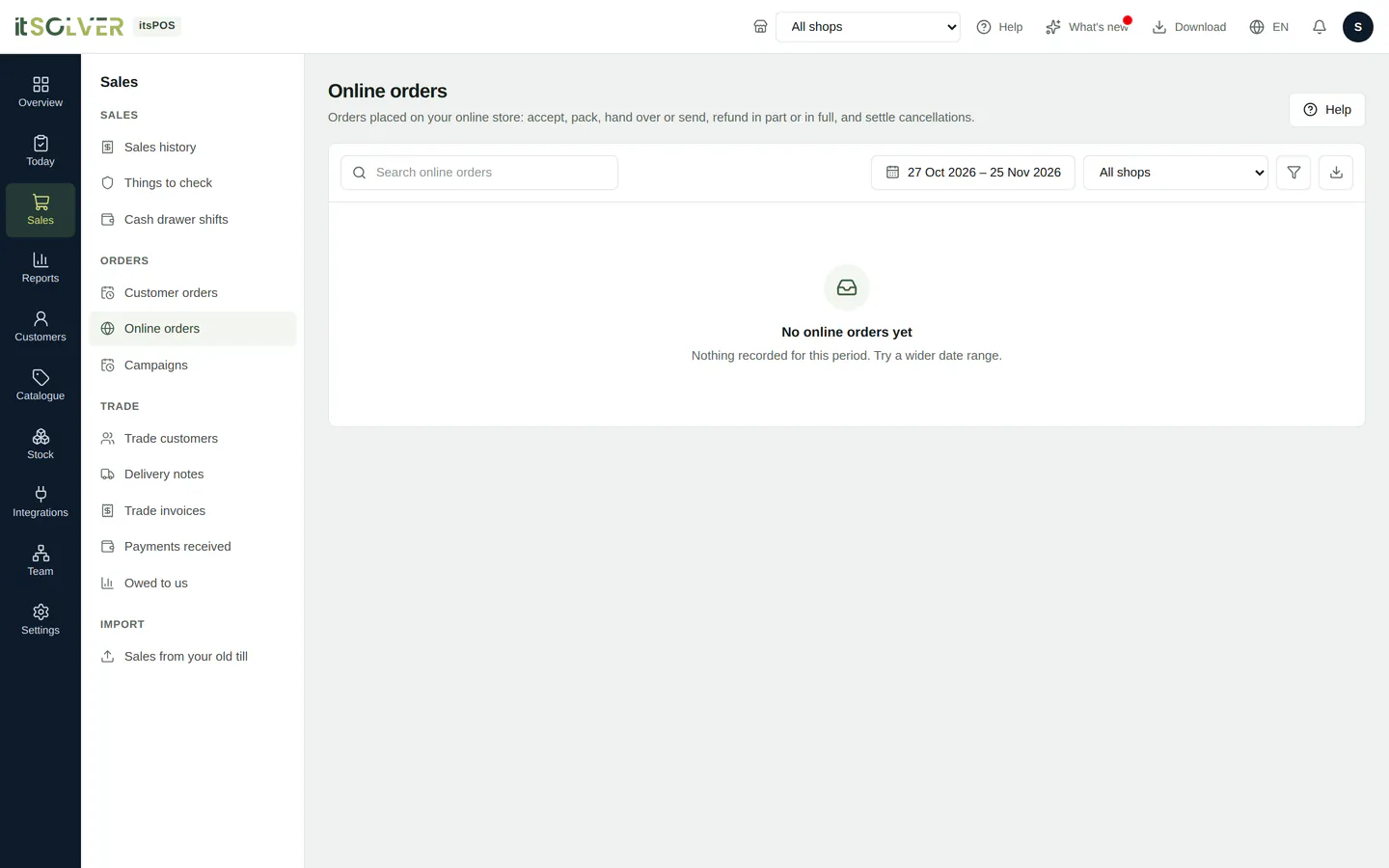
What you see
Each row shows the Order ID (WEB-000102), Customer, Status, Fulfilment (Collection or Delivery), Items, Total, Payment status, Refund by, Shop and when it was Placed. Filter by Status, Fulfilment and Payment status, choose the dates and the shop at the top, and export the list as CSV.
The stages
| Status | What it means | Next step | The shopper is emailed |
|---|---|---|---|
| New | Paid, waiting for you | Accept and pick | Order confirmation, when they pay |
| Picking | Someone is picking it | Mark packed | "We're preparing your order" |
| Packed | Bagged and waiting | Mark ready to collect, or Mark sent | — |
| Ready to collect | On the shelf for the shopper | Mark collected, or hand it over at the till | "Your order is ready to collect" |
| Sent | With the carrier or your driver | Mark delivered | "Your order is on its way", with the tracking number |
| Collected, Delivered | Done | Refund if needed | "Thank you for collecting" or "has been delivered" |
| On hold | Stopped while you check something | Release | — |
| Return requested, Part refunded, Refunded, Cancelled | After the shopper or you cancel or return | See Refunds, cancellations and returns | Each refund and cancellation |
You can skip a stage: Mark ready to collect straight from New works.
The order's page
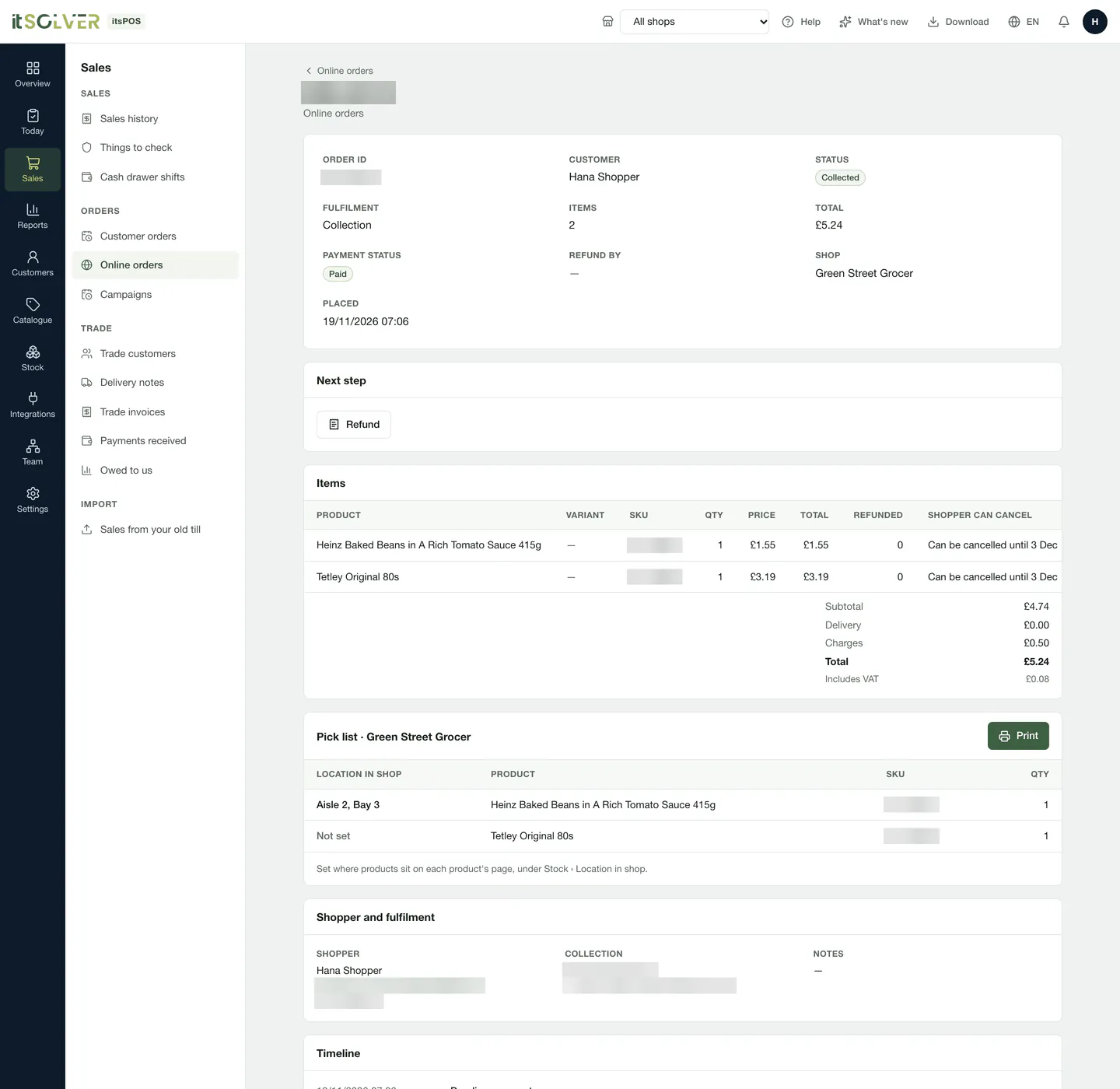
- Next step: the buttons for the stages above, Refund, Put on hold, Pickup slip (a page with the order number as a QR code, to tape to the bag) and Cancel order.
- Items: each product with its Qty, Price, Total, Refunded and Shopper can cancel (whether the 14-day right applies, for example "Can't be cancelled once sent: perishable").
- The totals: subtotal, discount, delivery, charges, total and the VAT in it.
- Pick list: the items in the order they sit in the shop, from each product's Location in shop. Press Print to take it round the shop.
- Shopper and fulfilment: name, email, phone, the collection point or delivery address, and their notes.
- Timeline: every stage with when and who.
Where it shows up
- The till: paid click and collect orders for the till's shop wait under Customer orders for staff to hand over (Click and collect).
- Email: the people who chose the New online order email in My notifications are told about each new order.
- Reports and sales history: each paid order is an online sale at its shop, with its VAT, in your sales and the VAT return.
- Stock: the items are taken off the shop's stock when the order is paid.
Scenario: Saturday morning click and collect rush
- Filter Status to New and Fulfilment to Collection.
- Open each order, press Accept and pick and Print the pick list.
- When bagged, press Mark ready to collect and tape the Pickup slip to the bag. The shopper gets their email.
- As each shopper arrives, hand it over at the till or press Mark collected.
Still stuck?
The itsPOS support team is here 08:00 to 20:00 every day except Christmas Day.
- Call or WhatsApp: +44 7488 880320
- Email: support@itspos.io
- In the back office: Help › Contact support, or go to app.itspos.io/help/contact after you sign in
- On our website: itspos.io/contact
Tell us your shop's name and what you were trying to do. A screenshot of the screen helps.