

Reports and accounts
Choose columns, save a view and favourites
Set a report up once the way you like it, then open it again in one tap.
For: Owners, Admins, Shop managers and Accountants2 min read
Choose the columns
- Open a report, for example Sales summary.
- Tap Columns. "Choose what the report, its files and a saved report show."
- Untick the columns you don't need, or tap Show all.
- Tap Show these.
The columns you chose are also the columns in the CSV, Excel and PDF files and in a scheduled email.
Save a view
A view keeps the filters, comparison, grouping, sort order and columns.
Set the report up: shop, filters, Group by, Compare with, columns.
Tap Save view.
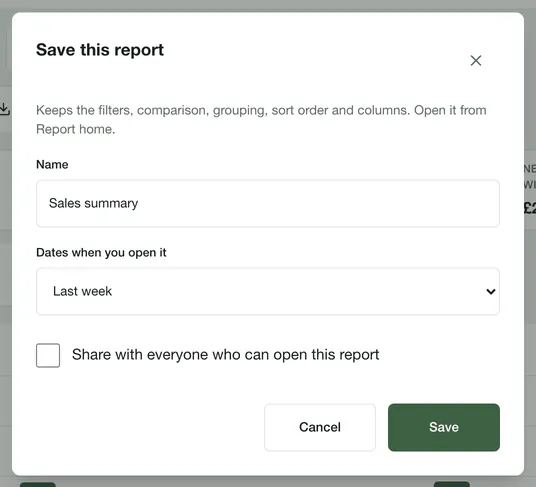
Save this report Type a Name, for example "Weekly takings: Green Street Grocer".
In Dates when you open it, choose what the dates should be each time you open it: Yesterday, Today so far, Last 7 days, This week so far, Last week, This month so far, Last month, or the fixed dates you have now.
Tick Share with everyone who can open this report if others should have it too (you need permission to manage scheduled reports to share).
Tap Save. It says, for example, 'Saved as "Weekly takings: Green Street Grocer". It is on Report home under Saved reports.'
To delete a view, open Reports › Reports, find it under Saved reports and delete it there. Shared views say who shared them.
Favourites
Tap Add to favourites at the top of any report. The button changes to In favourites, and the report is listed on Reports › Reports under Favourites. Tap it again to take it off.
Recently opened on Reports home lists the last reports you opened on this computer or phone.
Scenario: a weekly report for the area manager
- Open Sales by shop, choose Compare with › Same days last week, and keep the columns the area manager reads.
- Save view as "Weekly shops", with Last week, shared.
- Tap Email on a schedule to send it every Monday morning: Email reports on a schedule.
Still stuck?
The itsPOS support team is here 08:00 to 20:00 every day except Christmas Day.
- Call or WhatsApp: +44 7488 880320
- Email: support@itspos.io
- In the back office: Help › Contact support, or go to app.itspos.io/help/contact after you sign in
- On our website: itspos.io/contact
Tell us your shop's name and what you were trying to do. A screenshot of the screen helps.