

Reports and accounts
Every Overview card explained
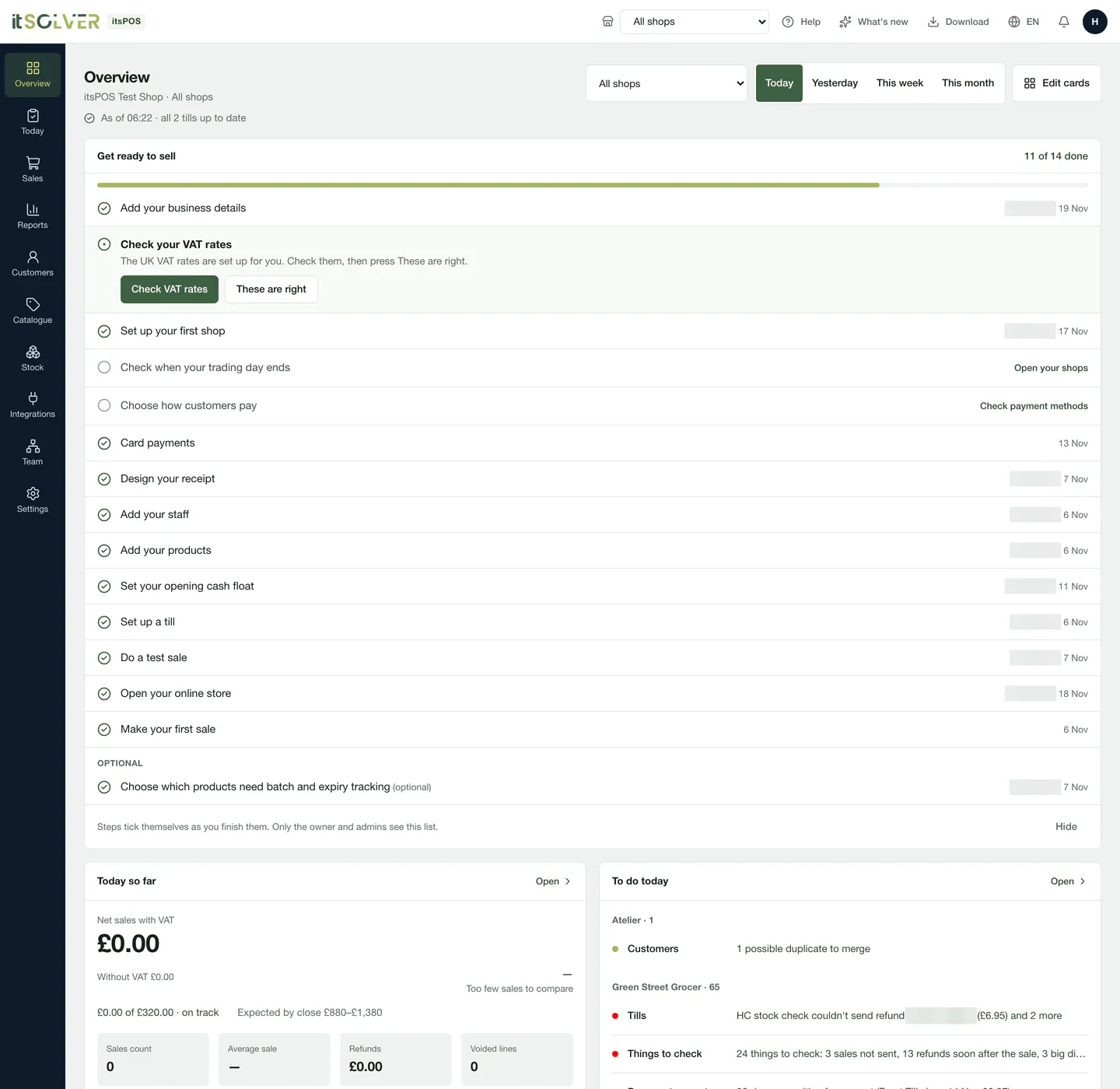
The Overview has 23 cards. Each person sees only the cards their role allows, starts with a set chosen for their role, and can show, hide and move the rest with Edit cards (how). Every figure opens its report, so you can see what's behind it.
For: Owners, Admins, Shop managers and Accountants4 min read
The cards you start with
| Role | Cards shown at first, in this order |
|---|---|
| Owner and Admin | Today so far, To do today, Things to check, Shops, Sales by hour, Visitors and conversion, Cash, Online orders, Top products, Owed to us / To pay, Staff on shift |
| Shop manager | Today so far, To do today, Things to check, Sales by hour, Visitors and conversion, Cash, Online orders, Customer orders due today, Top products, Staff on shift |
| Accountant | Today so far, VAT so far, Owed to us / To pay, Days not final yet |
| Everyone else (Supervisor, Cashier, Stock) | Today so far, To do today, Online orders, Customer orders due today |
A custom role that may see the whole Overview starts like an Owner when it sees every shop, otherwise like a Shop manager. A card only shows when the role allows it and your plan has it, so not everyone sees every card in the list.
Every card
| Card | What it shows | Who sees it |
|---|---|---|
| Today so far (always at the top) | Net sales against your usual day, Expected by close, Sales count, Average sale, Refunds | People who may see sales figures |
| To do today (always at the top) | What waits for you in each shop; each line opens where you do it (The Today list) | Everyone, when your plan has Stock |
| Things to check | How many checks are open, by kind ("12 refunds soon after the sale", "2 drawer differences") | People who may see Things to check |
| Shops | Each shop's sales so far against its usual, furthest below first | People who may see sales, with 2 shops or more |
| Sales by hour | Net sales per hour today against the same day last week; Show as table | People who may see sales |
| Cash | Drawers open now, Waiting for a count, Cash taken, Card taken, Office cash, and tills over the limit | People who may see cash drawer shifts |
| Online orders | New, late and ready online orders | People who handle online orders |
| Customer orders due today | Orders to collect today, ready, and deposits held | People who see customer orders |
| Top products | Best sellers in the period, with the change on last week | People who may see sales |
| Owed to us / To pay | Trade customers owe, Of which overdue, To pay in 7 days, Overdue to suppliers | People who see trade invoices or supplier bills |
| Staff on shift | Who is clocked in now | People who may see staff hours |
| My shift | Your own clock-in and sales | Everyone (hidden at first) |
| VAT so far | VAT for the VAT period you are in | People who may see the VAT return |
| Days not final yet | Trading days a till can still add late sales to | People who may see sales |
| Payments | Cash, card and other payments | People who may see sales |
| Categories | Sales by category | People who may see sales |
| Margin | Margin and margin % on the products that have a cost | People who may see sales and costs |
| Members' share of sales | How much of your sales were to itsPass members | People who may see sales |
| What we owe customers | Gift cards, store credit, points and deposits you still owe | People who may see sales |
| Sales by staff | Each person's sales; a staff report, never a ranking | People who may see staff reports |
| Receipts sent digitally | The share of receipts sent to itsPass or by email instead of printed | People who may see sales |
| Worth a look | Short notes on what changed, such as a product selling far more than usual | People who may see sales |
| Recent sales | The last sales, each one opens | People who may see sales history |
Visitors and conversion On some plans
Door counts from your shop's cameras and conversion (sales ÷ visitors), hour by hour. It needs the camera add-on. It counts people only: no pictures or faces.
Sales per staff hour On some plans
Net sales divided by the hours your staff were clocked in. It needs clock-ins at the till (Staff hours).
Online orders On some plans
The card shows only when you sell online. With no orders waiting it says "No online orders waiting. They appear here when your store takes one."
Worth a look with AI wording
Settings › Reports › Word notes with AI lets AI word the Worth a look notes. The figures are still worked out by itsPOS's rules, and the notes are marked as AI.
Still stuck?
The itsPOS support team is here 08:00 to 20:00 every day except Christmas Day.
- Call or WhatsApp: +44 7488 880320
- Email: support@itspos.io
- In the back office: Help › Contact support, or go to app.itspos.io/help/contact after you sign in
- On our website: itspos.io/contact
Tell us your shop's name and what you were trying to do. A screenshot of the screen helps.