

Reports and accounts
Email reports on a schedule and the Morning summary
Get a report in your inbox at the time you choose, every day, week or month, and send it to the people who need it.
For: Owners, Admins, Shop managers and Accountants3 min read
Schedule a report
Open the report and set it up the way you want it: shop, filters, Group by, Columns.
Tap Email on a schedule. Email a report on a schedule opens with What it sends, for example "Sales summary · Shop: Green Street Grocer".
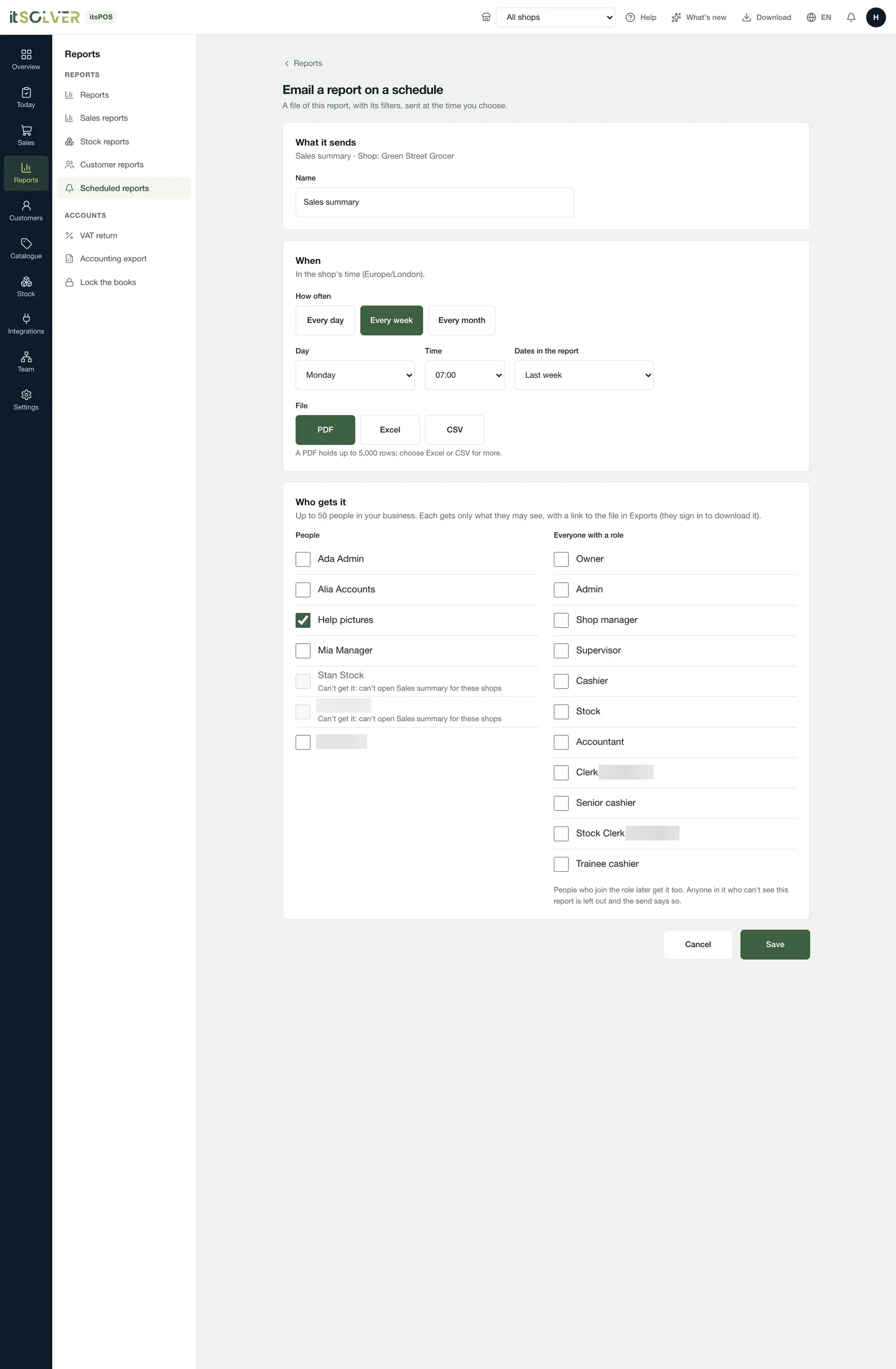
Email a report on a schedule Give it a Name.
In How often, choose Every day, Every week or Every month, then the Day (or Day of the month, up to 28 or Last day of the month) and the Time, in the shop's time.
In Dates in the report, choose what each email covers: Yesterday, Today so far, Last 7 days, This week so far, Last week, This month so far or Last month.
In File, choose PDF, Excel or CSV. "A PDF holds up to 5,000 rows; choose Excel or CSV for more."
In Who gets it, tick People (up to 50) or Everyone with a role. Someone who may not see the report shows "Can't get it: can't open Sales summary for these shops" and is left out.
Tap Save.
Each person gets only what they may see, with a link to the file in Exports (they sign in to download it). People who join a role later get it too.
Without permission to manage scheduled reports, you can only send a report to yourself.
The Morning summary
"Every business has one. Pause it to stop it." It sends Morning summary: yesterday's sales, payments and VAT at 07:00: yesterday's sales, payments and VAT in one email, against the same day last week. Each person gets the shops they work at. Change it with Edit: What to include, the Shops (none ticked: every shop) and who gets it.
Manage your schedules
Reports › Scheduled reports lists every schedule with How often, Goes to, File, Next send and Last send ("Not sent yet" until the first one).
- Run now sends it straight away to everyone on the list, for the dates worked out today.
- Pause stops it until you tap Start again.
- Edit changes it.
- Delete stops it for everyone: "Nobody gets it any more. Files already sent stay in Exports for 7 days."
If you get a scheduled report you don't want, open it from the email's link and tap Stop sending me this: "You won't get this email any more. Whoever made the schedule can add you again."
Scenario: the owner of 3 shops
The owner wants one email each morning, not three. The Morning summary already covers every shop she works at in one email. For a weekly picture she schedules Sales by shop with Compare with › Same days last week, Every week on Monday at 07:00, Last week, PDF, to herself and the role Shop manager: each manager gets only their own shop.
Still stuck?
The itsPOS support team is here 08:00 to 20:00 every day except Christmas Day.
- Call or WhatsApp: +44 7488 880320
- Email: support@itspos.io
- In the back office: Help › Contact support, or go to app.itspos.io/help/contact after you sign in
- On our website: itspos.io/contact
Tell us your shop's name and what you were trying to do. A screenshot of the screen helps.