

Reports and accounts
Lock the books after filing
Once your VAT return or year end is done, lock the books up to its last day. Your accounts for that period then never change: anything dated in it later goes into the accounts on the first open day instead.
For: Owners, Admins and Accountants2 min read
Before you start
Lock only after the return is filed or the accounts are signed off. You can lock up to yesterday at the latest.
Steps
Go to Reports › Lock the books. It says "The books aren't locked. Every change goes into the accounts on its own date."
In Lock the books up to, choose the last day of the period, for example 31 Oct 2026.
Tap Lock the books. itsPOS asks "Lock the books up to 31 October 2026? Changes for dates up to 31 October 2026 will go into the accounts on 1 November 2026. You can move the date back or unlock later."
Tap Lock the books again to confirm.
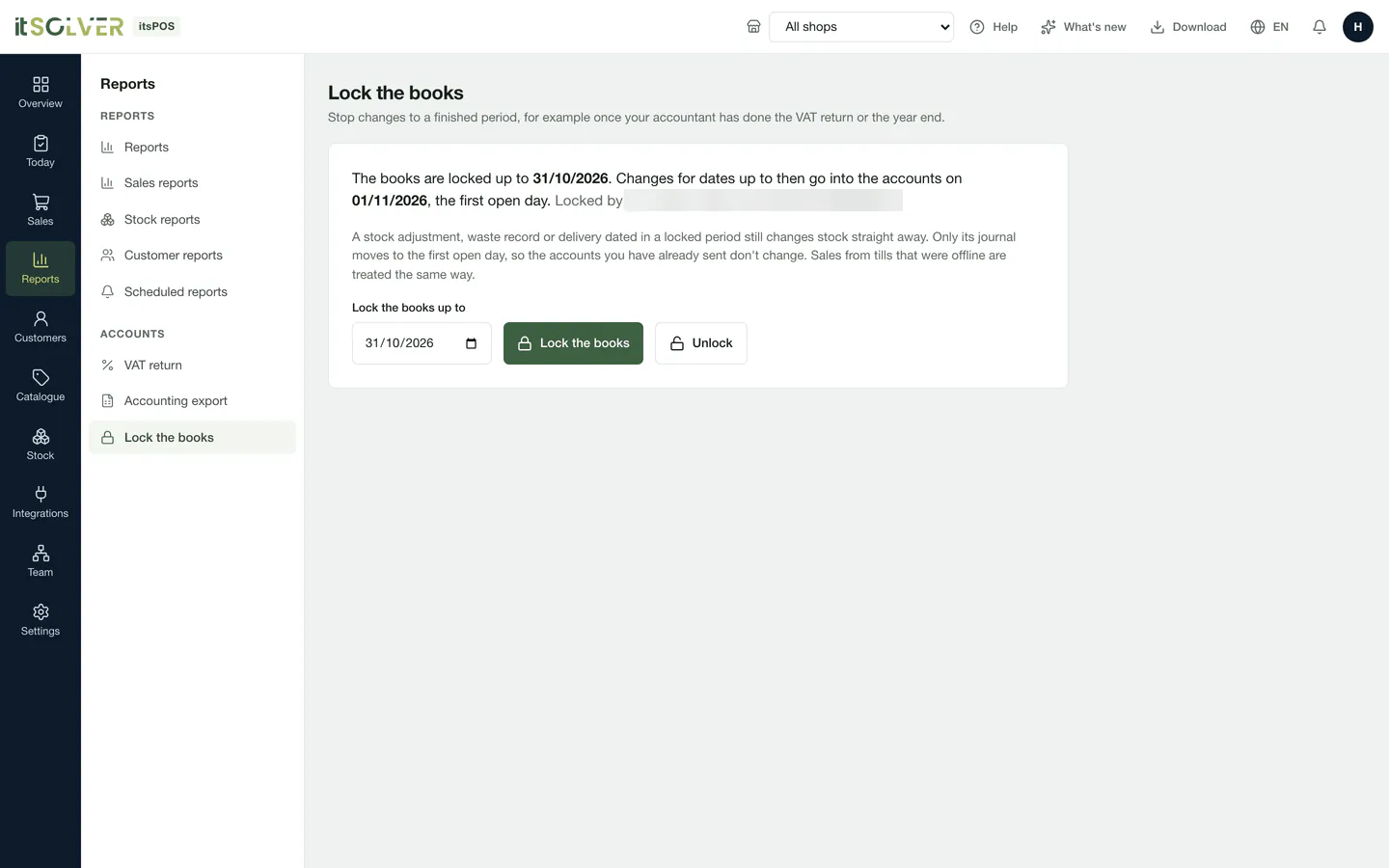
Lock the books
The page now says "The books are locked up to 31/10/2026. Changes for dates up to then go into the accounts on 01/11/2026, the first open day.", with who locked them.
What happens next
- A sale a till sends late for a locked day still shows in your reports on its own day, but its journal goes on the first open day. In the test shop a sale made offline on 31 Oct and sent on 19 Nov went into the accounts on 1 Nov as "Supplementary journal 1 for store day … 2026-10-31 (late sales) (for 2026-10-31, period locked)", and the August to October VAT return stayed £7,691.34.
- "A stock adjustment, waste record or delivery dated in a locked period still changes stock straight away. Only its journal moves to the first open day, so the accounts you have already sent don't change."
- A refund for a sale in the locked period is dated the day it's given, so it goes into the open period anyway.
Move the date or unlock
- At your next return, choose a later date and tap Lock the books again.
- To move it back, choose an earlier date.
- Unlock removes the lock: "Changes go into the accounts on their own dates again, also in periods you have already sent to your accountant." Ask your accountant first.
Who can do this
Owners, Admins and Accountants to start with. Anyone signed in can see the date the books are locked to.
Still stuck?
The itsPOS support team is here 08:00 to 20:00 every day except Christmas Day.
- Call or WhatsApp: +44 7488 880320
- Email: support@itspos.io
- In the back office: Help › Contact support, or go to app.itspos.io/help/contact after you sign in
- On our website: itspos.io/contact
Tell us your shop's name and what you were trying to do. A screenshot of the screen helps.