

Reports and accounts
Choose and move your Overview cards
Put the cards you look at most at the top of your Overview and hide the rest. Your choices are yours alone: nobody else's Overview changes.
For: Owners, Admins, Shop managers and Accountants1 min read
Before you start
You can only add cards your role is allowed to see. Every Overview card explained lists who sees each one.
Steps
On the Overview, tap Edit cards at the top.
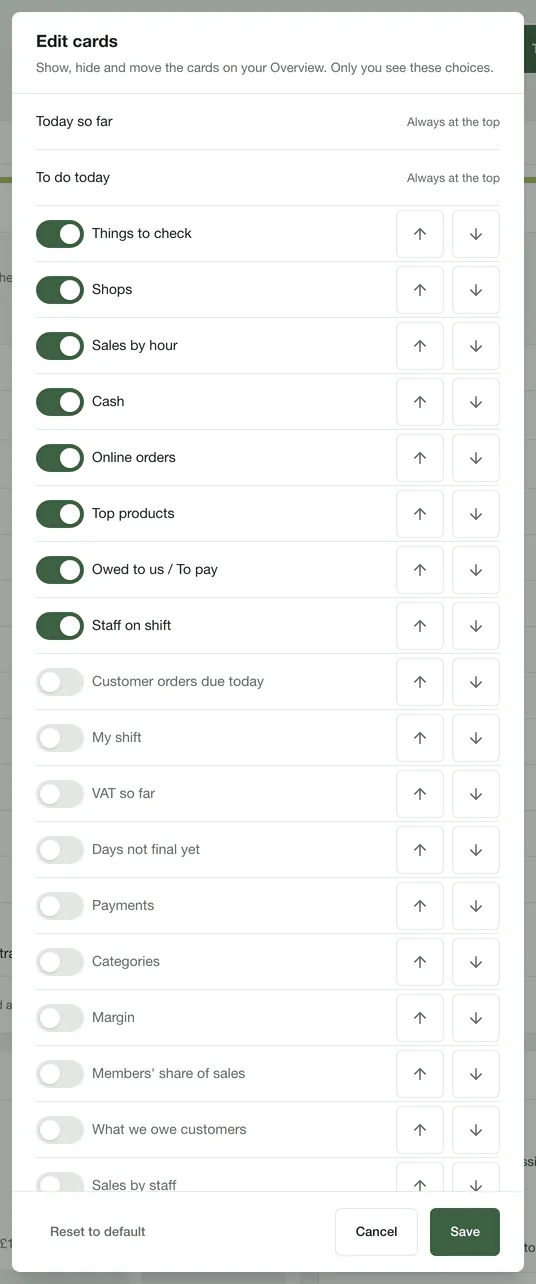
Edit cards Turn a card's switch on to show it, off to hide it. Today so far and To do today say Always at the top and can't be hidden.
Tap the up or down arrow beside a card to move it one place.
Tap Save.
What happens next
Your Overview shows the cards in your order straight away, on every computer and phone you sign in on. Reset to default in Edit cards puts back your role's cards.
If something goes wrong
- A card isn't in the list: your role can't see it, or your plan doesn't have it (for example Sales per staff hour is on Professional and above). Ask your owner, or see Why can't I see this?.
- A card shows no figures: the shop has no sales yet today, or you chose a shop with no tills.
Still stuck?
The itsPOS support team is here 08:00 to 20:00 every day except Christmas Day.
- Call or WhatsApp: +44 7488 880320
- Email: support@itspos.io
- In the back office: Help › Contact support, or go to app.itspos.io/help/contact after you sign in
- On our website: itspos.io/contact
Tell us your shop's name and what you were trying to do. A screenshot of the screen helps.