

Customers and itsPass
Get your shop ready for itsPass
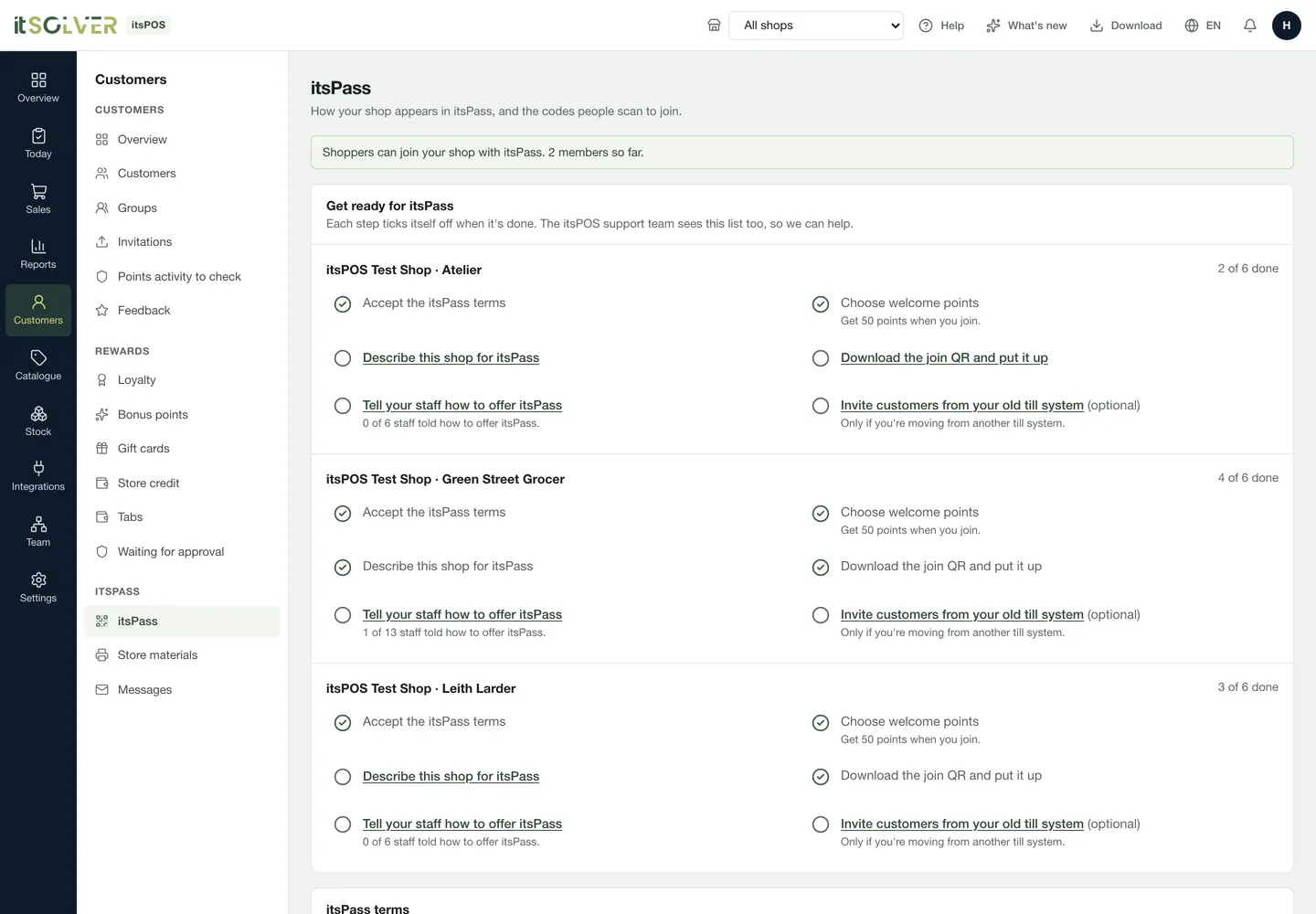
Customers › itsPass is where your business switches itsPass on and gets each shop ready: accept the itsPass terms, choose welcome points and what the till does, describe each shop, put up its join QR and tell your staff. A checklist for each shop ticks itself off as you go.
For: Owners, Admins and Shop managers6 min read
What this page is for
Shoppers can join your shop once the itsPass terms are accepted. Everything else on this page makes joining easy and worth it: welcome points, a join QR people can see, and staff who ask "Have you got itsPass?".
Who can do what:
- Owners and Admins change everything, and only they accept the itsPass terms.
- Shop managers change welcome points, the till switches, and the profile and join code of their own shops. They see the terms but "The business owner accepts the terms."
- Anyone else who can see customers in the back office can open the page, but changes nothing.
What you see
From top to bottom:
- The banner says whether shoppers can join: "Shoppers can join your shop with itsPass. 2 members so far." If it says "New members are paused" or asks you to accept the terms, see "New members are paused": what it means, in Help in the back office.
- Get ready for itsPass: a checklist for each shop, with "Ready" or how many steps are done, for example "4 of 6 done" for Green Street Grocer. "Each step ticks itself off when it's done. The itsPOS support team sees this list too, so we can help." Tap a step that's still to do to go to the part of the page that does it.
- itsPass terms: the three promises your business makes to members, then Accept the itsPass terms with the version. Once accepted, it says when and by whom.
- Welcome and joining: welcome points, the group new members join, and four switches for the till. See Welcome points and joining at the till: every option.
- One card for each shop, for example "Green Street Grocer · 2 members": what shoppers see about this shop, Show this shop in Find shops in itsPass, the shop's join code and QR, Download SVG, Download PNG, Posters and counter stands, Make a new code, and a Preview in itsPass.
- Staff: the Staff script card, everyone whose role sells at the till and who hasn't left, with "Not told yet" or the day they were told, and Moving from another till system?.
If shoppers said a till join wasn't them, a card "Till joins the shopper said weren't them" shows above the checklist: the shop, the till, the staff member and when. itsPOS already undid those joins and took back their welcome points; check that staff type mobile numbers carefully.
The checklist steps
| Step | Done when | Where you do it |
|---|---|---|
| "Accept the itsPass terms" | An Owner or Admin accepted the current terms | itsPass terms on this page |
| "Choose welcome points" | Welcome points are more than 0 (it then shows "Get 50 points when you join.") | Welcome and joining |
| "Describe this shop for itsPass" | The shop's description isn't empty | The shop's card: What shoppers see about this shop |
| "Download the join QR and put it up" | Someone pressed Download SVG or Download PNG for that shop | The shop's card, or a poster in Customers › Store materials |
| "Tell your staff how to offer itsPass" | Every staff member at that shop is marked as told | Staff, Mark as told |
| "Invite customers from your old till system" (optional) | You sent invitations, or chose We're not moving from another system | Customers › Invitations or Staff |
The optional step doesn't stop a shop being "Ready".
What you can do
Accept the itsPass terms
- Read the three promises: shoppers own their itsPass account and your shop sees only what each member shares; you send offers only to members who agreed, at most 2 a week and never between 9pm and 8am; a member can leave or delete their account at any time.
- An Owner or Admin presses Accept the itsPass terms.
Shoppers can join from then on. When itsPOS publishes new terms, the card asks you to accept them again.
Describe each shop
- On the shop's card, write What shoppers see about this shop: up to 280 characters. For Green Street Grocer we wrote "Fresh fruit and veg every morning, British cheeses from the deli counter and everyday groceries. Scan your itsPass at the till for points and members' prices."
- Press Save shop profile: "Shop profile saved."
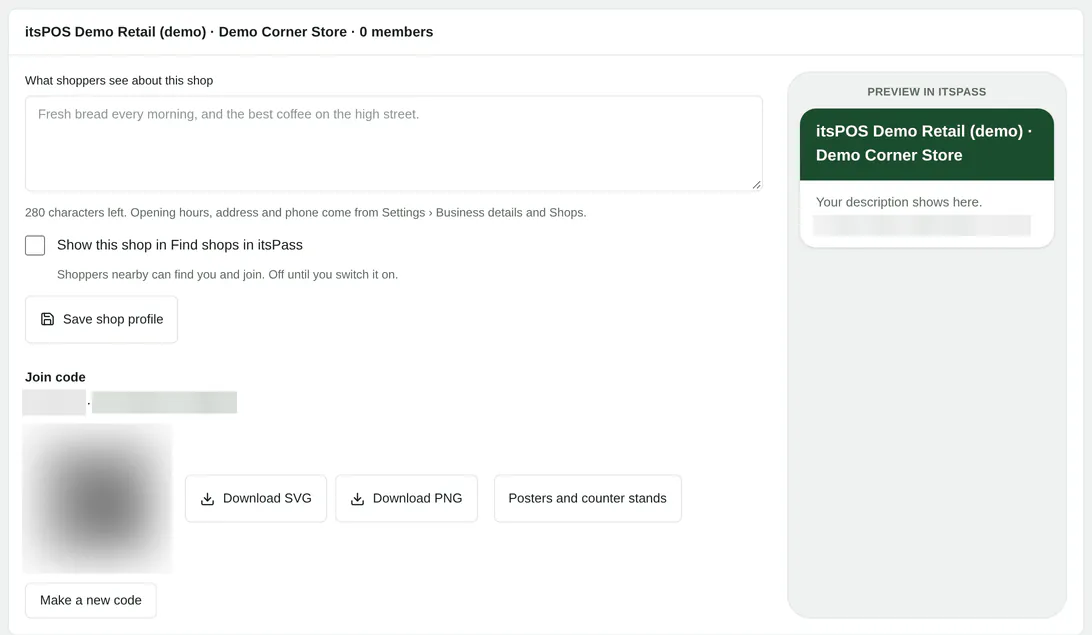
Opening hours, address and phone come from Settings › Business details and Settings › Shops, not from here. Write the description in the language your shoppers read: itsPass never translates your shop's own words. More in Your shop description and Find shops.
Put the join QR up
Press Download PNG (a 1200 × 1200 picture) or Download SVG, or Posters and counter stands for ready-made posters. See Your join code and QR and Store materials.
Tell your staff
Mark as told next to each person once they've read the staff script card. See Telling staff about itsPass.
Where it shows up
- On the till: the welcome line, the join QR and the till switches reach every till within a minute.
- In itsPass: your shop's name, colours, logo, description and address on your shop's page and on the join page shoppers open from your QR. The Preview in itsPass shows roughly how it looks.
- On your materials: posters, counter cards and the receipt footer use the shop's join QR and welcome line. Change either and Customers › Store materials marks what you printed as "Out of date".
- In the online store: shoppers can join from your store too. See the Online store guides.
What shoppers see
Members see your shop's page in itsPass in the 1.1 design: your shop's name, logo and colour in its own header, then their points or stamps, Show my code, your offers, the money they have with you and your shop's details. The rest of the page keeps itsPass's own look.
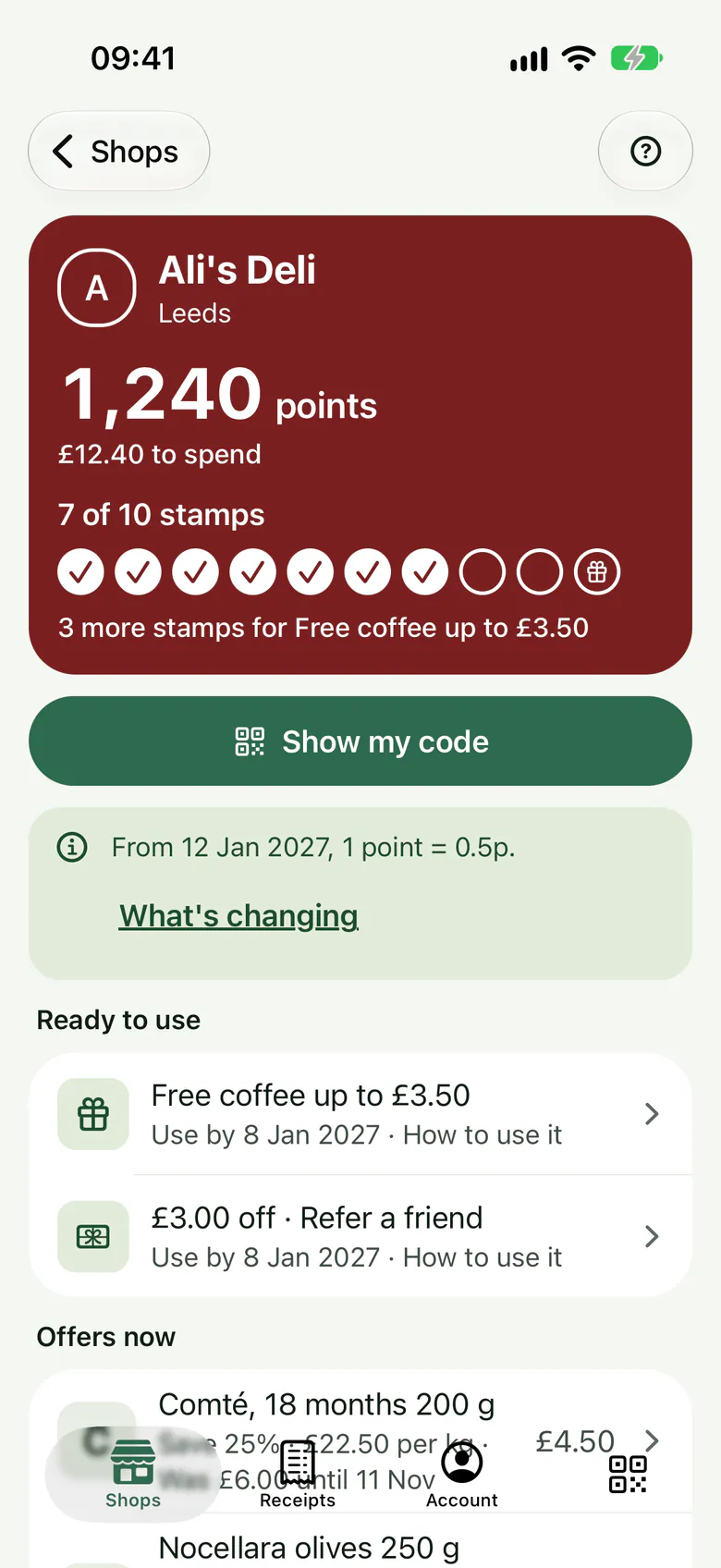
Your shop's words (name, welcome line, description) show as you wrote them, whatever language the member uses itsPass in. Every part of the page and the setting behind it: The shop card: how each setting shows to members.
Still stuck?
The itsPOS support team is here 08:00 to 20:00 every day except Christmas Day.
- Call or WhatsApp: +44 7488 880320
- Email: support@itspos.io
- In the back office: Help › Contact support, or go to app.itspos.io/help/contact after you sign in
- On our website: itspos.io/contact
Tell us your shop's name and what you were trying to do. A screenshot of the screen helps.