

Sales and orders
Add a customer or change the cashier after the sale
Sara sold a jar of Nescafé while Sam was still signed in on the till, and the customer, Mia Hughes, forgot her itsPass card. Put the sale on Sara and add Mia, so staff figures are right and the sale counts for Mia.
For: Owners, Admins and Shop managers2 min read
Before you start
- Owners, Admins and Shop managers can do this.
- Add the customer only works on a sale that has no customer yet. You need the customer's number, for example CUS-000006 (on their page in Customers).
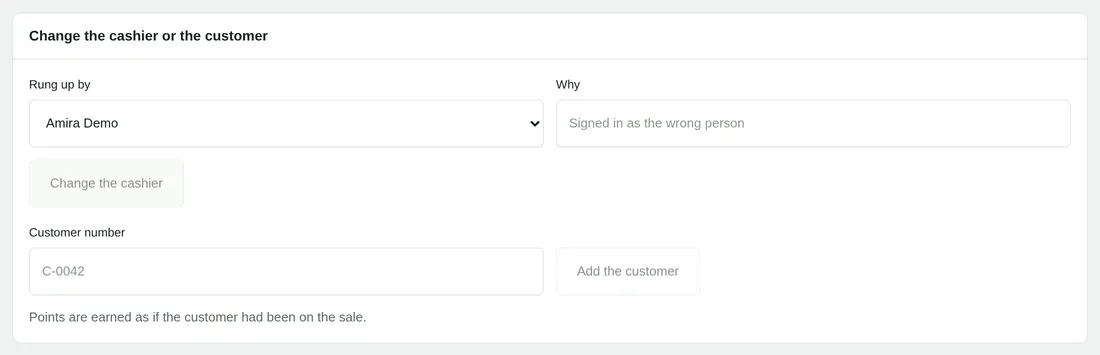
Change the cashier
- Open the sale in Sales › Sales history, for example receipt MAI66-000002.
- In Change the cashier or the customer, choose the right person under Rung up by, for example Sara Senior.
- Under Why, say why (at least 3 letters), for example "Signed in as the wrong person".
- Press Change the cashier. You see "Cashier changed from Sam Cashier to Sara Senior. Sales by staff moves the sale to Sara Senior."
Add the customer
- On the same sale, type the customer's number under Customer number, for example CUS-000006.
- Press Add the customer. You see "Customer added to the sale. Points are earned as if they had been on the sale."
What happens next
- The sale's title line, Staff and Customer show the new person and customer.
- What happened lists each change with who made it and when, for example "Cashier changed from Sam Cashier to Sara Senior by … (Signed in as the wrong person)".
- Staff reports count the sale for the new cashier. The shift and its cash stay as they were.
- The customer sees the sale in their history, and earns points if your shop has a loyalty programme.
Scenario: a customer forgot their itsPass at the till
Mia comes back the next day: she forgot to show her itsPass yesterday. Find yesterday's sale by its receipt number or her card's last 4 digits, add her with her customer number, and the sale counts for her as if she'd shown it.
Still stuck?
The itsPOS support team is here 08:00 to 20:00 every day except Christmas Day.
- Call or WhatsApp: +44 7488 880320
- Email: support@itspos.io
- In the back office: Help › Contact support, or go to app.itspos.io/help/contact after you sign in
- On our website: itspos.io/contact
Tell us your shop's name and what you were trying to do. A screenshot of the screen helps.