

Sales and orders
Christmas and Easter pre-orders
Take Christmas or Easter orders weeks ahead and have everything ready on the day: customers choose what they want by weight band or size and a collection slot, pay a deposit, and pay the rest when they collect, by the real weight for anything weighed. In our test shop the campaign "Christmas 2026" offers a Christmas hamper (£15.00), Blue Stilton "about 500 g" and Aged Gouda "about 1 kg" from the counter, collected on 23 and 24 December at Green Street Grocer.
For: Owners, Admins and Shop managersOn some plans7 min read
Before you start
- Owners, Admins and Shop managers make campaigns and take, change and collect pre-orders. Accountants can see them. Cashiers take and collect pre-orders on the till.
- The products are in Catalogue › Products. Anything weighed at collection is sold by weight.
- New campaigns start from Settings › Selling rules › Seasonal pre-orders: Pre-order deposit (a percentage of the order, 25% to start with; a fixed amount; or no deposit), Orders per collection slot (20), Pre-order changes allowed until (days before collection) (3) and Balance from the actual weight (on).
Make a campaign
Go to Sales › Campaigns and press New campaign.
Name, for example "Christmas 2026", and Order numbers start with, 2 to 4 letters, for example XM (orders are XM-000001, XM-000002 …).
First day for orders and Last day for orders, for example 18 November to 20 December. Taking orders: On, or Switched off to stop for a while.
Changes allowed until so many days before collection (after that only a manager can change an order), Orders per slot, and the Deposit.
Under What you offer, add each product with Add a product, once for each size customers choose: a Weight band such as "about 500 g", or Or feeds such as "a family". Give a Guide price, or for anything weighed a Price per kg and Guide kg (the guide price is then worked out: 0.5 kg × £28.00 = £14.00). Untick Offered to stop offering one.
Under Collection slots, press Add a slot for each: the Day, From and To, and Orders it takes. Example: Wed 23 Dec 10:00–12:00 and 14:00–16:00 for 10 orders each, Thu 24 Dec 09:00–11:00 for 6.
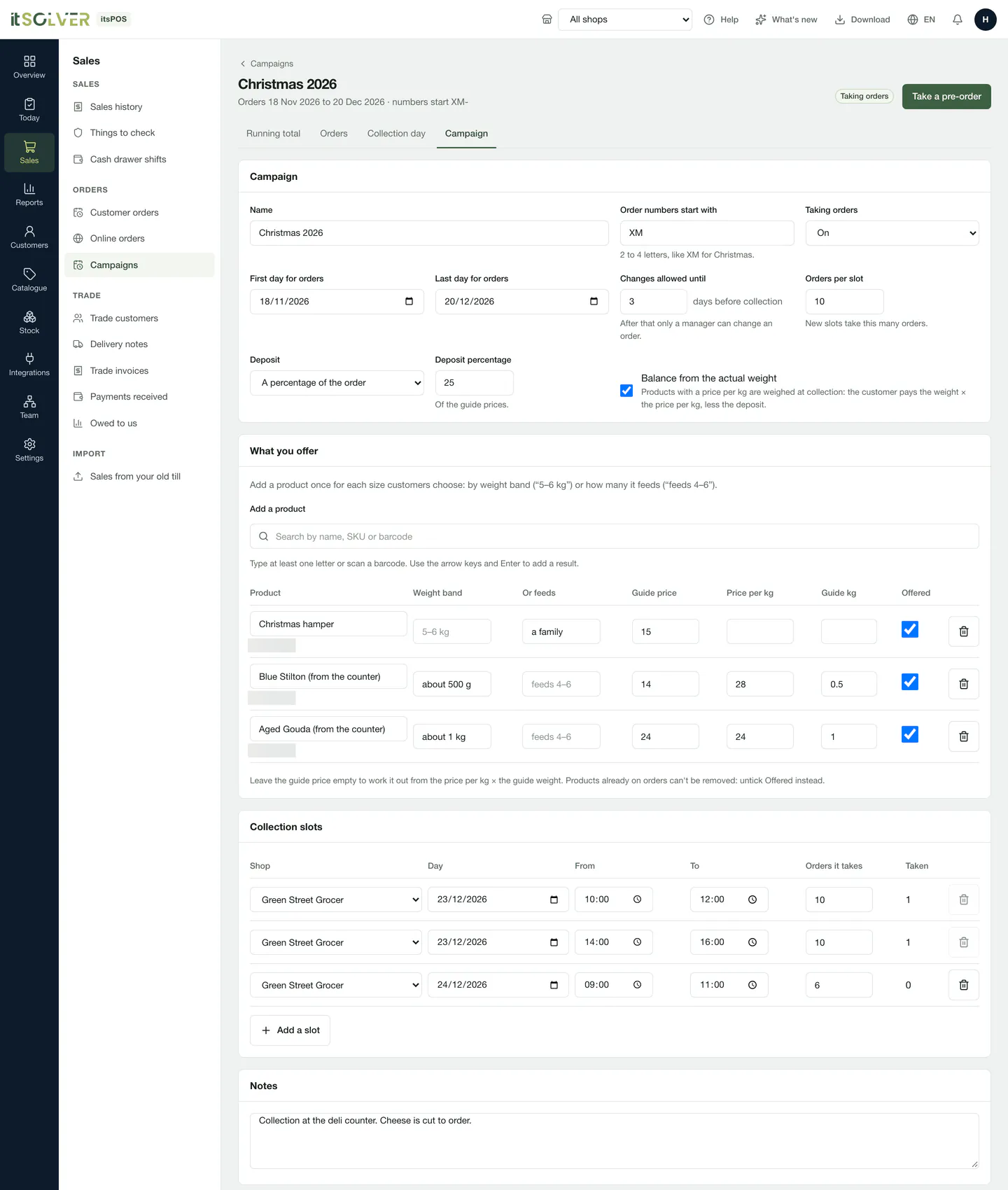
New campaign Christmas 2026 Press Make campaign. "Campaign made. Share the slots with your customers."
The campaign shows Taking orders from its first day; before that it's Not open yet. A campaign with no orders can be deleted from its Campaign tab.
Take a pre-order
Open the campaign and press Take a pre-order.
Customer: their Name, and a Phone or Email (at least one).
Collection: tap a slot. Each says how many places are left; a full one can't be chosen.
What they want: press + for each, and add Cut notes if they want it cut a certain way, for example "Whole piece, not sliced". Guide total adds up the guide prices.
Deposit taken now starts at what the campaign asks for (25% of £29.00 is £7.25); choose Paid by. For cash, choose where the cash goes.
Press Take pre-order. "Pre-order XM-000001 taken for Wed 23 Dec 10:00–12:00."
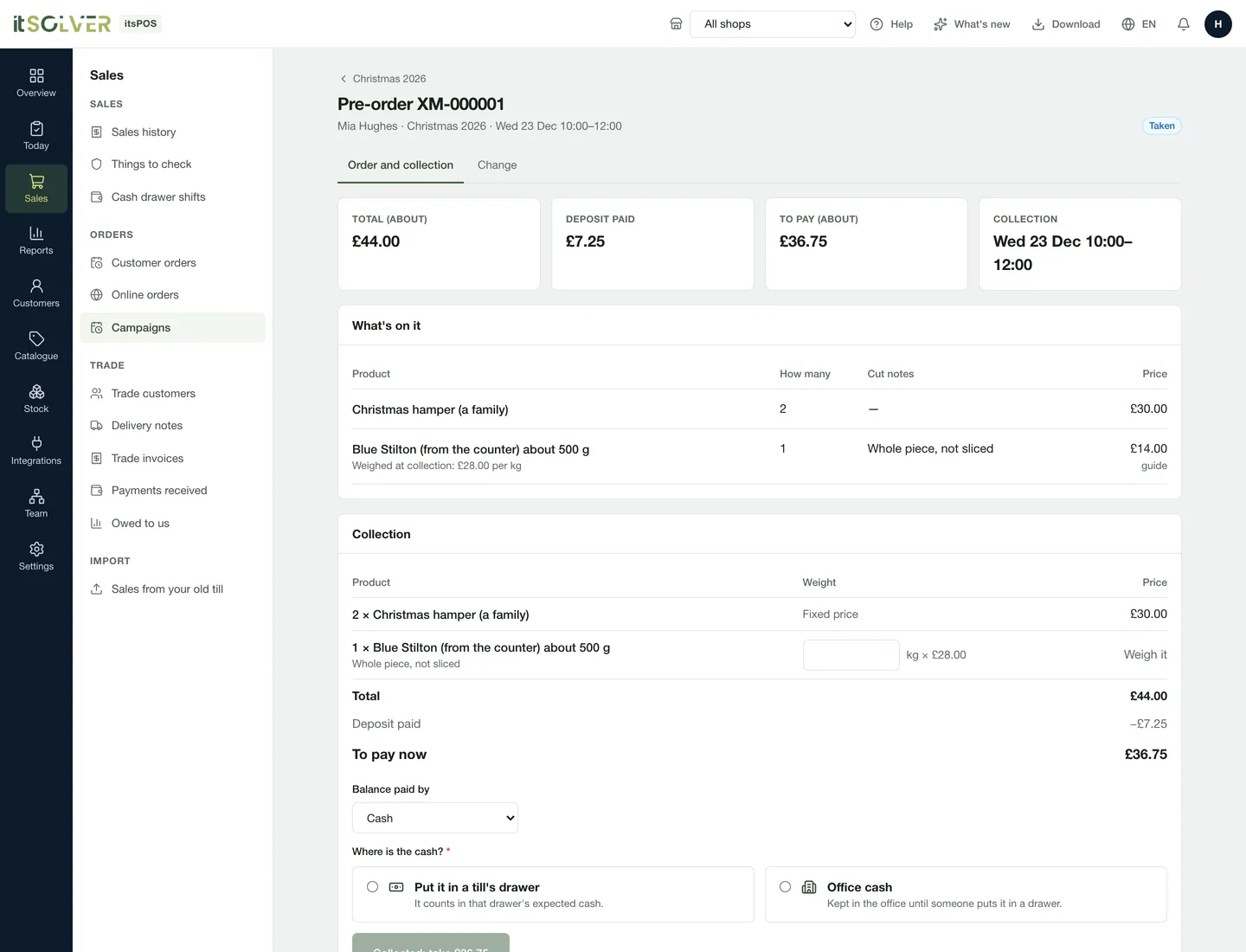
Pre-order XM-000001 for Mia Hughes
On the till, cashiers take pre-orders from Customer orders: see Customer orders at the till.
Change or cancel a pre-order
- Change: open the pre-order and its Change tab, change the slot, how many or the cut notes, and press Save changes. "Pre-order saved." Mia Hughes added a second hamper this way: about £44.00 now, £36.75 still to pay. After the changes cut-off, it says "Changes stopped on …" and only a manager can change it.
- Cancel: under Cancel this pre-order, choose Who cancelled (The customer or We did), how to refund the deposit, and press Cancel the pre-order. "Pre-order cancelled. Its place in the slot is free again." When a customer cancels after the cut-off, your rules may keep the deposit; a manager can still refund it with Refund the kept deposit.
What to order from the supplier
The campaign's Running total tab shows Orders, Deposits taken and, for each product, what's ordered by band or size, about how many kg, how many are on purchase orders and Still to order, with the product's main supplier.
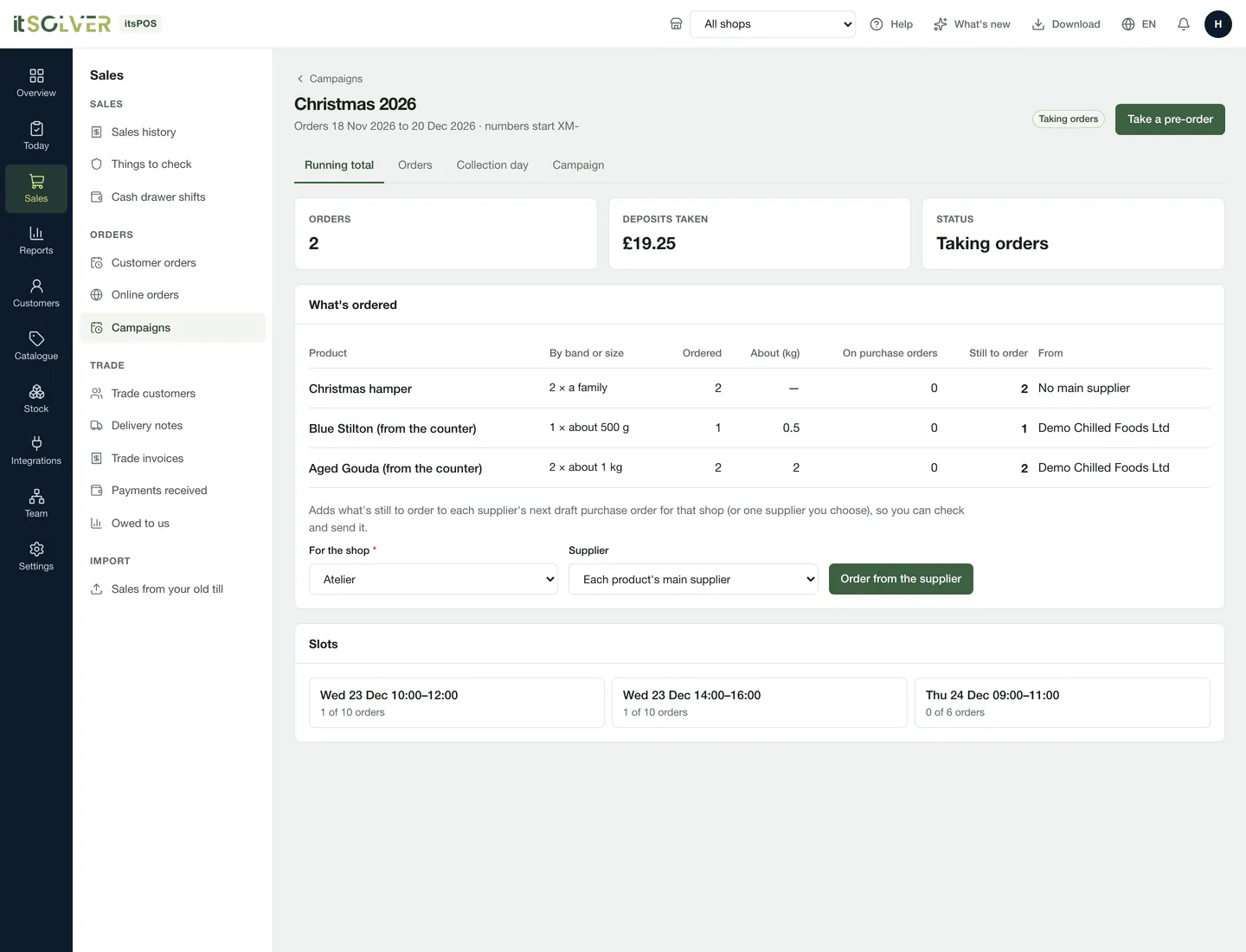
Press Order from the supplier, choose For the shop and leave Supplier on each product's main supplier (or choose one for everything): what's still to order goes on each supplier's next draft purchase order, to check and send from Stock › Purchase orders (see Purchase orders). A product without a main supplier, such as a hamper you make up yourself, is left out and named. If you delete or cancel that purchase order, or take a product off the draft, the running total counts only what's still on it, so the rest shows under Still to order again.
The collection day
The Collection day tab (on Sales › Campaigns for every campaign, or on one campaign) shows each slot that day with its orders, cut notes and what's left to pay. Not collected lists orders whose day has passed: give them a call.
- Print collection list: the day's slots and orders on paper.
- Print packing labels: a label for each order with the customer's name and cut notes.
Collect and weigh
Open the pre-order. Under Collection, type the weight of each weighed product in kg. Example: Mia Hughes's Stilton weighs 0.520 kg: 0.520 × £28.00 = £14.56. Products at a fixed price, like the hampers, need nothing.
The total, the Deposit paid and To pay now (or To give back when the deposit was more) show: £30.00 + £14.56 − £7.25 = £37.31.
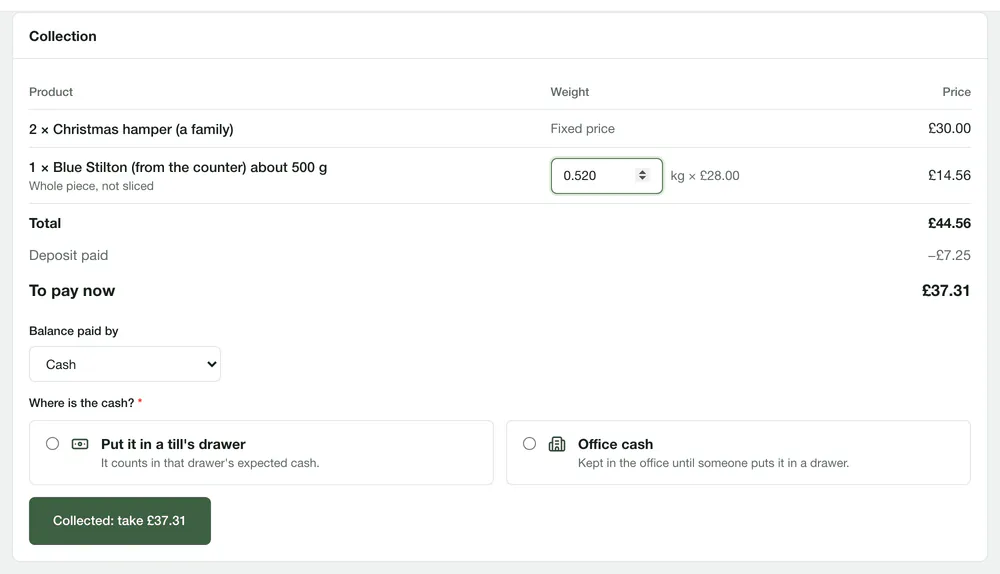
Collection of XM-000001 Choose Balance paid by (for cash, Where is the cash?: a till's drawer or Office cash) and press the button, for example "Collected: take £37.31". "Collected. The sale is in Sales history under the order's number."
The weighed amount leaves stock, and the sale is in Sales history under the order's number. Sam Okafor's pre-order XM-000002 was collected this way: two pieces of Aged Gouda weighing 2.140 kg came to £51.36, less his £12.00 deposit. On the till, collecting works the same way: see Customer orders at the till.
What happens next
- Every pre-order is also on Sales › Customer orders (see Customer orders), and on the till.
- Deposits count in the shift or Office cash where they were taken until the order is collected.
If something goes wrong
- "… is full" The slot has all its orders. Choose another slot, or raise Orders it takes on the campaign.
- "… has no main supplier. Add one on the product, or choose a supplier." No product on the campaign has a main supplier: choose a Supplier, or add one on each product.
- "Weigh … first" A weighed product needs its weight before the order can be collected.
- Customers ask to pre-order online. The online store doesn't take pre-orders yet: take their order by phone.
Still stuck?
The itsPOS support team is here 08:00 to 20:00 every day except Christmas Day.
- Call or WhatsApp: +44 7488 880320
- Email: support@itspos.io
- In the back office: Help › Contact support, or go to app.itspos.io/help/contact after you sign in
- On our website: itspos.io/contact
Tell us your shop's name and what you were trying to do. A screenshot of the screen helps.