

Sales and orders
A4 invoices, credit notes and digital receipt links
Every sale has an A4 VAT invoice and a digital receipt; every refund has a credit note. Download them, email the invoice, or send the customer the link to their receipt, all from the sale's page.
For: Owners, Admins, Shop managers and Accountants3 min read
Before you start
- Owners, Admins, Shop managers and Accountants can do this.
- Find the sale in Sales › Sales history: see Sales history: find any sale or refund.
- At the till, the cashier prints a VAT invoice with the customer's business name and address: see Receipts.
Download the A4 invoice or credit note
- Open the sale, for example receipt MAI66-000001.
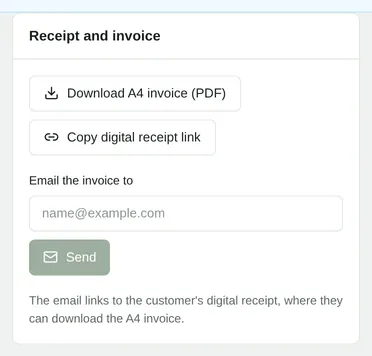
- Press A4 invoice (PDF) at the top, or Download A4 invoice (PDF) in Receipt and invoice. For a refund the button is Credit note (PDF).
- The PDF downloads: your business details, the receipt number and date, each line with its VAT rate, the VAT by rate and how it was paid.
Email the invoice to a customer
- In Receipt and invoice, type the customer's email under Email the invoice to, for example a café owner's accounts address.
- Press Send.
- You see "The invoice is on its way to …". The email links to the customer's digital receipt, where they can download the A4 invoice.
Give the customer a link to their receipt
- Press Copy digital receipt link.
- You see "Link copied. The customer can open it on any phone or computer." and the link, which starts shop.itspos.io/r/.
- Paste it into a text or WhatsApp message to the customer.
The digital receipt shows your shop's name, the receipt number, each line (weighed items as "0.512 kg @ £3.30/kg"), the total, how it was paid, your returns line, "Download the invoice (PDF)", and an offer to save the receipt to itsPass with the points it would earn.
Scenario: a business customer needs a VAT invoice
Olivia from Demo Café Ltd bought supplies yesterday and her accountant needs a VAT invoice.
- Find the sale (type the amount, or her name if she was added to it).
- Press Download A4 invoice (PDF) and hand it over, or type her accounts email under Email the invoice to and press Send.
If she buys from you every week, set her up as a trade customer with weekly invoices instead.
If something goes wrong
- The email didn't arrive: check the address and ask the customer to look in their spam folder, or send the link instead.
Still stuck?
The itsPOS support team is here 08:00 to 20:00 every day except Christmas Day.
- Call or WhatsApp: +44 7488 880320
- Email: support@itspos.io
- In the back office: Help › Contact support, or go to app.itspos.io/help/contact after you sign in
- On our website: itspos.io/contact
Tell us your shop's name and what you were trying to do. A screenshot of the screen helps.