

Sales and orders
Take a deposit now, hand over later
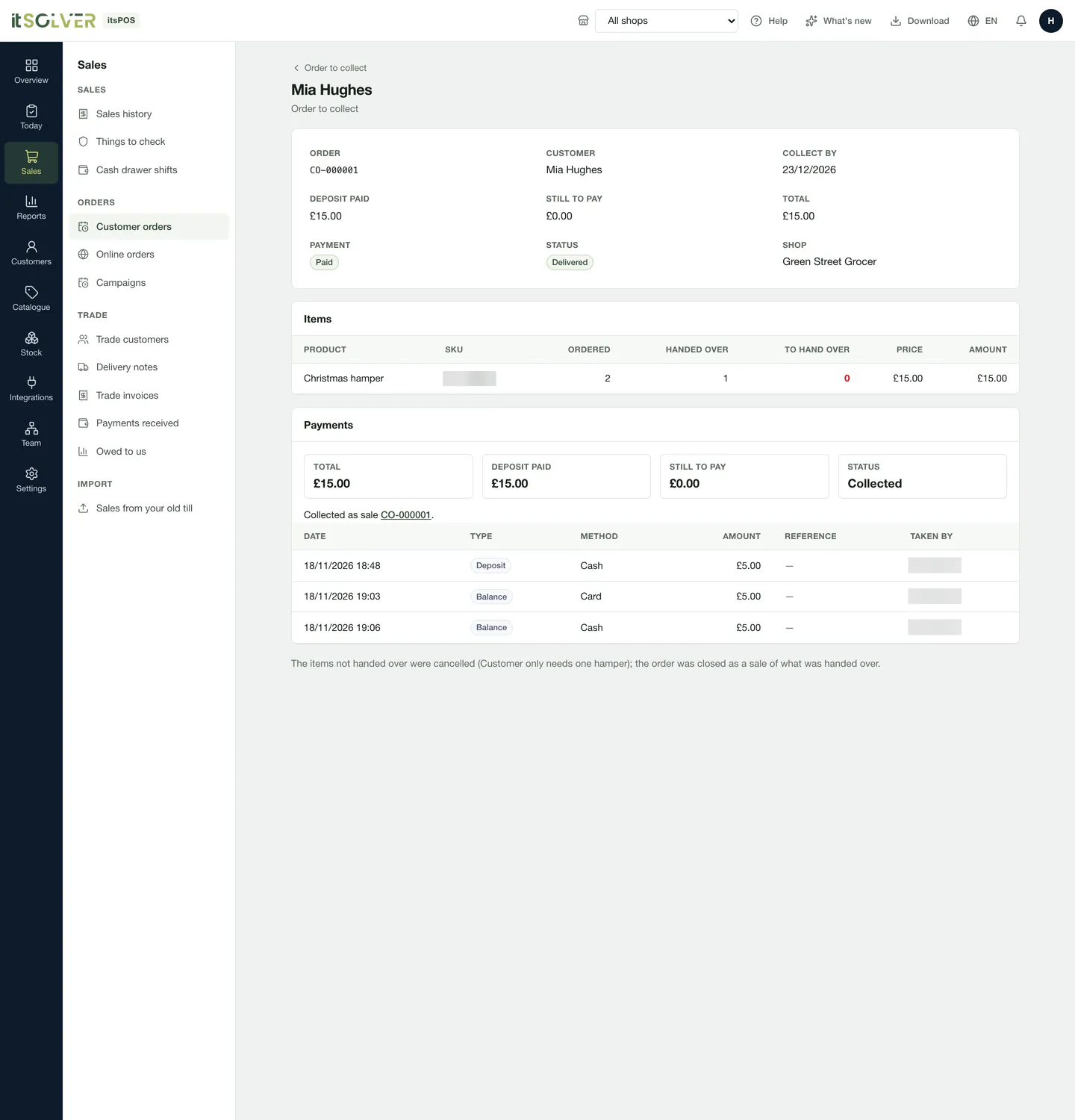
Mia Hughes wants two Christmas hampers (£15.00 each) for 23 December and pays £5 now. Take an order to collect: the hampers are held for her, the deposit is kept, and she pays the rest when she collects. The example is order CO-000001 at Green Street Grocer.
For: Owners, Admins, Shop managers, Supervisors and CashiersOn some plans4 min read
Before you start
- In the back office: Owners, Admins and Shop managers take, change and hand over orders.
- On the till: cashiers take and collect orders too: see Customer orders at the till.
- The customer should be in Customers, so you can find them by name. Anyone else, type their name in the notes.
Take the order
Go to Sales › Customer orders, press New order and choose Order to collect.
Shop: where the customer collects, for example Green Street Grocer. It can't be changed later.
Customer: type their name and choose them, for example "Mia Hughes · CUS-000006".
Collect by: the date, for example 23/12/2026. Fulfilment: Collection in store or Delivery.
Deposit taken now, for example 5.00, and Deposit paid by, for example Cash.
For cash, Where is the cash?: Put it in a till's drawer (choose the open drawer; it counts in that drawer's expected cash) or Office cash ("Kept in the office until someone puts it in a drawer.").
Notes, for example "Two hampers for the family, wrapped".
Under Items, scan or search for each product, for example Christmas hamper, and set the quantity. Leave the price empty to use the product's selling price.
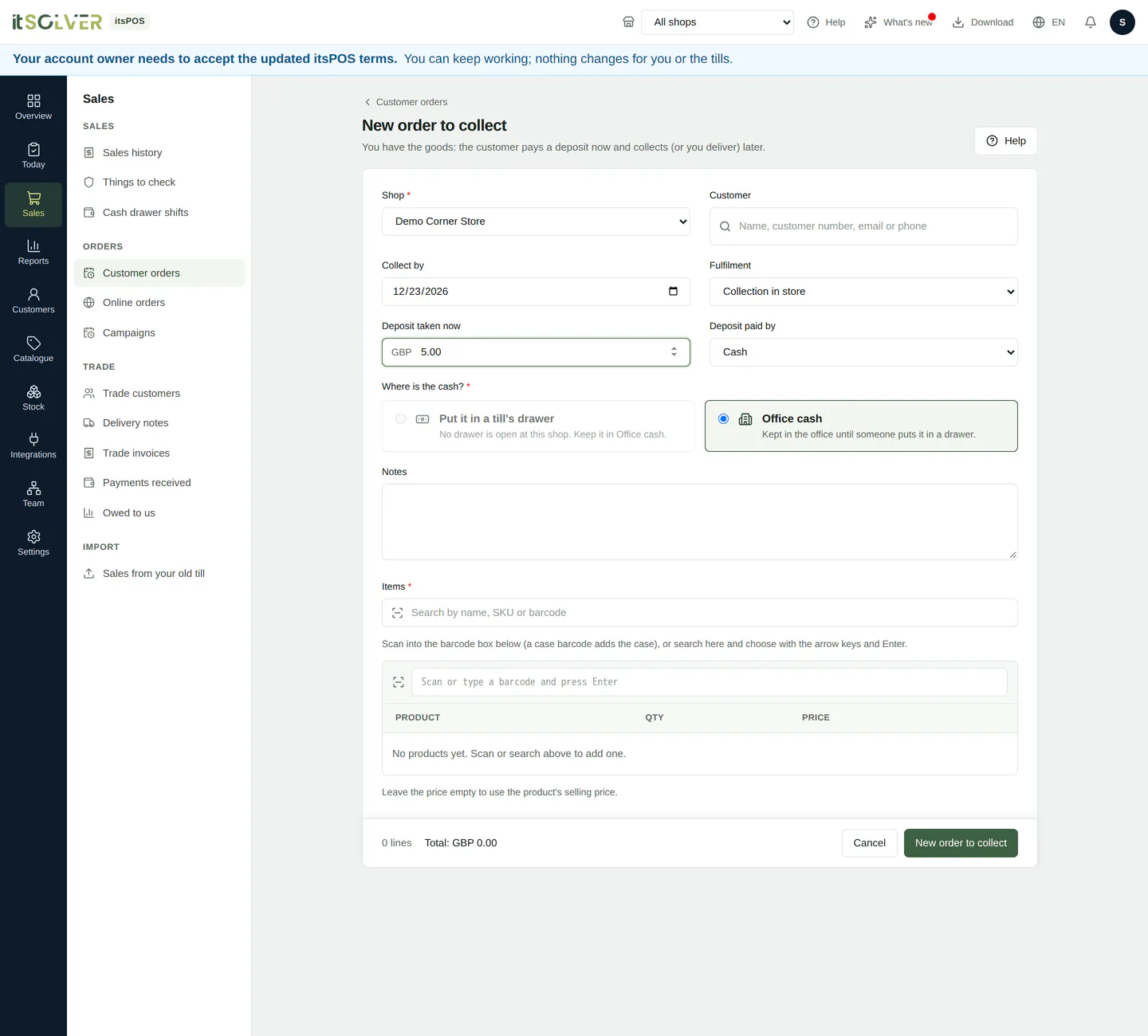
New order to collect Press New order to collect. "Saved CO-000001."
Take more money
On the order, under Payments, type the Amount, choose Paid by and a Reference if you like, then press Take payment. "Payment recorded." Each payment is listed under Order payments with the date, type (Deposit or Balance), method, amount and who took it.
Hand it over
- Under Hand over, leave Product on Everything left, or choose one product to hand over part of the order, and its Qty.
- Everything left: Balance taken now starts at what's still to pay. Choose Paid by, for example Card.
- Part of the order: Money taken now starts empty, so nothing is taken. To take some money now, type it and choose Paid by.
- Press Hand over. "Items handed over."
Handing over the last item needs the balance paid; the order then becomes a sale with the order's number, "Collected as sale CO-000001".
Cancel what's left, or the whole order
- Part handed over, the rest not wanted: under Cancel remaining items, type a Reason, for example "Customer only needs one hamper", and press Cancel remaining items, then press Cancel remaining items again in the box that asks (Go back keeps them). What was handed over stays as a sale; "Nothing is refunded" or the unused deposit is refunded. If the customer still owes for what they took: "Take that payment first."
- The whole order: under Cancel order, type a Reason, choose how to refund the deposit (for example "Refund £10.00 by" Cash) and press Cancel order. The box asks "Cancel this order? Any deposit is given back.": press Cancel order again (Go back keeps it).
What happens next
- The order is Delivered (all handed over), Partially delivered, or Cancelled; its payment shows Unpaid, Partially paid or Paid.
- Deposits and payments count on the shift where they were taken (or in Office cash) as Not sales until the order becomes a sale.
- The sale is in Sales history under the order's number, with the order linked under Customer order.
- An order past its collect-by date shows on Not collected.
If something goes wrong
- "Choose how the money taken now was paid, or leave the amount empty." You typed an amount without Paid by. Choose it, or empty the box.
- "Take the balance of … before handing over the order." This hands over the last of the order: take what's still to pay with it.
- "The customer still owes … Take that payment first." Take the payment for what they collected, then cancel the rest.
Still stuck?
The itsPOS support team is here 08:00 to 20:00 every day except Christmas Day.
- Call or WhatsApp: +44 7488 880320
- Email: support@itspos.io
- In the back office: Help › Contact support, or go to app.itspos.io/help/contact after you sign in
- On our website: itspos.io/contact
Tell us your shop's name and what you were trying to do. A screenshot of the screen helps.