

Sales and orders
Office cash, safe drops and banking
Cash doesn't only live in till drawers. A deposit taken in the back office waits as Office cash, and safe drop bags wait in the safe. Put Office cash in a drawer when a till needs change, and record each trip to the bank so you know what was paid in.
For: Owners, Admins and Shop managers3 min read
Before you start
- Who: Owners, Admins and Shop managers. Accountants see Banking; "A manager records banking."
- Safe drops are made on the till: see Safe drops.
- Where cash taken in the back office goes is in Settings › Cash management: ask each time (Where is the cash?), or always Office cash.
Office cash
Cash taken in the back office (a customer order's deposit, for example) can go straight into an open till drawer or stay in the office. When it stays, the Office cash card at the top of Sales › Cash drawer shifts shows it, for example "Green Street Grocer: £5.00 in the office from 1 customer order".
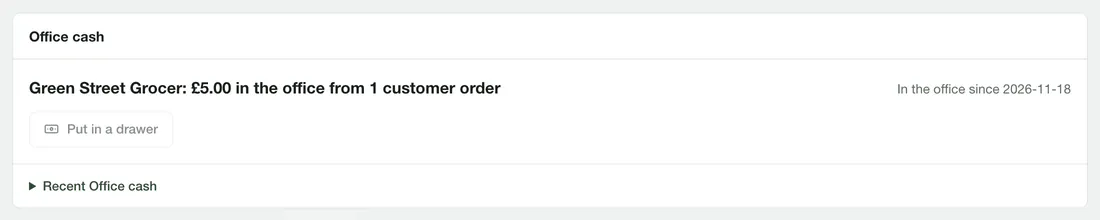
To put it in a till's drawer, for example when Till 1 needs change:
- On the Office cash card, press Put in a drawer.
- Choose the Drawer, for example "HC sales check (open since 18:33)". Only open drawers at that shop are listed.
- Type the Amount and a Note if you like, for example "Deposit for CO-000001, for change".
- Press Put in drawer. "£5.00 put in HC sales check's drawer. Tell the cashier."
The drawer's expected cash goes up by that amount: its shift says "£5.00 put in from Office cash", and the count at the close expects it.
Bank the bags and Office cash
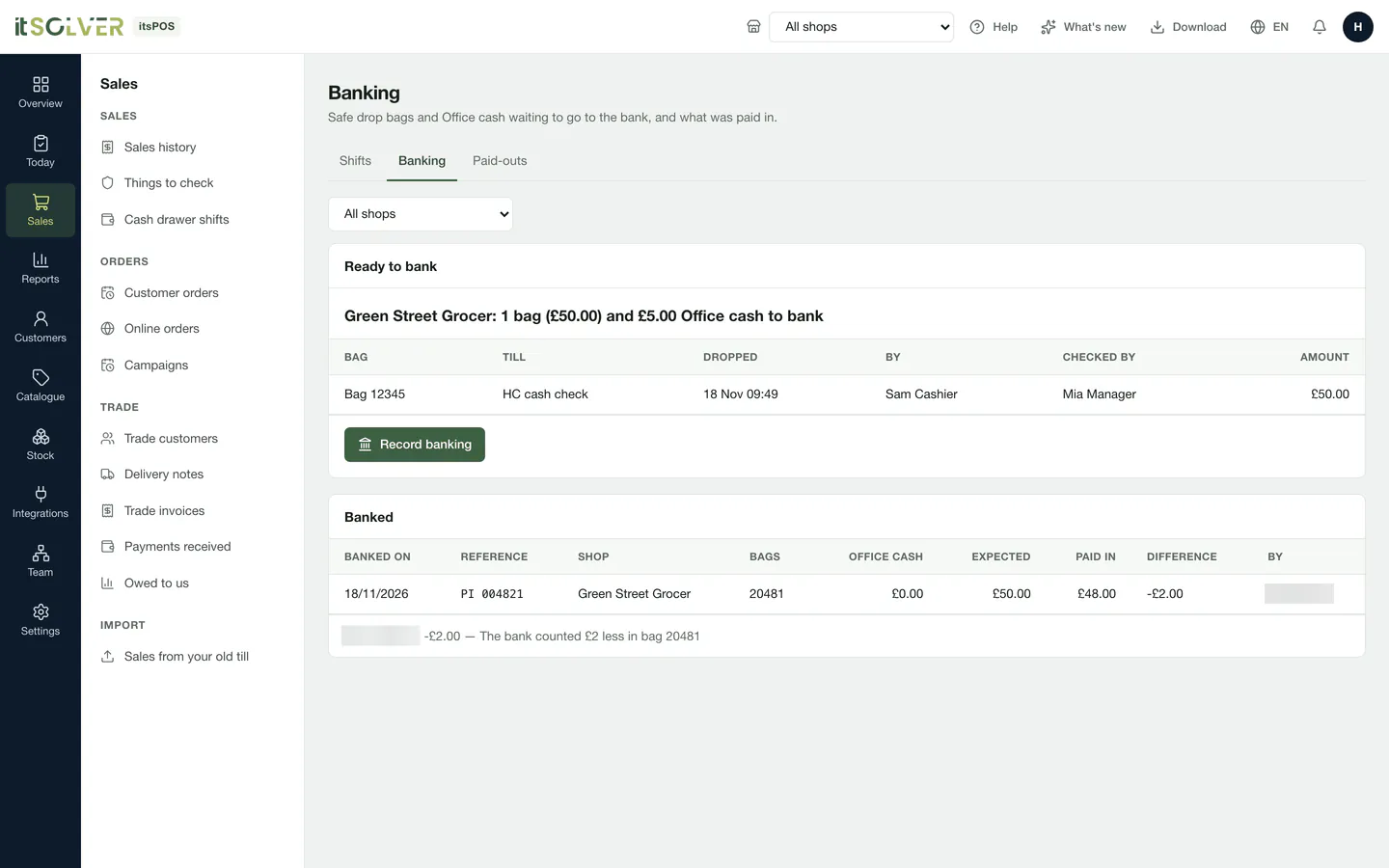
- Go to Sales › Cash drawer shifts and the Banking tab. Ready to bank shows each shop's bags, for example "Green Street Grocer: 1 bag (£50.00) to bank", with Bag, Till, Dropped, By, Checked by and Amount.
- Press Record banking.
- Tick the bags you're paying in. Untick any you're keeping for later.
- If there's Office cash, type how much of it you paid in under Office cash paid in.
- Banked on: the date (today to start with).
- Paying-in reference: the reference on the paying-in slip, for example PI 004821.
- Amount paid in: it starts at the expected amount ("Expected £50.00."). Type what the bank counted, for example 48.00.
- If it differs, Why is it different? appears. Say why, for example "The bank counted £2 less in bag 20481".
- Press Record banking. "£48.00 banked at Green Street Grocer (BNK-000001)."
What happens next
- The bags leave Ready to bank, and Banked lists the banking with Banked on, Reference, Shop, Bags, Office cash, Expected, Paid in, Difference and By.
- Office cash goes down by what you paid in.
- In your accounts, the money moves from cash to bank clearing.
- A difference over £1 goes on Things to check as "Banking difference" (change the £1 in Settings › Alert thresholds).
- The safe drop's shift shows the bag as banked.
Scenario: banking on Monday
On Monday the manager takes the weekend's three bags and £120 of Office cash to the bank. Back in the shop: Banking › Record banking, tick the three bags, type 120.00 under Office cash paid in, the slip's reference, and the amount on the slip. If the bank's figure is different, say why; the difference is listed to check.
Still stuck?
The itsPOS support team is here 08:00 to 20:00 every day except Christmas Day.
- Call or WhatsApp: +44 7488 880320
- Email: support@itspos.io
- In the back office: Help › Contact support, or go to app.itspos.io/help/contact after you sign in
- On our website: itspos.io/contact
Tell us your shop's name and what you were trying to do. A screenshot of the screen helps.