

Sales and orders
Usual orders, rounds and delivery notes
Deliver to the same trade customers every day without typing their order each time. Each customer has a usual order by weekday and a place on a round; itsPOS makes the day's delivery notes at the cut-off, in round order, ready to print for the van. In our test shop, Demo Café Ltd gets 6 cartons of Arla UHT semi-skimmed milk every weekday (8 on Saturday), and Green Street Nursery Ltd is the second drop on the Morning round.
For: Owners, Admins and Shop managersOn some plans6 min read
Before you start
- The customers are trade accounts: see Trade customers on account.
- Owners, Admins and Shop managers set rounds and usual orders, and make, change and deliver notes.
- The products have a price on the customer's price list (Trade in our test shop), or a standard price.
Add a round
A round is a van run: its drops in order.
Go to Sales › Trade customers and open the Rounds tab.
Under Add a round, type a Name, for example "Morning round", choose where it Leaves from (Green Street Grocer) and press Add round. "Round added."
Open each customer, choose the Round on the Details tab and their Drop (1 is the first), and press Save changes.
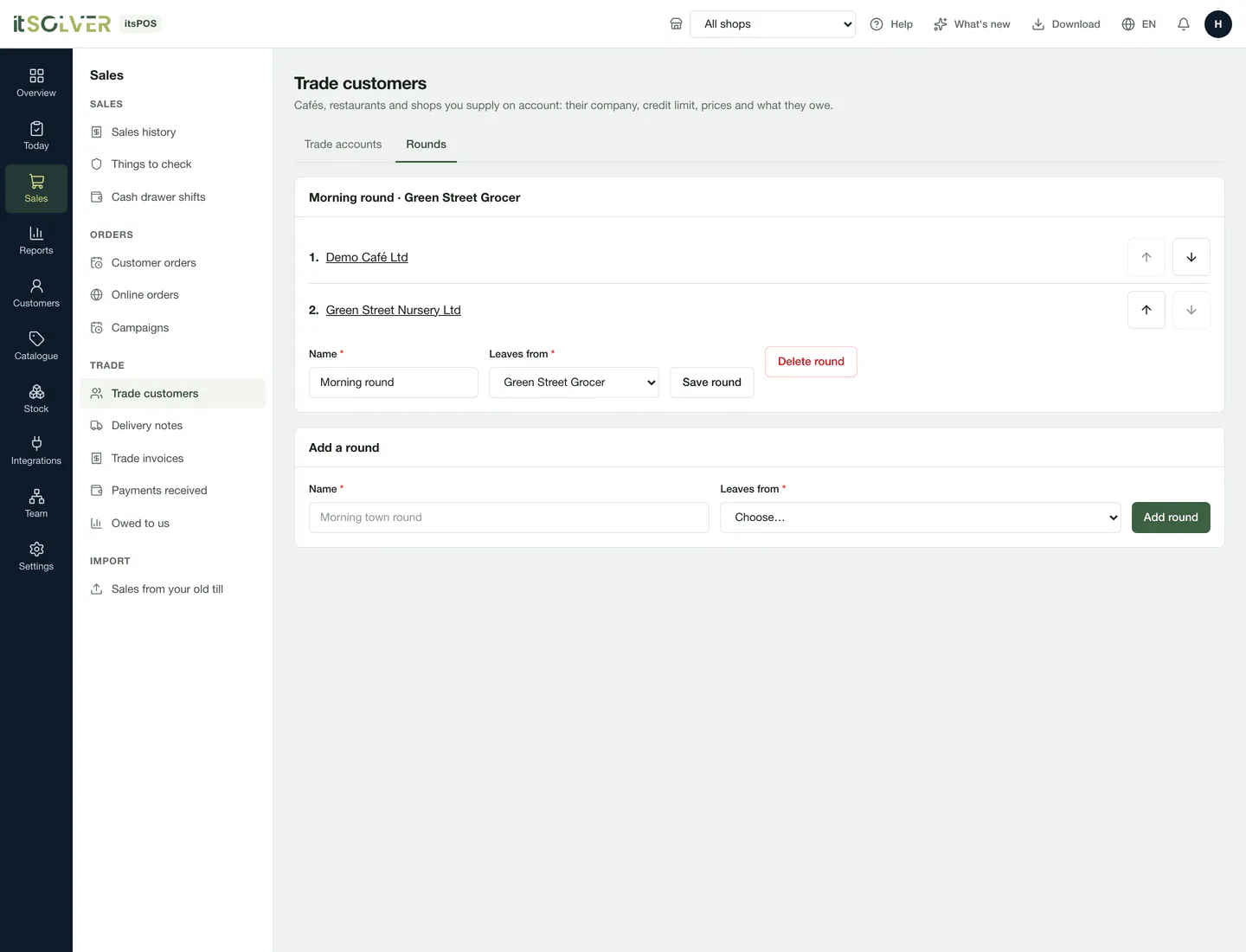
The Rounds tab To change the order, press the up or down arrow next to a drop: "Drops reordered."
To rename a round or change where it leaves from, change it and press Save round. Delete round asks first ("Delete this round? Its customers keep their terms."); its customers then have no round.
Set the usual order
Open the customer and the Usual order tab.
Under Add a product, type or scan a product, for example Arla, and pick it.
Type how many on each weekday. Same as Monday to Friday copies Monday's number to Tuesday to Friday.
Starting: the first day it applies. The earliest is the first day whose cut-off hasn't passed.
Press Save usual order. "Usual order saved from Fri 20 Nov 2026."
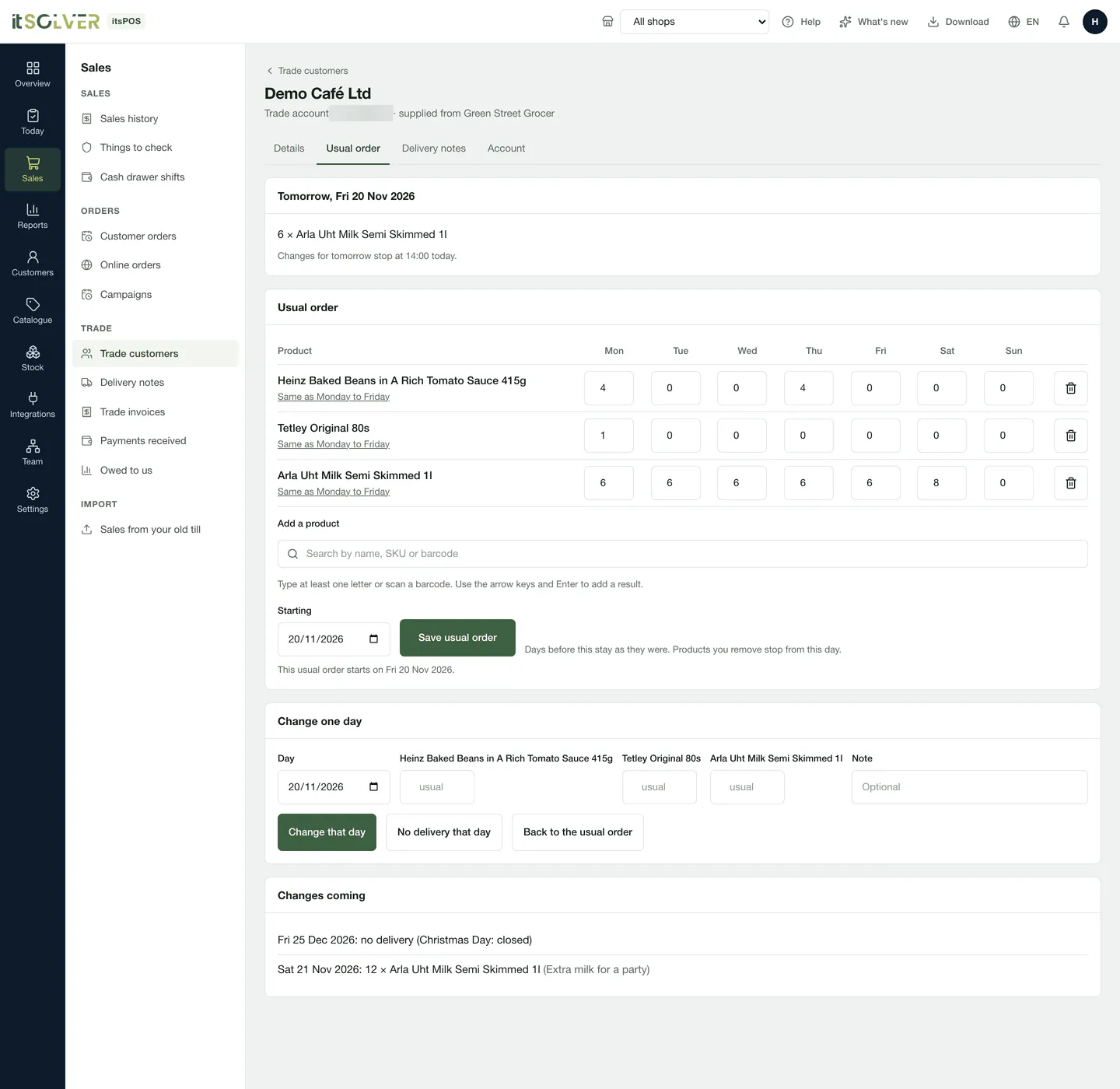
Demo Café Ltd's usual order
Days before the start keep the old usual order. To stop a product, remove it with its bin button and save: it stops from that day.
Tomorrow at the top shows what goes out tomorrow and the cut-off: "Changes for tomorrow stop at 14:00 today."
Change one day
Under Change one day, choose the Day:
- Type the new number for a product (empty keeps the usual) and a Note if you like, then press Change that day. Example: 12 milk on Saturday 21 November, "Extra milk for a party".
- No delivery that day, for example Christmas Day.
- Back to the usual order takes a change away.
Changes coming lists them. After the cut-off for a day, change that day's delivery note instead: "The cut-off for Thu 19 Nov was 14:00 on Wed 18 Nov. Change the delivery note for that day instead."
The day's delivery notes
At each customer's cut-off itsPOS makes tomorrow's notes from the usual orders by itself. To make them now:
Go to Sales › Delivery notes.
Under Make the day's notes from the usual orders, choose the Shop and Day and press the button. Customers who already have a note that day are left as they are.
Choose the Day and Round at the top and press Show. The notes are in drop order with what's on them, the total and To deliver.
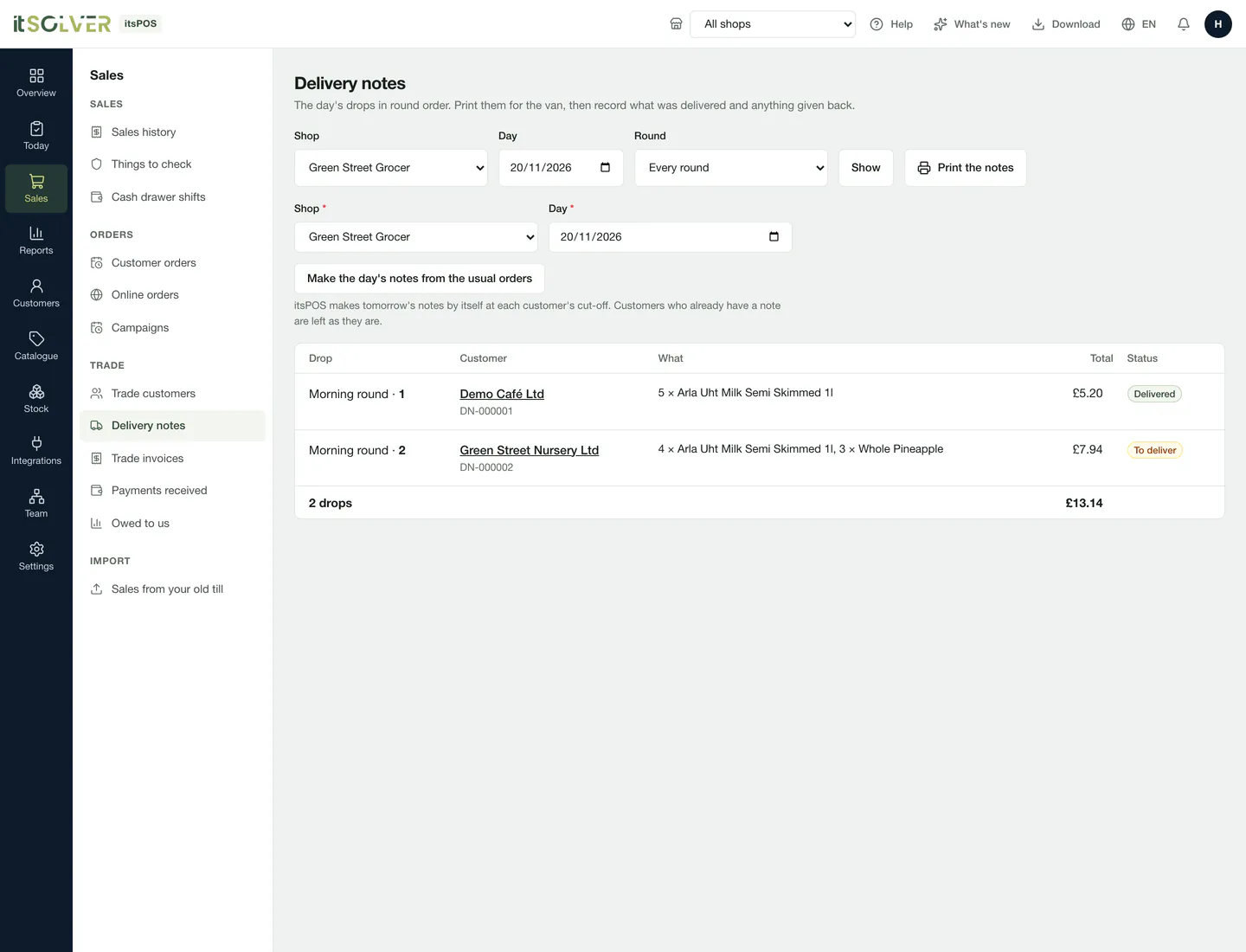
Delivery notes for Fri 20 Nov 2026 Press Print the notes for one page per drop, in round order: the customer and their address, each product with Ordered, and columns for the driver to fill in what was delivered and returned, with signatures.
Change a note before it goes out
Open the note. Under Change before it goes out, change the numbers, add a product with Add a product, type Notes on the note, for example "Leave at the side gate", and press Save the note. "Delivery note saved."
To send nothing that day, press Cancel the note under Cancel this note.
Record the delivery
When the van is back:
Open the note. Under Deliver, lower Delivered for anything refused or short at the door. Example: DN-000001, 5 milk delivered of 6.
Given back (from earlier): anything they hand back from earlier drops, with Why given back and whether The items go to waste or back on the shelf.
Press the Delivered button, which shows the total, for example "Delivered: £5.20 on account". "Delivered. Stock is off and the customer owes it."
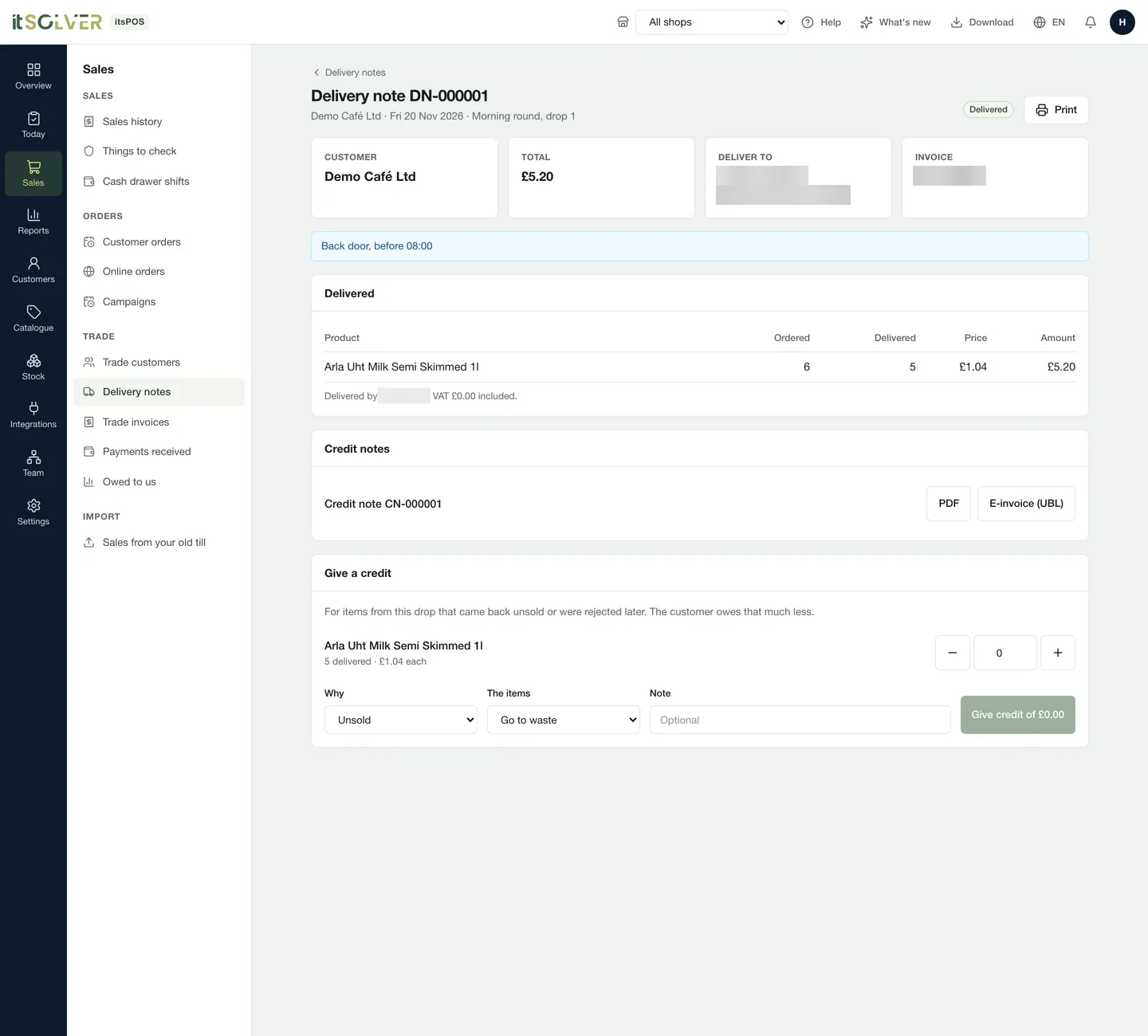
Delivery note DN-000001 delivered
The stock comes off, the customer owes the total, and it goes on their next trade invoice.
Give a credit later
For items from a delivered drop that came back unsold or were rejected later:
- Open the delivered note. Under Give a credit, set how many of each came back. You can choose up to what's left: once part of a drop is credited, the line says so, for example "5 delivered · 4 left to credit", and a line that's all credited has nothing to choose.
- Why: Unsold, Rejected on delivery, Damaged, Short on delivery or Other. The items: go to waste, go back on the shelf, or weren't brought back. Add a Note if you like.
- Press the button, for example "Give credit of £1.04". The credit note (CN-000001) is listed under Credit notes with its PDF and E-invoice (UBL), and the customer owes that much less.
What happens next
- Each delivered note is a sale on account; the next trade invoice lists it (see Weekly and monthly trade invoices).
- What the customer owes shows on their Account tab and on Sales › Owed to us. Tills see the new balance on their next sync.
If something goes wrong
- "… has no price on …'s price list." Give the product a price on that list, or a standard price: see Price lists.
- "The cut-off for … was … Change the delivery note for that day instead." The usual order can't change a day whose cut-off has passed; open that day's note.
- "Only 4 … were delivered on DN-000001 and not credited yet." Someone else gave a credit on that note while you had it open: open the note again to see what's left.
- No notes for a day. Nobody's usual order has anything that weekday, or the day has No delivery.
Still stuck?
The itsPOS support team is here 08:00 to 20:00 every day except Christmas Day.
- Call or WhatsApp: +44 7488 880320
- Email: support@itspos.io
- In the back office: Help › Contact support, or go to app.itspos.io/help/contact after you sign in
- On our website: itspos.io/contact
Tell us your shop's name and what you were trying to do. A screenshot of the screen helps.