

Sales and orders
Weekly and monthly trade invoices
Instead of an invoice for every drop, a trade customer gets one invoice a week or a month for everything they had on account: sales on account at the till, delivered notes and credits. In our test shop, invoice INV-000003 for Demo Café Ltd covers a till sale on account (MAI69-000001, £19.74), a delivery (DN-000001, £5.20) and a credit (CN-000001, −£1.04): £23.90, due 2 Dec 2026.
For: Owners, Admins and AccountantsOn some plans4 min read
Before you start
- Owners, Admins and Accountants make and cancel invoices. Shop managers can see them.
- Each account's Invoice (every week or every month) and Payment terms are on its Details tab; empty uses Settings › Selling rules › Trade customers (weekly and 14 days to start with). See Trade customers on account.
- The invoice prints your business details from Settings › Business details: the legal name (or trading name), address and VAT number. Check them before the first invoices go out. Until the address (and, if you're VAT registered, the VAT number) is there, Trade invoices and Business details say "Add your business address so your invoices are valid VAT invoices." with a link to the field. Invoices and delivery notes still go out without them.
How invoices are made
itsPOS makes them by itself: every Monday for weekly customers (Monday to Sunday) and on the 1st for monthly ones (the calendar month). Each invoice lists everything on account not on an invoice yet. Payment is due the payment terms after the invoice date.
To make the ones that are due now, go to Sales › Trade invoices and press Make this week's and month's invoices. It says how many it made, or "No invoices to make: no customer's week or month has ended since their last invoice."
Invoice a customer now
For a customer who wants their invoice before the week ends, or a one-off:
- Go to Sales › Trade invoices.
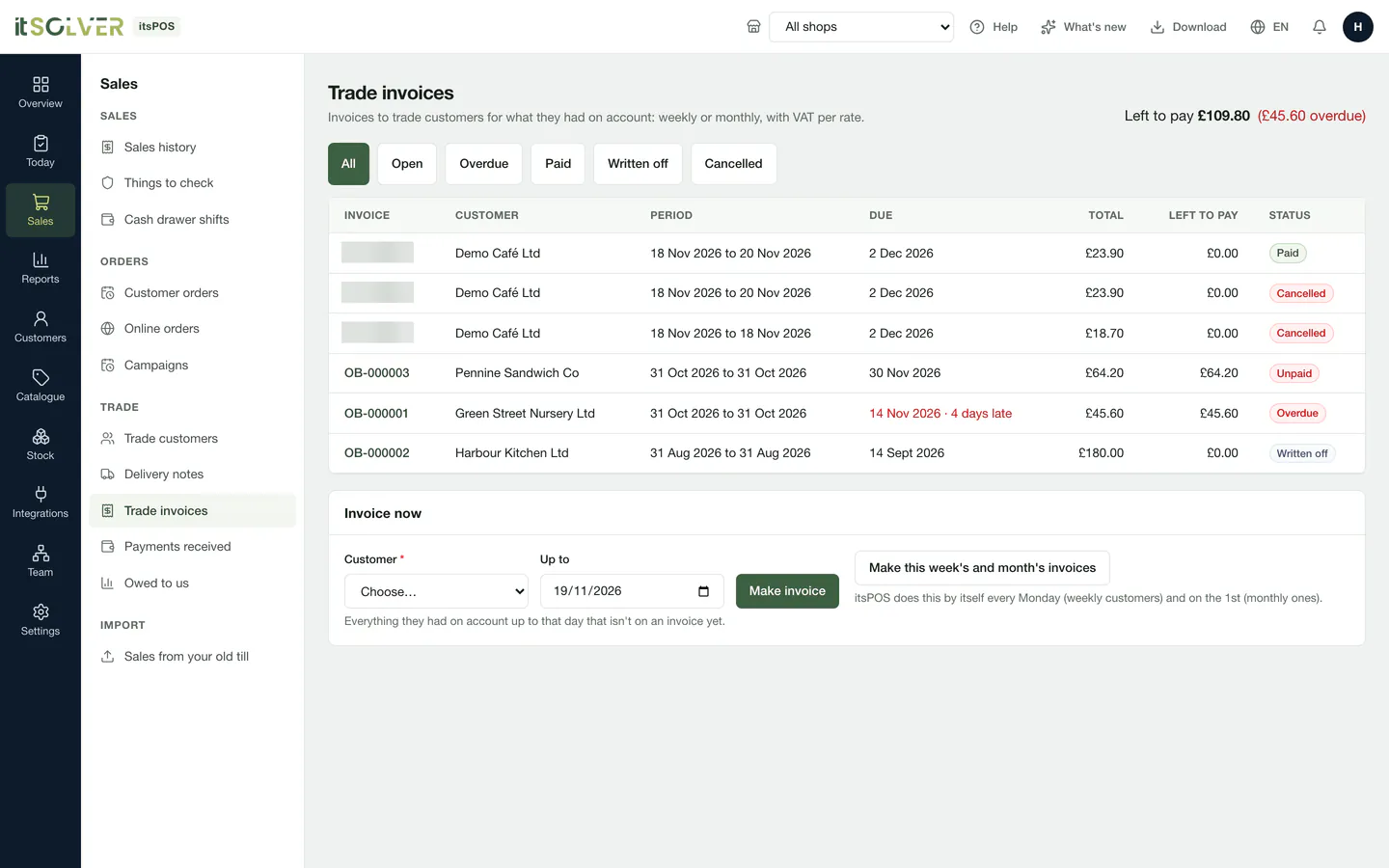
- Under Invoice now, choose the Customer and Up to (the last day to include), for example Demo Café Ltd up to Fri 20 Nov 2026.
- Press Make invoice. "Invoice made."
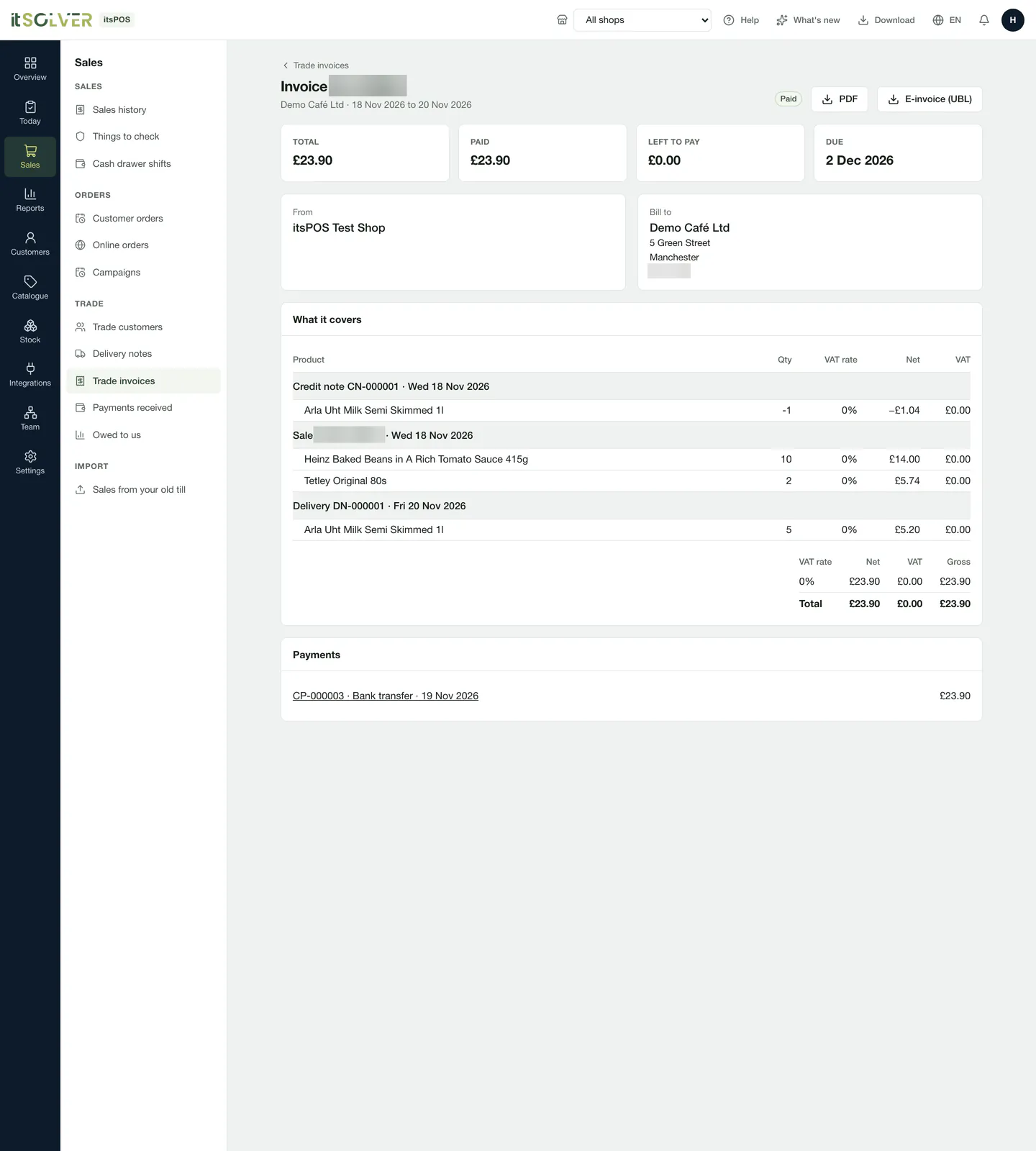
What the invoice shows
- Total, Paid, Left to pay and Due (with how many days late).
- From (your business) and Bill to (their company, address and VAT number).
- What it covers: each entry with its number and date: Delivery (a delivery note), Sale (a sale on account at the till), Credit note or Return, and its products with quantity, VAT rate, net and VAT.
- The VAT summary: net, VAT and gross for each VAT rate.
- Payments against it, once there are any.
At the top, PDF is the A4 invoice to print or email, and E-invoice (UBL) is the same invoice as a file for accounting software that reads e-invoices.
The list
Sales › Trade invoices lists them with the customer, period, due date, total, Left to pay and status. Choose All, Open, Overdue, Paid, Written off or Cancelled. At the top, Left to pay adds up what's still owed, with what is overdue.
Cancel an invoice
Only an invoice with nothing paid and nothing written off can be cancelled, for example one made too early.
- Open the invoice. Under Cancel this invoice, type Why if you like, for example "Made too early: invoice the whole week".
- Press Cancel invoice and confirm. "Invoice cancelled. Its deliveries can be invoiced again."
Its sales go on the next invoice.
What happens next
- Record their payment on the invoice or under Sales › Payments received: see Payments received, statements and Owed to us.
- Unpaid invoices show on Sales › Owed to us by how late they are, and on the customer's statement.
If something goes wrong
- "… nothing on account to invoice …" Everything up to that day is already on an invoice, or there's nothing on account.
- The invoice has no address for you. Fill in Settings › Business details: the address prints on new invoices.
Still stuck?
The itsPOS support team is here 08:00 to 20:00 every day except Christmas Day.
- Call or WhatsApp: +44 7488 880320
- Email: support@itspos.io
- In the back office: Help › Contact support, or go to app.itspos.io/help/contact after you sign in
- On our website: itspos.io/contact
Tell us your shop's name and what you were trying to do. A screenshot of the screen helps.