

Sales and orders
Sales history: find any sale or refund
Sales › Sales history lists every sale and refund, from every till, your online store and the back office. Find one by its receipt number, the card's last 4 digits, the customer, a product or the amount, then open it.
For: Owners, Admins, Shop managers and Accountants5 min read
What this page is for
- Find a sale a customer asks about ("I was charged twice", "Can I have a VAT invoice?").
- See the refunds, with why they were given and who approved them.
- See sales itsPOS kept but flagged for a check.
- Download the list for your accountant.
To refund a sale, use the till: Refunds with a receipt. The back office shows refunds but doesn't make them.
What you see
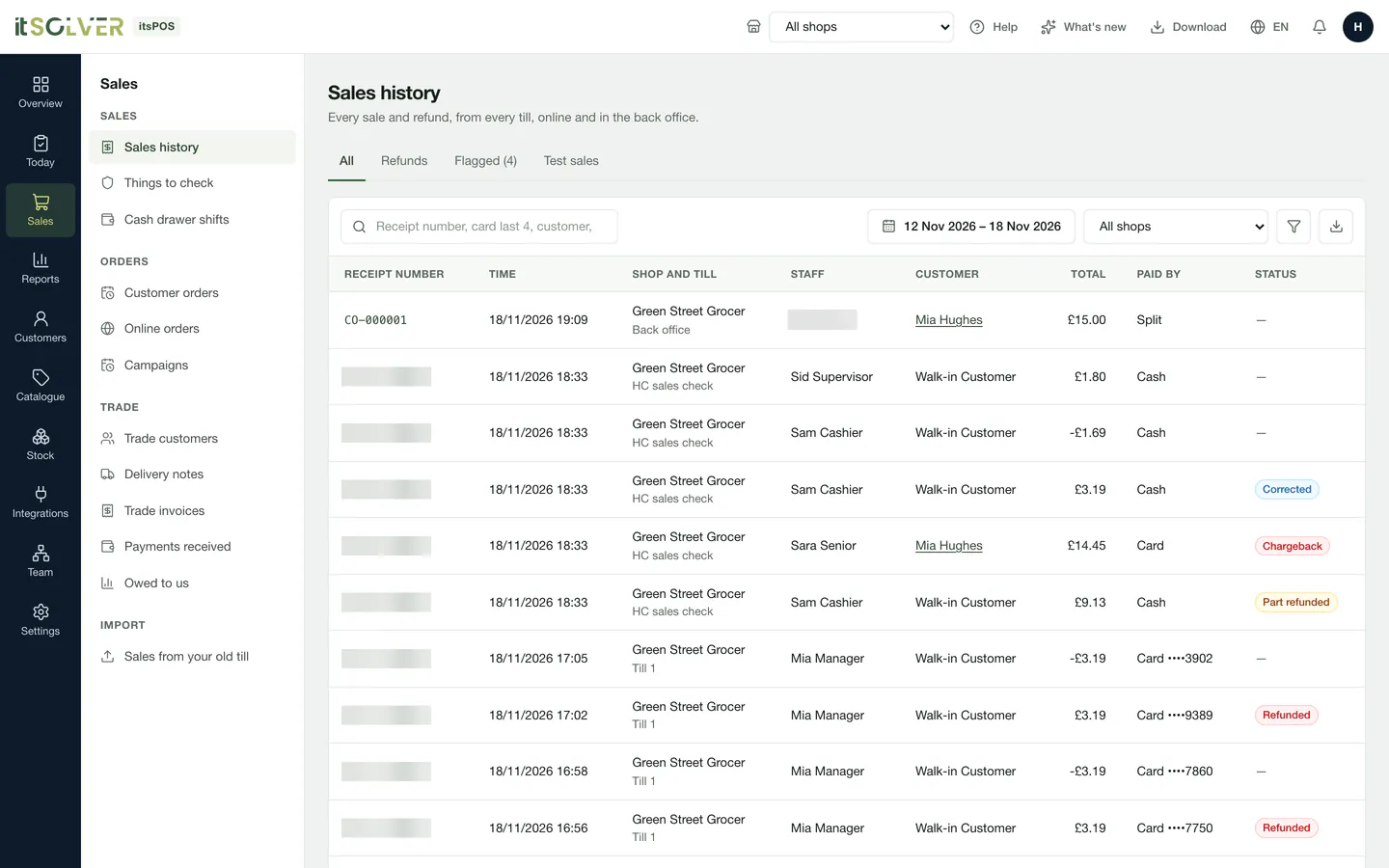
- Four tabs: All, Refunds, Flagged (with how many) and Test sales.
- The search box, the dates (the last 7 days to start with), the shop when you have more than one, Filters and Export CSV.
- One row per sale or refund: Receipt number, Time, Shop and till, Staff, Customer, Total, Paid by (a card shows its last 4 digits, for example Card ••••3902) and Status.
- A refund's total starts with a minus, for example −£1.69.
- Status badges such as Refunded, Part refunded, Corrected, Chargeback and Sent late (a till sent it after it came back online).
- Under the list: how many sales and refunds, and Older and Newest to move between pages.
Tap a row to open the sale: see Everything on a sale's page.
Find a sale
Type in the search box. A line under it says how itsPOS matched what you typed.
| You type | itsPOS finds | Dates |
|---|---|---|
| A receipt number, for example MAI56-001375 | That receipt: "Found by receipt number, on any date." | Any date, whatever dates are chosen |
| An itsPass return code or a serial number | The sale it belongs to | Any date |
| 4 digits, for example 3902 | Card payments ending 3902: "Card payments with these last 4 digits in these dates." | The chosen dates |
| 4 digits and an amount, for example 3902 3.19 | That card payment of that amount | The chosen dates |
| An amount, for example 9.13 | "Sales and refunds of this amount in these dates." | The chosen dates |
| A product's barcode, code or a part of its name, for example 5000157150721, SKU-00023 or Heinz | "Sales with this product in these dates." | The chosen dates |
| A customer's name, for example Mia Hughes | "Sales to customers with this name in these dates." | The chosen dates |
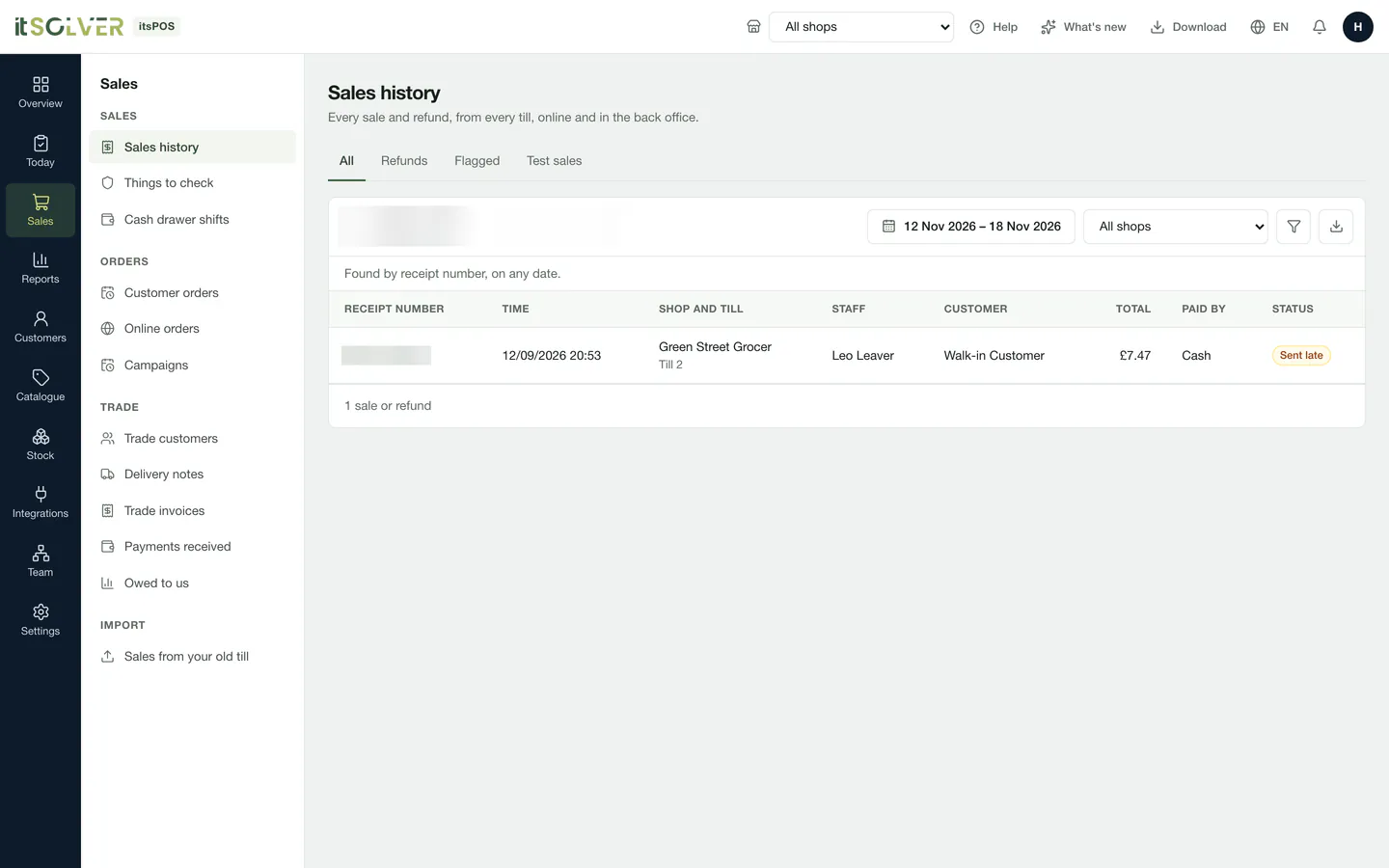
Nothing found? "No sales match in these dates. Receipt numbers, return codes and serial numbers search every date." Choose wider dates and search again, or press Clear search and filters.
On a phone or tablet, the camera button in the search box scans a receipt's barcode or QR code and opens that sale.
Filters and the tabs
Press Filters, choose, then Apply filters:
- Channel: Till, Online, Back office, Trade.
- Paid by: Cash, Card, Gift card, Store credit, Tab, On account, Split.
- Status: Refunded, Part refunded, On account, "On account, still owed", On a tab, Sent late, Corrected, Chargeback.
- Amount: Under £10, £10 to £50, £50 to £100, £100 or more.
The tabs:
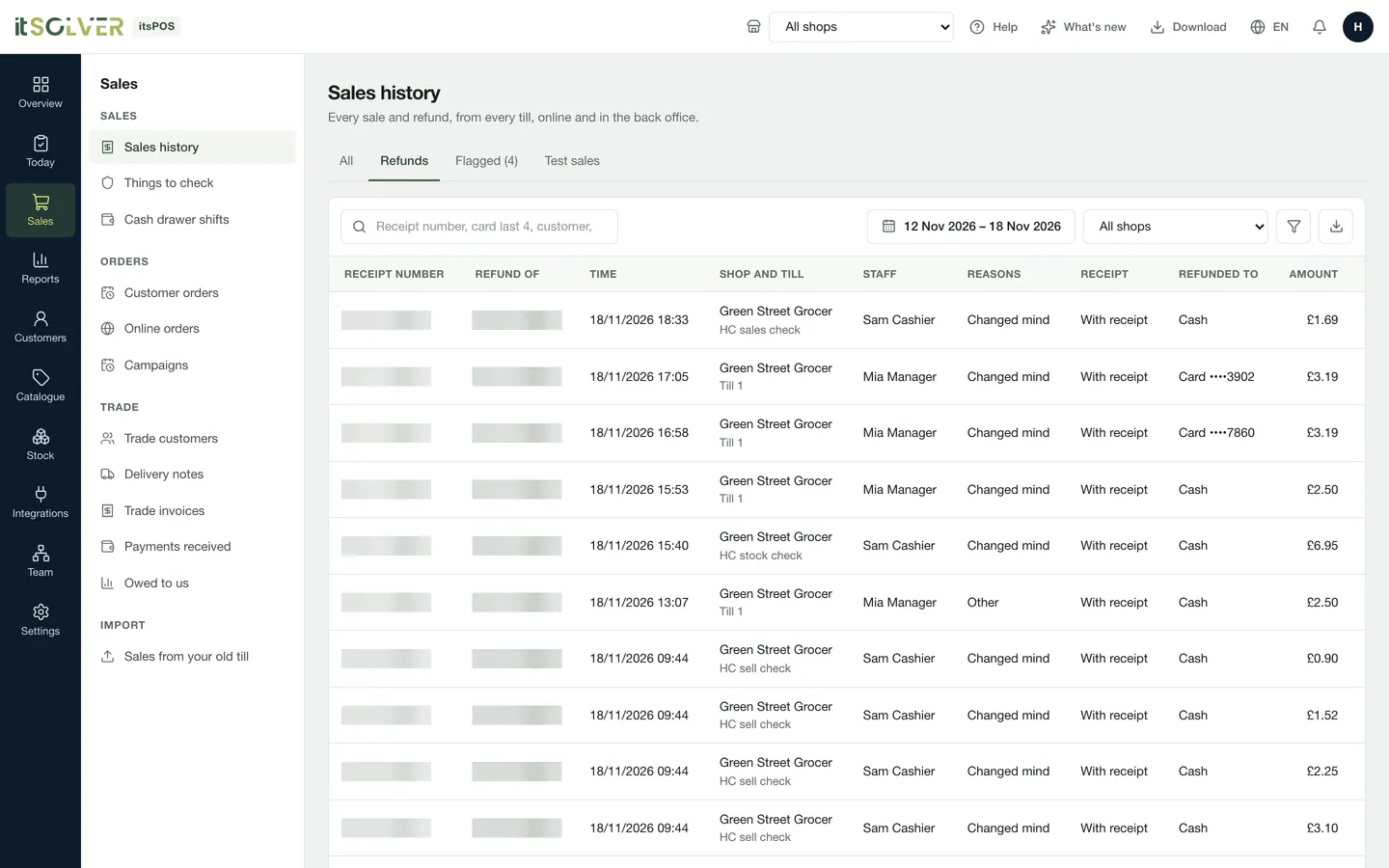
- Refunds lists only refunds: Refund of (the sale it gives back), Reasons, Receipt (With receipt or No receipt), Refunded to, Amount and Approved by. Its own filters are Receipt, Refunded to and Over what was sold.
- Flagged lists sales kept but flagged, with Why it was flagged, for example "Refunded more than was sold" or "Total differs". Each one is also on Sales › Things to check.
- Test sales lists the sales from Run a test sale on a till. They don't count in your figures.
Export the list
Press Export CSV (the download button). You get the list as it is filtered, one row per sale or refund, ready for Excel: receipt number, sale or refund, time, trading day, shop, till, staff, customer, channel, items, total, paid by, refund of and status.
Who can see it
Owners, Admins, Shop managers and Accountants. Someone who may only see refunds gets the Refunds tab alone. Customer names show to people who may see customers; others see the customer's number. Export needs the right to export sales (Owners, Admins, Shop managers and Accountants have it).
Scenario: "I was charged twice"
A customer shows their bank app: two payments of £3.19 on 18 Nov.
- Type the last 4 digits of their card, for example 3902, and choose 18 Nov.
- You see each card payment with that card. One sale and one refund means the second payment was given back.
- Open the sale to see its payments. A card payment the card machine took but the till never recorded shows on Sales › Things to check as "Card sale not rung through the till".
Still stuck?
The itsPOS support team is here 08:00 to 20:00 every day except Christmas Day.
- Call or WhatsApp: +44 7488 880320
- Email: support@itspos.io
- In the back office: Help › Contact support, or go to app.itspos.io/help/contact after you sign in
- On our website: itspos.io/contact
Tell us your shop's name and what you were trying to do. A screenshot of the screen helps.