

Sales and orders
Trade customers on account
A café, restaurant or shop that buys from you and pays later has a trade account: its company details, how much it can owe you, the prices it pays and how long it has to pay. In our test shop, Demo Café Ltd (account CUS-000022) buys at Trade prices from Green Street Grocer, with a £1,000 credit limit, a weekly invoice and 14 days to pay.
For: Owners, Admins, Shop managers and AccountantsOn some plans6 min read
What this page is for
Sales › Trade customers lists everyone you supply on account and what each one owes. From here you add accounts, bring them from another till system, and open each account to change its terms, its usual order, its delivery notes and its money.
Trade accounts are on Essentials and above. Rounds, usual orders, delivery notes and trade invoices are on Professional and above: see Usual orders, rounds and delivery notes and Weekly and monthly trade invoices.
What you see
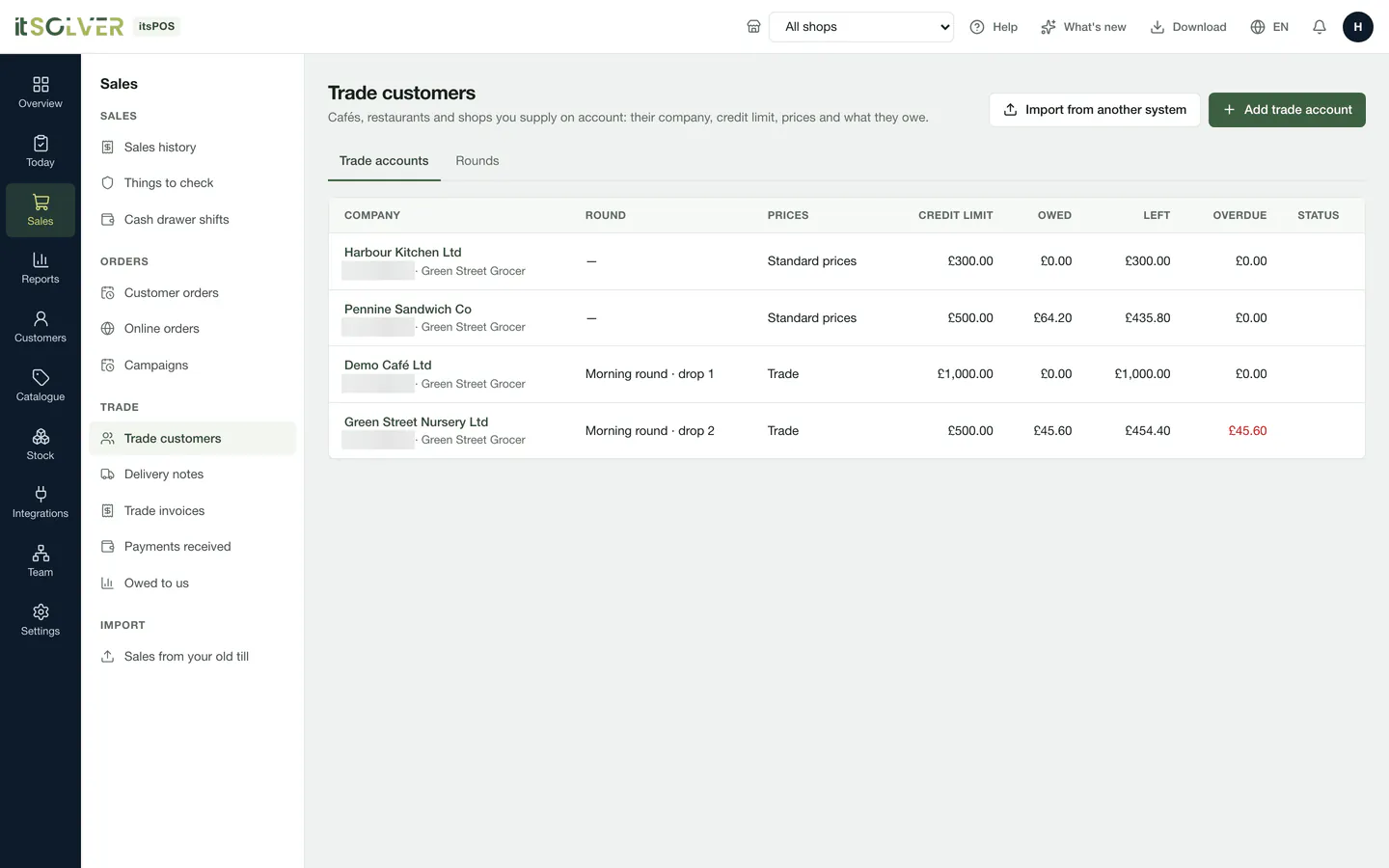
One row per account:
| Column | What it shows |
|---|---|
| Company | The company name, its account number (CUS-000022), the company number if you have it, and the shop it's supplied from |
| Round | The delivery round and its place on it, for example "Morning round · drop 1" (Professional and above) |
| Prices | The price list it pays, for example Trade, or "Standard prices" |
| Credit limit | The most it can owe you |
| Owed | Everything it owes now: invoiced and not invoiced yet |
| Left | What it can still buy on account. Red when it's over the limit |
| Overdue | What is past its due date. Red when there is any |
| Status | Paused, On hold or Over limit; empty when all is well |
Tap a row to open the account.
Add a trade account
Press Add trade account.
Company: type the company's name or number and pick it from Companies House. The company number and registered office fill in. For a business that isn't a UK company, type the name yourself.
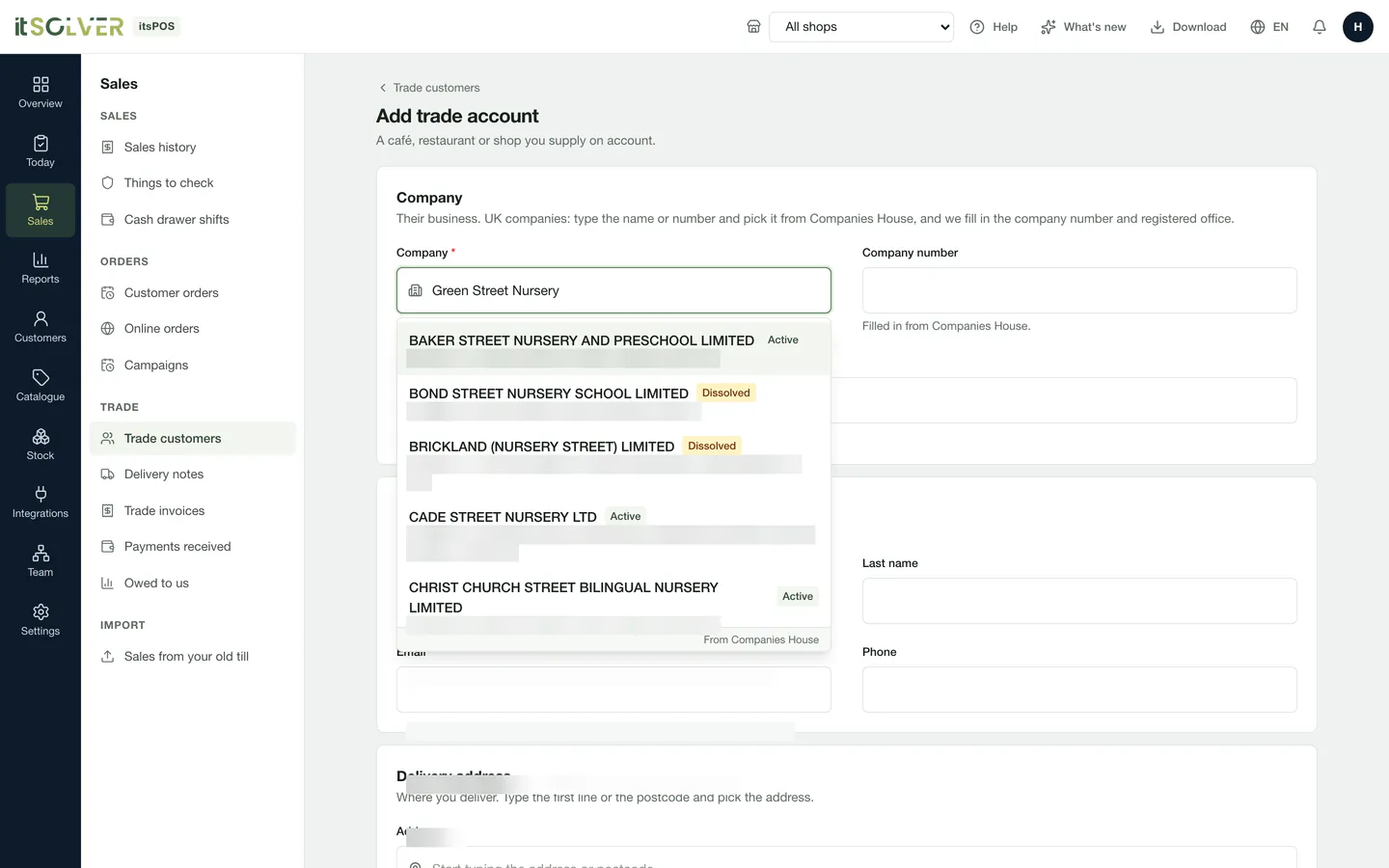
Company Contact: the person you deal with, their email and phone.
Delivery address: type the first line or the postcode and pick the address, or type it in. Deliver somewhere else (optional) is only for deliveries that go to another address.
Invoices: Invoices and statements to is where invoices, statements and reminders are emailed, for example accounts@cafe.co.uk. VAT number (optional) and Their reference (optional) (their purchase order or account number) are printed on every invoice.
Payment terms (days) and Invoice (every week or every month) are on Professional and above. Leave them empty to use your Selling rules (14 days and weekly to start with).
Credit and prices: Credit limit is the most they can owe you; 0 means no sales on account. Supplied from is the shop that serves them. Their prices is their price list, for example Trade; empty uses their customer group's list or your standard prices.
Press Add trade account. "Trade account added. Tills get its credit limit on their next sync."
In our test shop we added Green Street Nursery Ltd this way: Companies House has no company of that name (it's made up), so the name was typed, with a £500 limit, Trade prices, invoiced every month and 30 days to pay.
An account's tabs
- Details: everything from the form above. Change it and press Save changes: "Trade account saved."
- Usual order and Delivery notes (Professional and above): what they get each weekday and the notes made from it. See Usual orders, rounds and delivery notes.
- Account: what they owe, the opening balance, their trade card, statements and Record a payment. See Payments received, statements and Owed to us.
Put an account on hold or pause it
On the Details tab, under Credit and prices:
- Sales on account: Allowed up to the limit, or On hold: a manager's PIN for each one. On hold, the till asks a manager to approve every sale on account to them, for example while they're behind with payments.
- Trade account: Active or Paused. The till treats a paused account like one on hold: a manager approves each sale on account.
The list shows On hold or Paused next to the account.
The trade card
On the Account tab, Trade card shows the account number as a QR code. Press Download card to print it for the café's counter. At the till, staff type the account number in the Trade accounts tab to find them; it's on their statements too.
Selling rules for trade customers
Settings › Selling rules has a Trade customers group. Each account can have its own terms; these are the starting points.
| Setting | To start with | What it does |
|---|---|---|
| Cut-off for tomorrow's orders | 14:00 | Changes for tomorrow stop at this time today, and the delivery notes are made then (Professional and above) |
| Invoice every | Week (made on Monday) | Weekly invoices cover Monday to Sunday; monthly ones the calendar month (Professional and above) |
| Payment terms (days) | 14 | Days after the invoice date that payment is due, from 0 to 120 (Professional and above) |
| Email reminders for overdue invoices | On | At most once a week, and up to 3 times for each invoice |
| Email a statement on the 1st of each month | On | Customers who owe you money get last month's statement as a PDF |
| Show late payment interest | Off | Shows the interest and fixed compensation you may claim by law; nothing is added to what they owe |
On-account sales stop at the credit limit (under Receipts and customers, on to start with) makes the till ask a manager to approve a sale on account that takes an account over its limit.
Who can do what
- Owners, Admins, Shop managers and Accountants see trade customers.
- Owners, Admins and Shop managers add and change accounts and bring them from another system.
- Owners, Admins and Accountants record payments and add opening balances; only Owners and Admins write off a debt.
Where it shows up
- On the till: the Trade accounts tab when adding a customer, and On account at Pay: see Tabs and on-account sales. A trade account's own price list prices the sale: see Trade prices and customer prices.
- Price lists: Price lists: trade prices and customer prices shows which accounts use each list.
- Reports: Trade sales by customer and Owed to us.
- The online store and itsPass: nothing. Trade accounts buy in the shop, at the till or by delivery.
If something goes wrong
- Companies House finds nothing. Only UK companies are there, and a sole trader isn't. Type the name.
- The till doesn't show the new account yet. Tills get it on their next sync, when they're online.
- "0 means no sales on account." With a credit limit of 0 the account can't buy on account. Set a limit.
Still stuck?
The itsPOS support team is here 08:00 to 20:00 every day except Christmas Day.
- Call or WhatsApp: +44 7488 880320
- Email: support@itspos.io
- In the back office: Help › Contact support, or go to app.itspos.io/help/contact after you sign in
- On our website: itspos.io/contact
Tell us your shop's name and what you were trying to do. A screenshot of the screen helps.