

Sales and orders
Payments received, statements and Owed to us
When a trade customer pays you, record it so itsPOS knows what they still owe. Then send statements, see who owes you what and how late, and write off what you'll never get. In our test shop Demo Café Ltd paid £23.90 for invoice INV-000003 by bank transfer, and Harbour Kitchen Ltd closed down owing £180.
For: Owners, Admins, Shop managers and AccountantsOn some plans5 min read
Before you start
- Owners, Admins and Accountants record payments and opening balances. Only Owners and Admins write off a debt. Shop managers see what is owed.
- Trade accounts, payments, statements and Owed to us are on Essentials and above. Invoices are on Professional and above; without them, payments come off what is owed, oldest sales first.
Record a payment
From the invoice (it pays that invoice first), the customer's Account tab, or Sales › Payments received:
Type the Amount, for example 23.90.
Paid by: Bank transfer, Cash, Card, Cheque or Direct debit.
Date (today to start with) and a Reference if you like, for example their BACS reference.
Press Record payment. "Payment recorded."
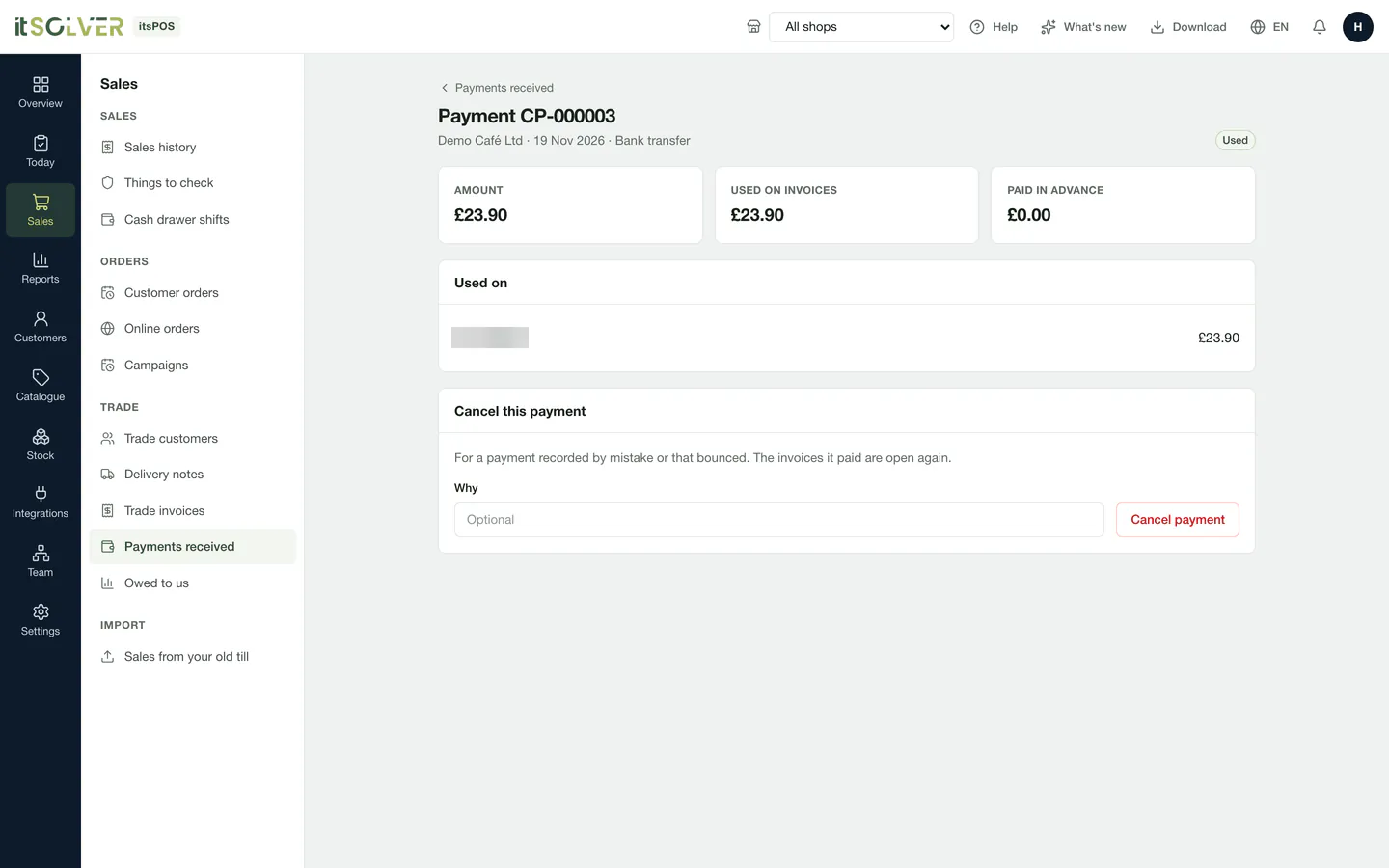
Payment CP-000003 from Demo Café Ltd by Bank transfer
The payment pays their opening balance and oldest invoices first. Anything left is Paid in advance and is used on their next invoice; on the payment, Use it on open invoices uses it straight away once there are open invoices. Tills see the new balance on their next sync.
Cancel a payment
For a payment recorded by mistake or a cheque that bounced: open it from Sales › Payments received, type Why under Cancel this payment, press Cancel payment and confirm. "Payment cancelled." The invoices it paid are open again.
Opening balances
Started with itsPOS while a customer already owed you? On their Account tab, under Opening balance:
- They owed, for example 45.60, On the day you started, and Due (optional).
- Press Add opening balance. "Opening balance added to what they owe."
It shows as "£45.60 owed on 31 Oct 2026 (OB-000001), due 14 Nov 2026." Payments pay it before any invoice. While nothing is paid on it, Cancel opening balance takes it away. Many customers at once: see Bring trade customers and what they owe.
Statements
On the customer's Account tab, Statement lists everything between From and To (the last 90 days to start with; press Show after changing them): Brought forward, each sale, delivery, credit note, opening balance and payment, and the Balance.
- Download PDF for a statement to print.
- Email statement: check To (their Invoices and statements to address) and press it: "Statement emailed to accounts@democafe.example.com."
With Email a statement on the 1st of each month on (in Settings › Selling rules › Trade customers), customers who owe you money get last month's statement by themselves. With Email reminders for overdue invoices on, they get a reminder of what is overdue at most once a week, up to 3 times for each invoice.
Owed to us
Sales › Owed to us lists every trade customer who owes you money, by how late it is.
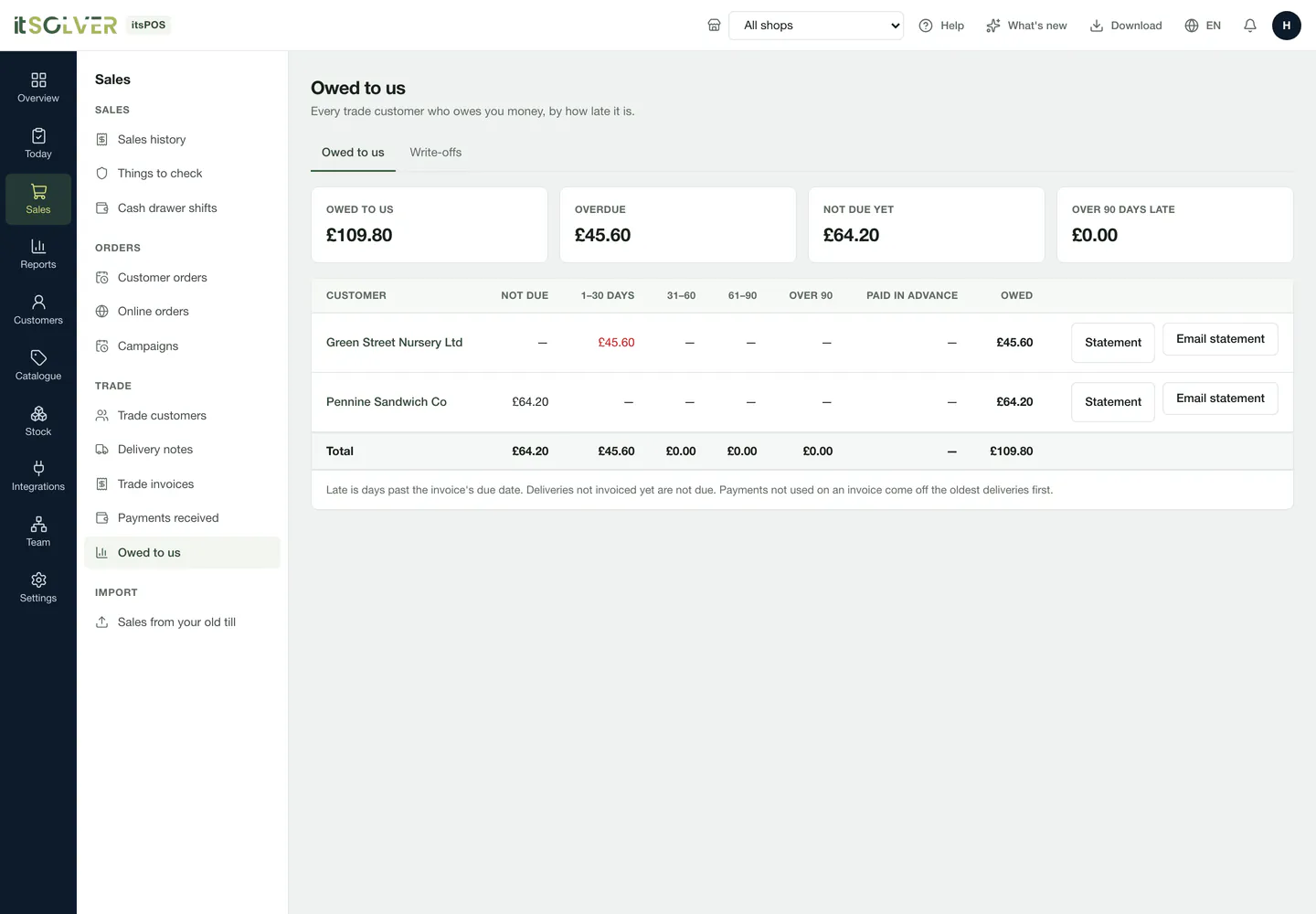
- At the top: Owed to us, Overdue, Not due yet and Over 90 days late.
- Each customer: Not due, 1–30 days, 31–60, 61–90, Over 90, Paid in advance and Owed, with a red line when they're over their credit limit.
- Statement opens their statement as a PDF; Email statement sends it to them.
Late is days past the invoice's due date. Deliveries not invoiced yet are not due.
Late payment interest
UK law lets a business claim interest on late payment from another business (8% over the Bank of England base rate) and fixed compensation of £40, £70 or £100. Turn on Show late payment interest in Settings › Selling rules › Trade customers and keep Bank of England base rate (%) up to date (the rate on the last 30 June or 31 December). Overdue invoices then show what you can claim, and Owed to us gets a Late interest you can claim column. Nothing is added to what they owe.
Write off a debt
For a debt you can't collect, for example a customer that closed down:
- Open the unpaid invoice, or the customer's Account tab for an opening balance.
- Under Write off, type Why can't it be collected?, for example "Closed down, can't be traced".
- Press Write off and confirm. This can't be undone.
What was left goes to bad debts in your accounts. For an invoice, the VAT in it can be claimed back as VAT bad debt relief 6 months after the due date. An opening balance has no VAT in itsPOS: "No VAT relief in itsPOS: an opening balance has no VAT here. Check your old records."
Sales › Owed to us › Write-offs lists every write-off for your accountant: the customer, invoice, date and who wrote it off, the amount, the VAT in it and when the relief can be claimed.
If something goes wrong
- "… isn't money received. Choose Bank transfer, Cash, Card, Cheque or Direct debit." A trade customer's payment is money you received; on account, a tab, a gift card or store credit can't pay their account.
- "Nothing is left of … to use." All of that payment is already used on invoices.
- The customer paid more than they owe. Record all of it: the rest is paid in advance and used on their next invoice.
Still stuck?
The itsPOS support team is here 08:00 to 20:00 every day except Christmas Day.
- Call or WhatsApp: +44 7488 880320
- Email: support@itspos.io
- In the back office: Help › Contact support, or go to app.itspos.io/help/contact after you sign in
- On our website: itspos.io/contact
Tell us your shop's name and what you were trying to do. A screenshot of the screen helps.