

Stock
Suggested orders and purchase orders
A purchase order is what you ask a supplier to deliver. itsPOS can suggest it for you from your reorder rules and sales, round it to whole cases, and send it. Deliveries are then checked against it. This guide orders from Demo Cash & Carry Ltd for Green Street Grocer: Domestos, Heinz Baked Beans, Hellmann's and Pot Noodle (PO-2026-00007).
For: Owners, Admins and Shop managers6 min read
Before you start
- Owners, Admins and Shop managers make and send purchase orders. Stock staff see them (and receive the deliveries).
- Link products to the supplier with their code, cost and case size, and set reorder rules (see Add and manage your suppliers and Reorder rules and low stock).
- The supplier's Delivery days, Lead time (days) and Minimum order make the dates and the "more to reach the minimum" line right.
Let itsPOS suggest the order
Go to Stock › Purchase orders and open Suggested orders (or press Suggested order on the supplier's page).
Choose the Supplier (tap it and type part of its name, code or your account number with them) and the Shop, then press Show. The top line says when the next delivery is, for example "Next delivery Tue 24 Nov (order by Sun 22 Nov)".
To order lists what to order, each with why. For example "Heinz Baked Beans in A Rich Tomato Sauce 415g: 19 left, reorder at 24: order 24 (1 case of 24)." All products shows everything from the supplier, Not suggested what has enough ("28 left, reorder at 10: enough.").
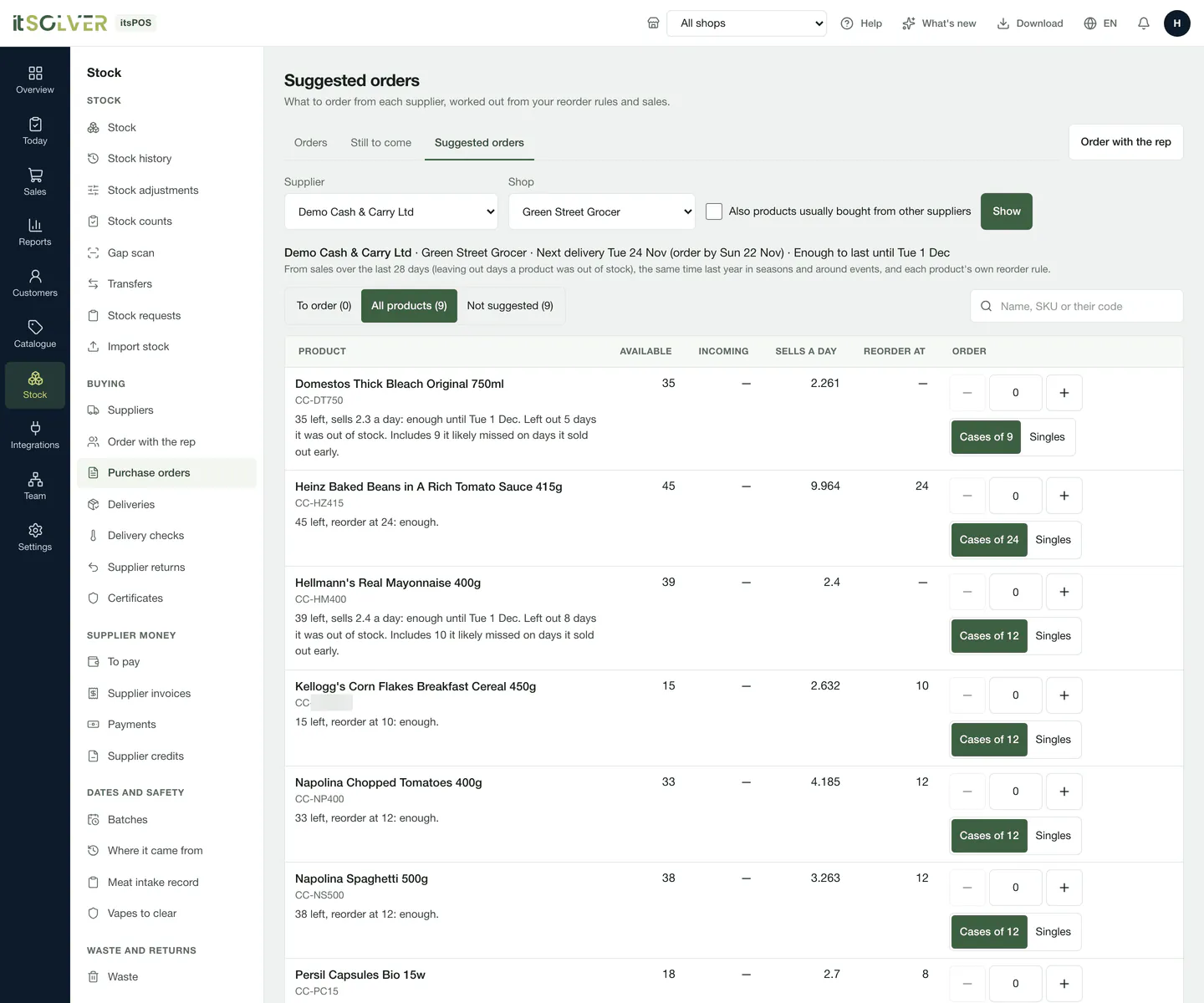
Suggested orders for Demo Cash & Carry Ltd at Green Street Grocer, All products Change any quantity: in cases ("Cases of 24") or Singles, and the number. Add more products adds others from the supplier.
Press Create purchase order. itsPOS makes a draft order. Products new to your range may be offered as a trial (Stock rules › Trials and range › Put new products on trial): Put on trial or Not now. A product is offered only if it was never on a purchase order or delivery before and hasn't sold at this shop in the last 90 days, so products you already sell, like baked beans, are never offered, even on your first purchase order.
Nothing is ordered until you send the purchase order.
Suggestions from sales On some plans
On Premier and above, products without their own reorder rule are suggested from their sales: enough to last until the delivery after next, from what each product sells a day over the last 28 days, leaving out days it was out of stock, and the same time last year for seasonal products. For example "8 left, sells 2.3 a day, arrives in 6 days: order 27 to last until Tue 1 Dec (3 cases of 9)." Products with their own rule always follow the rule. The settings are in Stock rules › Reorder rules (Use sales to suggest orders, Days of sales to look at, Leave out days a product was out of stock).
Make a purchase order yourself
- On Stock › Purchase orders, press New purchase order.
- Choose the Supplier first (lines use their codes, case sizes and costs): tap it, then pick one of your recent suppliers or type part of its name, code or your account number with them. Then choose Deliver to shop. Expected on fills in from their delivery days and lead time.
- Scan or search for products. The newest line is at the top; a product you add again gets one more and moves back to the top. Each line shows Cases or Singles, the cost (a case and each) and VAT, your stock and what's coming at the shop, and Cheaper at when another supplier's latest cost is lower. Tap Compare suppliers to see them all (costs only for people who see cost prices). Change the number with − and +; on a phone or tablet, tap the number to type it on the keypad.
- Add Their reference (the rep's order number) and Notes printed on the order if you like, and a Discount on the order.
- Press Save draft.
Send it
Open the draft and choose how it goes:
The email button ("Email to Demo Cash & Carry Ltd"): itsPOS emails the PDF to their Order email (or their email). Replies come to your business email.
Mark as sent: you ordered another way. Choose How it was sent: Ordered through the rep, By phone, On their website or app or By an email I sent myself. Nothing is emailed.
Download PDF: the order as a PDF to print or send yourself.
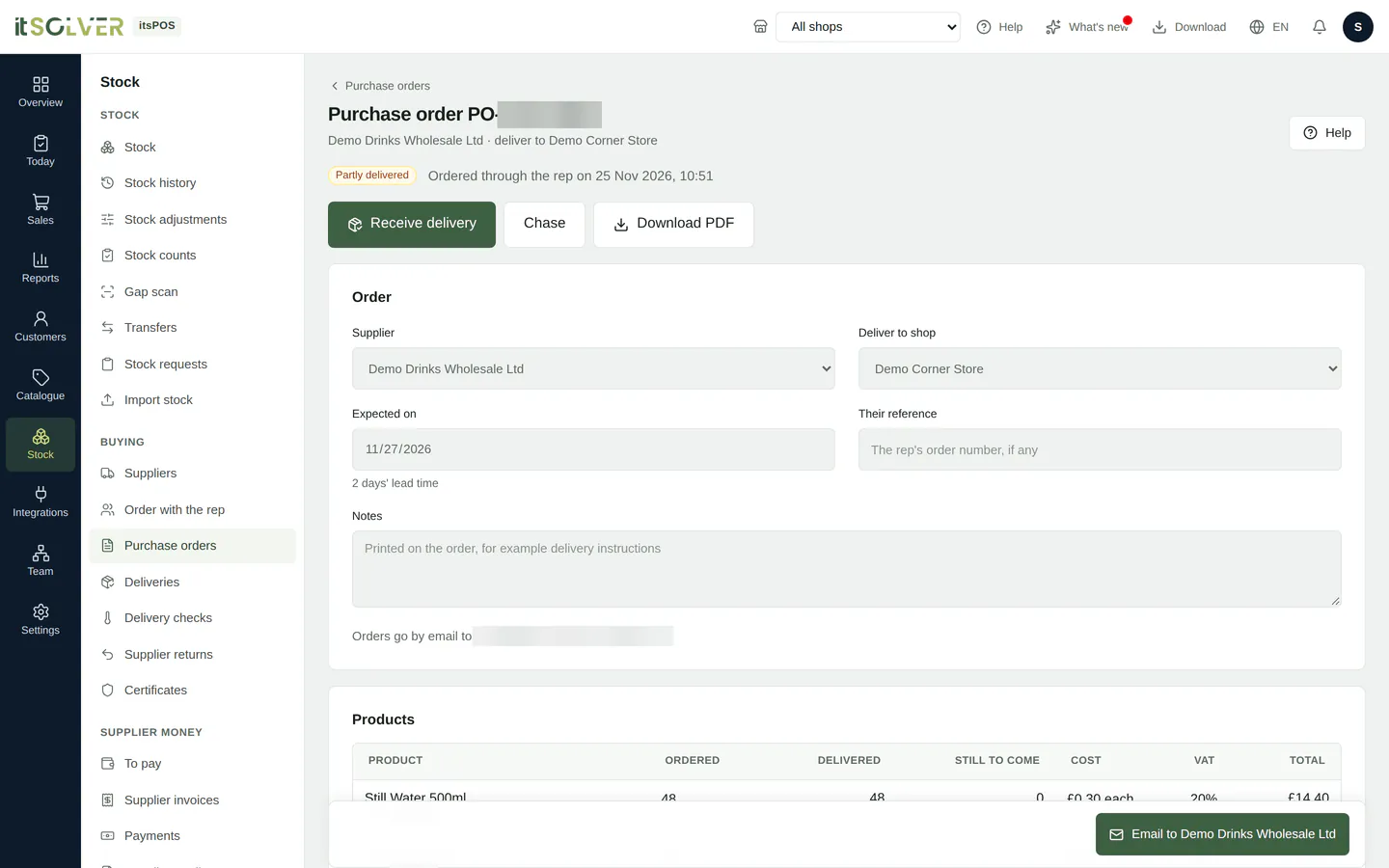
The order is then Sent and its products count as Incoming on Stock › Stock. Save the order to attach the rep's confirmation or a quote (Take a photo or Add a file).
If it needs approval
When Stock rules › Approvals has an amount in Purchase orders above this amount need approval, an order above it, made by someone who may not approve it, shows Waiting for approval: "Waiting for approval by a manager: it's above your purchase order limit." Someone who may approve purchase orders opens it and approves it; then it can be sent. Leave the amount blank if orders never need approval.
Still to come, chasing and closing
- Still to come lists everything ordered that hasn't arrived, by supplier. Tick Late only to see late orders; a late order says how many days late.
- Chase emails the supplier about an order that is late (you can change the message).
- Close the order when nothing more will come: "Nothing more will be expected on it."
- Cancel order cancels a sent order; the supplier isn't told, so let them know yourself. A draft is deleted with Delete draft.
What happens next
When the delivery comes, open the purchase order and press Receive delivery at the top (people who can receive deliveries): see Receive a delivery. The order becomes Partly delivered or Delivered, and anything not delivered stays in Still to come unless you say not to expect it.
Still stuck?
The itsPOS support team is here 08:00 to 20:00 every day except Christmas Day.
- Call or WhatsApp: +44 7488 880320
- Email: support@itspos.io
- In the back office: Help › Contact support, or go to app.itspos.io/help/contact after you sign in
- On our website: itspos.io/contact
Tell us your shop's name and what you were trying to do. A screenshot of the screen helps.