

Real shop situations
Broadband down for a day
The shop's broadband stops at 9am and the engineer can't come until tomorrow. Your tills keep selling. This is what works, what doesn't, and what to check when the internet is back.
For: Owners, Admins, Shop managers, Supervisors and Cashiers4 min read
Needs itsPOS Till 0.5.35 or later.
The situation
Green Street Grocer opens at 7am. At 9am the router's lights go red. The tills keep working: each till saves every sale on the till itself and sends it to itsPOS when the connection is back. A till can sell like this for up to 24 hours from the last time it reached itsPOS.
Keep selling
A grey strip appears under the top bar on every screen: "Working offline. Sales will send when the connection is back." The top bar shows how many sales are waiting, for example "Offline · 3 to send".
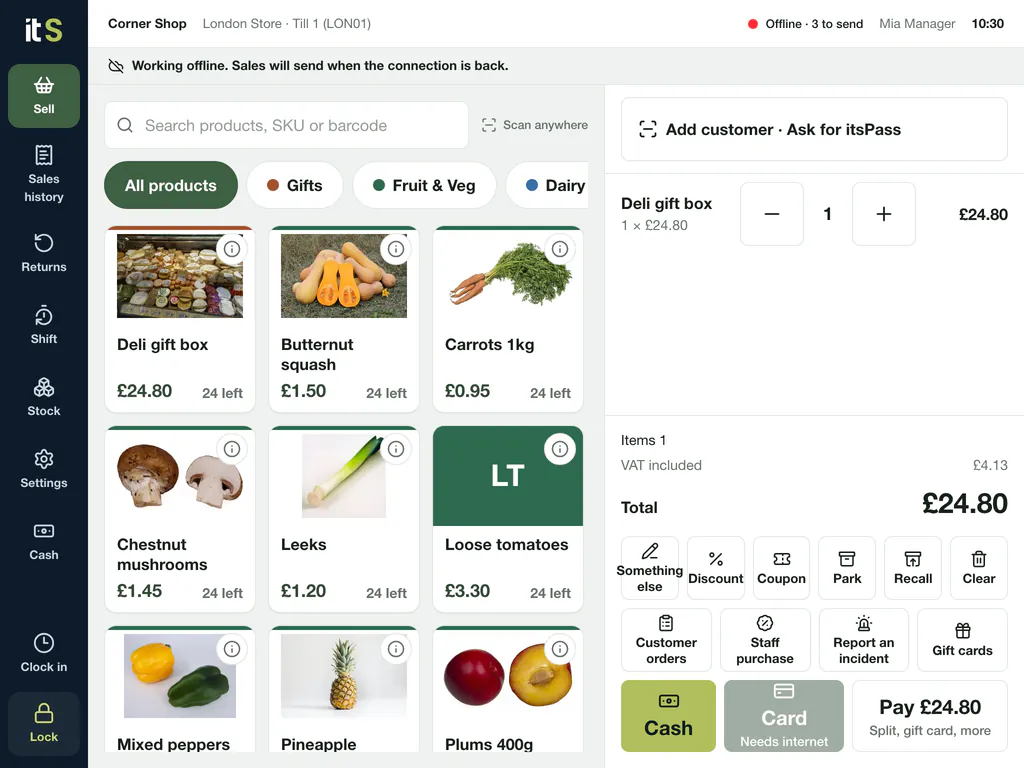
The till's sell screen offline Carry on as normal: scanning, prices and offers, cash, receipts, refunds of this till's own sales, signing in with a PIN or badge, clocking in, and opening and closing the shift all work offline.
Card payments: your card machine has its own mobile signal. Tap Card as usual. The till shows Card machine not linked with the amount: key it into the card machine, take the payment, then tap Paid on the card machine. See The card machine isn't linked.
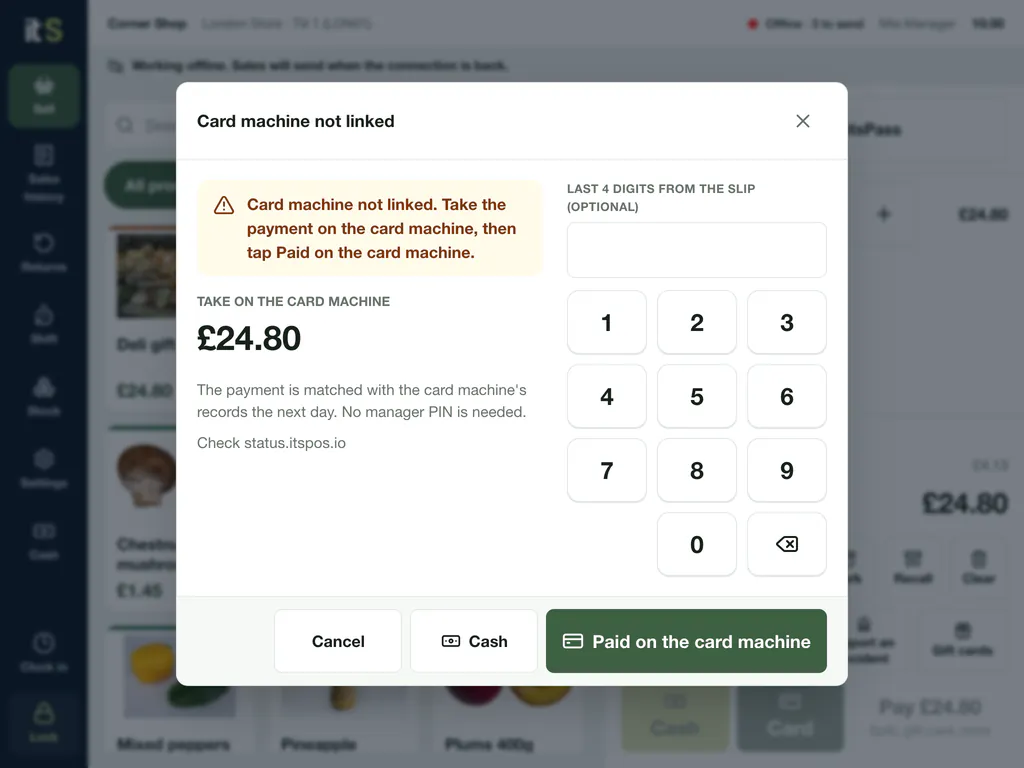
Card machine not linked while the till is offline Some things need the internet and say so: coupons, gift cards, store credit and points, emailing a receipt, finding an itsPass member by phone, and sales from other tills. Those wait until the internet is back.
If it lasts all day
From 20 hours offline the strip turns amber and counts down the time left, for example "Connect within 3 h 30 min to keep selling."
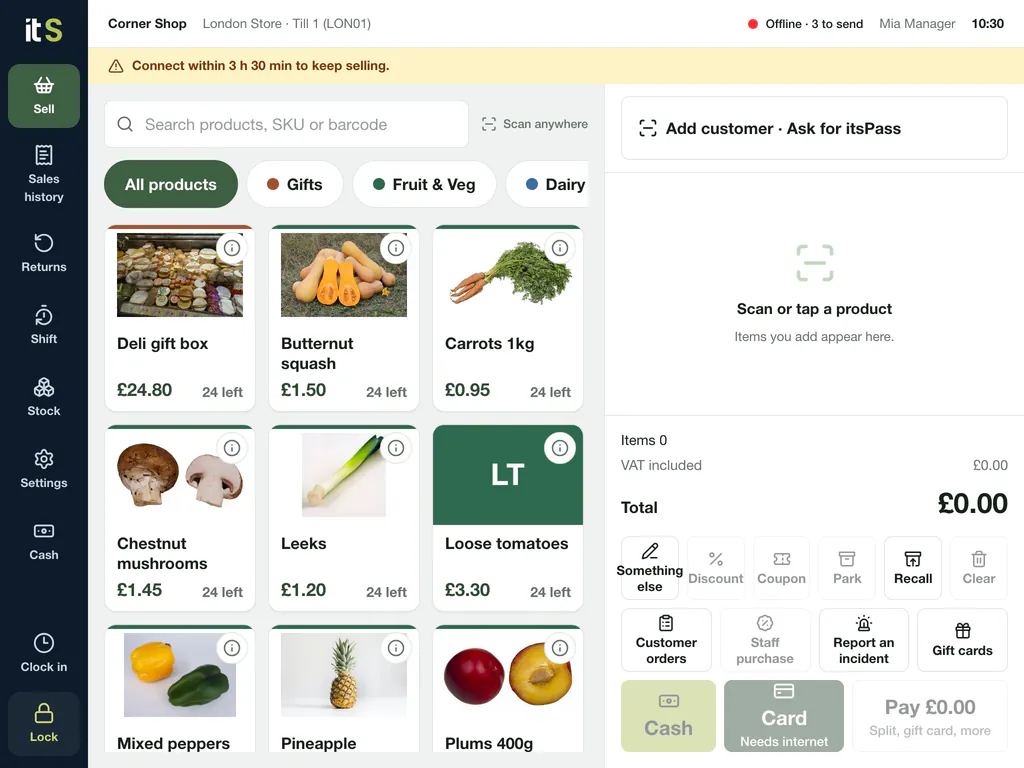
The amber strip on the till After 24 hours it turns red and new sales stop: "Connect to continue selling. Shift close, reprints and sync still work." You can still close the shift.
To get the tills back online sooner, connect them to a phone's hotspot or a 4G router for a few minutes. They send everything and the 24 hours start again.
You can close the shift offline as usual. If your till profile has Stop shift close while sales are unsent on, the till asks you to connect first.
When the internet is back
The till sends everything by itself. To check, tap Settings, then Sync: Waiting to send should go to 0. Tap Send now to send at once; "Everything is sent." when done.
In the back office, Sales › Sales history shows the day's sales with the badge Sent late, at the time they were made.
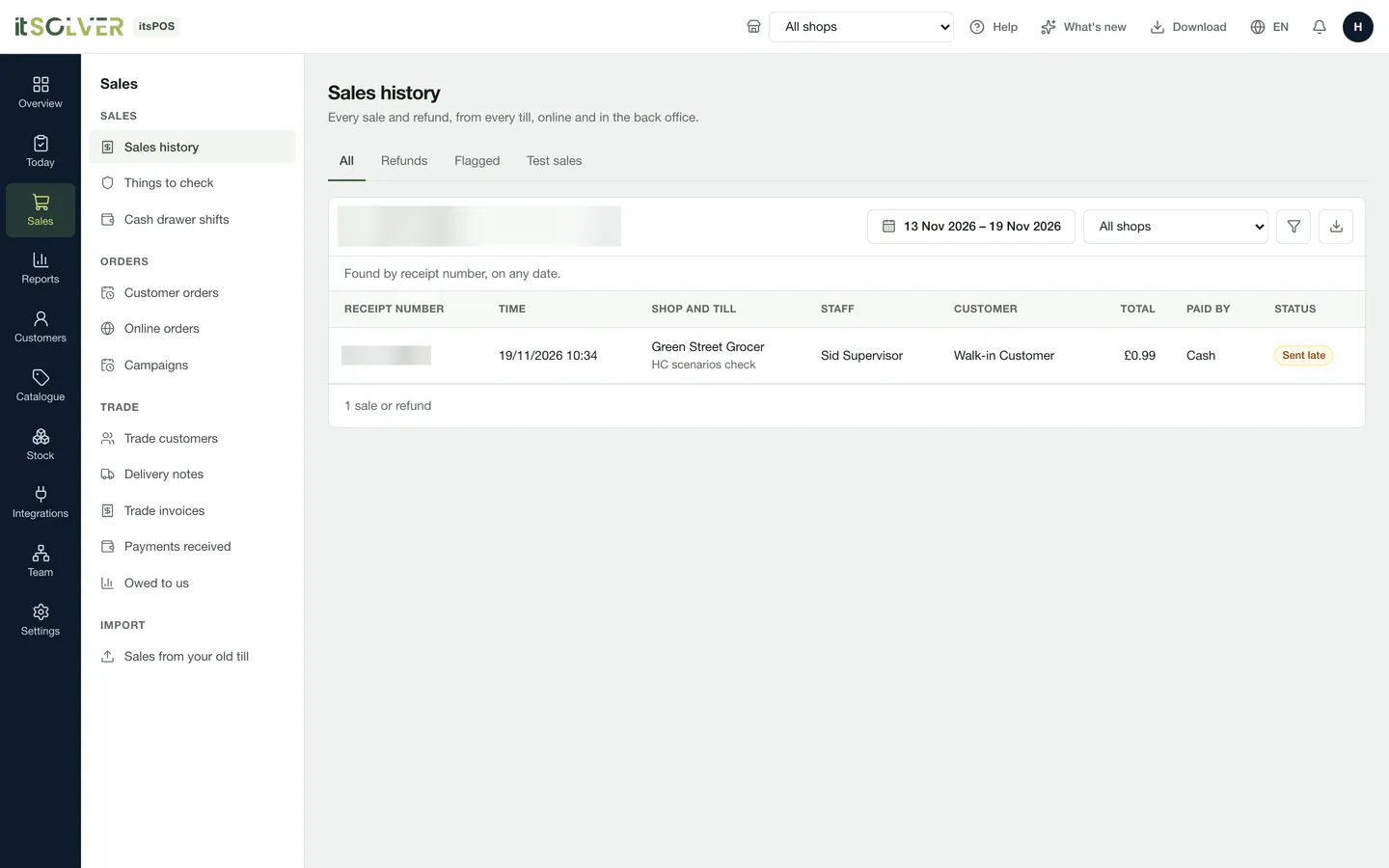
If a till still holds a sale after the connection is back, the back office lists it as "Sale not sent" on the morning's list of things to check (after 30 minutes; urgent after 2 hours). Check that till is on and online.
The card payments taken with Paid on the card machine are matched with the card payment partner's records the next morning.
What you'll see afterwards
- Reports, the Overview and stock catch up as soon as the sales arrive, all dated when they were made.
- The Z report and the shift are complete, whether the shift closed offline or not.
- Nothing is lost: if itsPOS can't accept a sale, the till lists it under Not accepted by itsPOS with the reason, and Send now tries again.
Guides used
- Selling without the internet: what works offline, the warnings and Send now.
- The card machine isn't linked: taking card payments on the card machine.
- Sales history: the Sent late badge.
- Close the shift and cash up.
Still stuck?
The itsPOS support team is here 08:00 to 20:00 every day except Christmas Day.
- Call or WhatsApp: +44 7488 880320
- Email: support@itspos.io
- In the back office: Help › Contact support, or go to app.itspos.io/help/contact after you sign in
- On our website: itspos.io/contact
Tell us your shop's name and what you were trying to do. A screenshot of the screen helps.