

Real shop situations
Taking on a Christmas temp
Holly joins Green Street Grocer for the Christmas rush, from 24 November to 31 December. She needs to sell on the till from her first shift and stop on her last day without anyone remembering to switch her off.
For: Owners, Admins and Shop managers3 min read
Needs itsPOS Till 0.5.33 or later.
The situation
Holly is a cashier. She only works at Green Street Grocer, only uses the till (never the back office) and is paid by the hour. The manager wants her hours approved each week and sent to payroll, and her access to end by itself on 31 December.
Add her before her first shift
In the back office, go to Team › Staff and press Add staff.
Under Who, fill in her First name, Last name and Role: Cashier.
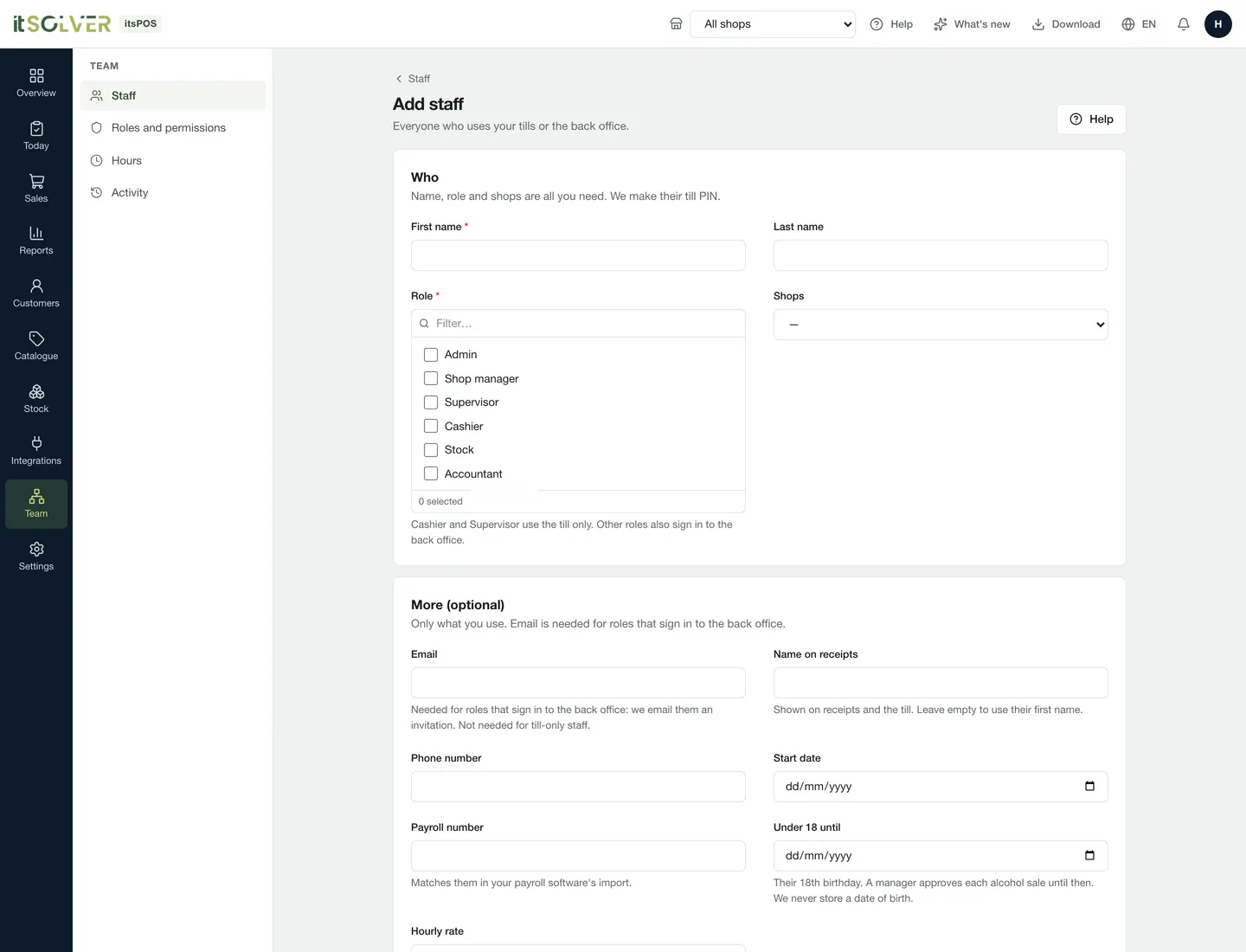
Add staff in Team › Staff Under Shops, choose Only the shops I choose and tick Green Street Grocer.
Under More (optional), add her Payroll number and hourly rate if you use them.
Press Add staff.
itsPOS shows her PIN once, for example "Holly's PIN is 4612. Give it to Holly privately. You won't see it again." Press Print PIN slip and give her the slip, then Done.
Set her last day
Open Holly's page in Team › Staff.
Set Works until to 31 Dec and press Save changes.
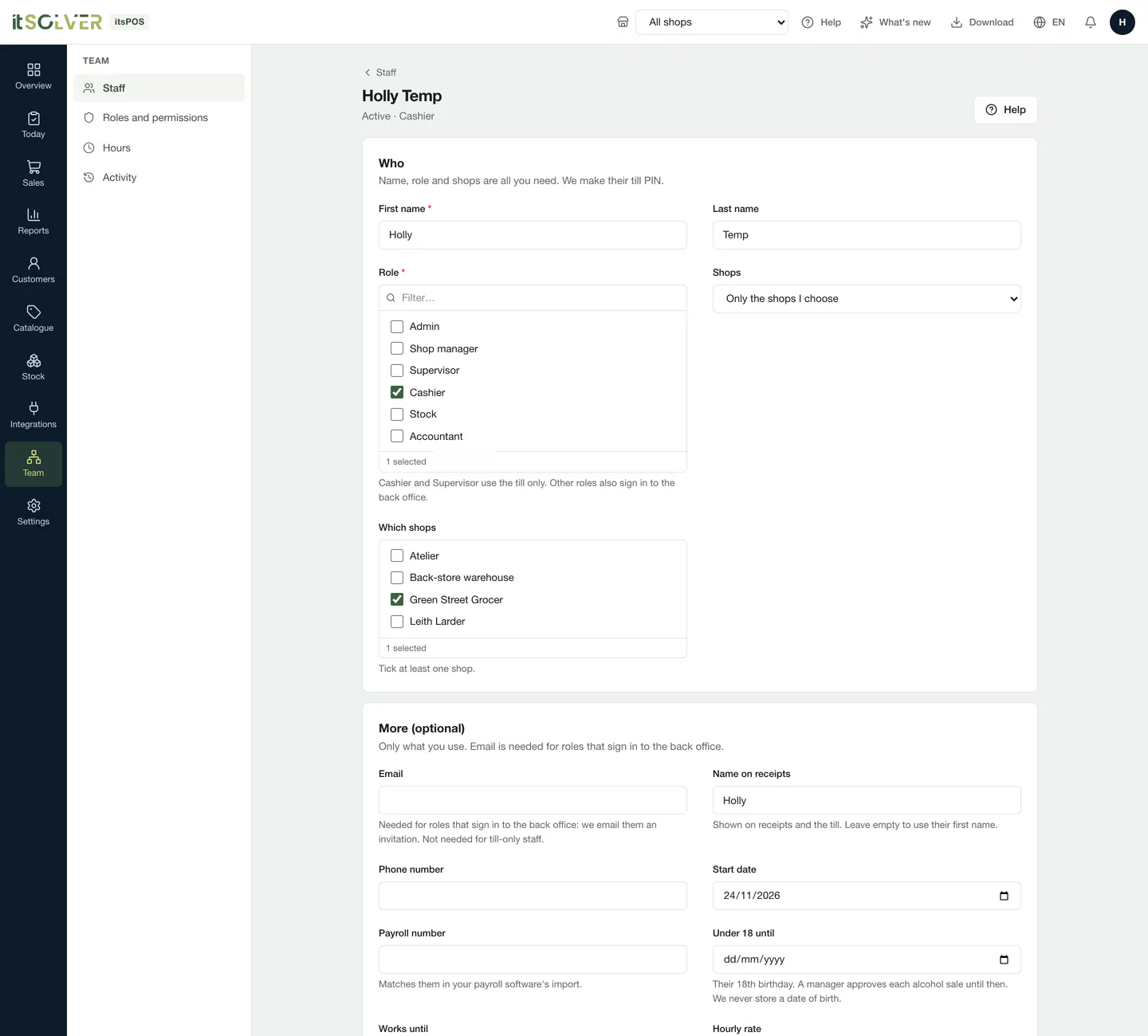
Holly Temp's page in Team › Staff
On 1 January she becomes Away by herself: her PIN stops working on every till and she stops counting as a team member. Her hours and her sales stay for payroll and reports.
Her first shift
- On the till's lock screen, Holly types her PIN. The till signs her in as soon as the last digit is in.
- The till asks if she's clocking in: she taps Clock in.
- At lunch: Start break, then End break. At the end of the day: Clock out.
Cashiers can't open the cash drawer without a sale, give big discounts or refund more than a small amount without a manager, so a new temp can't go far wrong. See what a cashier can do in Adding staff.
Each week: approve and export her hours
Go to Team › Hours, choose the Shop and the week.
Check Holly's row. A day marked Clock-out missing means she forgot to clock out: tap it, press Fix clock times, put in the real Clock out and a reason, and press Save.
Press Approve week, then Approve week again.
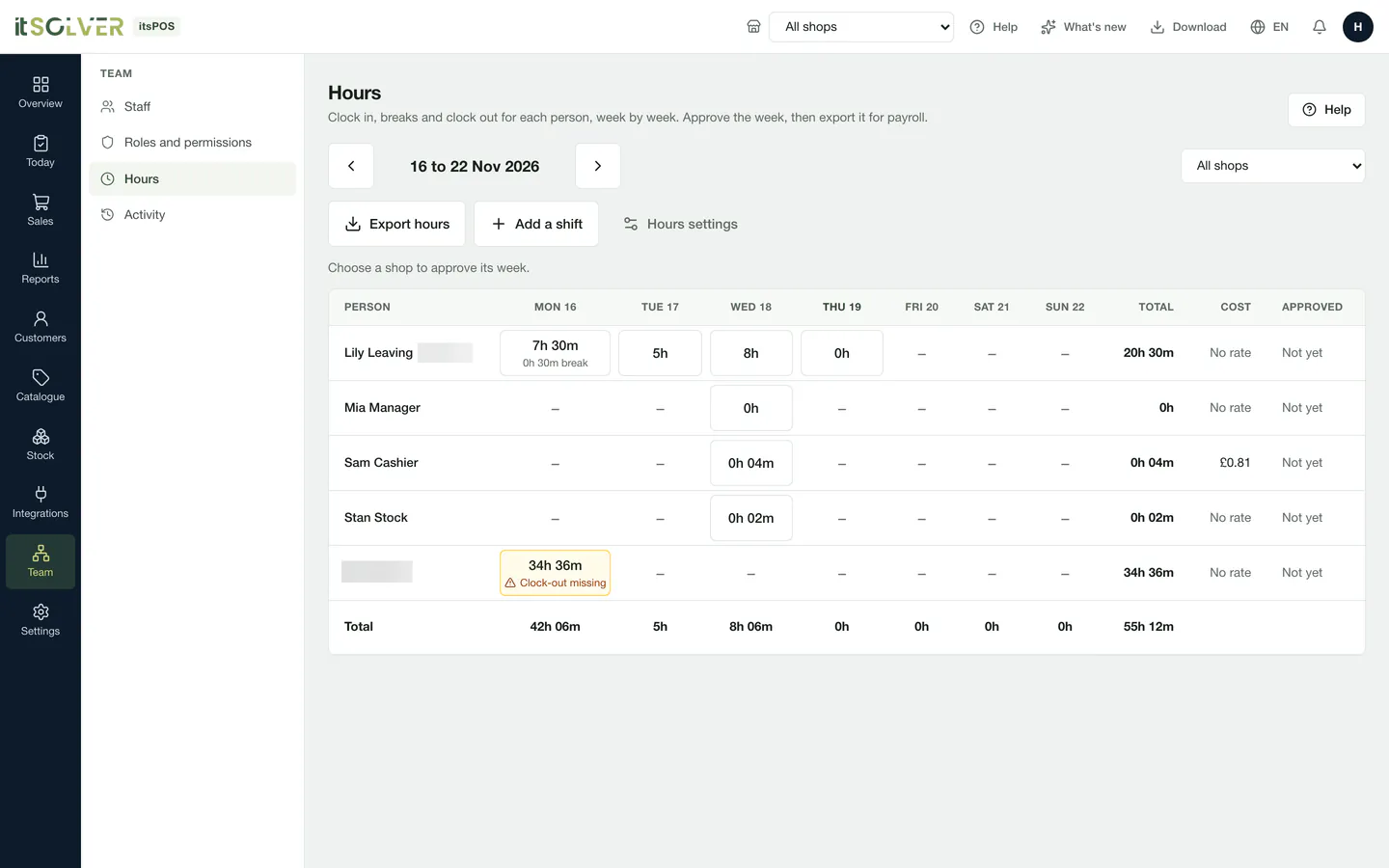
Team › Hours for Green Street Grocer Export the week for your payroll software, for example BrightPay, Sage, Xero or a spreadsheet: see Hours and the payroll export.
What you'll see afterwards
- Holly's sales show her name in sales history and on the Z report.
- After 31 December she shows as Away in Team › Staff. If she comes back next Christmas, open her page and press "Bring Holly back" (the button has her name): her record, hours and payroll number are still there and her old PIN works again. Set a new Works until for her new last day.
Guides used
- Adding staff: adding someone, PIN slips and Works until.
- The till: lock screen, clock and badges: signing in and clocking in.
- Hours and the payroll export.
- When someone leaves or comes back: Away, bringing someone back and leaving for good.
Still stuck?
The itsPOS support team is here 08:00 to 20:00 every day except Christmas Day.
- Call or WhatsApp: +44 7488 880320
- Email: support@itspos.io
- In the back office: Help › Contact support, or go to app.itspos.io/help/contact after you sign in
- On our website: itspos.io/contact
Tell us your shop's name and what you were trying to do. A screenshot of the screen helps.