

Real shop situations
Replacing a broken till computer
Till 2's computer won't switch on in the middle of the afternoon. Here's how to keep trading, close what it left open, and have a replacement selling by the next morning without losing sales.
For: Owners, Admins and Shop managers3 min read
Needs itsPOS Till 0.5.33 or later.
The situation
At 3pm Till 2 at Green Street Grocer goes black and won't start again. The cashier's shift on it is still open, with a drawer full of cash. A new computer arrives tomorrow. Every sale the till had already sent is safe in itsPOS. Only sales it hadn't sent yet, if any, are still on the broken computer.
Right now: keep selling
- Move the cashier to another till. They sign in with their PIN and open a new shift with a fresh float.
- Take Till 2's cash drawer to the office, locked, with its key.
Close the broken till's shift
In the back office, go to Sales › Cash drawer shifts and open Till 2's open shift.
Press Close this shift, give the reason, for example the till is broken, and choose to count the cash now or later.
Count the drawer in the office: Count cash on the shift. The difference, if any, is kept with a reason like any other shift.
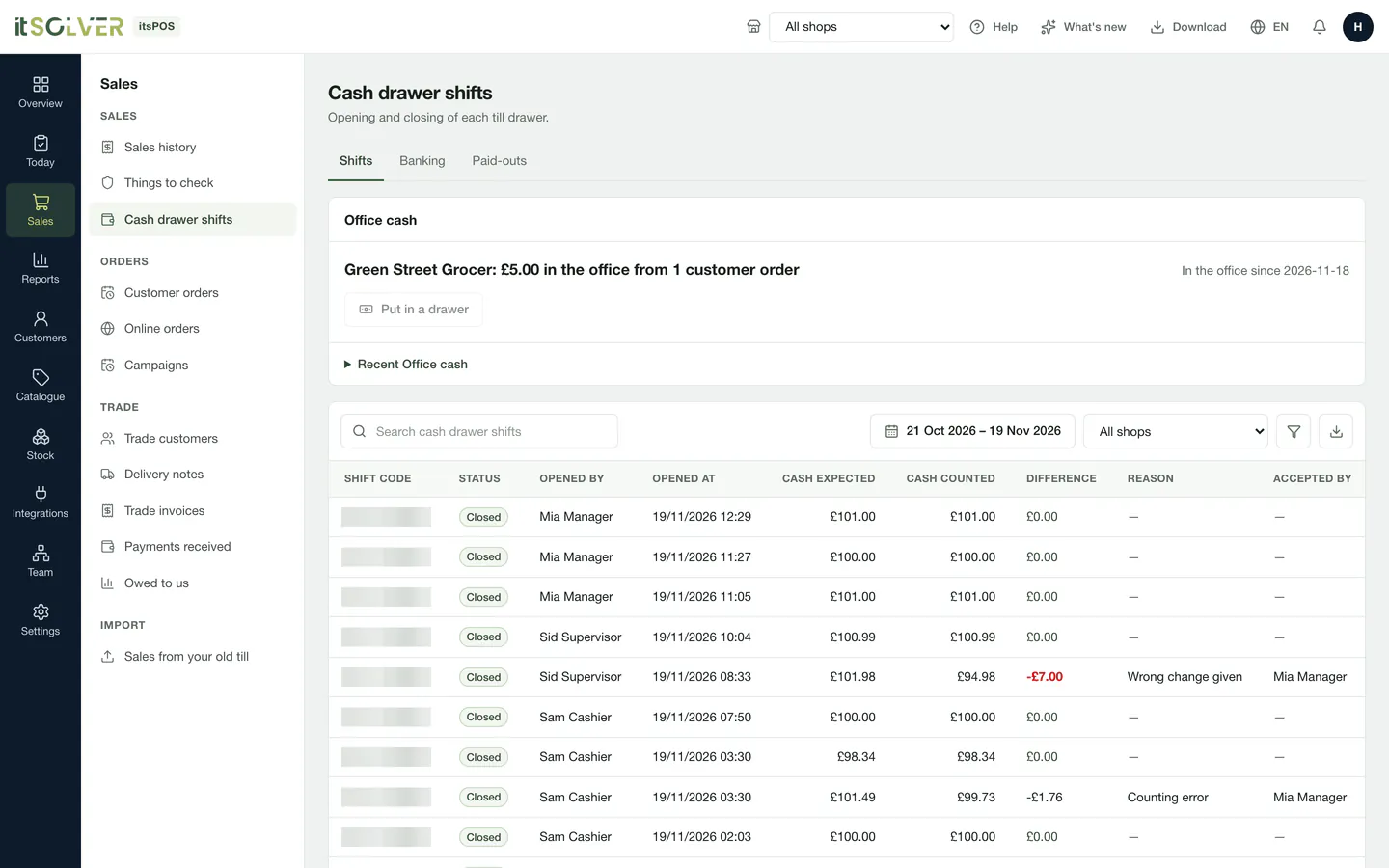
Sales › Cash drawer shifts
Unpair the broken till
Go to Settings › Tills and devices and open Till 2.
Press Unpair till. "The till stops selling straight away and its licence seat is freed."
If Till 2 still had sales it hadn't sent, the back office warns, for example: "Till 2 has 2 sales that have not reached itsPOS. They will be lost unless the till reconnects first. Type Till 2 to confirm." If there's any chance of starting the old computer again (a repair shop can often get the disk working), wait and let it send them first. Only type the name when it's gone for good.
Press Unpair till. "Till 2 is unpaired. Its licence seat is free."
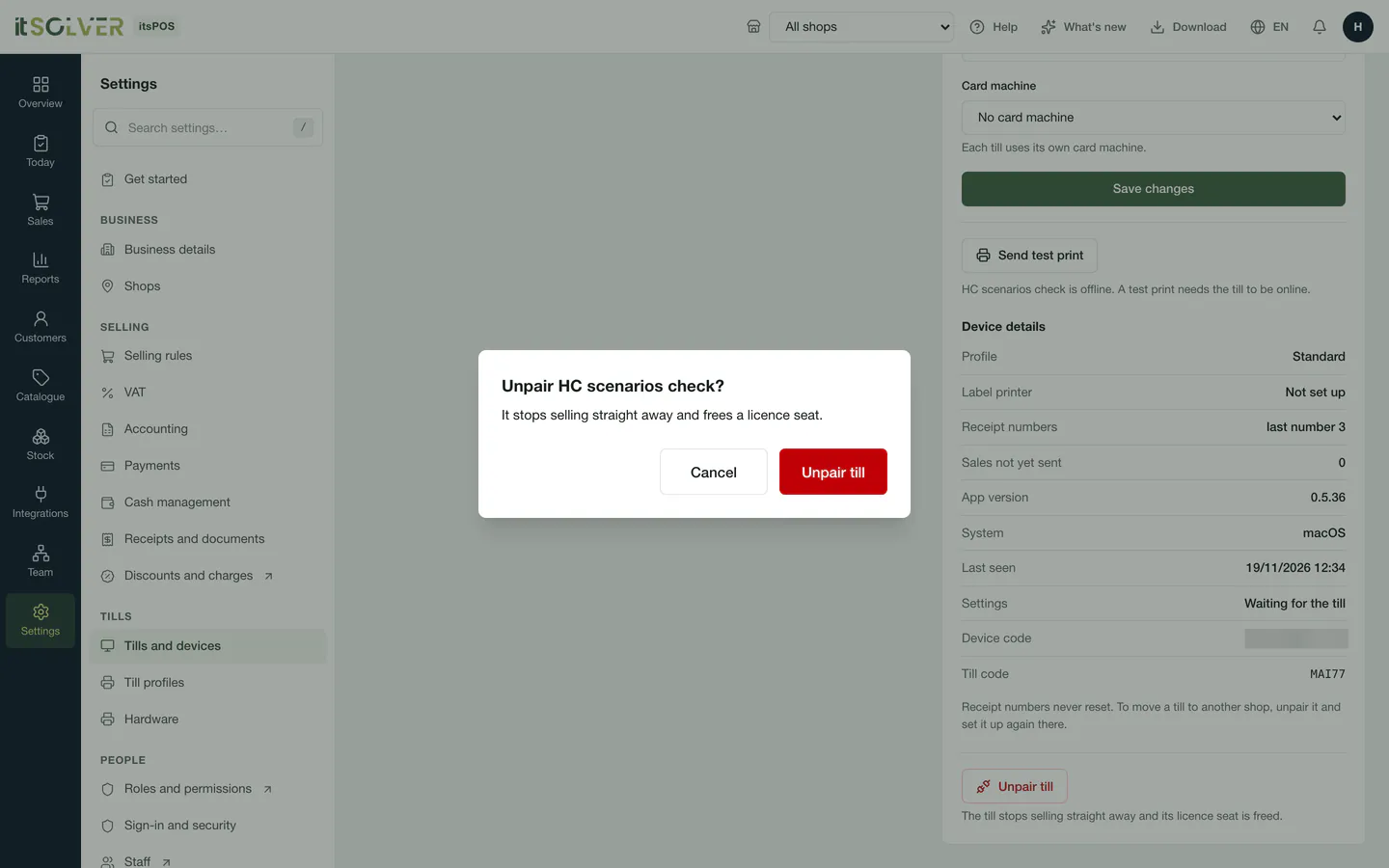
The Unpair till question in Settings › Tills and devices
Unpairing a till needs an Owner or Admin. A Shop manager can add the new one.
Set up the replacement
- In Settings › Tills and devices, press Add a till and Get activation code.
- On the new computer, install itsPOS Till from app.itspos.io/downloads, type the code, sign in and choose the shop. Call it Till 2 again if you like: it gets its own new receipt numbers.
- Connect the printer, drawer and scanner and test each one in the till's Settings › Hardware (Test print, Open drawer, Test scan).
- In the back office, choose its card machine under Card machine in the till's panel, then run a test sale on the till.
What you'll see afterwards
- The old till stays in Settings › Tills and devices under Show unpaired tills, with all its sales and shifts.
- If the old computer is ever switched on again, it shows This till has been switched off and sells nothing.
- Sales from the old till that never arrived can't be recovered once it's unpaired: that's why it's worth trying to start it first.
Guides used
- Tills and devices: unpair a till and add a till.
- Set up a new till.
- Cash drawer shifts in the back office: closing a broken till's shift.
- Count a drawer in the office.
- Setting up your shop's hardware: the checklist.
Still stuck?
The itsPOS support team is here 08:00 to 20:00 every day except Christmas Day.
- Call or WhatsApp: +44 7488 880320
- Email: support@itspos.io
- In the back office: Help › Contact support, or go to app.itspos.io/help/contact after you sign in
- On our website: itspos.io/contact
Tell us your shop's name and what you were trying to do. A screenshot of the screen helps.