

Real shop situations
A big refund needs a manager
A customer brings back a £129 cashmere jumper. You want a manager to approve every big refund in person, with their badge and their PIN, and you want to hear about it the same day.
For: Owners, Admins, Shop managers, Supervisors and Cashiers4 min read
Needs itsPOS Till 0.5.33 or later.
The situation
Atelier sells cashmere jumpers at £129.00. To start with, a cashier can refund with a receipt up to £20 (£100 a shift) without a manager; anything bigger needs a manager's approval. Managers approve by tapping their staff badge on the till's reader, which is quick, but a badge could be borrowed. So for refunds over £50 the owner wants the manager to type their PIN as well, and an email for every refund over £100.
Who may refund, and up to how much, is set by each role in Team › Roles.
Ask for the badge and the PIN over £50
In the back office, go to Settings › Sign-in and security.
Turn on Badge and PIN for bigger approvals. "A badge shows whose it is, not who is holding it."
Under Over this amount (£), type 50. This covers refunds, discounts, price changes, removed items, cash in or out and cash differences over £50.
Press Save changes. Every till gets the change within a minute.
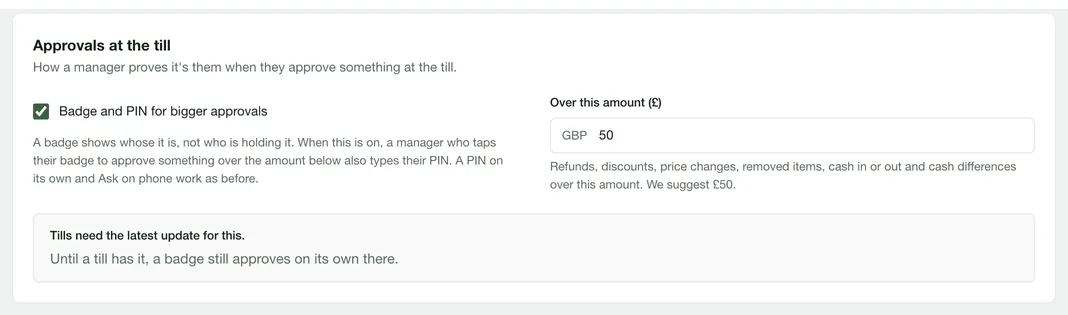
Under £50 a badge on its own still approves. A manager who types their PIN without a badge, or approves with Ask on phone, works as before.
Get told about big refunds
- Go to Settings › Alert thresholds. Under Refunds, Big refund is £100 to start with: one refund of this much or more makes a line in the back office's list of things to check.
- Change it for one shop if you like: choose the Shop at the top, change the amount and press Save.
- For an email when it happens, each manager opens Settings › Notifications › My notifications and ticks "Refund over", with the Amount, for example £100. Urgent alerts such as big refunds can also reach their phone.
At the till
- The cashier taps Returns, scans the receipt and picks the jumper, with the reason.
- The till asks for a manager: "Approval needed" with what the cashier wants to do and the amount.
- The manager taps their badge. Because £129.00 is over £50, the till then asks for their PIN too.
- The manager types their PIN. The refund goes ahead, back the way it was paid.
The next morning
- The manager who chose "Refund over" got an email when the refund was made.
- In the back office, the refund is on the list of things to check as "Big refund", with who made it and who approved it. Look at the sale, and at your CCTV if anything looks wrong.
- Sales › Sales history shows the sale marked Refunded, with the refund under it.
What you'll see afterwards
- Every approval is kept with the refund: who asked, who approved and how (badge, PIN or both).
- Team › Activity shows when the setting was turned on and by whom.
- A refund without a receipt over £20, a refund soon after the sale and a cash refund for a card sale make their own lines too: see Alert thresholds.
Guides used
- Sign-in and security: badge and PIN for bigger approvals.
- Alert thresholds: when a refund makes a line to check.
- Email and phone alerts: choosing the alerts you get.
- Refunds with a receipt: refunds at the till.
- PINs and badges: pairing a badge to each manager.
Still stuck?
The itsPOS support team is here 08:00 to 20:00 every day except Christmas Day.
- Call or WhatsApp: +44 7488 880320
- Email: support@itspos.io
- In the back office: Help › Contact support, or go to app.itspos.io/help/contact after you sign in
- On our website: itspos.io/contact
Tell us your shop's name and what you were trying to do. A screenshot of the screen helps.