

Real shop situations
Badges for the whole team
Typing a PIN dozens of times a day is slow, and PINs get shared. The owner of a busy cash and carry gives the six staff a badge each: they tap it on a small reader to sign in at the till, and managers tap theirs to approve.
For: Owners, Admins and Shop managers3 min read
Needs itsPOS Till 0.5.33 or later.
The situation
Green Street Grocer has two tills and six staff: a shop manager, a supervisor and four cashiers. The owner buys two USB NFC readers (one for each till) and six key fobs. PINs keep working: a badge is just quicker, and a person who forgets their badge types their PIN.
A reader at each till
Buy a USB NFC reader in keyboard mode, 13.56 MHz, for each till, and the same model at every till. Buy one 13.56 MHz card or key fob per person.
Plug the reader into the till's computer. It needs no driver.
On the till, tap Settings, then Hardware, then Test badge, and tap any badge on the reader: the till shows it read the badge.
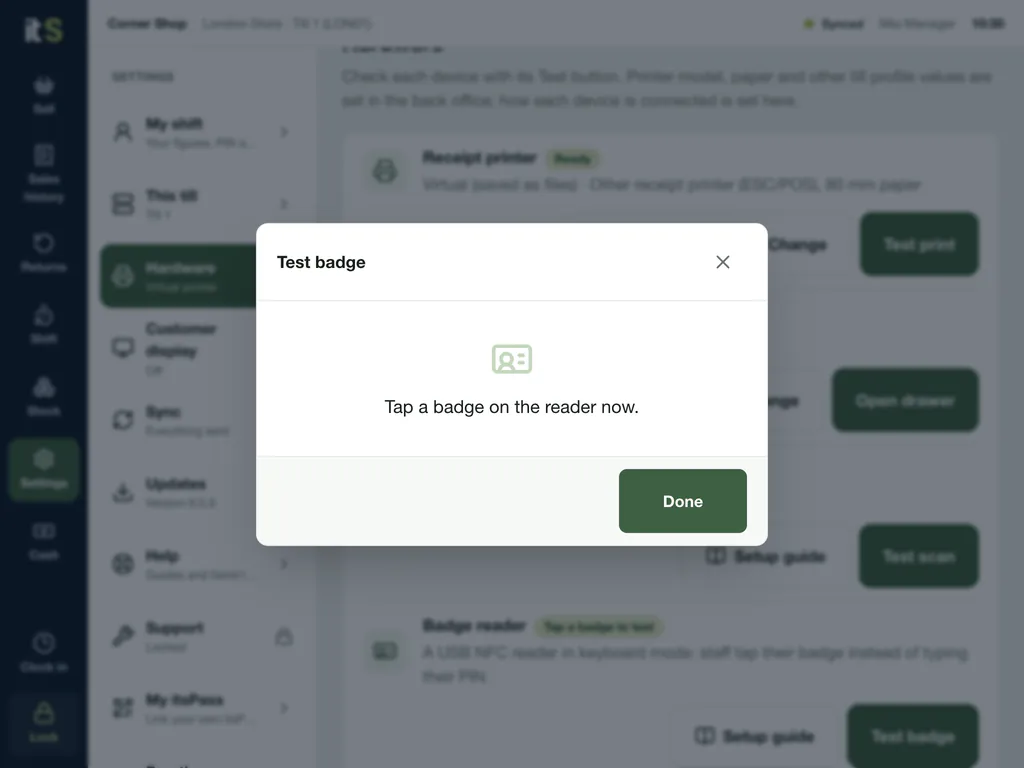
Test badge on the till
Pair each person's badge
Do this with each person next to a till, because they confirm with their own PIN.
In the back office, go to Team › Staff and open the person.
In the Till card, press Pair a badge. If they work in more than one shop, choose the Shop with the reader first.
The back office says "Tap Mia's badge on a till's reader at Green Street Grocer" and counts down 2 minutes. Every online till in that shop shows the same on its lock screen.
The person taps their badge on the reader, then types their own PIN on that till.
The back office says Badge paired. Press Done. Their badge now works on every till where they work.
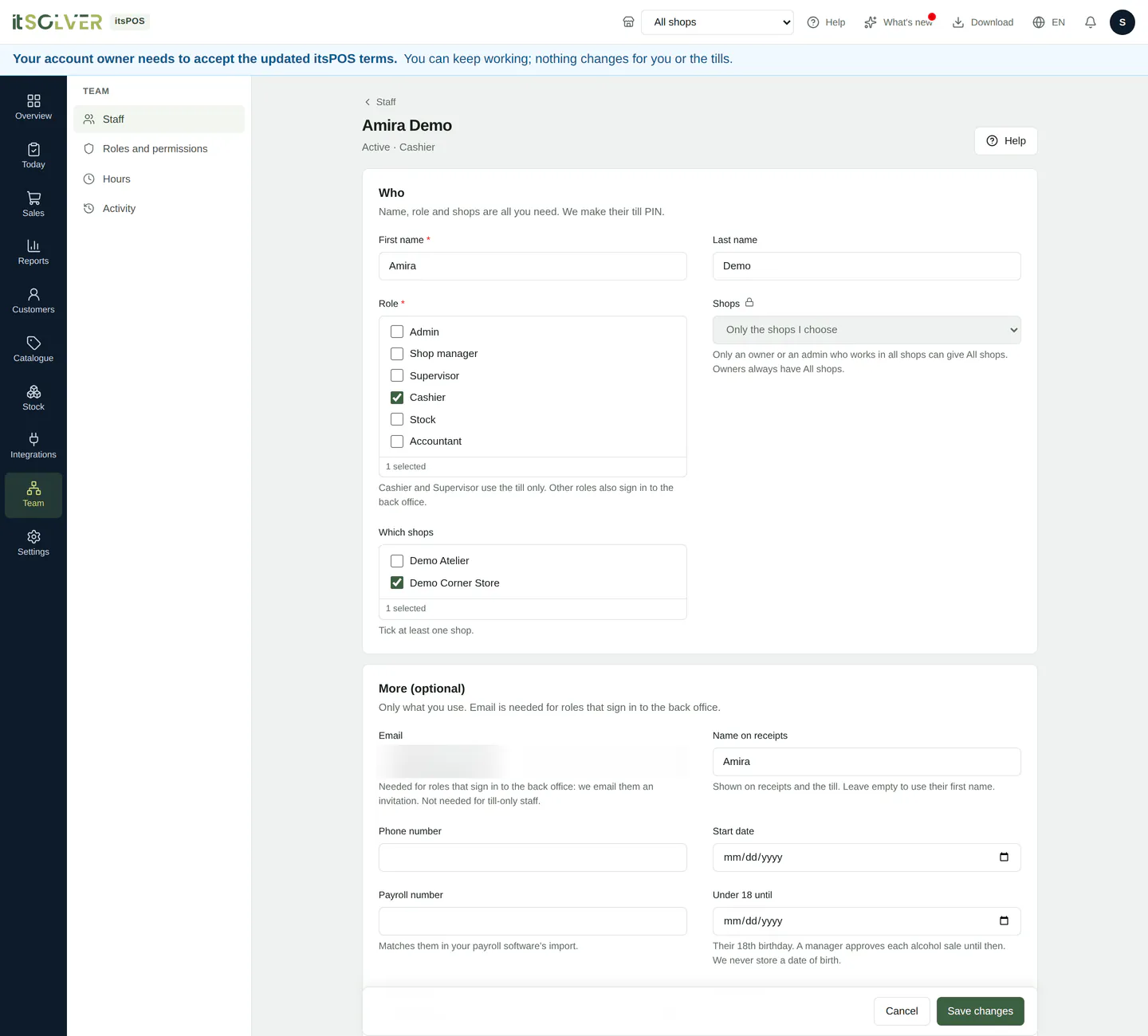
Repeat for the other five. People can also pair their own badge on the till from My shift, when the till is online.
Use it
- Sign in: on the lock screen ("Enter your PIN or tap your badge"), tap the badge. It works without the internet.
- Approve: when the till asks for a manager, the manager taps their badge instead of typing their PIN. For big amounts you can ask for the badge and the PIN together: see A big refund needs a manager.
A lost badge
- Open the person's page in Team › Staff.
- Press Unpair badge, then Unpair badge again. "The badge stops working on every till straight away."
- Pair a new badge the same way. Until then, they use their PIN.
One badge belongs to one person: a found badge that's paired to someone else is refused until that person's badge is unpaired. When someone leaves, removing their access deletes their badge too.
What you'll see afterwards
- Sales, refunds and approvals show who did them, whether they used a badge or a PIN.
- The person's page in Team › Staff shows they have a badge.
Guides used
- Staff badge reader: which reader to buy, testing it and common problems.
- PINs and badges: pairing on the till and in the back office.
- The till: lock screen, clock and badges.
- Sign-in and security: badge and PIN for bigger approvals.
Still stuck?
The itsPOS support team is here 08:00 to 20:00 every day except Christmas Day.
- Call or WhatsApp: +44 7488 880320
- Email: support@itspos.io
- In the back office: Help › Contact support, or go to app.itspos.io/help/contact after you sign in
- On our website: itspos.io/contact
Tell us your shop's name and what you were trying to do. A screenshot of the screen helps.