

Real shop situations
A café buys on account every week
Demo Café Ltd, round the corner, buys milk, beans and tea from Green Street Grocer most mornings. They don't want to pay each time: they want one invoice a week and pay it by bank transfer. Here's the whole week.
For: Owners, Admins and Shop managersOn some plans3 min read
Needs itsPOS Till 0.5.35 or later.
The situation
The café's owner, Olivia, or one of her staff comes in, takes what they need and says "on the café's account". The shop gives them trade prices (10% off, without VAT shown), never lets them owe more than £1,000, and invoices them every Monday for the week before, payable in 14 days.
Trade accounts are on Essentials and above. Weekly or monthly invoices and payment terms per account are on Professional and above.
1 Add the trade account
In the back office, go to Sales › Trade customers and press Add trade account.
Company: type the café's name or company number and pick it from Companies House, or type the name.
Contact: Olivia, with her email and phone. Invoices and statements to: the email invoices go to.
Payment terms (days) 14 and Invoice every week.
Credit and prices: Credit limit £1,000, Supplied from Green Street Grocer, Their prices Trade.
Press Add trade account. "Trade account added. Tills get its credit limit on their next sync."
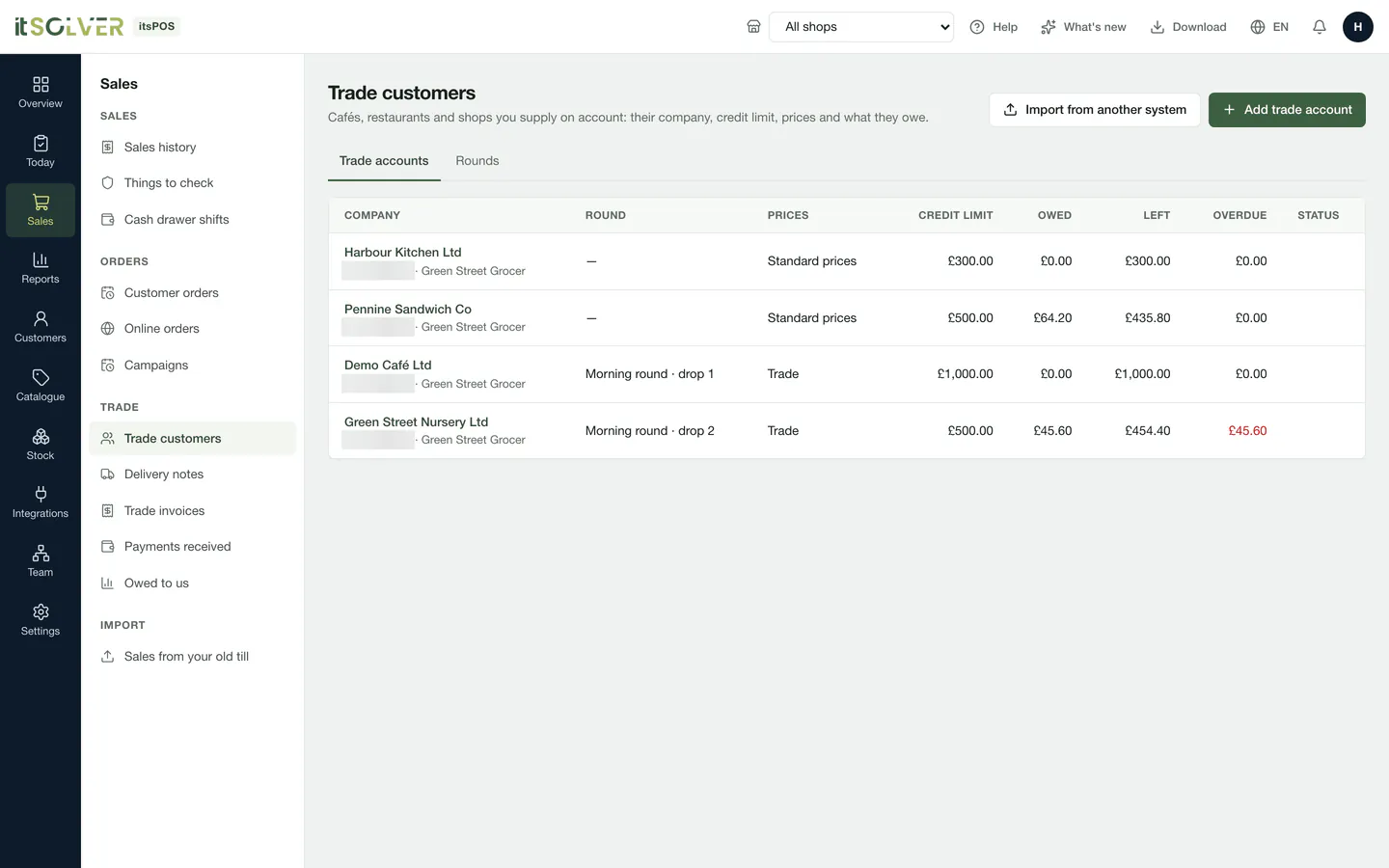
Sales › Trade customers
2 Sell on account at the till
- Scan the café's items.
- Tap Pay, then On account. Trade accounts opens: type the company or account number and tap Demo Café Ltd. It shows the credit left, for example "On account: £1,000.00 left of £1,000.00 (owed £0.00)".
- The sale switches to the café's Trade prices by itself: the basket shows "Trade prices for Demo Café Ltd".
- Tap the button under the account, for example "Put £6.05 on Demo Café Ltd's account". Give the café's staff the receipt.
Over the credit limit, a manager has to approve. An account on hold asks for a manager's PIN at Pay.
3 Monday: the weekly invoice On some plans
itsPOS makes the invoices by itself every Monday for weekly customers, for Monday to Sunday. Each lists everything on account that isn't on an invoice yet.
Go to Sales › Trade invoices to see it. Open it for the PDF; it's emailed to the café's invoice address.
Need one earlier? Under Invoice now, choose the Customer and Up to, and press Make invoice.
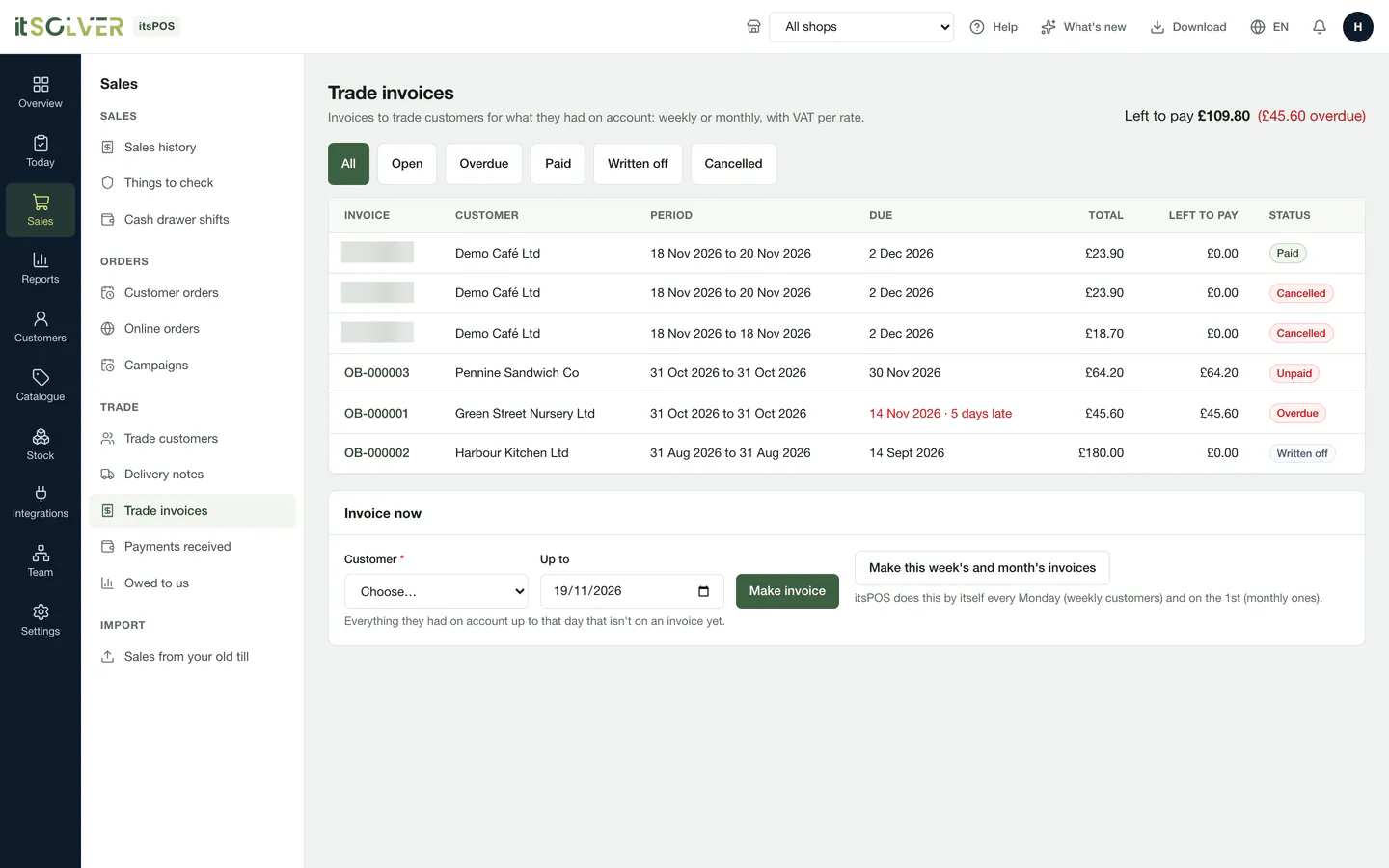
Sales › Trade invoices
4 The café pays
- When the money arrives in the bank, open the invoice (or Sales › Payments received).
- Type the Amount, choose Paid by Bank transfer, and add their BACS Reference.
- Press Record payment. "Payment recorded." It pays the oldest invoice first.
What you'll see afterwards
- The café's account page shows what it owes, its invoices and payments, and its statement.
- Sales › Owed to us lists every trade customer who owes you money and how late they are.
Guides used
Still stuck?
The itsPOS support team is here 08:00 to 20:00 every day except Christmas Day.
- Call or WhatsApp: +44 7488 880320
- Email: support@itspos.io
- In the back office: Help › Contact support, or go to app.itspos.io/help/contact after you sign in
- On our website: itspos.io/contact
Tell us your shop's name and what you were trying to do. A screenshot of the screen helps.