

Real shop situations
The VAT rate changes at midnight
The Budget says the reduced rate of VAT goes from 5% to 6% on 1 January. Your tills must charge 6% from the first sale after midnight, even the one that's offline on New Year's Eve. You set it once, in December.
For: Owners and Admins3 min read
Needs itsPOS Till 0.5.33 or later.
The situation
The business has three shops and four tills. Some products are on the reduced rate. The owner doesn't want to stay up until midnight or change prices: shelf prices stay the same, and only the VAT inside them changes. Leith Larder's till is often offline at night.
Schedule the change in December
In the back office, go to Settings › VAT. Owners and Admins can change it.
On the reduced rate's row, press Change the rate….
Type the new rate, 6. "Now 5%. You choose when the new rate starts on the next screen. Your shelf prices stay the same, and the VAT inside them changes."
Press Review and publish. Review changes shows "Reduced Rated 5% → 6%" and how many shops, tills and products it affects.
Choose At a set time, the Date 1 Jan 2027 and the Time 00:00 (shop time).
Type a Note, for example "Budget change". It's required for VAT changes and kept with the change. Press Schedule.
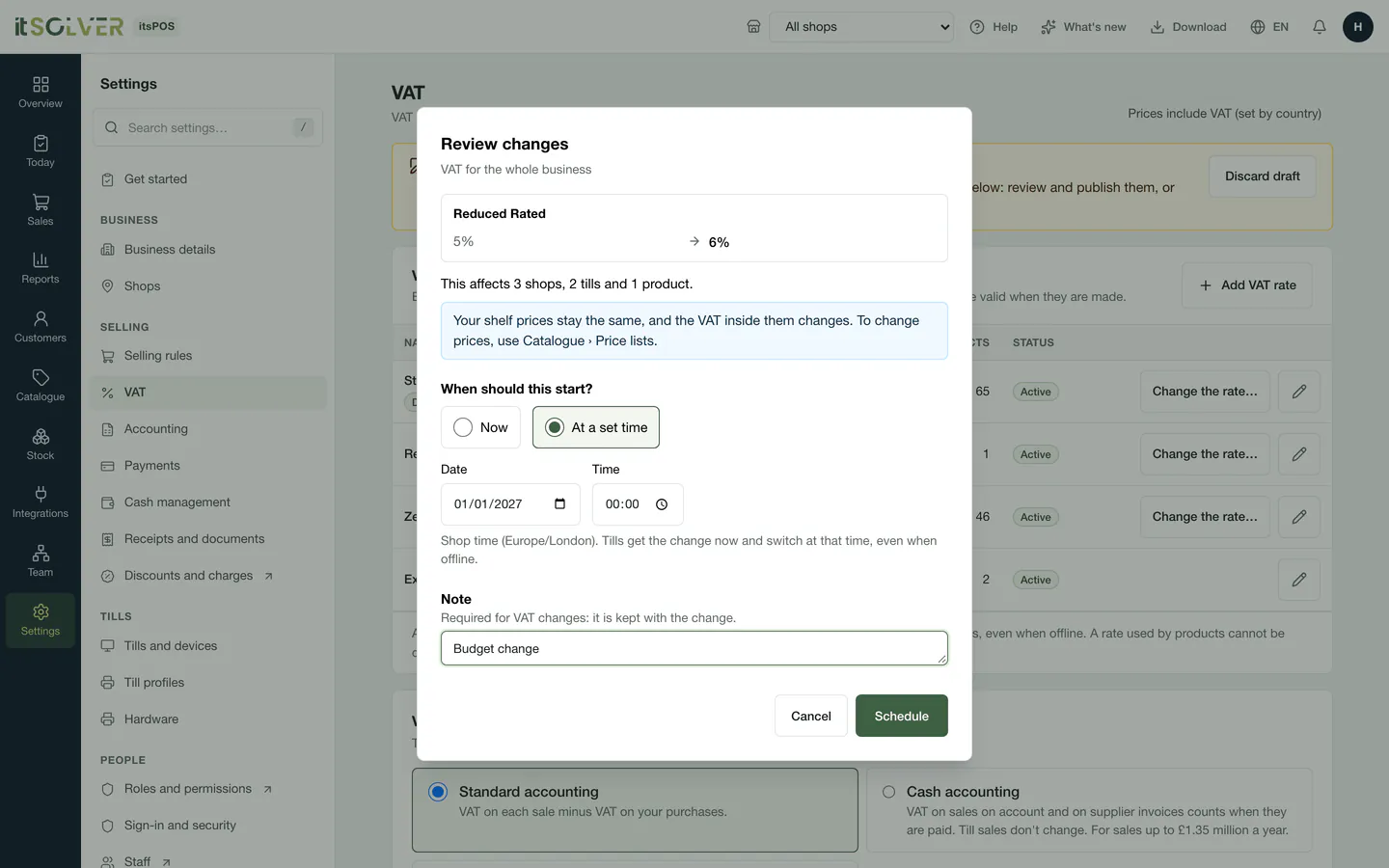
Review changes in Settings › VAT
The page then says "Scheduled for Fri 1 Jan 2027 at 00:00 (shop time)" and the rate shows "6% from 1 Jan 2027 at 00:00". Changed your mind? Cancel schedule undoes it before it starts.
At midnight
- Every till already has the new rate as soon as you schedule it. At midnight each till switches by its own clock, between sales, even with no internet.
- A sale that's open on the screen at midnight keeps the rate it started with.
- Your online store switches at the same moment. Prices stay the same.
The first receipts of the year
- A receipt from 31 December shows 5% VAT inside the price; the same product on 1 January shows 6% VAT inside the same price.
- The receipt's VAT summary lists the rate and the VAT for each rate, as always.
The VAT return
- In Reports › VAT return, the quarter that includes 1 January has sales at both rates.
- Box 1 adds up the VAT from both: every sale uses the rate that was valid when it was made.
- Check Box 1 checked against VAT by rate: it should say ✓ Balances. It lists the VAT by rate, so you can see the 5% part and the 6% part.
What you'll see afterwards
- Team › Activity keeps the change, who scheduled it, and the note.
- Margins on reduced-rate products fall a little, because the price stays the same and more of it is VAT. Change prices too if you want to keep the margin: see Change many prices at once.
Guides used
- VAT rates: change a rate at a set time.
- Your VAT return boxes.
- Quarter-end VAT: filing the return and locking the books.
Still stuck?
The itsPOS support team is here 08:00 to 20:00 every day except Christmas Day.
- Call or WhatsApp: +44 7488 880320
- Email: support@itspos.io
- In the back office: Help › Contact support, or go to app.itspos.io/help/contact after you sign in
- On our website: itspos.io/contact
Tell us your shop's name and what you were trying to do. A screenshot of the screen helps.