

Real shop situations
A third till for the busy Saturday
Saturday queues at Green Street Grocer reach the door. The owner adds a third till for weekends, on a laptop with its own printer and card machine, set up the same way as the other two.
For: Owners, Admins and Shop managers3 min read
Needs itsPOS Till 0.5.33 or later.
The situation
The shop has two tills. On Saturdays a third person serves from the end of the counter. The third till needs a till licence, the same buttons and receipts as the other tills, and its own card machine so two customers can pay by card at once.
Check you have a free till licence
- Go to Settings › Plan and add-ons. Tills shows how many tills your plan has and how many are in use, for example "1 of 10 tills".
- If all your tills are in use, ask the itsPOS support team for another, or unpair a till you no longer use: unpairing frees its licence.
Add the till
Go to Settings › Tills and devices and press Add a till, then Get activation code. The code works once and for 24 hours.
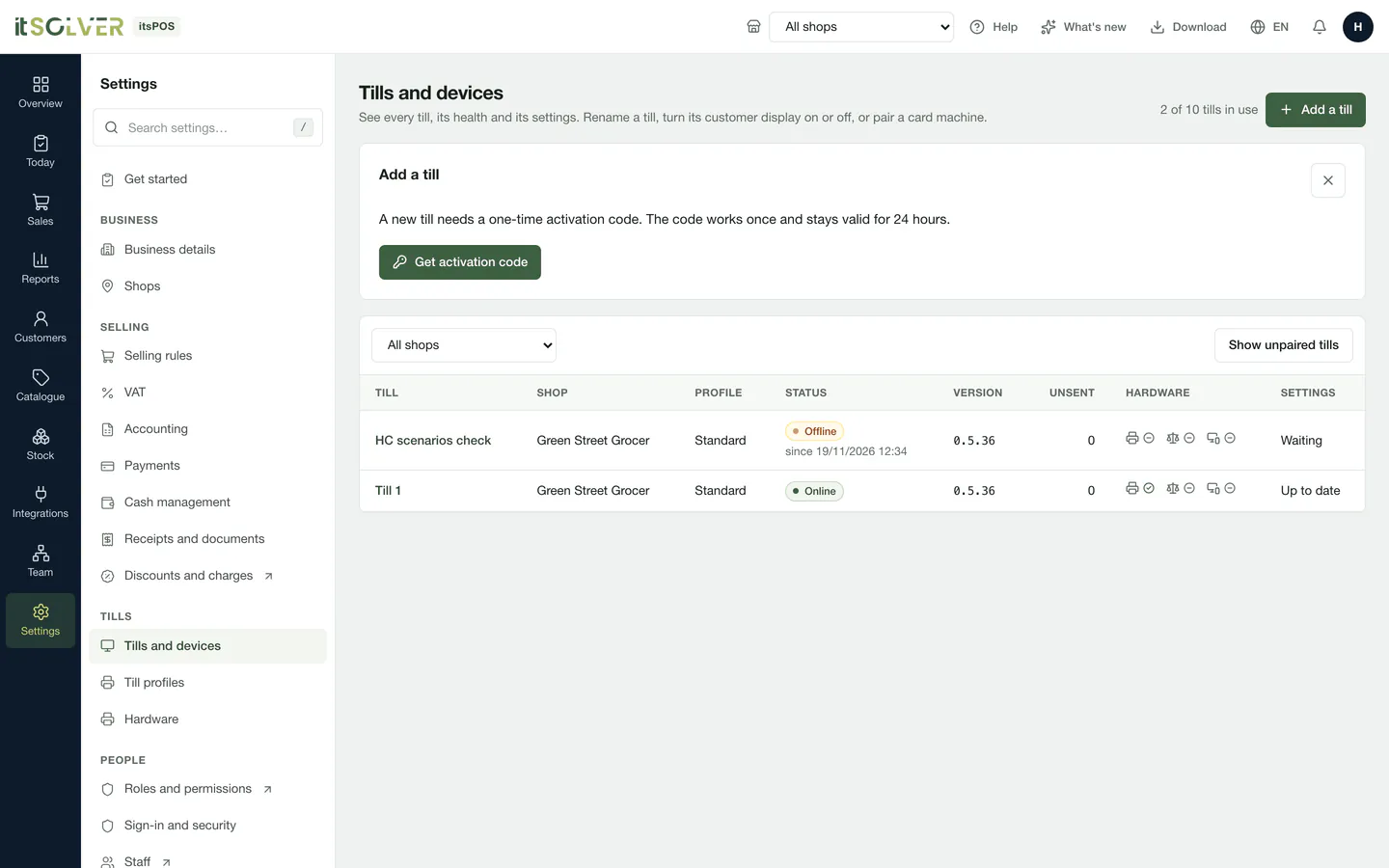
Settings › Tills and devices On the laptop, download itsPOS Till from app.itspos.io/downloads and install it.
Type the Activation code, sign in with your back-office email and password, choose Green Street Grocer and call it "Till 3". Press Set up till.
Wait for Ready to sell and press Start selling.
The same profile as the others
A new till uses the shop's Default profile for this shop (set in Settings › Shops), so it already has the same sell screen, Quick keys, receipts and devices as Till 1 and Till 2.
- To check, open Till 3 in Settings › Tills and devices. Its till profile is shown in its panel; change it there if Till 3 is different, for example a smaller screen.
- Settings › Till profiles lists which tills use each profile.
Its own card machine
- Each till has its own card machine. Order another through the itsPOS support team, so it's on your card payment account.
- In Settings › Tills and devices, open Till 3 and under Card machine, choose the new card machine. Press Save changes.
- On Till 3, run a test sale: tap Settings, then This till, and Run a test sale.
What you'll see afterwards
- Till 3's sales and shifts show under its own name in sales history and reports.
- On weekdays leave Till 3 switched off. It updates itself and catches up with prices and products when you switch it on on Saturday morning; give it a few minutes before the first sale.
- A till that hasn't been switched on for a long time shows in Settings › Tills and devices as offline. That's fine for a weekend till.
Guides used
- Tills and devices: adding a till and its card machine.
- Set up a new till: installing and activating.
- Till profiles.
- Quick keys: the buttons on each till profile.
- Run a test sale.
Still stuck?
The itsPOS support team is here 08:00 to 20:00 every day except Christmas Day.
- Call or WhatsApp: +44 7488 880320
- Email: support@itspos.io
- In the back office: Help › Contact support, or go to app.itspos.io/help/contact after you sign in
- On our website: itspos.io/contact
Tell us your shop's name and what you were trying to do. A screenshot of the screen helps.