

Real shop situations
Price rise from your wholesaler: costs, prices and labels in one morning
Demo Cash & Carry puts its prices up by about 5% from Monday. By lunchtime on Friday the owner wants the new costs in, the selling prices ready to change on Monday, and the shelf labels ready to swap.
For: Owners, Admins and Shop managers4 min read
Needs itsPOS Till 0.5.33 or later.
The situation
Green Street Grocer buys McVitie's Digestives, Napolina Spaghetti and most of its grocery from Demo Cash & Carry Ltd. The wholesaler sends a new price file on Friday. If the shop keeps its selling prices, margins fall. The owner wants prices 5% higher, ending in 9p, from Monday morning, with a manager checking them first.
1 Load the new costs
Go to Catalogue › Wholesaler catalogues.
Choose your wholesaler (Booker, Bestway, Nisa, Parfetts, a Unitas member, or Another wholesaler) and Choose the supplier, Demo Cash & Carry Ltd.
Drop the wholesaler's file on the page and Match columns, for example Cost of one, Case size and RRP.
Under Selling prices of products you have, choose Keep my prices: you'll set the new prices yourself.
Choose Check the file, then the import button. "Tills get the changes within 1 minute."
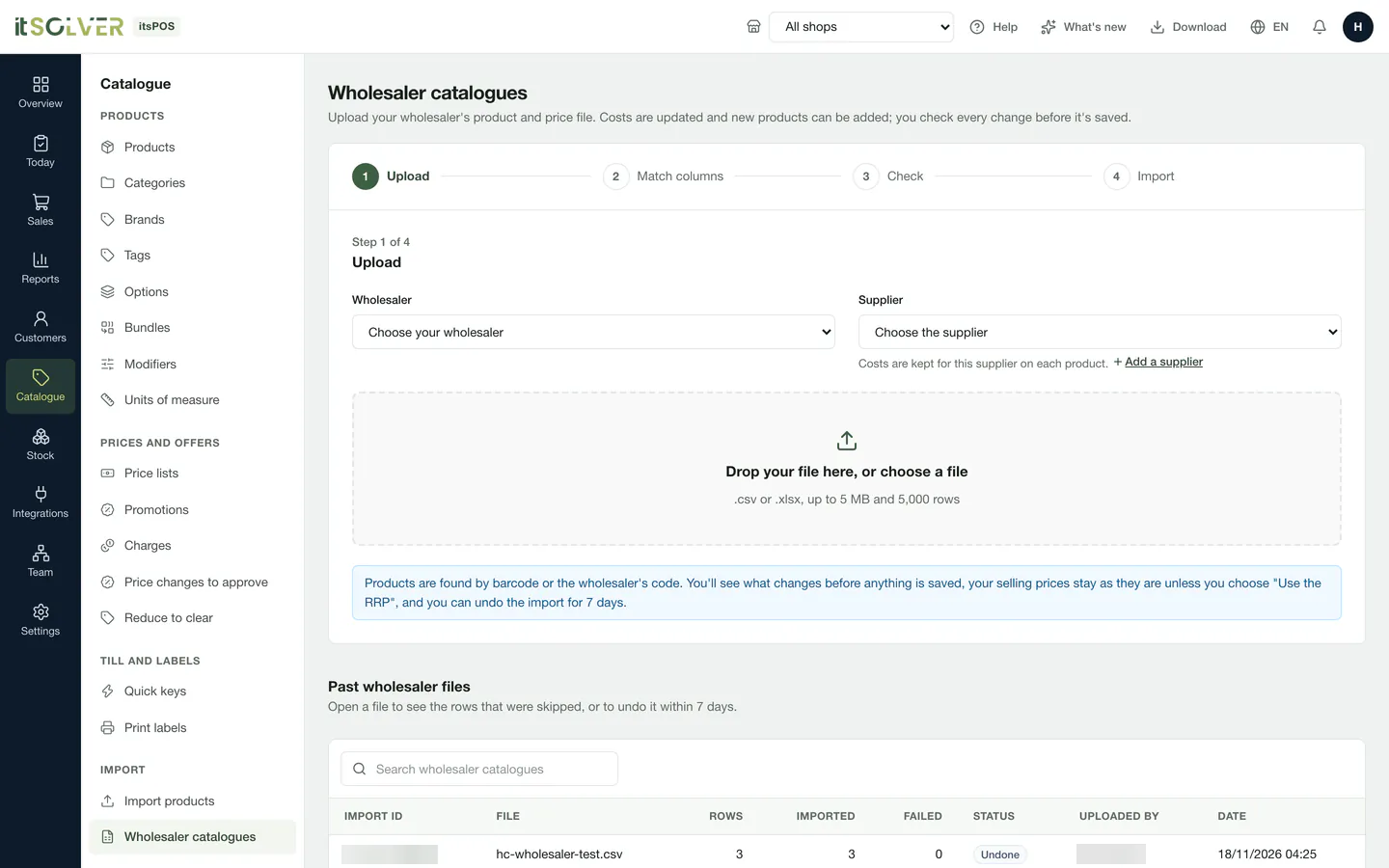
Catalogue › Wholesaler catalogues
The costs change straight away, and margins and stock value use them. Selling prices don't change.
2 Check your margins
- Press "View products from Demo Cash & Carry Ltd" on the import, or filter Catalogue › Products by the supplier.
- Look at the cost and margin of each product. Products now selling below cost, or under your minimum margin, stand out: see Selling below cost.
3 Put the prices up from Monday
In Catalogue › Products, filter by the supplier or the category and tick the products (or use every product that matches the list).
Press Change selected, then Prices (by % or a new price)….
Choose Change prices by % and type 5 in Change by (%).
In Round the new prices, choose Ends in 9p (£1.09).
In Start on (optional), choose Monday's date.
Press Check the change. It lists each product, for example "Mcvitie's Digestives Original 315g: £1.69 → £1.79", and warns if any would still sell below cost.
Press the change button, for example "Change 24 prices".
4 A manager approves them
If your business uses Price changes need approval (Settings › Products), the new prices wait for a manager:
Go to Catalogue › Price changes to approve. Waiting shows each change, who asked and when.
Press Approve all, or Approve one at a time. "A price from a later date starts on that date."
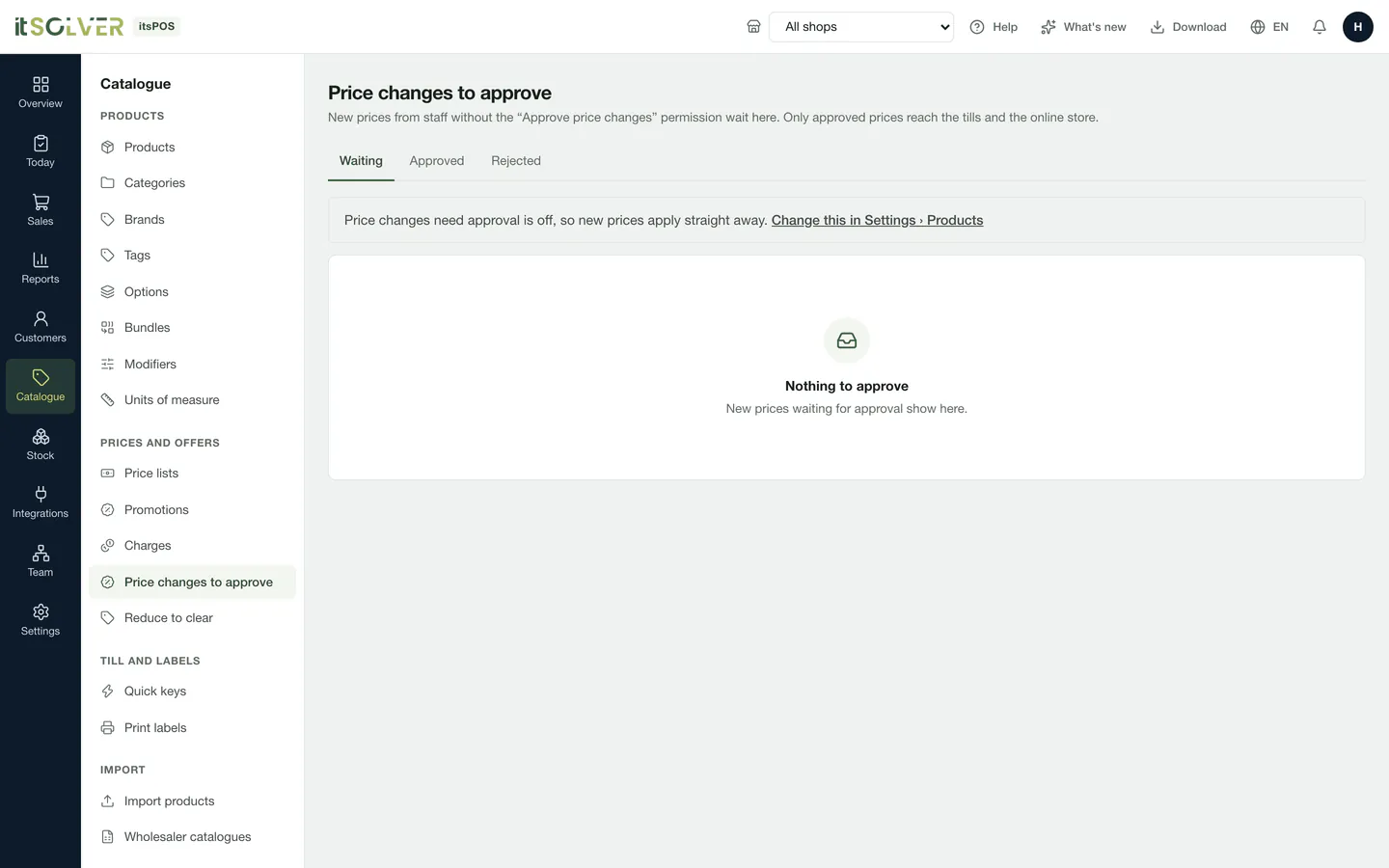
Catalogue › Price changes to approve
5 Labels for Monday
- On Sunday evening or first thing Monday, go to Catalogue › Print labels and choose the shop.
- Under Or add a group of products, choose Labels to reprint today ("Price changes, prices and promotions that start or end today, and unit prices now per kg") and press Add to list.
- Press Print, or Send to a till with a label printer. Swap the labels before opening.
On Monday at the till
- Every till switches to the new prices at midnight by its own clock, even offline.
- Staff can check a price at the till: tap the basket line, then Edit product, or scan it in Stock › Products on the till. Changing a price there follows the same approval.
What you'll see afterwards
- Reports' Compare shows whether sales held up after the rise: see Find and use a report.
- Team › Activity shows who changed the prices and who approved them.
Guides used
Still stuck?
The itsPOS support team is here 08:00 to 20:00 every day except Christmas Day.
- Call or WhatsApp: +44 7488 880320
- Email: support@itspos.io
- In the back office: Help › Contact support, or go to app.itspos.io/help/contact after you sign in
- On our website: itspos.io/contact
Tell us your shop's name and what you were trying to do. A screenshot of the screen helps.