

Real shop situations
Open your online store with click and collect
Green Street Grocer wants customers to order online and collect from the shop, without delivering anything. This takes you from an unopened store to the first order handed over at the till.
For: Owners and AdminsOn some plans3 min read
Needs itsPOS Till 0.5.18 or later.
The situation
The shop already has its products, prices and stock in itsPOS. The owner wants orders ready within 2 hours of being placed, and always keeps 2 of each item back for walk-in customers, so the online store never sells the last one on the shelf. Loose fruit and veg sold by weight stays in the shop.
The online store is on Professional and above, and an add-on for Essentials.
1 The collection point
Go to Settings › Online store › Delivery and collection and press Add collection point.
Choose the Shop (Green Street Grocer), the Name shoppers see, the Ready time "Ready in 2 hours", and Keep back for the shop 2.
Save. Add no delivery method: checkout then offers only collection.

Settings › Online store › Delivery and collection
2 Card payments online
Shoppers pay when they order, by card, through your card payment partner. Ask the itsPOS support team to switch on online card payments for your business; we set it up with you.
3 Products online
- Tick Sell online on each product you want online (new products start ticked while your store is open).
- Products sold by weight aren't sold online: shoppers see them with their price per kg and "Available in our shops".
- Leave Hide items that are out of stock on, so shoppers only see what you have.
4 Open the store
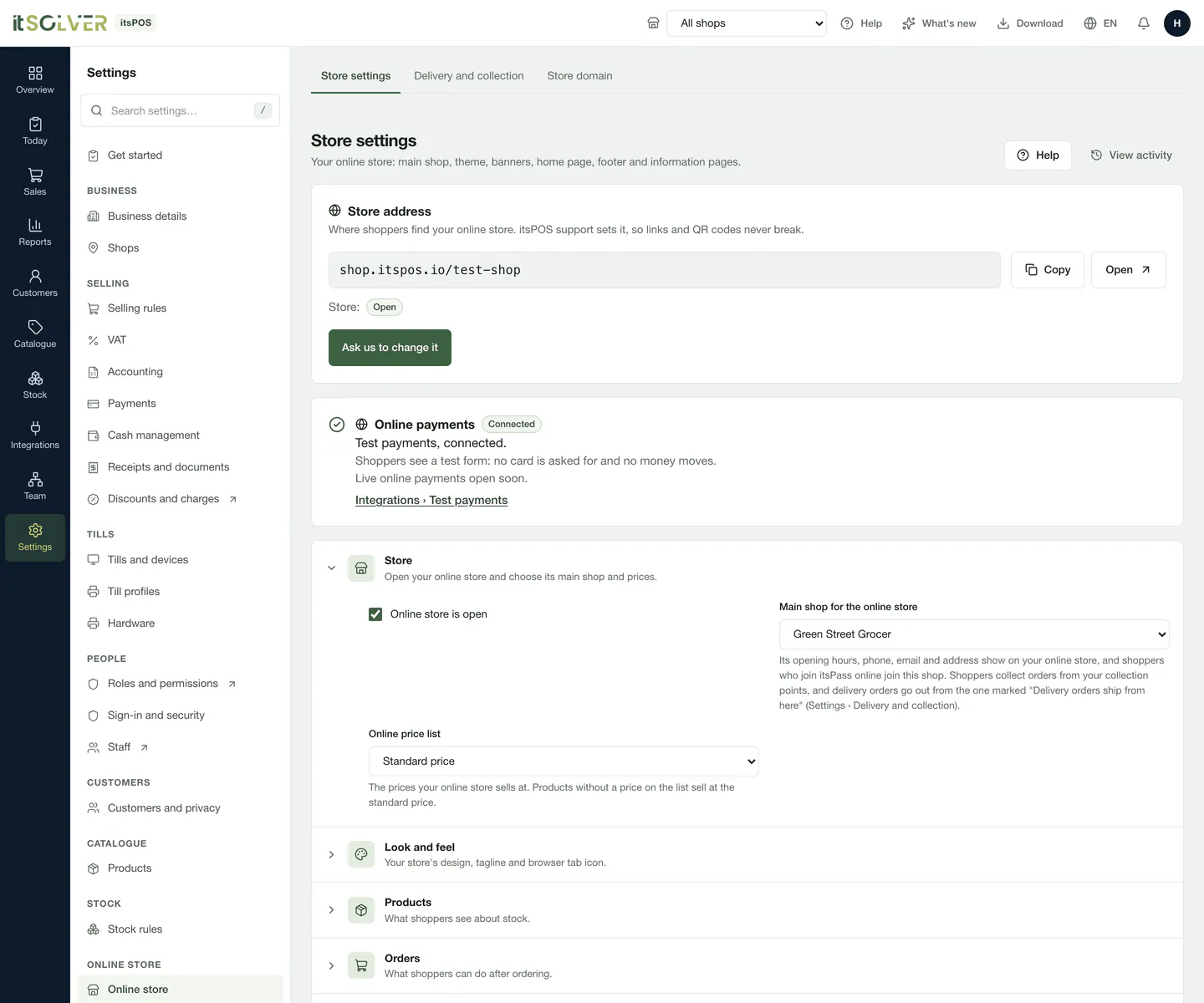
Go to Settings › Online store. Under Main shop for the online store, choose Green Street Grocer.
Tick Online store is open and press Save store settings.
In the Store address card, press Open to see your store as shoppers do, at shop.itspos.io and your shop's own address.
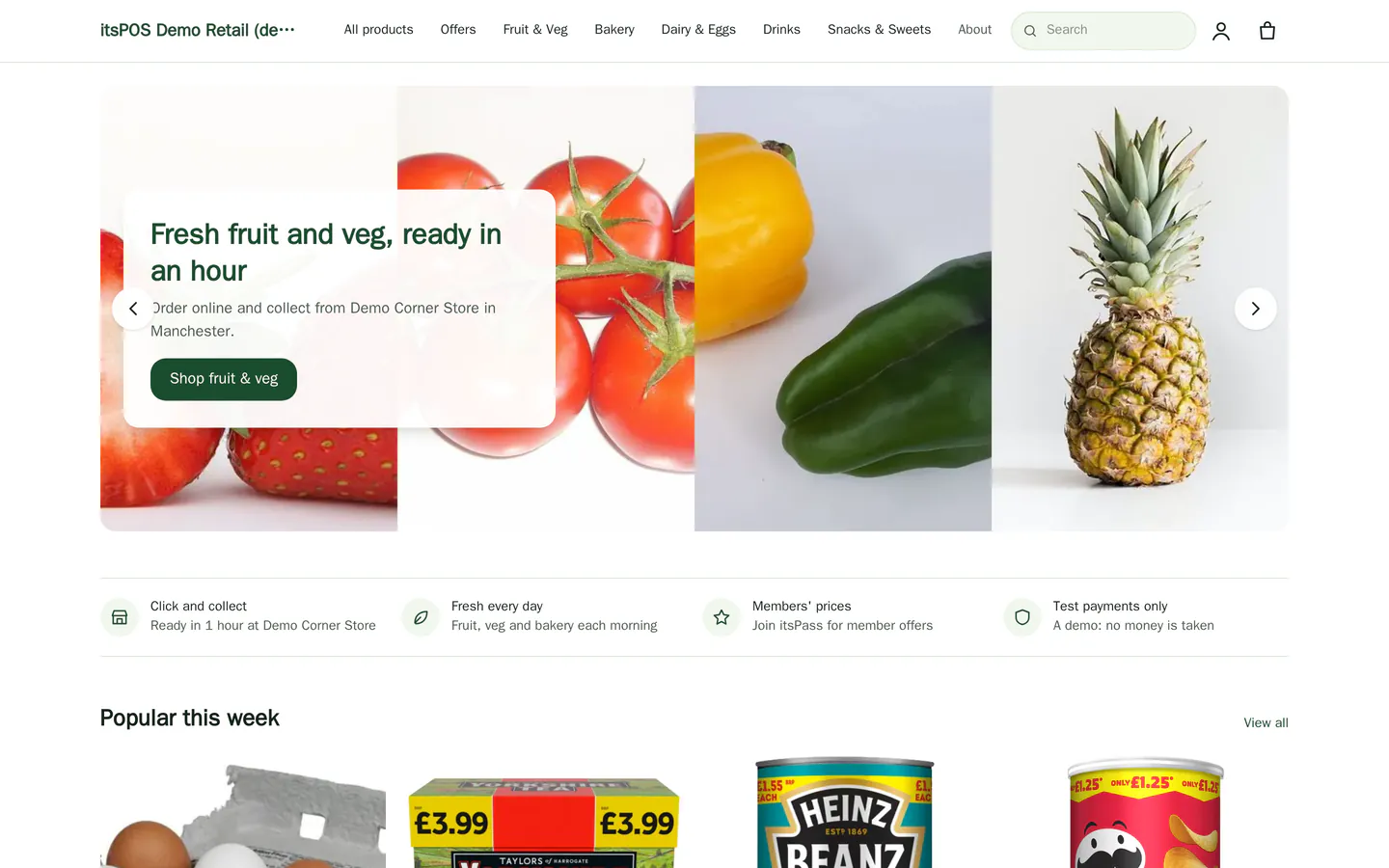
The online store's home page
5 The first order
- The order arrives in Sales › Online orders with Fulfilment Collection and status New. Staff who chose the alert get an email.
- Press Accept and pick, print the Pick list and pick the items.
- Bag the order, print the Pickup slip and tape it to the bag.
- Press Mark ready to collect. The shopper gets an email that it's ready, with what to bring.
- When they arrive, on the till open Customer orders and the Online collection tab, or scan the pickup slip. Check the items with them, check ID if the order asks for it, and tap Collected. Nothing is charged at the till: it was paid online.
What you'll see afterwards
- The online store never offers the last 2 of an item: they stay for customers in the shop.
- Every order, its status and its emails are in Sales › Online orders, and online sales are in your reports.
- To deliver later as well, add a delivery method on the same page: see Delivery and collection.
Guides used
Still stuck?
The itsPOS support team is here 08:00 to 20:00 every day except Christmas Day.
- Call or WhatsApp: +44 7488 880320
- Email: support@itspos.io
- In the back office: Help › Contact support, or go to app.itspos.io/help/contact after you sign in
- On our website: itspos.io/contact
Tell us your shop's name and what you were trying to do. A screenshot of the screen helps.