

Real shop situations
The printer stops on a busy Saturday
The receipt printer stops in the middle of the Saturday rush. You don't have to stop selling. Here's what to do in the moment, and how to be ready next time.
For: Shop managers, Supervisors and Cashiers3 min read
Needs itsPOS Till 0.5.35 or later.
The situation
Saturday, 11am, a queue at both tills. The receipt printer on Till 1 runs out of paper halfway through a receipt. The cashier needs to keep serving, give receipts to the customers who want them, and get the printer working without calling anyone.
Keep selling
- The sale is already saved: the till saves every sale as soon as it's paid, before it prints. If the receipt doesn't print, the till says "Receipt did not print" and the reason.
- Most customers don't need paper. For a customer who does, finish serving the queue and reprint it later: tap Sales history, find the sale and tap Reprint (your shop may ask a manager to approve reprints).
- Weighed items need a printed receipt. A sale with loose fruit or deli by weight stops at Printer needed: "The printer is not working. Weighed items need a printed receipt." Fix the printer and tap Try again, or tap Back to the sale.
Get the printer going
- Open the printer's cover, put in a new roll with the shiny side facing the print head (on most printers the paper comes off the bottom of the roll), and close the cover until it clicks.
- On the till, tap Settings, then Hardware. The Receipt printer row should say Ready. If it still says Out of paper or Cover open, open and close the cover again.
- Tap Test print and check the paper.
- Reprint any receipts customers asked for from Sales history.
If the row says Not answering, check the printer is switched on and its cable is in. A shop manager can see more fixes in the back office's Help under the receipt printer.
Next time: a backup printer
A backup printer prints the receipt when the till's own printer doesn't answer. The printer on the next till works well as a backup. A shop manager sets it up once on each till:
On the till, tap Settings, then Hardware, and tap Change on the Receipt printer row.
Under Backup printer ("Prints the receipt when this printer does not answer."), choose Network and type the other printer's IP address, port 9100.
Tap Save backup printer. The till says "Backup printer saved."
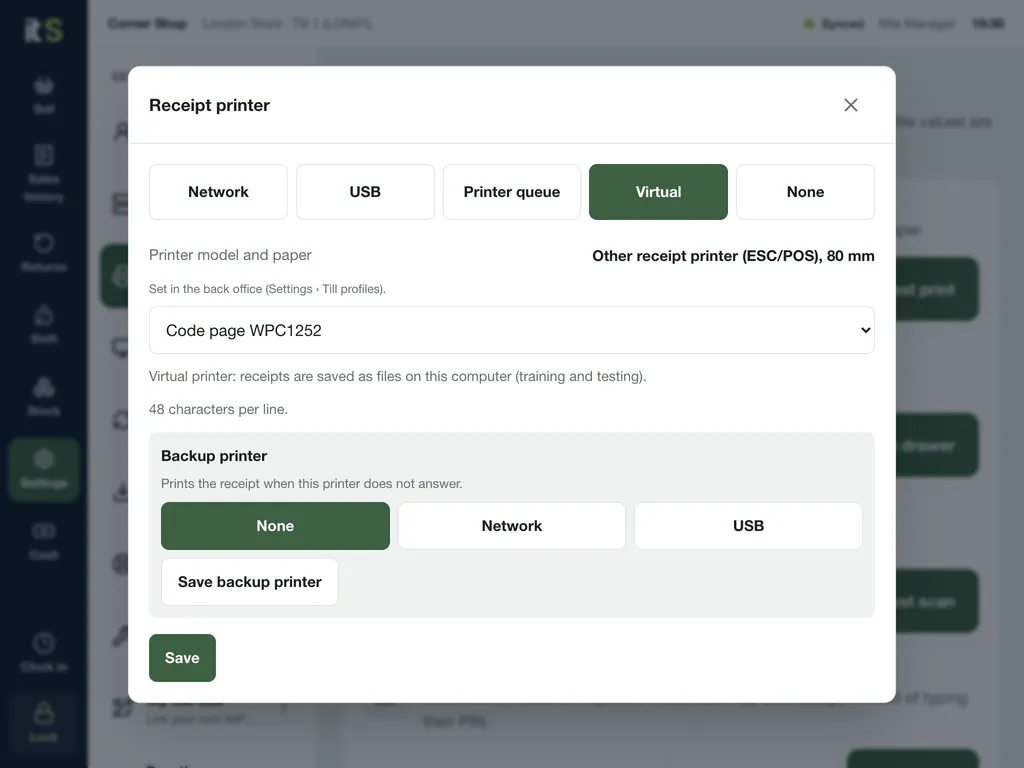
The Receipt printer sheet on the till with Backup printer
When the till's printer is out of paper or switched off, the receipt prints on the backup and the till says "The receipt printer did not answer. Printed on the backup printer." A sale with weighed items finishes as long as either printer works. Keep a spare roll under each till too.
What you'll see afterwards
- Every sale is in the till's Sales history and in the back office's sales history, printed or not.
- The cash drawer still opens through the printer it's plugged into. If that printer has no power, open the drawer with its key.
Guides used
- Add a backup receipt printer: every step and what to check.
- Receipt settings: when the till prints and when it asks.
- Epson TM-T20III and Star TSP143IV: loading paper and finding the printer's IP address.
- Sell by weight: the weigh sheet on the till.
- Find a sale and reprint.
Still stuck?
The itsPOS support team is here 08:00 to 20:00 every day except Christmas Day.
- Call or WhatsApp: +44 7488 880320
- Email: support@itspos.io
- In the back office: Help › Contact support, or go to app.itspos.io/help/contact after you sign in
- On our website: itspos.io/contact
Tell us your shop's name and what you were trying to do. A screenshot of the screen helps.