

Real shop situations
A member of staff leaves on bad terms
A cashier walks out after an argument and you don't want them near the till again. One button stops their access everywhere. Then you check what they did.
For: Owners, Admins and Shop managers3 min read
Needs itsPOS Till 0.5.33 or later.
The situation
It's Tuesday afternoon at Atelier. After a row about missing stock, a cashier hands back their keys and leaves. They still know their PIN, they still have their staff badge, and they could still sign in to the back office if they had an account. The owner wants all of that stopped now, and then a look at their last few shifts.
Stop their access now
In the back office, go to Team › Staff and open their page.
Find the Leaving card. If they made anything that still works (API keys, webhooks or report schedules), it's listed there. Choose Turn off for each.
Press Remove access now. itsPOS asks, with their name: "Remove Rob's access now? Rob won't be able to use any till or the back office."
Press Remove access.
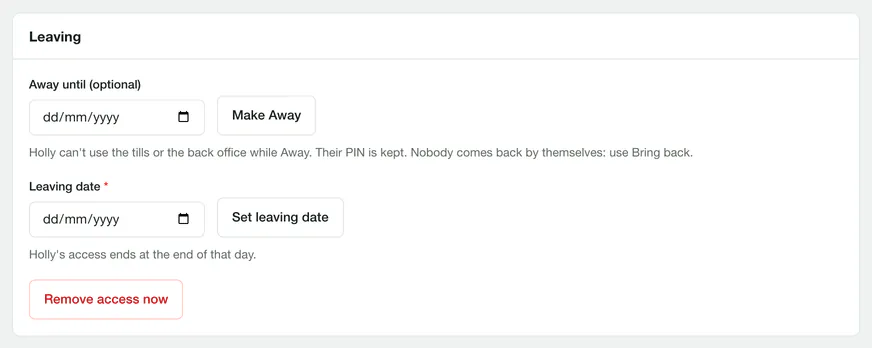
Shop managers can do this for people in their own shops, as well as Owners and Admins.
What stops, and when
- Their PIN and badge are deleted. Every till that's online refuses them within seconds; a till that's offline catches up as soon as it's back online.
- If they're signed in on a till right now, the till signs them out.
- Their back-office sign-in, password and passkeys stop at once, on every device.
- Alerts to their phone stop and approval requests waiting for them end.
Their page then says, for example, "Rob left on 19/11/2026. Their name stays on past sales and hours." Their name stays on their past sales, refunds and hours: nothing is deleted from your records.
See what they did
Go to Team › Activity and filter by Person: choose them.
Pick the dates of their last few shifts. You see each thing they did: refunds, discounts, no-sales, price changes and settings, with the till and the time.
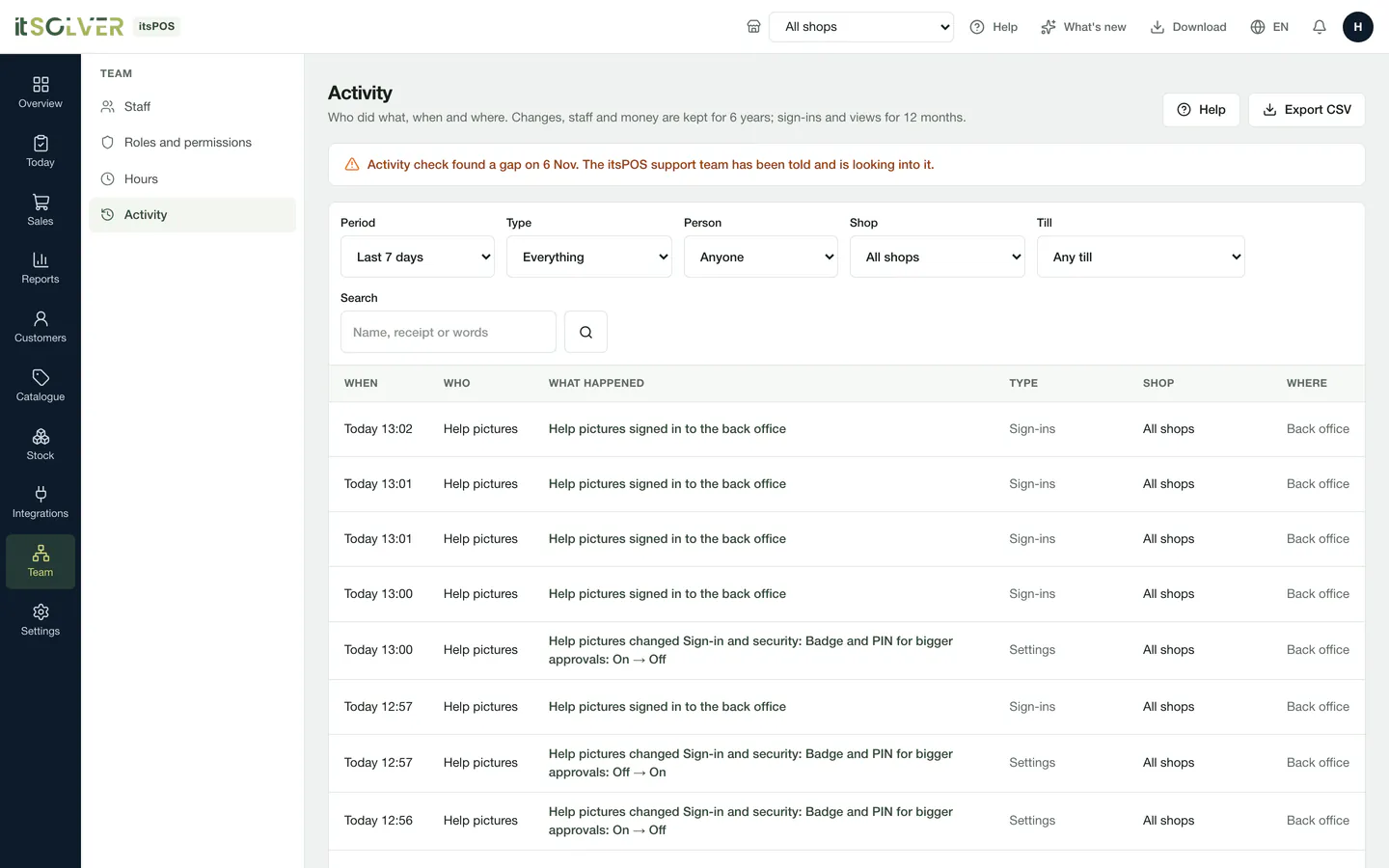
Team › Activity For their sales and refunds, open Sales › Sales history and search by their name, or look at the staff reports in Reports (Owners and Admins).
Change any shared code they knew, such as the safe's code or the alarm. Their PIN and badge already stopped working.
What you'll see afterwards
- They show as Left in Team › Staff (choose Left in the Status filter to see them).
- They stop counting as a team member on your plan.
- If you ever take them back, open their page from the Left list, tick their role and shops again and bring them back: itsPOS makes a new PIN.
Guides used
- When someone leaves or comes back: Remove access now, step by step.
- PINs and badges.
- Sales history: finding their sales.
Still stuck?
The itsPOS support team is here 08:00 to 20:00 every day except Christmas Day.
- Call or WhatsApp: +44 7488 880320
- Email: support@itspos.io
- In the back office: Help › Contact support, or go to app.itspos.io/help/contact after you sign in
- On our website: itspos.io/contact
Tell us your shop's name and what you were trying to do. A screenshot of the screen helps.