

Real shop situations
Launch itsPass in your shop
Green Street Grocer starts itsPass on Saturday: customers join for free, get 50 welcome points and earn points on every shop. Here's the week before, the day itself and the week after.
For: Owners, Admins and Shop managers4 min read
Needs itsPOS Till 0.5.35 or later.
The situation
itsPass is the free app (and website) your customers use for your points, offers and receipts. The owner wants as many regulars as possible to join on launch day, without slowing the queue, and to know the next week whether it worked.
The week before
In the back office, go to Customers › itsPass. Get ready for itsPass shows a checklist for each shop, for example "4 of 6 done". Each step ticks itself off when it's done.
An Owner or Admin reads the three promises and presses Accept the itsPass terms.
On the shop's card, write What shoppers see about this shop (up to 280 characters) and press Save shop profile.
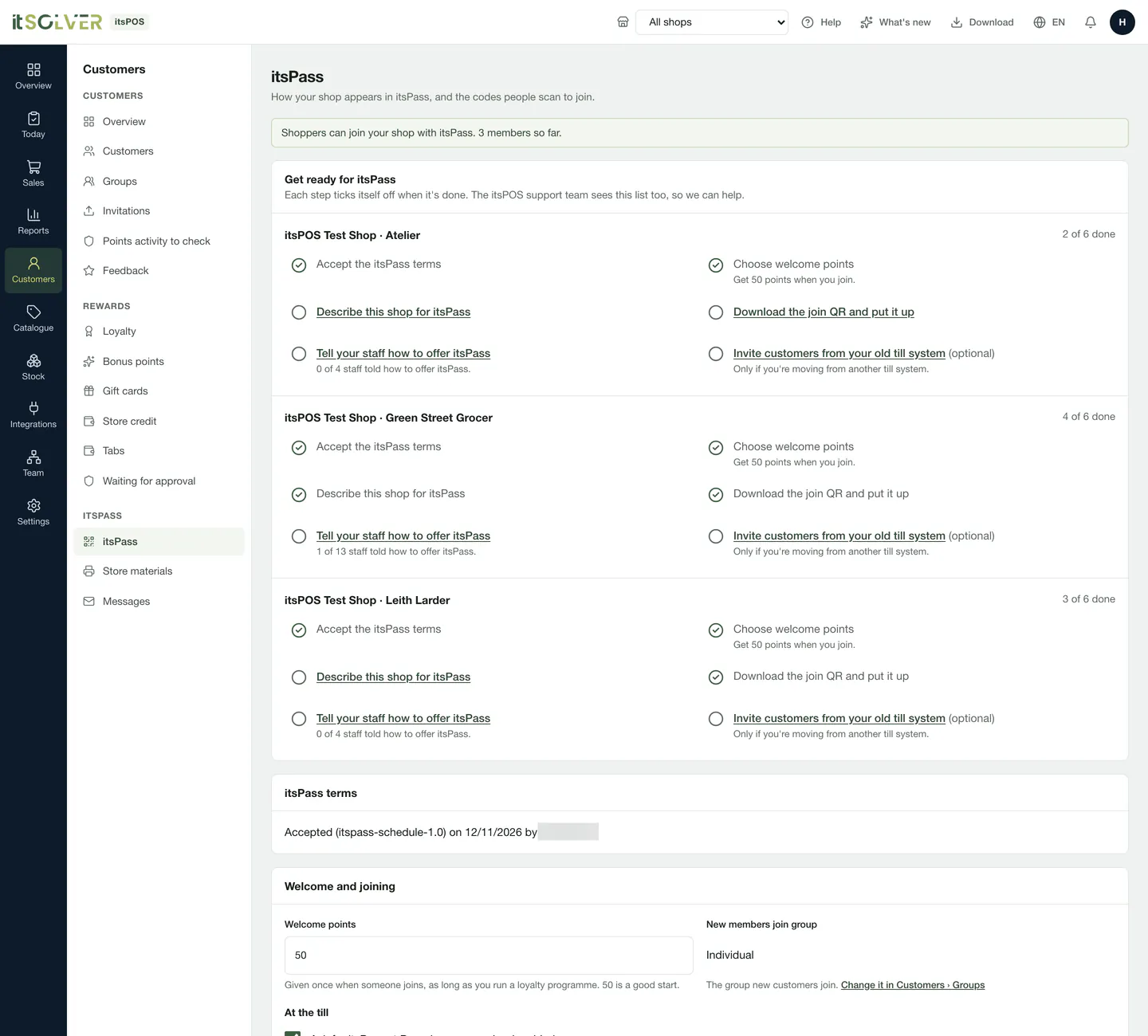
Customers › itsPass Under Welcome and joining, set the welcome points, for example 50, and check the till switches. See Welcome points and joining at the till.
Set up how members earn, if you haven't: Your loyalty programme.
Posters and staff
Go to Customers › Store materials, choose the shop and a look, and download the posters, the counter card and the stickers. Each one carries your shop's own join QR.
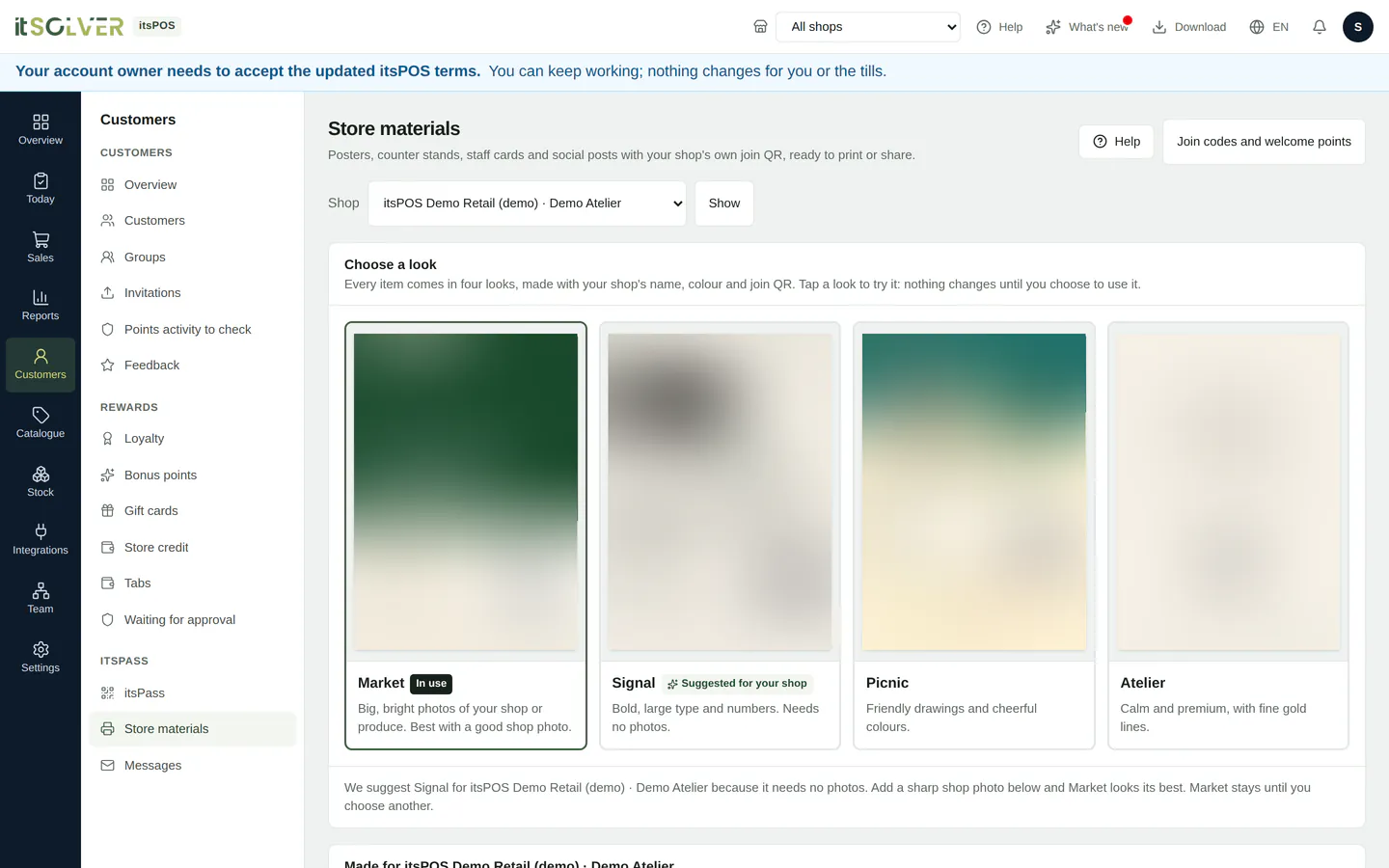
Customers › Store materials Put the counter card next to each till and a poster at the door and at the counters.
Print the Staff script card (also on Customers › itsPass under Staff): what to ask at the till and short answers to customers' questions.
When each person has read it, press Mark as told next to their name on Customers › itsPass.
On the day
- At each sale, the cashier asks "Do you have itsPass?"
- A customer with the app shows their code and the cashier scans it.
- A customer who wants to join now: tap Add customer, then the join button. Ask their age (18 or over or 16 or 17), type Their mobile number and tap Send code. The customer reads out the code from the text and they're a New member, already earning on this sale.
- Someone without a mobile can still join with a member slip: tap They have no mobile.
- Customers who'd rather join on their own phone scan the QR on the counter card.
A week later
- Customers › itsPass shows how many members each shop has.
- In Reports, the New members report shows who joined, how and which cashier helped, at each shop.
- Thank the cashiers who joined the most, and ask the others what customers said.
What shoppers see
Your shop's page in itsPass shows your description, welcome points and offers. A new member gets a text link to finish their account and see their points.
A first member on launch day, in the itsPass app:
- They scan your counter QR with the phone camera. With itsPass installed, Join opens on your shop; on an iPhone without it, the itsPass App Clip opens; other phones open your join page on pass.itspos.io.
- New to itsPass: they type their mobile number, then the text code that fills itself in, and their first name and age once.
- Join: "You're now a member of Green Street Grocer. 50 welcome points are yours." Joined! offers See my card, Show my code and Add to Apple Wallet.
- At the till they show My code, and the sale's points and receipt go to their itsPass.
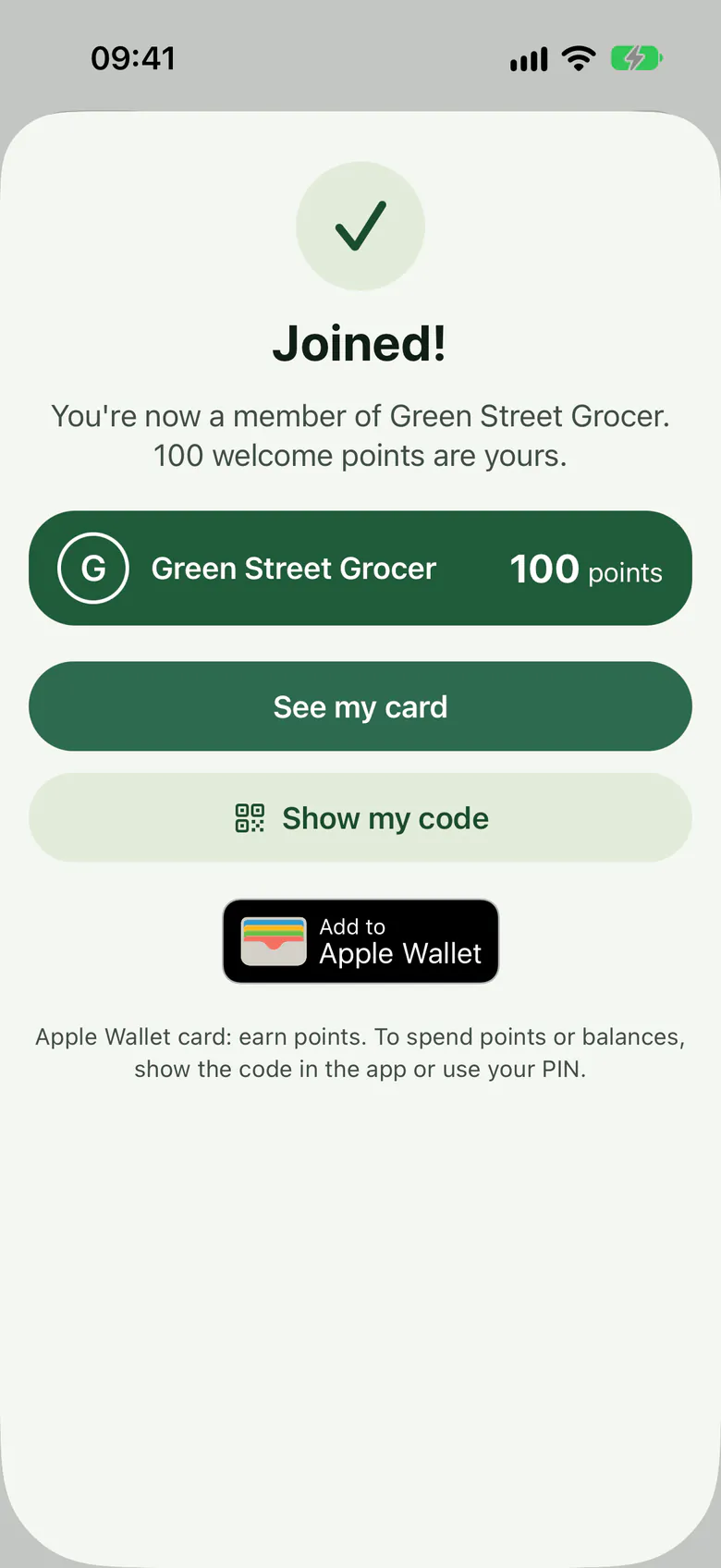
Someone joined at the till by mobile number gets a text link (Finish your itsPass) and, in itsPass, "Did you join Green Street Grocer?" to confirm. See What your shoppers see in itsPass.
Guides used
- Get your shop ready for itsPass.
- Welcome points and joining at the till.
- Store materials: posters, counter cards and the staff script card.
- Telling staff about itsPass.
- Join itsPass at the till.
- Answering shoppers' questions about itsPass at the till.
- Customer reports: New members.
Still stuck?
The itsPOS support team is here 08:00 to 20:00 every day except Christmas Day.
- Call or WhatsApp: +44 7488 880320
- Email: support@itspos.io
- In the back office: Help › Contact support, or go to app.itspos.io/help/contact after you sign in
- On our website: itspos.io/contact
Tell us your shop's name and what you were trying to do. A screenshot of the screen helps.