

Real shop situations
Christmas turkeys
From mid-November customers want to order their Christmas turkey: "a 5 to 6 kilo one, collected on the 23rd". The shop needs the orders, the deposits, a total for the farm, and a smooth collection day where everyone pays for what their bird really weighs.
For: Owners, Admins and Shop managersOn some plans4 min read
Needs itsPOS Till 0.5.33 or later.
The situation
Green Street Grocer sells free-range turkeys at £12.50 a kg in three sizes: about 4 kg, about 5 to 6 kg and about 7 kg. The farm needs the order by 10 December. Collection is on 23 and 24 December, in two-hour slots of 10 orders each, so the queue never gets out of hand. Customers pay a 25% deposit when they order and the rest at collection.
The turkey is a product sold by weight in Catalogue › Products, so it can be priced at its real weight on the day.
1 Make the campaign
In the back office, go to Sales › Campaigns and press New campaign.
Name "Christmas 2026" and Order numbers start with XM.
First day for orders and Last day for orders, for example 18 November to 20 December.
Changes allowed until 3 days before collection, Orders per slot 10, and the Deposit 25%.
Under What you offer, press Add a product for each size: the turkey with Weight band "about 4 kg", again with "about 5 to 6 kg", and again with "about 7 kg". Give the Price per kg £12.50 and the Guide kg: itsPOS works out the guide price.
Under Collection slots, press Add a slot for each: Wed 23 Dec 10:00–12:00, 14:00–16:00 and so on, each with Orders it takes.
Press Make campaign. "Campaign made. Share the slots with your customers."
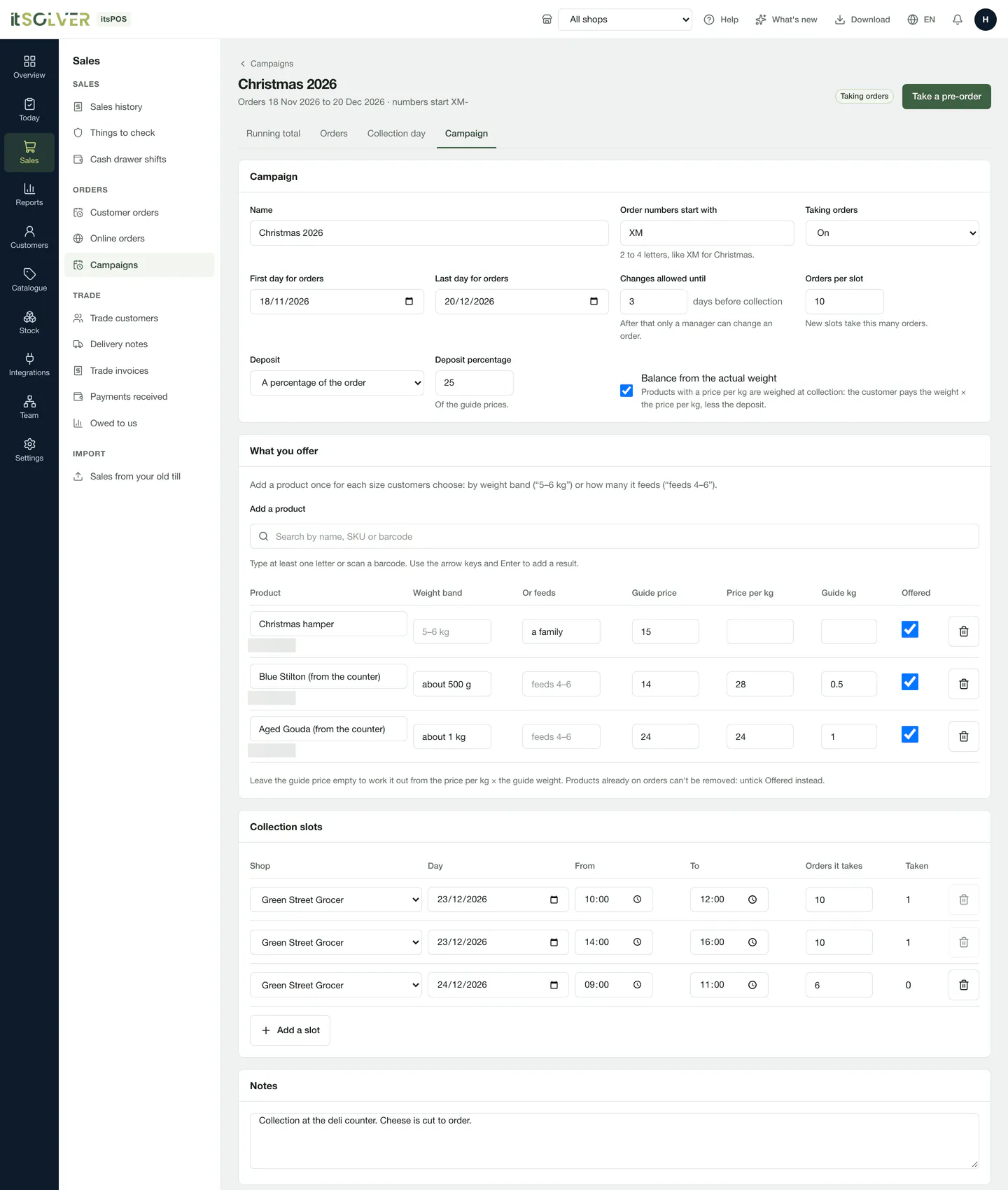
Sales › Campaigns
2 Take the orders
At the till: tap Customer orders, then New pre-order, choose the campaign, the size and the slot, type the customer's name and phone, and take the deposit.
In the back office (for phone orders): open the campaign and press Take a pre-order. Choose a slot (each shows the places left), press + on the size, and set Deposit taken now and Paid by. Press Take pre-order. "Pre-order XM-000001 taken for Wed 23 Dec 10:00–12:00."
Customers can change their order until 3 days before collection; after that only a manager can.
3 Order from the farm
Open the campaign's Running total tab. It shows the orders, the deposits taken and, for each size, how many are ordered, about how many kg, and Still to order.
Phone or email the farm with the totals, or make a purchase order.
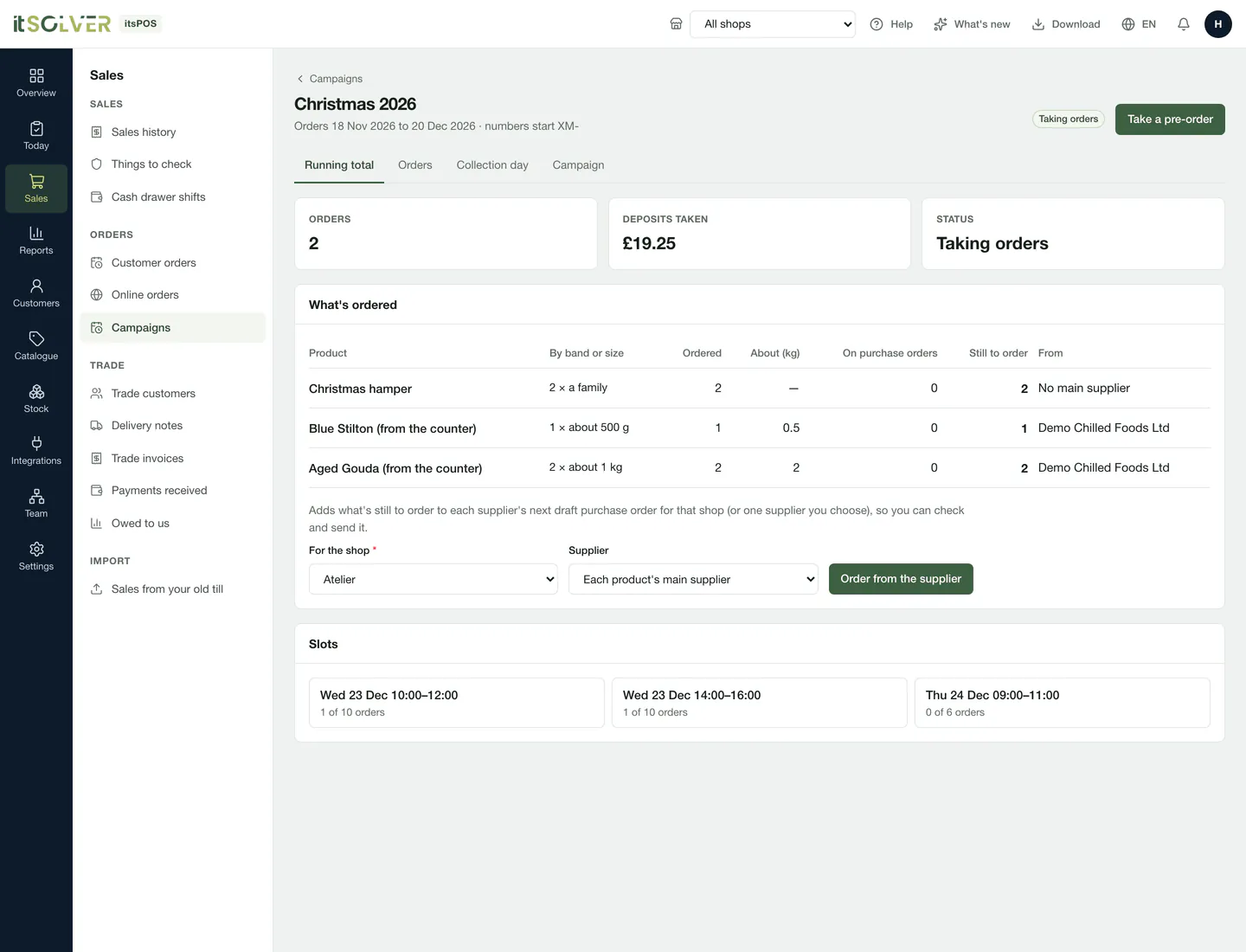
The campaign's Running total
4 Collection day
- The Collection day tab shows each slot with its orders, cut notes and what's left to pay. Press Print collection list for the counter.
- When a customer comes, open their pre-order (on the till, or in the back office).
- Weigh the turkey and type its weight, for example 5.4 kg: 5.4 × £12.50 = £67.50. The total, the Deposit paid and To pay now show.
- Take the balance and finish. "Collected. The sale is in Sales history under the order's number."
- Not collected lists orders whose day has passed: give them a call.
What you'll see afterwards
- Each collected pre-order is a sale with its XM number in sales history, at the real weight.
- Deposits show on the shifts and in reports as deposits, not as sales, until the order is collected.
- Next year, copy the idea: a new campaign takes a minute.
Guides used
- Christmas and Easter pre-orders: every field, changes, cancelling and the collection day.
- Customer orders at the till.
- Set up loose and weighed items: the turkey as a product sold by weight.
- Selling rules: the starting deposit and slot size for new campaigns.
Still stuck?
The itsPOS support team is here 08:00 to 20:00 every day except Christmas Day.
- Call or WhatsApp: +44 7488 880320
- Email: support@itspos.io
- In the back office: Help › Contact support, or go to app.itspos.io/help/contact after you sign in
- On our website: itspos.io/contact
Tell us your shop's name and what you were trying to do. A screenshot of the screen helps.