

Real shop situations
Set up the catalogue and stock for a new shop
A new shop opens in two weeks. The owner has a spreadsheet of products from the cash and carry and a rough idea of what's on the shelves. Here's how to get products, categories and stock right before the first sale.
For: Owners and Admins4 min read
The situation
The spreadsheet has 50 products: name, barcode, price, cost, VAT and a category column. There's no stock in itsPOS yet. The owner wants every product on the till with the right price and category, the stock loaded from a delivery list, and a proper count the day before opening.
Products with a barcode you can also add one at a time with Fill in from barcode, which brings the name, photo and details from the itsPOS product library: see Add a product.
1 Categories first
- Go to Catalogue › Categories and press Add category for each group your till buttons and online menu should have, for example Fruit & Veg, Drinks, Grocery, Snacks & Sweets.
- Give each a Colour on the till. Put age limits on whole categories now (for example Drinks with alcohol in a category of their own): the products inherit them.
A category in your spreadsheet that doesn't exist yet is listed when you check the file: correct the name, or let the import create it.
2 Import the products
Go to Catalogue › Import products. Download the CSV template if you want the columns itsPOS reads.
Drop your file on the page.
Match columns: check each column goes to the right field, such as "Product name" or "Standard price". Columns you don't need stay Not imported.
Press Check the file. Nothing is saved yet. itsPOS says what will happen to each row, for example "Check 50 rows: 48 new, 0 updated, 0 unchanged, 2 with problems."
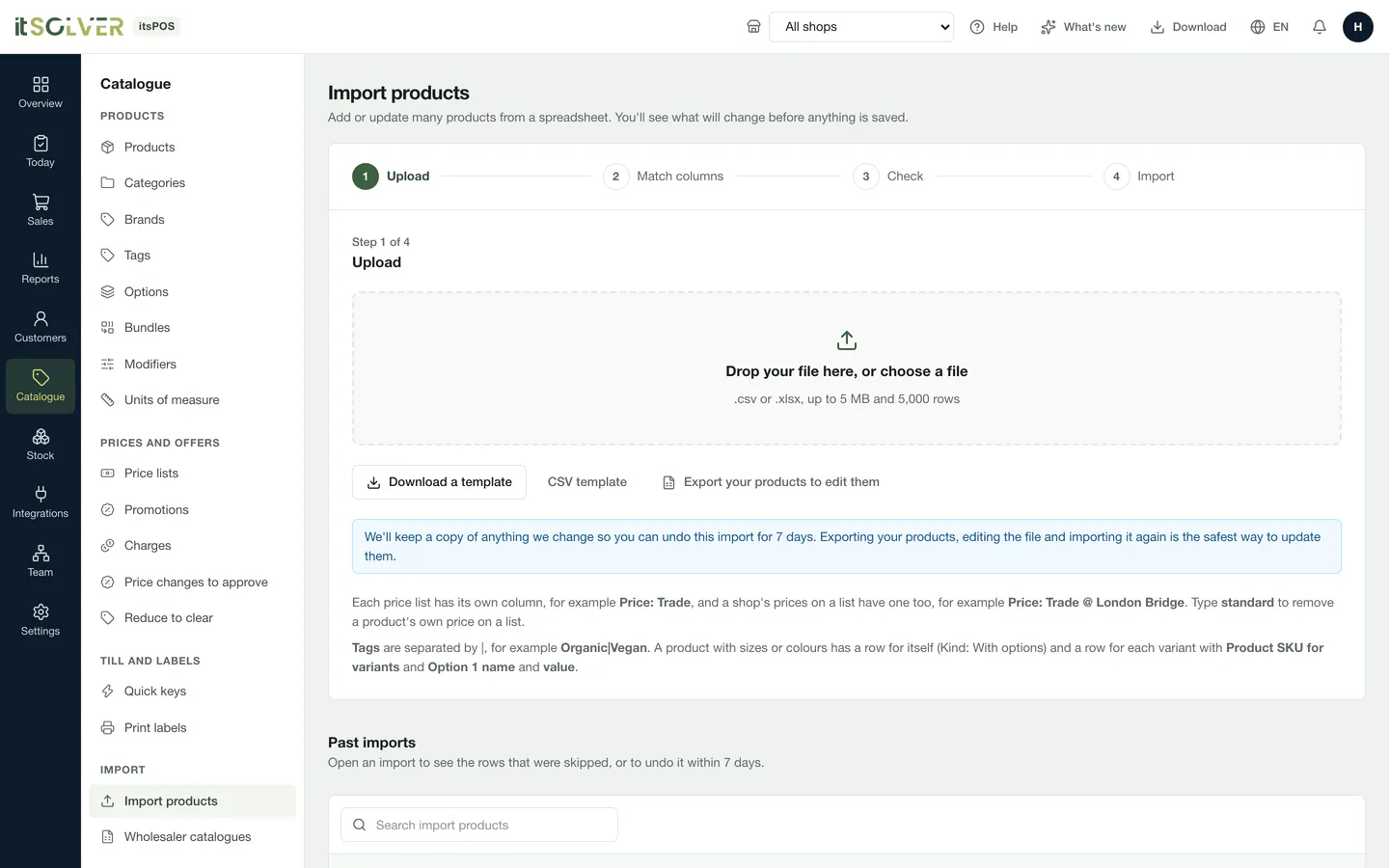
Catalogue › Import products Fix the rows with problems in the table and press Check again, or download them, fix them in your spreadsheet and drop the file again.
Press the import button, for example "Import 50 rows". Tills get the products within a minute.
Made a mistake? Under Past imports, open the import and press Undo this import for up to 7 days.
3 Load the opening stock
Go to Stock › Import stock and drop a file with each product's SKU or barcode and quantity.
Match columns, and under What the quantity means choose Set stock to this.
Under Shop for rows without one, choose the new shop.
Press Check the file, then the import button, for example "Import 50 rows".
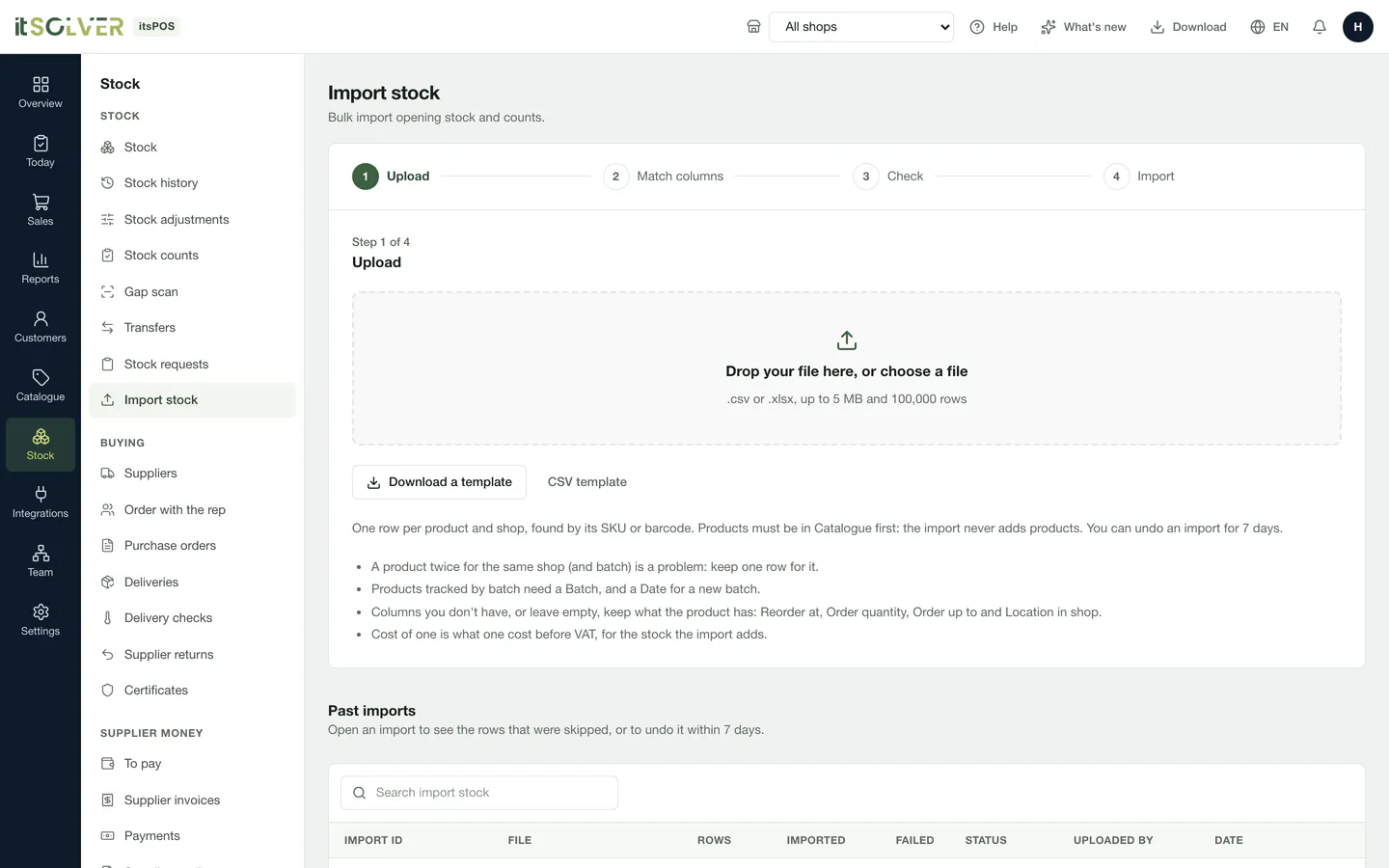
Stock › Import stock
4 A first count before opening
Go to Stock › Stock counts and press Plan a count.
Choose the shop and Whole shop (or one category at a time over a few days), give it a name and keep Hidden from counters (blind count).
Press Plan the count, then count on the till (Stock, then Count) or on the printed count sheet.
Press Finish the count. Differences within your limits are approved at once; bigger ones wait for a manager.
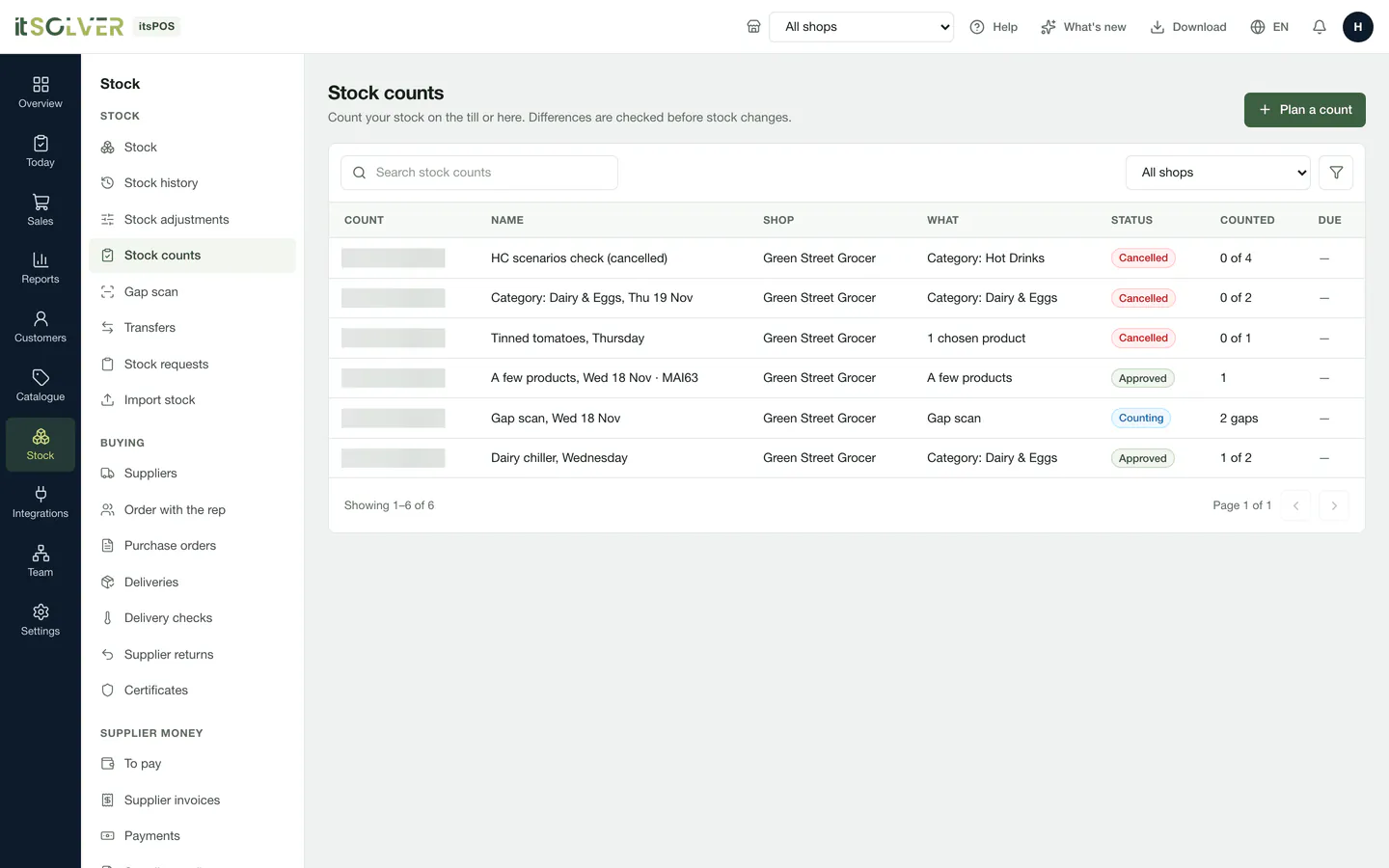
Stock › Stock counts
What you'll see afterwards
- Every product is on the till under its category, with its price and stock.
- Stock › Stock shows what you have and its value at cost.
- Reports start from your first sale. If you're moving from another till, you can also bring your old sales: see Moving to itsPOS from another till.
Guides used
- Bring your products from your old till: every column and problem.
- Categories.
- Import opening stock.
- Count your stock.
- Add a product: one product at a time from the product library.
Still stuck?
The itsPOS support team is here 08:00 to 20:00 every day except Christmas Day.
- Call or WhatsApp: +44 7488 880320
- Email: support@itspos.io
- In the back office: Help › Contact support, or go to app.itspos.io/help/contact after you sign in
- On our website: itspos.io/contact
Tell us your shop's name and what you were trying to do. A screenshot of the screen helps.