

Stock
Count your stock (back office and till)
A count checks what is really on the shelf and puts itsPOS right. Plan it in the back office, count on a till (or on the count sheet), then finish: differences within your limits change stock straight away, bigger ones wait for a manager. This guide counts the dairy chiller at Green Street Grocer, with Arla Uht Milk Semi Skimmed 1l: itsPOS expected 16, we counted 20.
For: Owners, Admins, Shop managers, Supervisors, Cashiers and Stock staff6 min read
Needs itsPOS Till 0.5.33 or later.
Before you start
- Planning counts and counting in the back office: Owners, Admins, Shop managers and Stock. Approving and undoing counts: Owners, Admins and Shop managers. Counting on the till: Shop managers, Supervisors and Stock; a Cashier's count needs a manager's approval (your business can change this in Team › Roles).
- Counts are blind to start with (Stock rules › Hide expected stock from counters): counters don't see what itsPOS expects, so they count what is there. People whose role may see expected stock always see it.
- Count when the shop is quiet. Sales during the count are kept: itsPOS works the expected figure out again when you finish.
Plan a count
Go to Stock › Stock counts and press Plan a count (or Count stock on Stock › Stock).
Choose the Shop.
Under Count, choose what to count: Whole shop, A category, A supplier's products, An aisle or location (from each product's Location in shop, like "Chiller"), Products with a tag, Not counted for a while, Problem products (below zero, or a big difference last time) or Chosen products. For the chiller we chose A category: Dairy & Eggs.
Give the count a Name (for example "Dairy chiller, Wednesday") and, if you like, a Due date. Keep Expected stock on Hidden from counters (blind count).
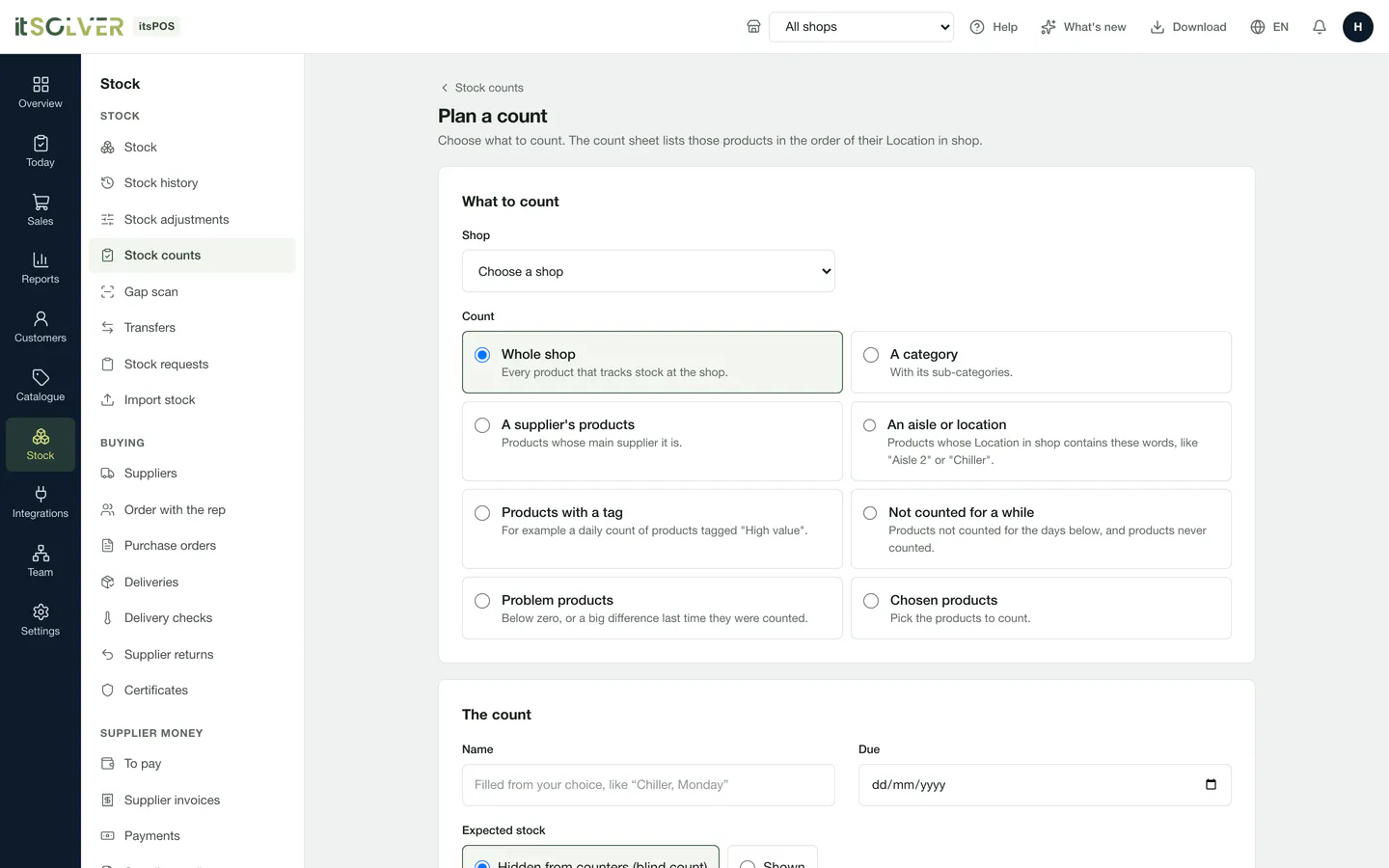
Plan a count Press Plan the count. You see "Count planned. Count on a till, or type the counts below." The count sheet lists the products in the order of their Location in shop. Print count sheet prints it for counting on paper.
Count on the till
- On the till, tap Stock, then Count. Your planned count is under Planned counts with its progress, for example "Category: Dairy & Eggs · 0 of 2 counted · Blind".
- Tap the count. Choose where you are counting: Shop floor or Stock room. Counts in the two places add up.
- Scan each product: each scan adds one (a case barcode adds the whole case). Or search and use − and +. Tap a number to type it on the keypad, or Type a total instead.
- You can leave and continue later: the count is kept on the till ("Saved on this till as you count"). Send what's counted sends what you have so far, so several people can count at once.
- Tap Finish count. If some products weren't counted, choose Leave them as they are (recommended) or Set them to 0, then tap Finish (or A manager approves now for a manager's PIN or badge on the spot).
No planned count? Tap Count a few products to count a shelf there and then.
Count in the back office
On the count's page, choose Where are you counting?, type what you counted in Add a count, and press Save counts. Several people can add counts; each keeps who counted it. Tabs show Not counted, Different, Same, Counted and All products.
Finish and approve
Press Finish the count. Products nobody counted stay as they are (or go to 0, if you choose Set them to 0).
Within your auto-approve limits, stock changes at once and the count shows Approved: "Count approved: stock now matches what was counted." Our milk: counted 20, expected 16, difference +4 (£2.80 at cost).
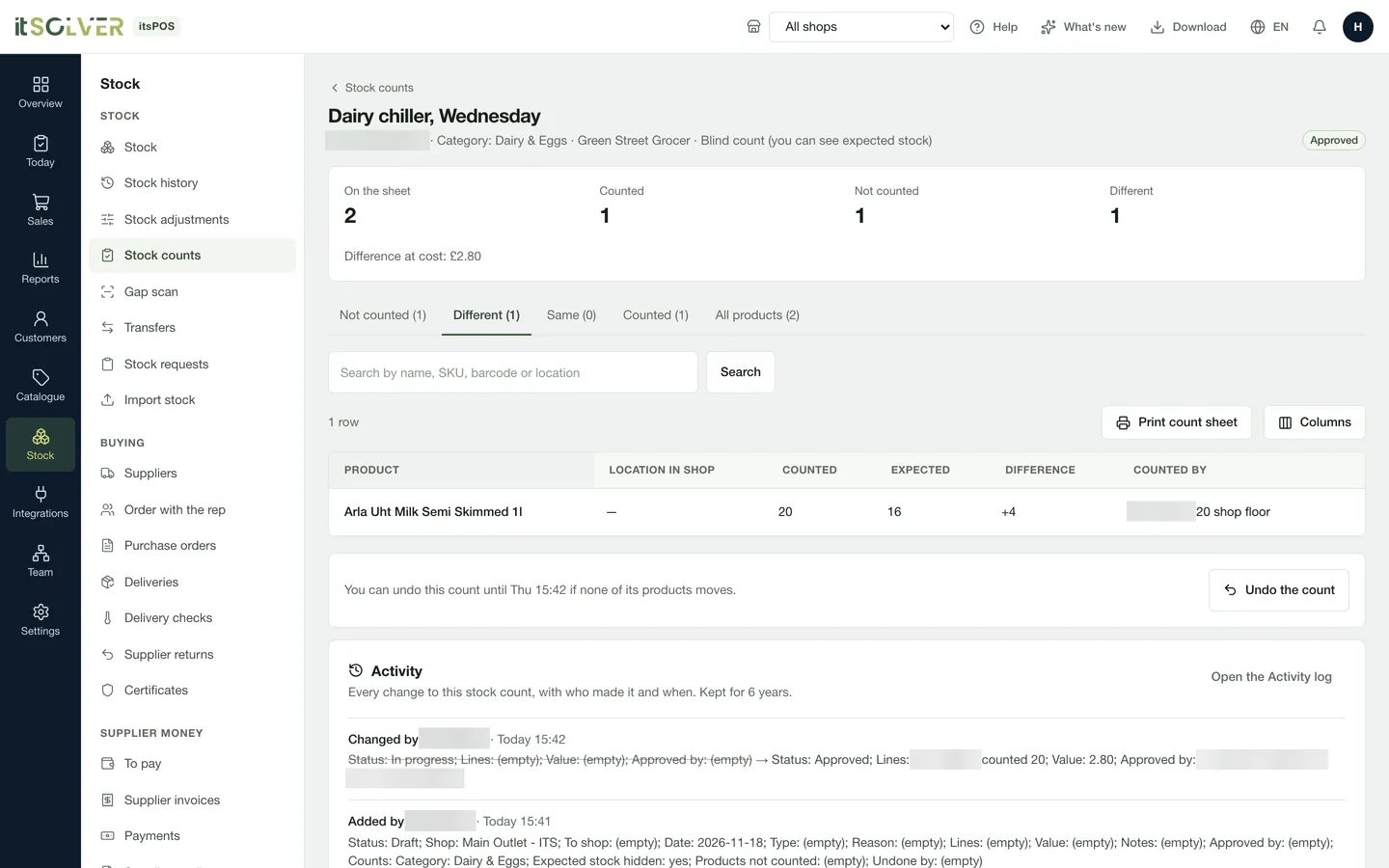
The approved count Dairy chiller, Wednesday A count over the limits shows Waiting for approval. A manager opens it, checks the Different tab (press Recount to have a line counted again) and presses Approve the count.
The limits are in Stock rules › Approvals: Approve stock counts automatically up to this value (£500 to start with) and Approve stock counts automatically up to this difference (2% to start with), or All stock counts need approval.
Cancel a count
A count you no longer need (planned, or counting but not finished) can be cancelled. Open it, press Cancel count, then Cancel count again (or Go back). Stock doesn't change, the counts already made stay in the count's history, and the tills stop showing it. The count shows Cancelled, and its Activity says who cancelled it.
Undo a count
An approved count can be undone within 24 hours (Stock rules › Undo an approved count within), as long as none of its products has sold or moved since. Open it and press Undo the count, then Undo the count again. Stock goes back to before it was approved.
Count by batch On some plans
A product that keeps batches (for example Free Range Eggs 6) is counted batch by batch: tap Count by batch and count each date. Batches nobody counted go to 0 when you finish; expired stock you find is offered to Waste or Reduce to clear.
Scan with camera
On a phone or tablet, the count sheet in the back office shows a card per product: add what you counted with the big − and + (or tap the number to type it), then press Save counts. It also counts by scanning: tap Scan with camera, scan, and each scan counts one (or type how many).
What happens next
- Stock › Stock, the tills and the online store show the counted figures within a minute.
- Stock history shows each difference as "Counted" with the count's number.
- Stock › Stock's Counted longest ago sort and the Counting filter help you plan the next count.
Still stuck?
The itsPOS support team is here 08:00 to 20:00 every day except Christmas Day.
- Call or WhatsApp: +44 7488 880320
- Email: support@itspos.io
- In the back office: Help › Contact support, or go to app.itspos.io/help/contact after you sign in
- On our website: itspos.io/contact
Tell us your shop's name and what you were trying to do. A screenshot of the screen helps.