

Stock
Correct stock with an adjustment
Use an adjustment when stock is right on the shelf but wrong in itsPOS for a reason you know: you found a box in the back, something arrived without paperwork, or a document was typed wrong. This guide adds 2 Quaker Rolled Porridge Oats 1kg found in the stock room at Green Street Grocer.
For: Owners, Admins, Shop managers and Stock staff4 min read
To record damage, theft, out-of-date stock or staff use, use Waste instead. To check the whole shelf, do a stock count.
Before you start
- You need to be an Owner, Admin, Shop manager or Stock.
- An adjustment worth more than the limit in Stock rules waits until someone who may approve it does (see "If it needs approval" below).
Make an adjustment
Go to Stock › Stock adjustments and press New adjustment (or press Adjust stock on Stock › Stock).
Choose the Shop.
Choose the Type:
- Add: the quantity is added to what itsPOS has.
- Remove: the quantity is taken off.
- Set: stock becomes exactly the quantity you type (use it after counting one shelf). Set changes the product's total, not its batches, so it has no Batch box: "Set changes a product's total stock, not its batches. To set the stock of each batch, use a stock count."
Choose the Reason: "Found stock", "Received without paperwork", "Opening stock", "Correction after a count", "Paperwork mistake" or "Other". With "Other", type a Note. With "Received without paperwork", choose the Supplier too, so food stays traceable to its supplier.
Under Products, scan the barcode into the barcode box (a case barcode adds the whole case), or search by name and choose with the arrow keys and Enter. On a phone or tablet, tap Scan with camera. Then type the Qty, for example 2.
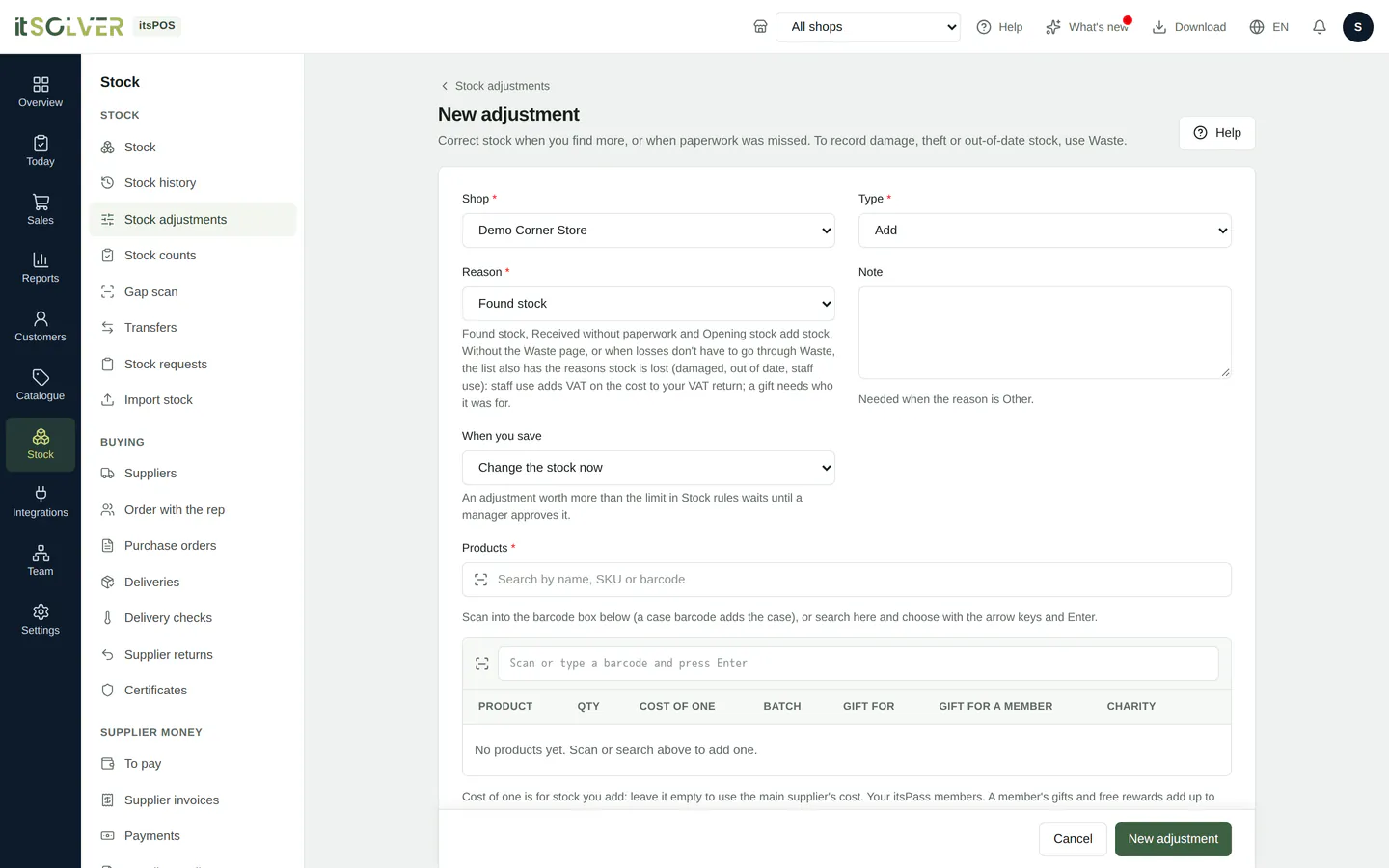
New adjustment at Green Street Grocer Cost of one is for stock you add. Leave it empty to use the main supplier's cost.
Under When you save, keep Change the stock now (or choose Save as a draft to finish it later), then press New adjustment.
The list shows the adjustment, for example "ADJ-2026-00009 · Add · Green Street Grocer · Found stock · £3.60 · Completed".
If it needs approval
If the adjustment is worth more than your limit, it shows Waiting for approval and changes nothing yet. The count at the top of Stock › Stock adjustments (Waiting for approval) shows how many are waiting. Someone who may approve opens it and approves it. Who may approve how much is set in Stock rules.
Undo an adjustment
A completed adjustment can't be edited. Open it and press the cancel button under "Cancel this adjustment" ("Cancel adjustment"), then confirm. The stock goes back as it was, and Stock history keeps both movements.
Set every product at a shop to 0
Before counting a shop from scratch (for example a shop you have just taken over), Owners and Admins can press Set every product at a shop to 0 on Stock › Stock adjustments. Then count everything, or import your opening stock. Use it with care: every product's stock at that shop becomes 0.
What happens next
- Stock › Stock and the tills show the new figure within a minute.
- Stock history shows the movement with its reason and the adjustment number.
- Stock value changes by the quantity at its cost. Reports show adjustments apart from sales and waste.
Gifts and charity
Without the Waste page, the reasons also include losses. A gift needs Gift for (or Gift for a member) and a donation the Charity: gifts to one person add up to £50 for VAT, and staff use adds VAT on the cost to your VAT return.
Still stuck?
The itsPOS support team is here 08:00 to 20:00 every day except Christmas Day.
- Call or WhatsApp: +44 7488 880320
- Email: support@itspos.io
- In the back office: Help › Contact support, or go to app.itspos.io/help/contact after you sign in
- On our website: itspos.io/contact
Tell us your shop's name and what you were trying to do. A screenshot of the screen helps.