

Stock
Production, bake sheet and sell-out log (back office and till)
If you make products from your own stock (fruit pots, sandwiches, bread, cakes), a recipe says what goes into them. When you record what was made, the ingredients come off stock, the made products go into stock at their real cost, and made food gets a batch and a use-by date. This guide makes Fruit Pot 250g at Green Street Grocer from Strawberries 400g and Whole Pineapple.
For: Owners, Admins, Shop managers, Supervisors and Stock staffOn some plans5 min read
Recipes, production, the bake sheet, cutting and repacking are on Professional and above.
Before you start
- Who: Owners, Admins and Shop managers write recipes and plans. They and Stock staff record what was made. On the till, Supervisors and Stock staff use Make and cut too; a Cashier needs a manager's approval.
- Add the made product first (Catalogue › Products), for example Fruit Pot 250g, £2.50. For a use-by date on made items, turn on its Batch and expiry (see Batch and expiry tracking).
Write a recipe
Go to Stock › Production, open the Recipes tab and press Add a recipe.
Made product: search for Fruit Pot 250g.
One batch makes: 4. Unit: As the product (each), or kg or litre for things you make by weight.
Shelf life (days): 2. Made items get a use-by or best-before date this many days after they're made.
Add an ingredient: search for each one and type how much one batch uses: 2 Strawberries 400g and 1 Whole Pineapple. Each ingredient starts in its product's stock unit (each for the strawberries, kg for cheese); change the Unit to what you measure it in (g, kg, ml, litre or each): itsPOS converts it to the stock unit (500 g = 0.5 kg).
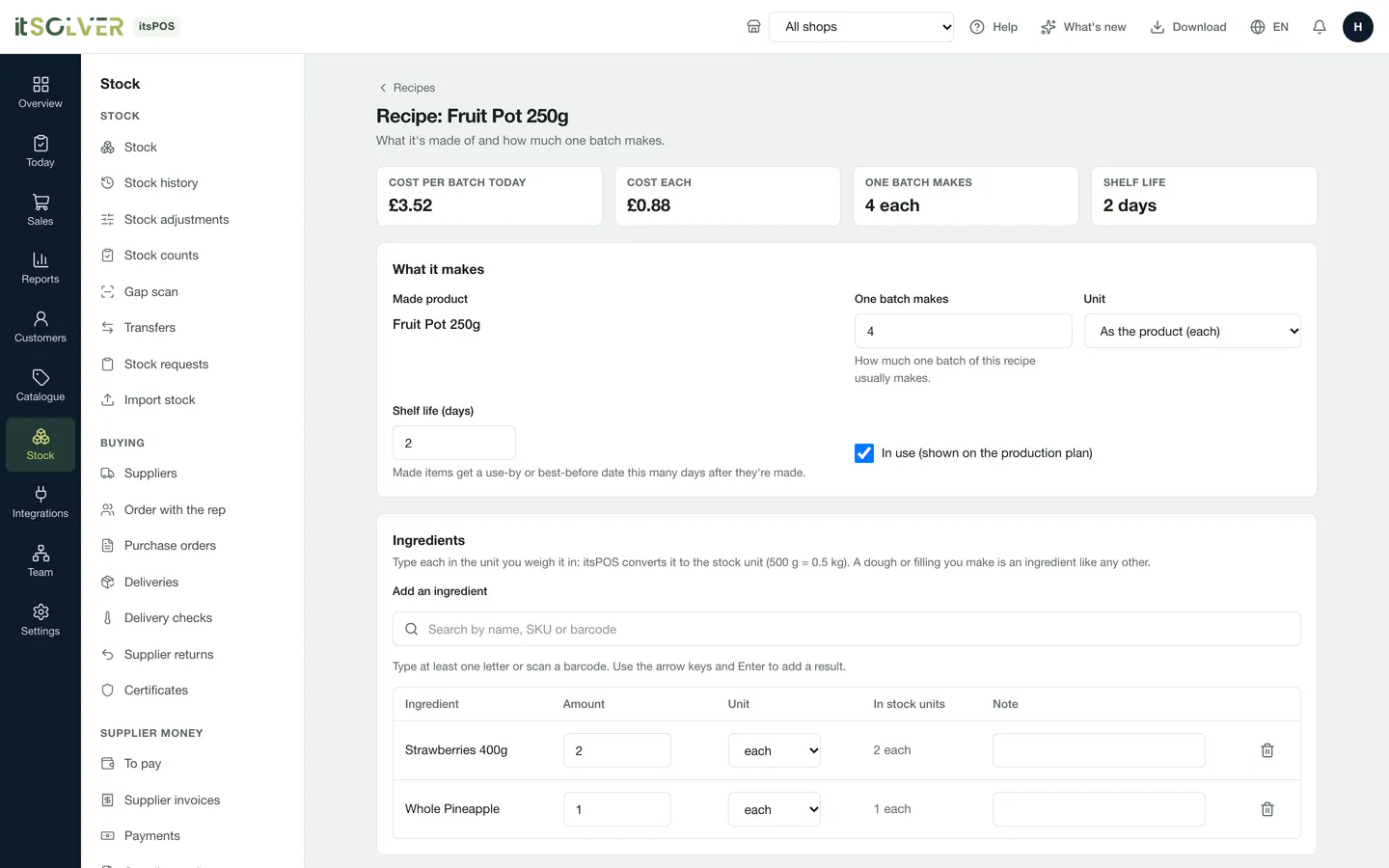
A recipe Optional: Method for the person making it.
Press Save recipe. "Recipe saved."
A dough or filling you make is an ingredient like any other. With Check made products' allergens against their ingredients on (Stock rules), the recipe warns when an ingredient has an allergen the made product doesn't list.
Plan the day
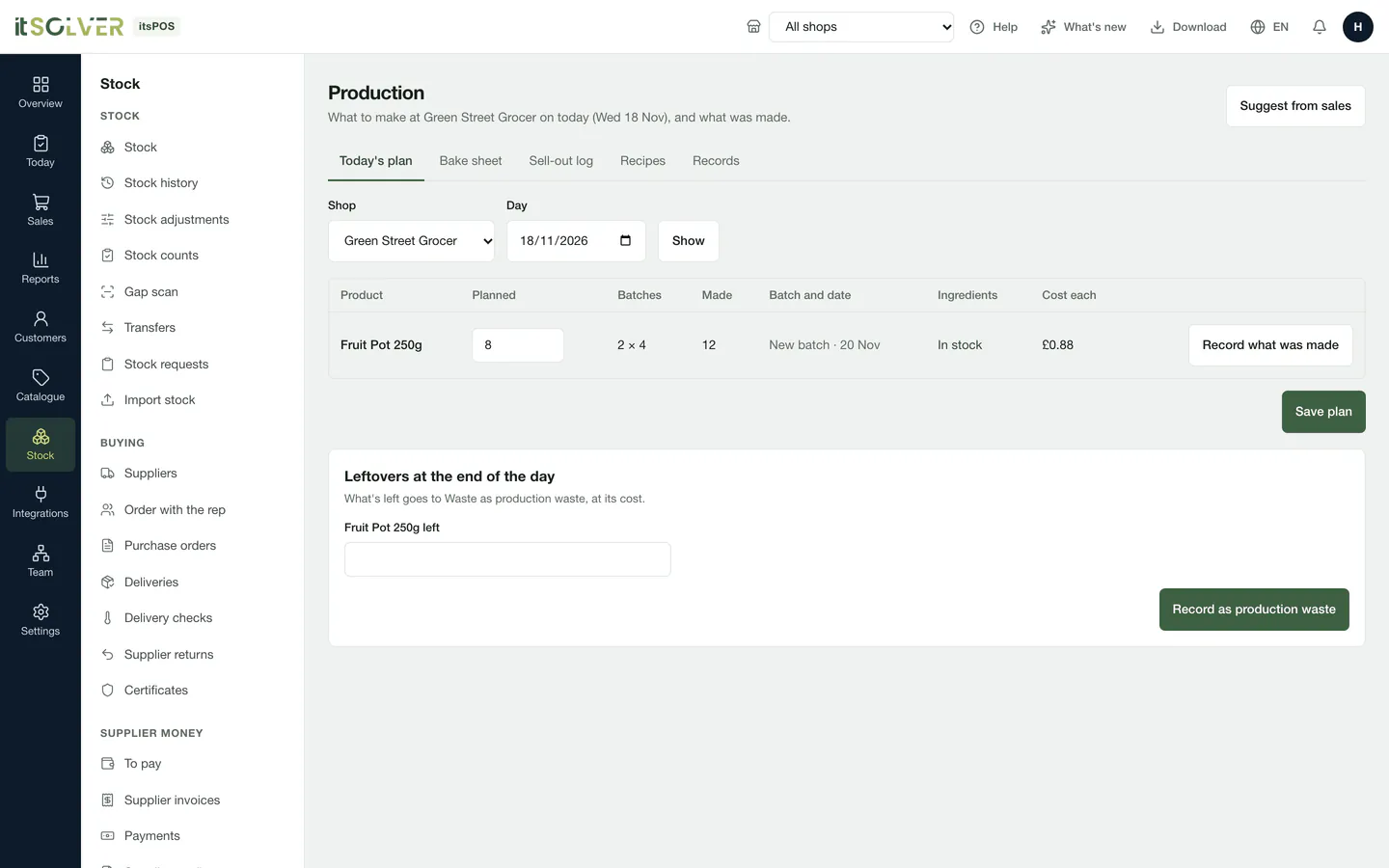
- Open Stock › Production. Choose the Shop and the Day and press Show.
- Type how many you plan to make in Planned, for example 8 Fruit Pots. The table shows the Batches (8 is 2 × 4), the Batch and date made items will get, whether the Ingredients are in stock, and the Cost each (£0.88).
- Press Save plan. Or press Suggest from sales: the same weekday's sales over the last 4 weeks, minus what's in stock, rounded up to whole batches.
Record what was made
- Press Record what was made on the product's row.
- Made: 8. Failed (burnt, dropped or misshapen) is recorded as production waste. Batches made: 2.
- Batch (optional): leave it empty and itsPOS numbers it, like P261118-1.
- What was used: change a number if you used more or less than the recipe, for example 4 Strawberries and 2 Pineapples.
- Press Record 8 made. "8 made. The ingredients came off stock."
The record (for example MAKE-2026-00001) shows What went in (£7.04), What was made with its batch and use-by date, and What was used. Print labels prints one label per item made, with the made-on date, batch, date and allergens when the label design has those fields. Undo reverses the record.
On the till: Make and cut
Needs itsPOS Till 0.5.15 or later.
- Tap Stock, then Make and cut, then Production.
- The till shows today's plan. Choose the product, set how many were made with − and +, and tap Record.
- Print the labels from the same screen if the till has a label printer.
The till keeps it offline and sends it later ("Saved on this till. It's sent when the till is back online.").
Bake sheet
Stock › Production › Bake sheet shows tomorrow's bake: orders due plus your usual numbers, the dough and ingredients, and your baking waves. At the Bake sheet cut-off (15:00 the day before by default) itsPOS adds them up; orders after it show as changes. Press Print for the bakery.
Baking waves (for example 06:00, 11:00 and 14:00) split each product over the day by when it usually sells. Raise usual numbers for days that sold out early adds the sales a sell-out probably cost you.
Sell-out log
At close, staff note what sold out and roughly when, and what was left. With Ask for the sell-out log at close on, tills from 0.5.15 ask on the close-of-day screen. Leftovers at close sets what happens to what's left by default: Ask each time, Production waste, Reduce to clear or Day-old. Also on the sell-out log adds categories you buy in, such as bread.
What happens next
- The ingredients' stock goes down and the made product's goes up, at the ingredients' cost (8 Fruit Pots at £0.88 each).
- The made items' batch (P261118-1, use by 20 Nov) shows on Stock › Batches, and the till sells them by their date.
- Stock › Production › Records lists everything made, cut or repacked, with Waiting for approval for losses over the limit.
If something goes wrong
- "Strawberries 400g is kept in each. Add a unit conversion on the product for kg": the ingredient's Unit was changed to kg; change it back to each, or add the conversion on the product.
- An ingredient is short: the plan shows it in amber. Make fewer, or receive more first.
Still stuck?
The itsPOS support team is here 08:00 to 20:00 every day except Christmas Day.
- Call or WhatsApp: +44 7488 880320
- Email: support@itspos.io
- In the back office: Help › Contact support, or go to app.itspos.io/help/contact after you sign in
- On our website: itspos.io/contact
Tell us your shop's name and what you were trying to do. A screenshot of the screen helps.