

Stock
Return stock to a supplier and get a credit
When stock goes back to a supplier (damaged, wrong, not wanted, or short on a delivery), record it as a supplier return. Sending it takes the items out of your stock, and the supplier then gives you a credit note or your money back. This guide sends back a damaged box of Persil Capsules Bio 15w to Demo Cash & Carry Ltd, and sends the claim a short delivery drafted.
For: Owners, Admins, Shop managers, Stock staff and Accountants4 min read
Before you start
- Owners, Admins, Shop managers and Stock make supplier returns and record supplier credits. Accountants see both, and record money back.
- Each supplier has a usual outcome on its Paying card: Returns to them usually end in A credit note or Money back.
Send stock back
Go to Stock › Supplier returns and press New supplier return.
Choose the Supplier and the Shop. If the items came on one delivery, type it in Delivery (optional).
What you get back: keep As the supplier usually does, or choose Credit: a credit note to use on future invoices or Money back: they refund you.
Under When you save, keep Send it to the supplier now (or Save as a draft to finish it later: the items on a draft are held back from sale until you send it).
Scan or search for the products and type the Qty. The Rate is what you paid.
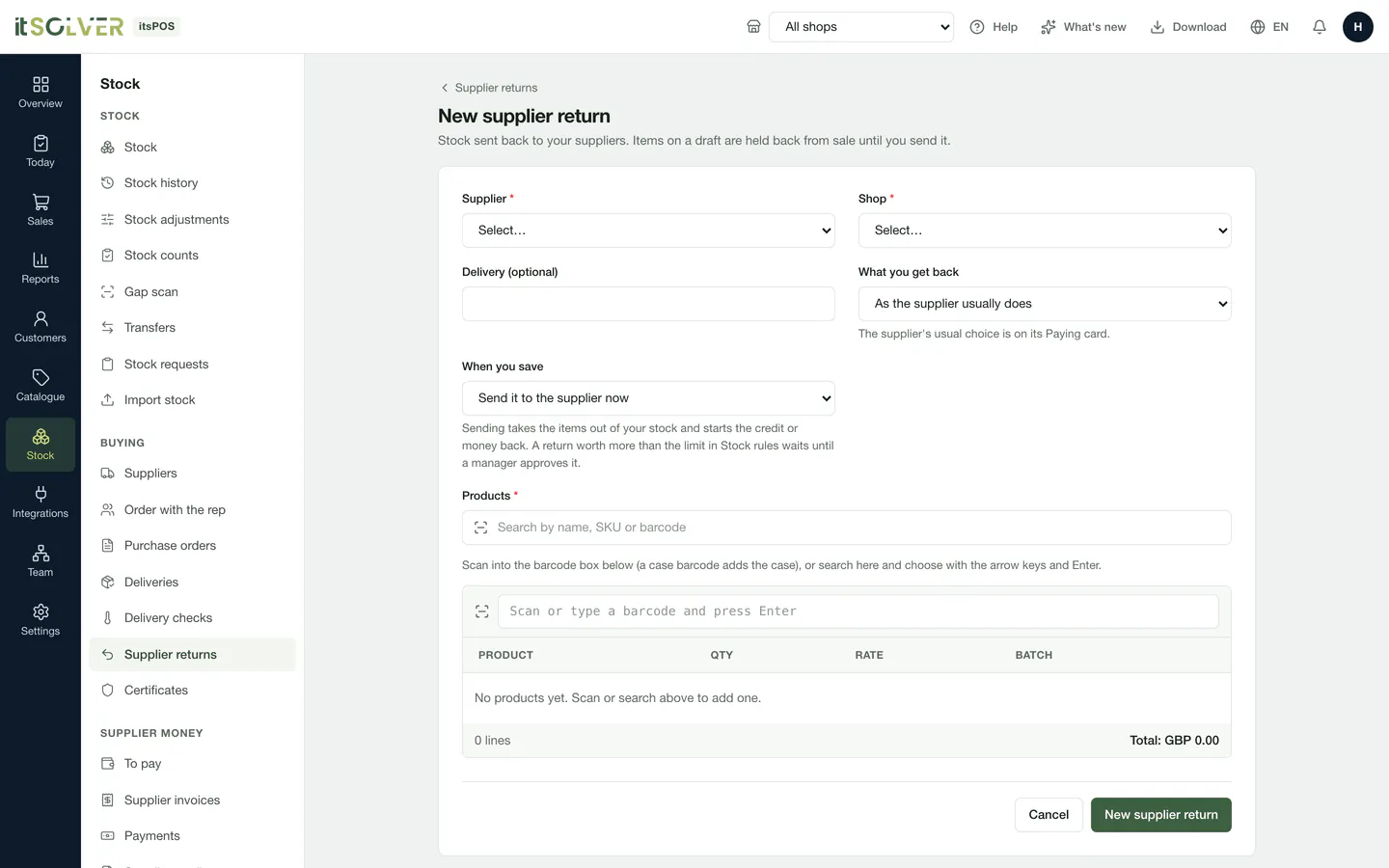
New supplier return Press New supplier return.
Sent, the return takes the items out of stock at the shop. A return worth more than Supplier returns above this amount need approval (Stock rules) waits for someone who may approve it.
Send a delivery's claim
When a delivery came short or damaged, finishing it drafted a claim, for example "A claim for 7 items (£7.73) was drafted for Demo Cash & Carry Ltd as a credit." Open it (View the claim on the delivery, or Stock › Supplier returns), check the lines, set When you save to Send it to the supplier now and press Save changes. Missing units never came into stock, so sending a claim only starts the credit.
Record the credit or money back
When the supplier's credit note comes:
- Open the return. Its Credit card says, for example, "Demo Cash & Carry Ltd gives you a credit note for £3.05 to use on future invoices." Press Record the credit note (or go to Stock › Supplier credits and press New supplier credit).
- The Supplier and Supplier return (optional) are filled in from the return (or type an invoice it corrects in Supplier invoice (optional)). Type Their credit note number.
- Leave Products empty to credit the whole return, or add only the products they credit. Keep When you save on Record the credit now and press New supplier credit. Our claim's credit note DCC-CN-118 for £7.73 was used straight away on invoice DCC-55210, which left £77.47 to pay: what really arrived.
A recorded credit is used on the supplier's open invoices by itself (or from the invoice, if your Stock rules say Ask each time). See Supplier invoices, payments and what you owe. Money back instead: the return's card says so and has Record the money back (or use Stock › Payments › Money back › Record money back).
What happens next
- Stock › Supplier returns shows each return with its Outcome and what is Still expected from the supplier, until the credit or money back is recorded.
- Stock history shows the items leaving the shop with the return's number.
- The supplier's Performance tab counts returns not settled yet under Credits outstanding.
Still stuck?
The itsPOS support team is here 08:00 to 20:00 every day except Christmas Day.
- Call or WhatsApp: +44 7488 880320
- Email: support@itspos.io
- In the back office: Help › Contact support, or go to app.itspos.io/help/contact after you sign in
- On our website: itspos.io/contact
Tell us your shop's name and what you were trying to do. A screenshot of the screen helps.