

Stock
Testers and display stock
A tester or a display piece is still your stock, but you don't sell it as new. Move it to Testers and display and itsPOS keeps it in your stock at cost but never sells it as new, on the till or online. This guide puts a Yankee Candles Macintosh on the window display at Atelier.
For: Owners, Admins and Shop managers2 min read
Before you start
- Who: Owners, Admins and Shop managers.
- Turn on Track testers and display stock in Stock › Stock rules › Testers and display. Useful for cosmetics, perfume, candles and fashion.
Move a unit to testers or display
Go to Stock › Stock, find the product at the shop, open its actions and choose Move to tester or display.
Check the Product (SKU) and Shop, for example Atelier.
Held as: Display or Tester. How many: 1. Why: "Lit candle on the window display".
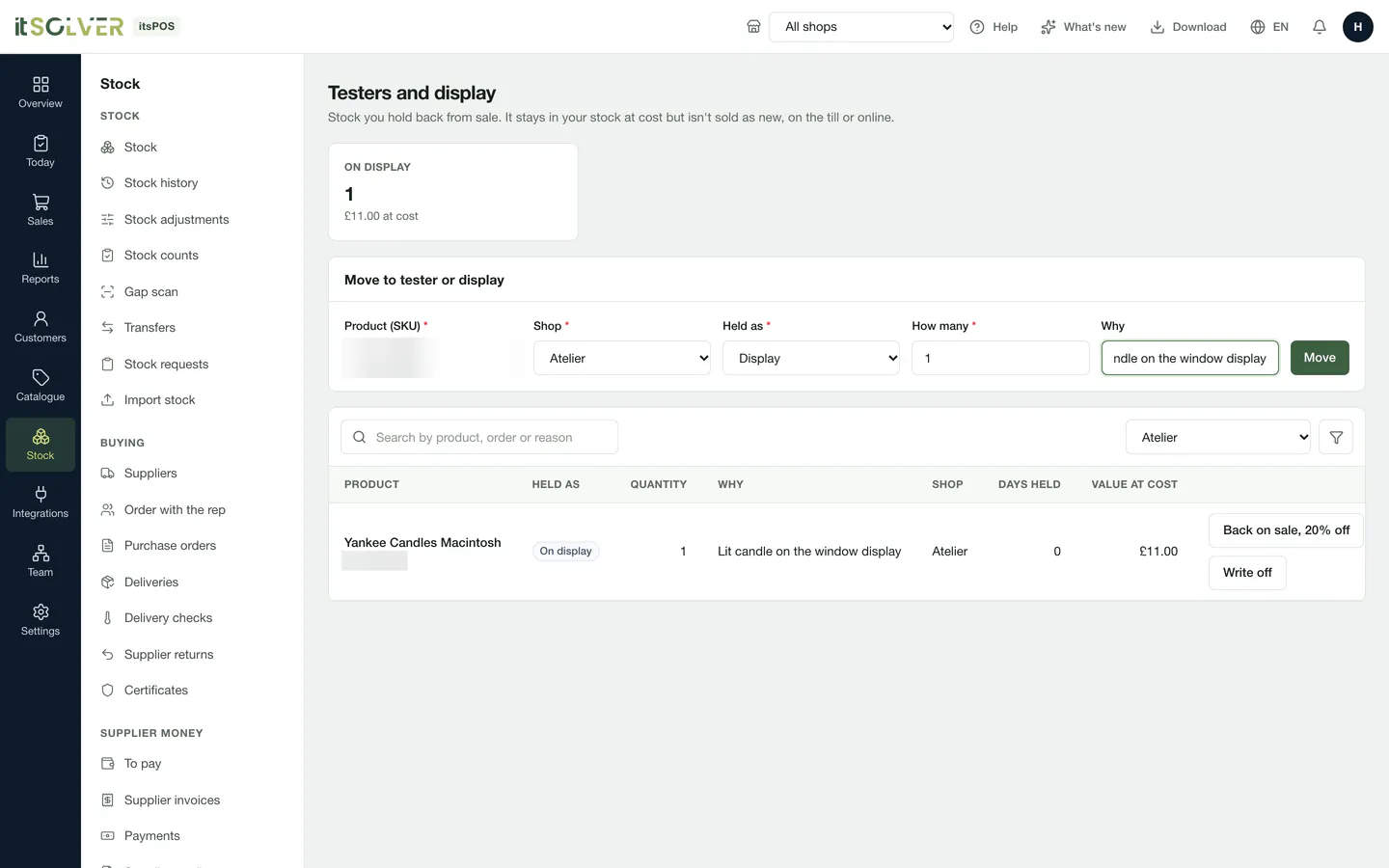
Move to tester or display Press Move. "Moved 1 to display. They stay in your stock but aren't sold as new."
See what's held
Stock › Testers and display shows tiles such as On display (1, £11.00 at cost) and a list: Product, Held as, Quantity, Why, Shop, Days held and Value at cost. Items going back to the supplier and special orders put aside show here too.
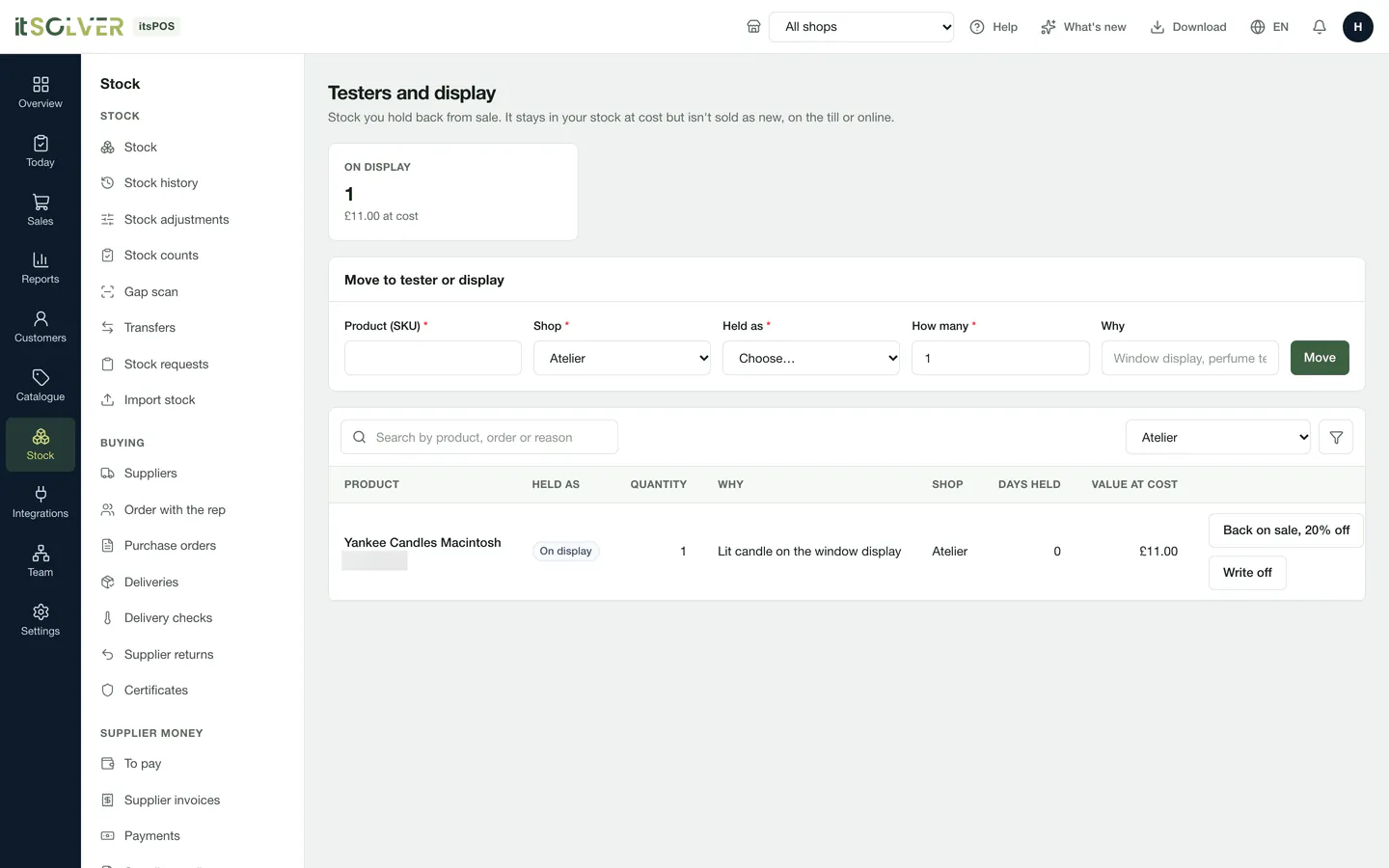
Back on sale, or written off
- Back on sale, 20% off: the display piece goes back on sale as ex-display, and itsPOS makes a reduced label at Ex-display reduction (20% by default): "Back on sale as ex-display at 20% off. Print its reduced label on Catalogue › Reduce to clear." For example £19.99 (was £24.99).
- Write off: a tester that's used up is recorded as waste with the reason "Tester used up".
Scenario: perfume testers at the boutique
Each new perfume gets one tester on the counter: move 1 to Tester. Stock counts still count it, and the till and online store don't sell it. When it's empty, press Write off.
Still stuck?
The itsPOS support team is here 08:00 to 20:00 every day except Christmas Day.
- Call or WhatsApp: +44 7488 880320
- Email: support@itspos.io
- In the back office: Help › Contact support, or go to app.itspos.io/help/contact after you sign in
- On our website: itspos.io/contact
Tell us your shop's name and what you were trying to do. A screenshot of the screen helps.