

Stock
Supplier invoices, payments and what you owe
Under Supplier money in the Stock menu you keep track of every supplier invoice, what you paid and what is still due. itsPOS records the payments you make in your bank app, by card, cash or cheque; it never sends money. This guide uses Demo Drinks Wholesale Ltd: invoice DW-20418 for £36.29, paid by bank transfer.
For: Owners, Admins, Shop managers and Accountants4 min read
What each page is for
| Page | What it is for |
|---|---|
| To pay | Invoices still to pay: Overdue, Due this week and Not yet due, with the Total to pay. Tick the ones you paid and press Record payments. |
| Supplier invoices | Every invoice, matched to its deliveries: what's paid, what's left and when it's due. |
| Payments | Payments you made to suppliers, also in advance. Money back lists money suppliers paid you back. |
| Supplier credits | Credit notes from suppliers, for returns and invoice mistakes. Open credits are used on their next invoices. |
Owners, Admins, Shop managers and Accountants see these pages; Owners, Admins and Accountants record payments. Stock staff can save a supplier invoice at a delivery but don't see supplier money.
Where invoices come from
From a delivery: the invoice number and amounts you type (or read with AI) when you receive a delivery become a supplier invoice when you finish.
By hand: Stock › Supplier invoices › Add a supplier invoice. Choose the Supplier, type the Invoice number and Invoice date (Due date comes from their payment terms), choose the Shop, tick the Deliveries it covers, and type the Amounts by VAT rate as on their invoice (the amount before VAT for each rate; VAT fills in by itself). A Drinks deposit is outside VAT. Press Save invoice (or Save as draft).
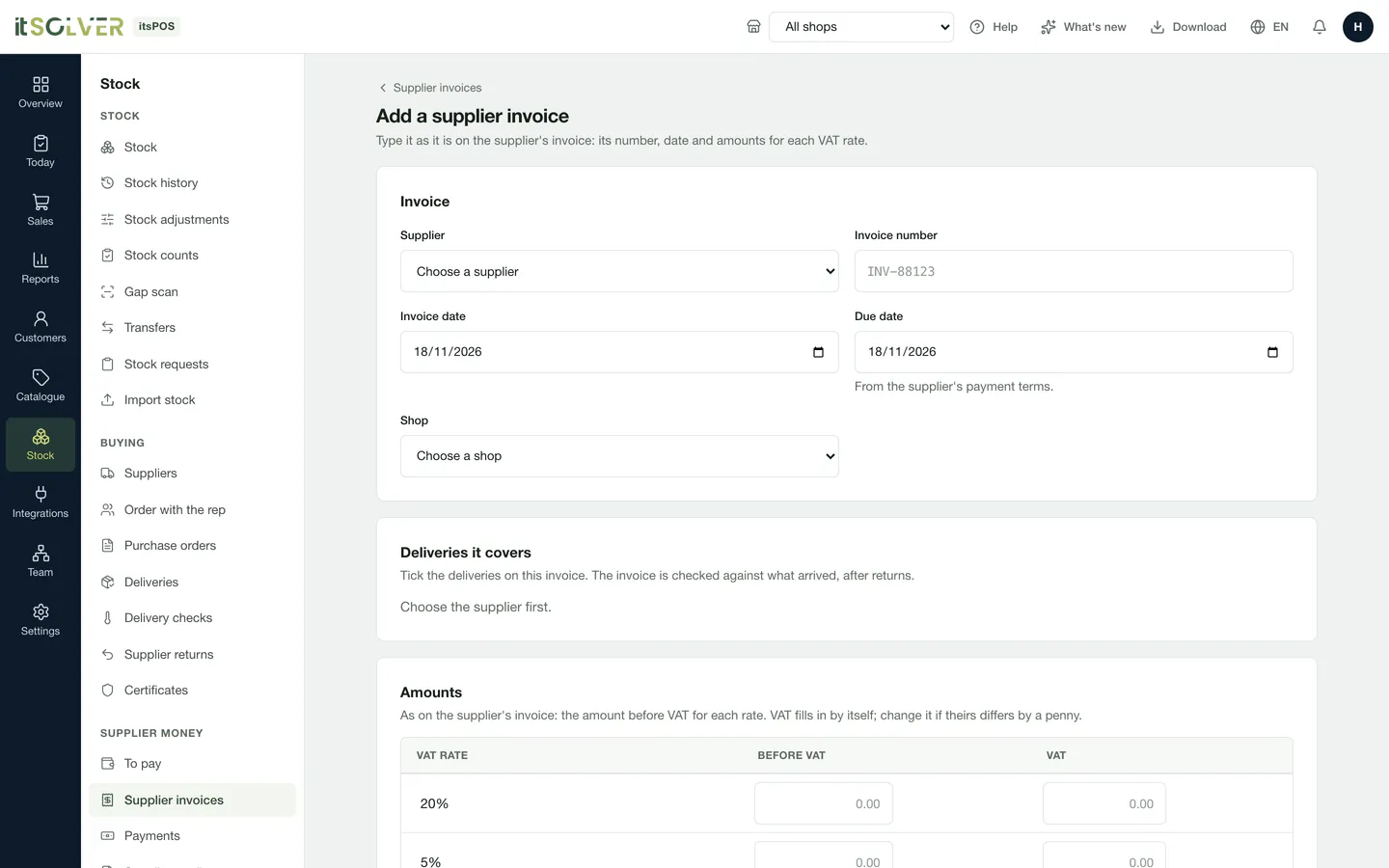
Add a supplier invoice
When an invoice doesn't match
Each invoice is checked against what was delivered, after returns. The invoice says "Matches the deliveries", or for example "£7.73 more than delivered. Check it with the supplier, or ask them for a credit." That happens when a delivery came short: the supplier invoiced 24 tins but 18 came, and the claim for the other 6 becomes a credit (see Return stock to a supplier and get a credit).
Stock rules › Supplier money › When an invoice doesn't match its deliveries chooses Warn (the usual choice) or Needs a manager's approval before it can be paid.
Record a payment
- On To pay, tick the invoices you paid and press Record payments. Or open Stock › Payments › Record a payment, or the supplier's Account tab.
- Choose the Supplier. The page says what you owe, for example "You owe £36.29".
- Type the Amount paid (£), Date paid and a Reference (what your bank shows), and choose How you paid: Bank transfer, Card, Cash, Cheque or Direct debit.
- What it pays: The oldest invoices first, Choose invoices, or Nothing yet: paid in advance (for a supplier you pay before delivery).
- Press Record payment. You see "Payment VPAY-2026-00001 of £36.29 recorded." and the invoice it paid.
A payment you recorded by mistake: open it and press Cancel payment.
Credits and money paid in advance
With Stock rules › Supplier money › Use credits and advance payments on new invoices on Automatically (the usual choice), open supplier credits and money paid in advance pay new invoices off, oldest first. With Ask each time, use them from the invoice yourself. A supplier who pays you back instead: Payments › Money back › Record money back.
A supplier's account and statement
Open the supplier and go to its Account tab. It shows what you owe (or "Nothing owed"), Paid in advance, not yet used and Credits to use, their invoices, rebates and containers, and the Statement: choose the dates, press Show, then Download PDF or Download CSV to compare with their statement.
Stock › Suppliers shows each supplier's Balance and Overdue at a glance.
Where it shows up
Supplier invoices, payments, credits and money back go to your books through the accounting export (purchases and journal files).
Still stuck?
The itsPOS support team is here 08:00 to 20:00 every day except Christmas Day.
- Call or WhatsApp: +44 7488 880320
- Email: support@itspos.io
- In the back office: Help › Contact support, or go to app.itspos.io/help/contact after you sign in
- On our website: itspos.io/contact
Tell us your shop's name and what you were trying to do. A screenshot of the screen helps.