

Stock
Read supplier invoices with AI
Instead of typing a supplier's invoice line by line, take a photo of it (or add the PDF) and press Read it. itsPOS fills in the invoice number, dates, VAT, totals and the lines, matched to your products by the supplier's codes. You check them against the paper, then finish as usual. This guide reads an invoice from Demo Drinks Wholesale Ltd for Coca-Cola Zero Sugar 500ml, Fanta Orange Can 330ml and Sprite Can 330ml.
For: Owners, Admins, Shop managers and Stock staffOn some plans2 min read
Before you start
- Read supplier invoices with AI is an add-on. Without it there is no Read it button.
- Each business can read a number of pages a day; the page shows how many are left, for example "199 pages left today".
- Link products to the supplier with Their product code (the product's Suppliers card), so lines match by themselves. A line it can't match you match once; after that it matches by itself.
Read a delivery's invoice
Start the delivery (see Receive a delivery). You can leave the invoice boxes empty.
Under Documents, press Take a photo (on a phone or tablet) or Add a file for a PDF.
Press Read it. A few seconds later you see, for example, "Read 1 page in 3.4 seconds: 3 lines, 3 matched. Nothing is booked until you finish."
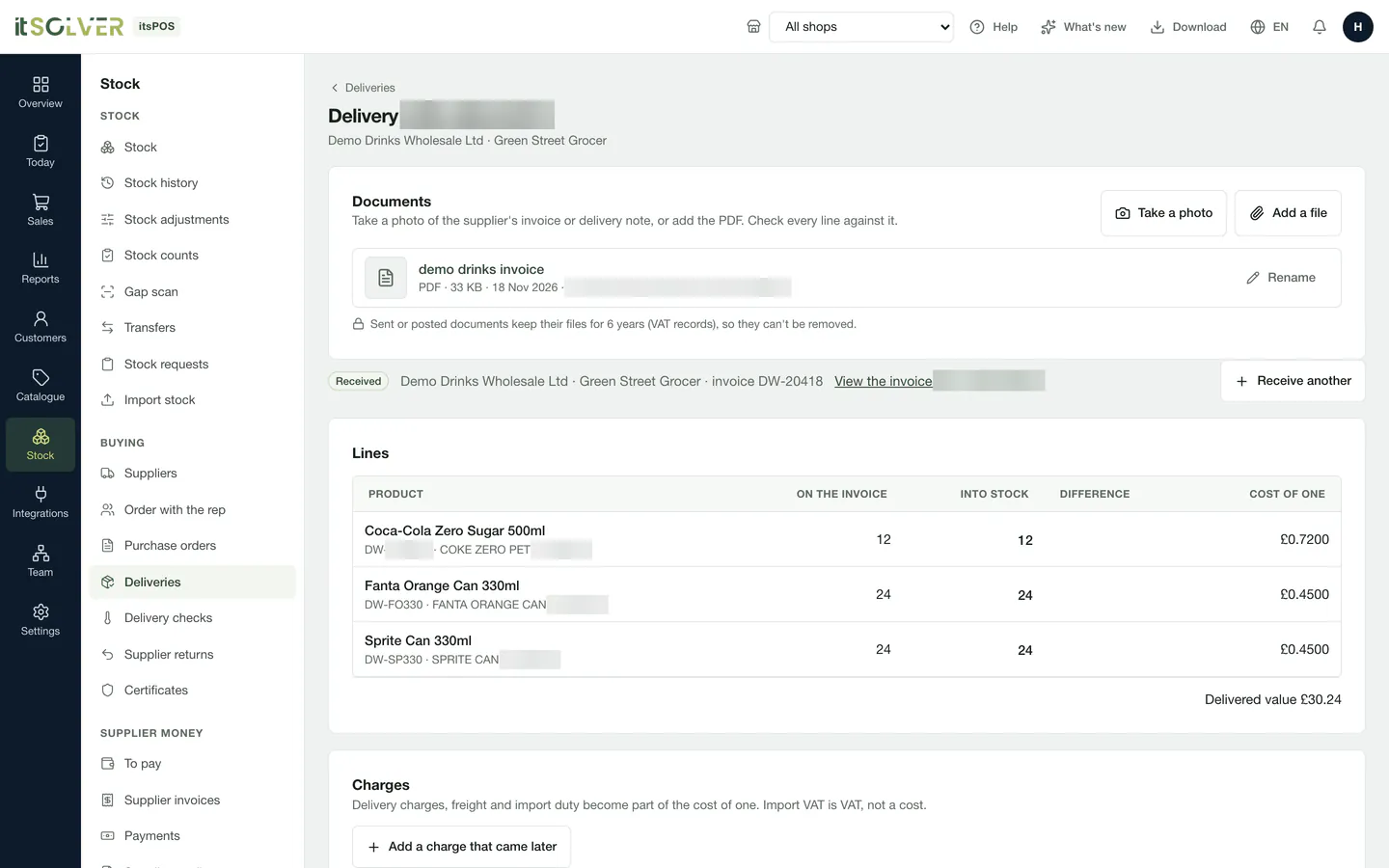
A delivery from Demo Drinks Wholesale Ltd filled in by Read it Check what it filled in. Everything it read says Read by AI: check it. The totals checks say whether the lines add up to the invoice ("The lines add up to £30.24, the same as the invoice's £30.24 before VAT.") and whether the VAT is right.
A line it couldn't match shows "Which product is …?": choose the product once and itsPOS remembers it as the supplier's code.
Check what arrived as usual (press Everything arrived, or change the lines), tick the lines and press Finish. The mark goes as you tick each line.
Nothing is booked until you finish. Press Save draft if you need to leave it before then.
Read an invoice on its own
On Stock › Supplier invoices › Add a supplier invoice, save the invoice, add its photo or PDF and press Read it: it fills the number, the dates and the amounts for each VAT rate.
Keeping the paperwork
The photo or PDF stays with the delivery and goes to the supplier invoice when you finish. Once posted, it is kept for 6 years (VAT records) and can't be removed.
Still stuck?
The itsPOS support team is here 08:00 to 20:00 every day except Christmas Day.
- Call or WhatsApp: +44 7488 880320
- Email: support@itspos.io
- In the back office: Help › Contact support, or go to app.itspos.io/help/contact after you sign in
- On our website: itspos.io/contact
Tell us your shop's name and what you were trying to do. A screenshot of the screen helps.